Monitoring Website Speed with PageSpeed.ONE (Tutorial)
 Martin Michálek30. 9. 20225 minut čtení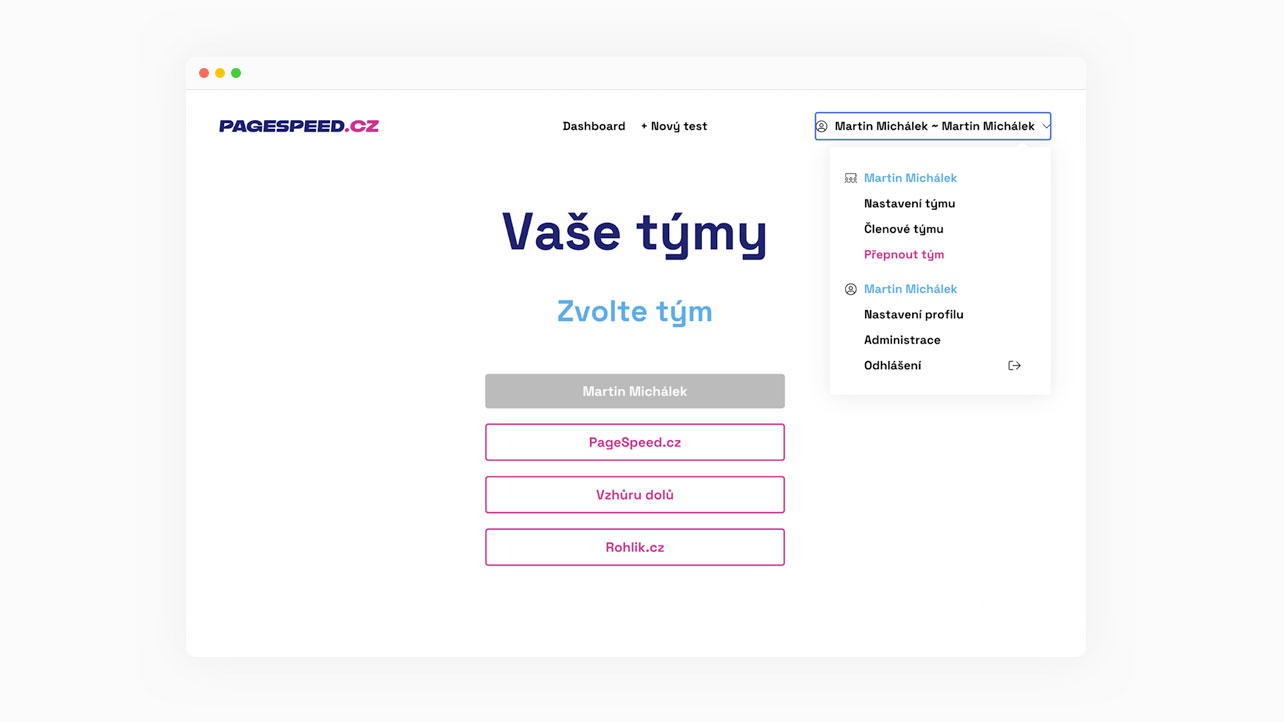
Learn how to efficiently monitor the speed of your websites using our speed tester. It’s easy, and the tester is available for free.
Tip: If you prefer a video tutorial, watch the video; otherwise, continue reading below.
In recent months, we launched the third version of our tester with new features, such as login, team collaboration, and monitoring your website speeds in a dashboard.
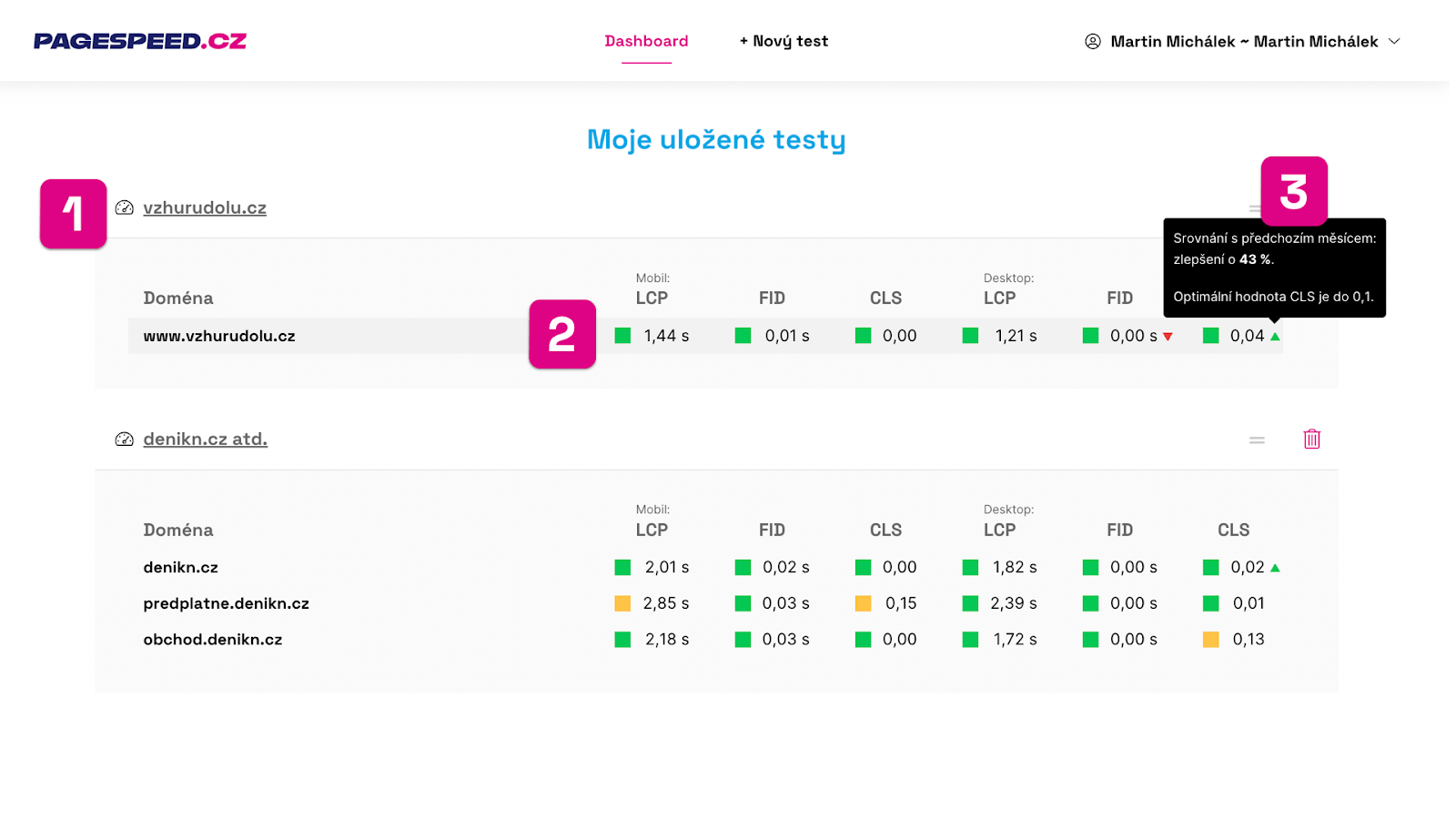
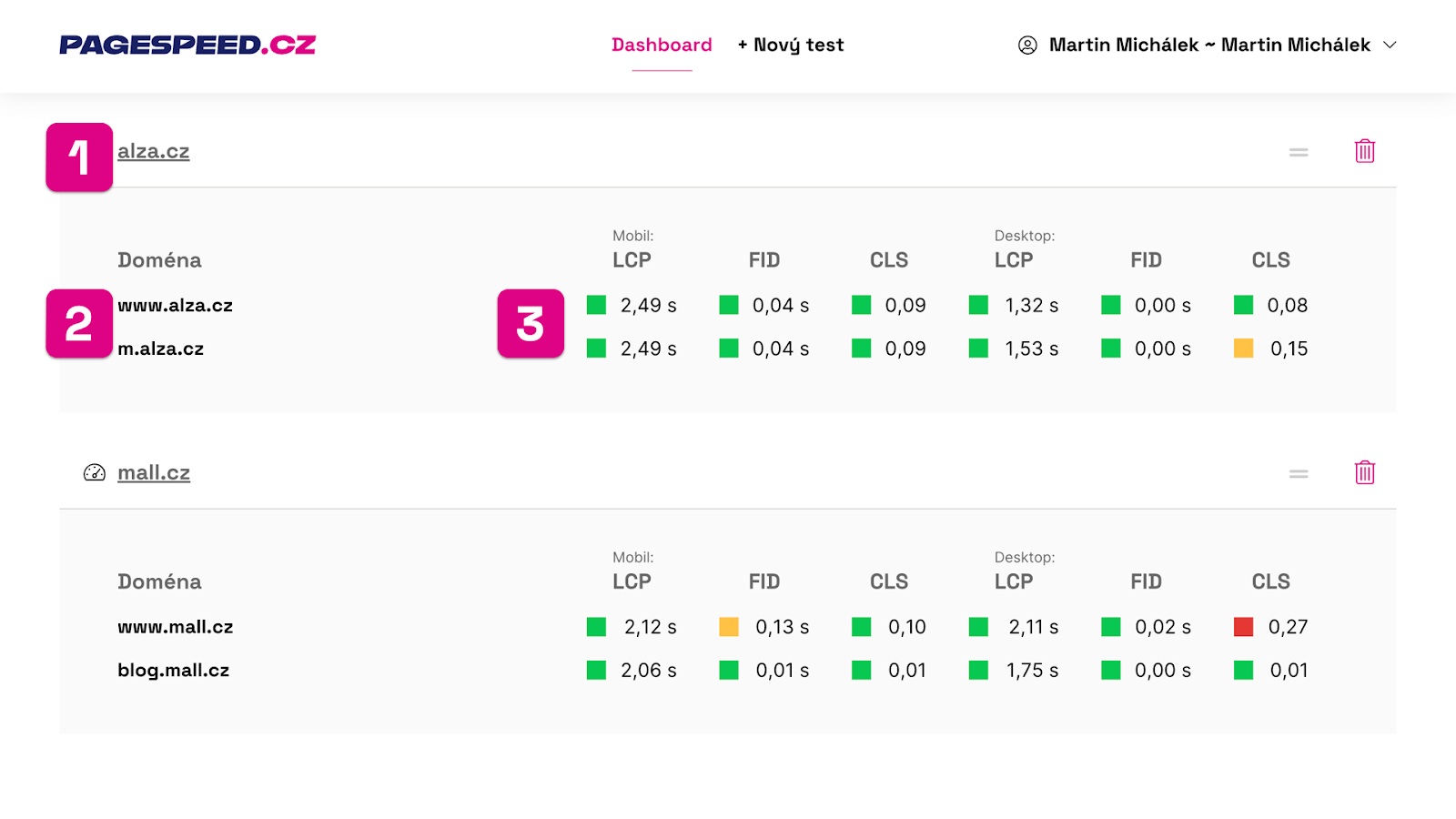
The dashboard displays all your tests (see image number 1), with each domain (2), the status of the Web Vitals metrics from the Chrome UX Report, and their possible improvement or decline (3):
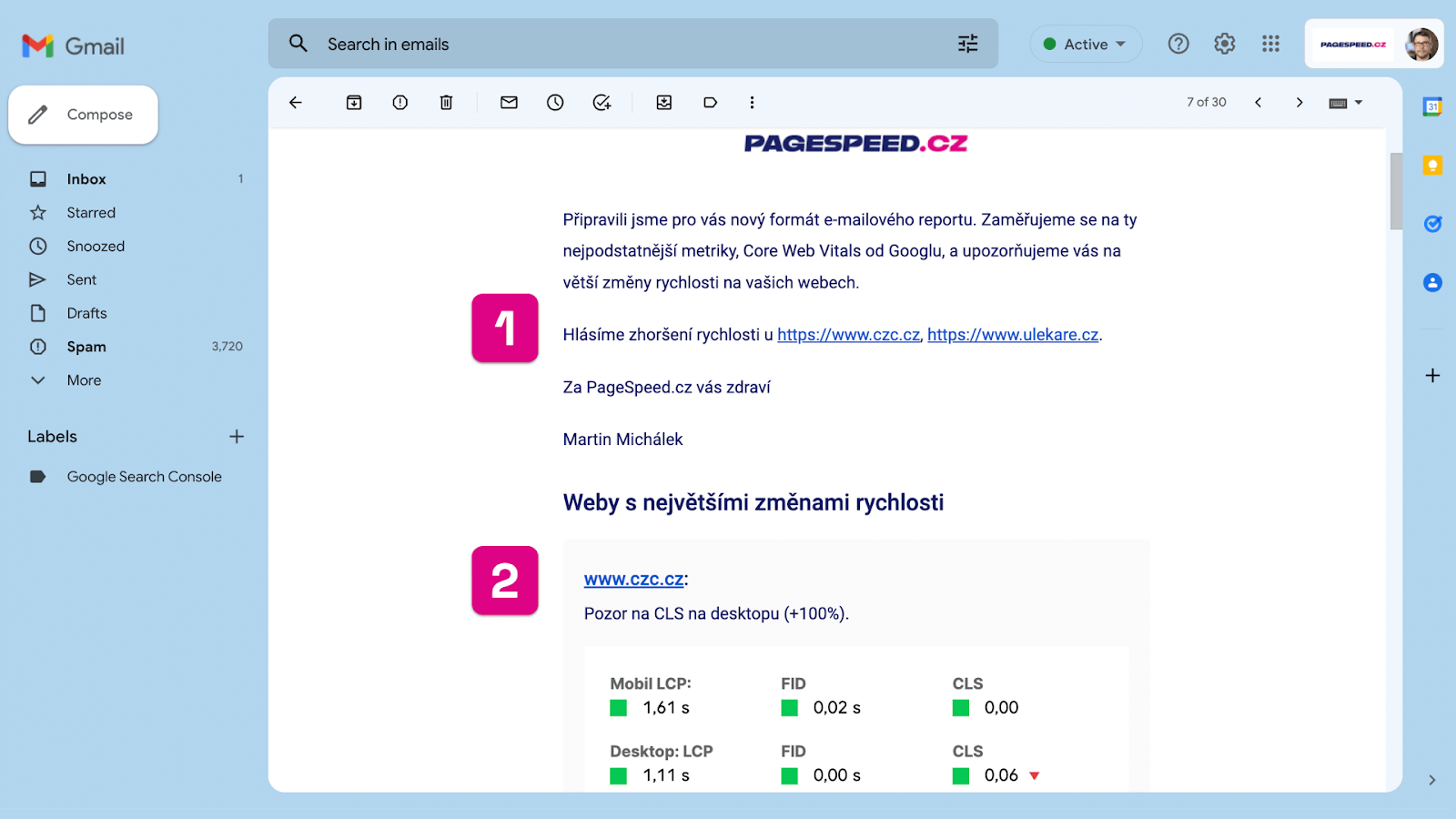
We've also recently revamped our email report system. Each month, you'll receive an email detailing the biggest changes (see the following image number 1) for the sites you monitor and a reminder of the current Web Vitals values (2):
Let's walk through how you too can achieve this convenient monitoring of your websites' speed.
Step 1: Register and Create a Team
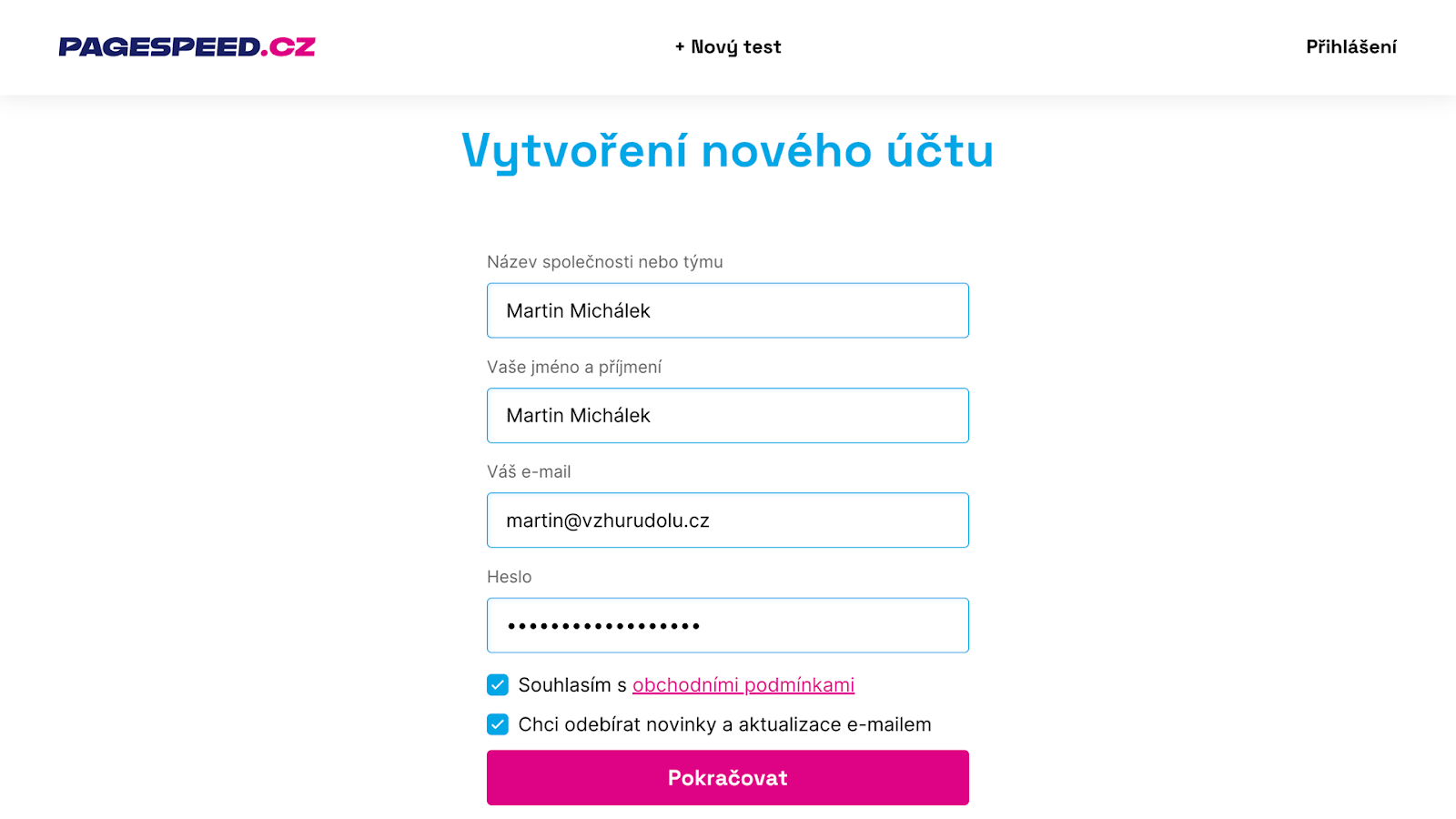
Creating a new account is free, as is the entire tool. Right from the start, we ask for your team name, which can be either your company's name or your own if you work solo:
You can create multiple teams, for instance, one for each client. There’s no limit:

In each team, you can invite users, your colleagues, or even clients, assigning them different permission levels, such as user management or read-only access:
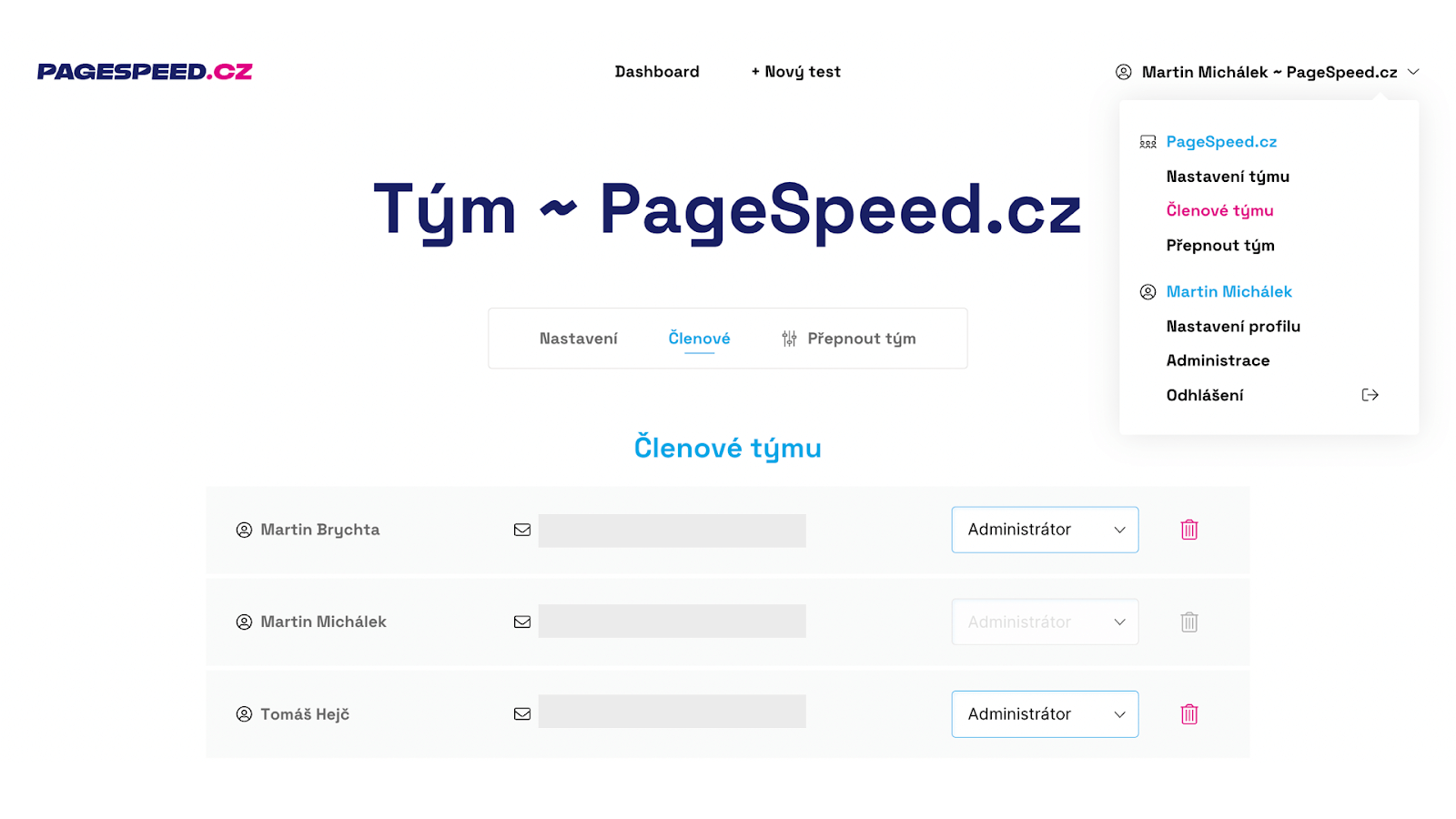
We’ve completed the first step, let’s move on.
Step 2: Add Tests to the Dashboard
If you’re using our tool, you probably already have some tests. The test URLs are permanent—as long as you visit them at least once every two months, we won’t delete them.
Creating a new test is straightforward:
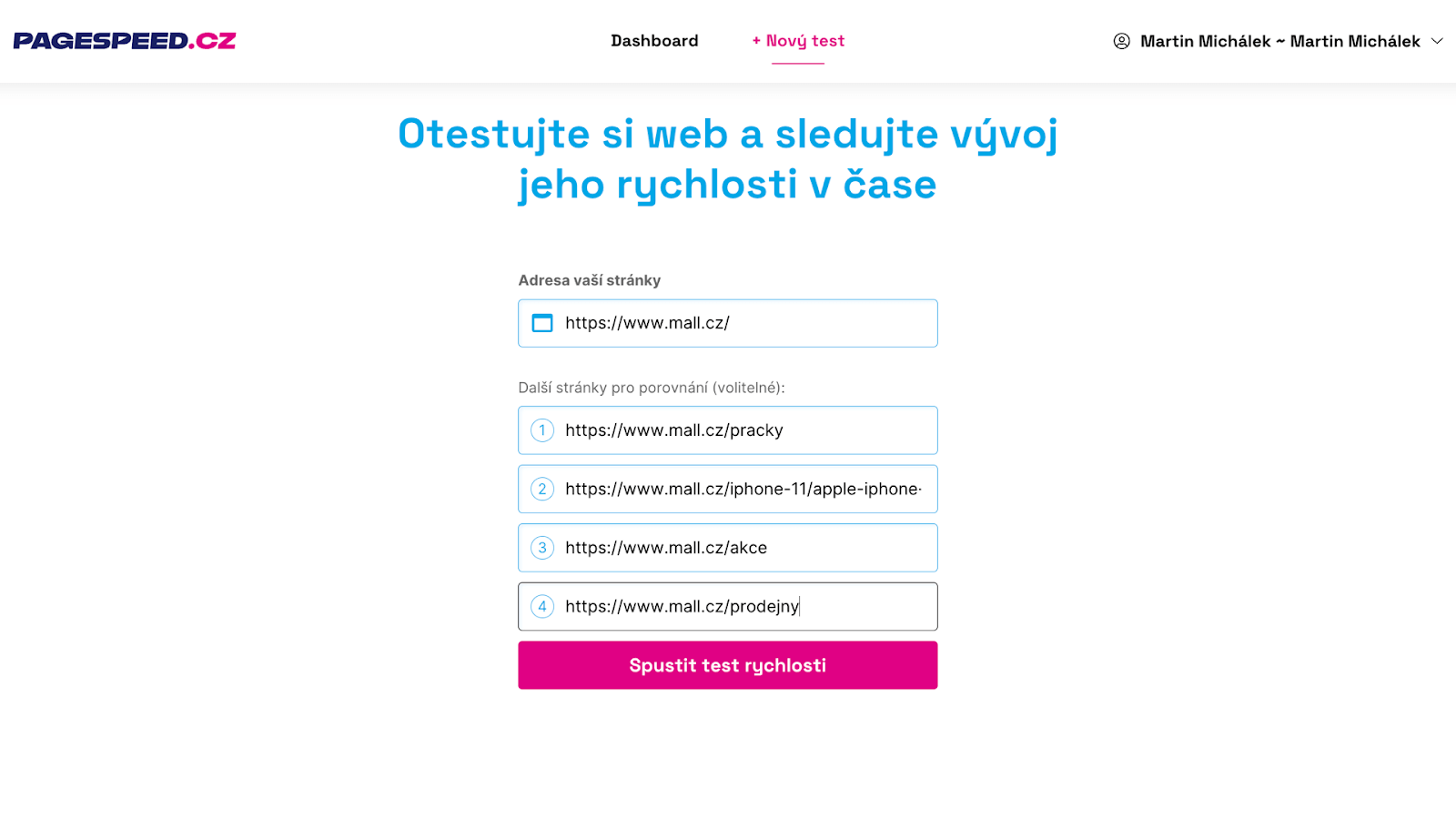
How to choose the URL?
- If you’re testing a single website, select the homepage and then the most visited representatives of the different types of pages. For an e-shop, this would be categories, product details, and perhaps a contact page. Traffic data from Google Analytics or alternatively Google Search Console can help you choose suitable URLs.
- You can also test multiple domains at once, for example, to compare with your competition. Additional domains don’t need to be added immediately when creating the test. In the test settings, you can now add domains to the URL. But we’ll do that in one of the following steps.
We’ve created the test, and now we’ll add it to the dashboard to monitor website speed and adjust test settings.
Tip: Read more about measuring website speed using PageSpeed.ONE and other tools.
To add a test to the active dashboard, simply scroll down on any test page until you find the "Add to my tests" button:
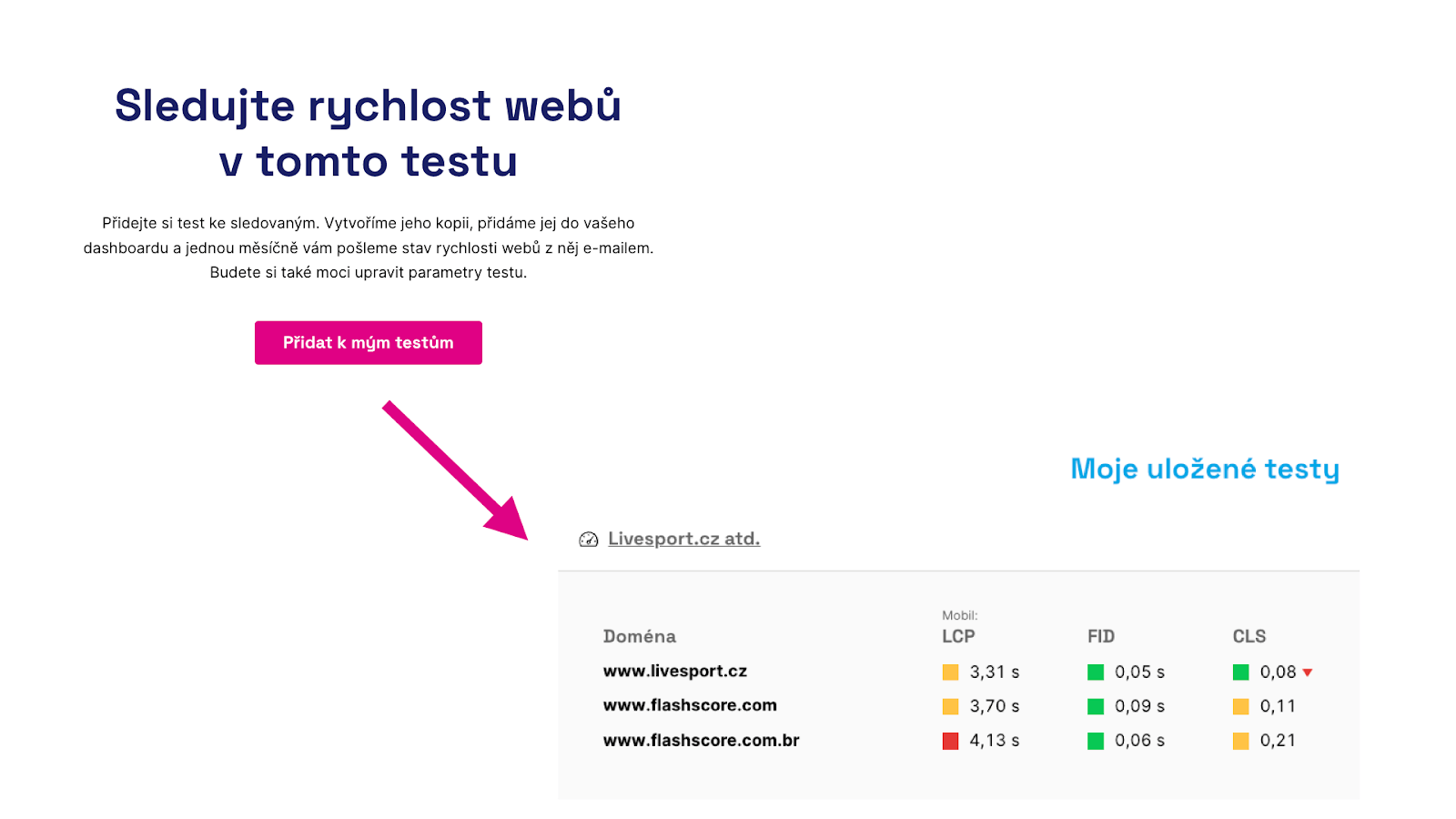
Step 3: Monitor Speed Development in the Test
The test itself provides valuable data about the speed of the URLs you’ve tested.
In the Pages tab, you’ll see synthetic test data from the PageSpeed Insights API (tests using Lighthouse, see number 1 in the image below) or user data from the Chrome UX Report (2). You’ll only get these if the URL has sufficient traffic:
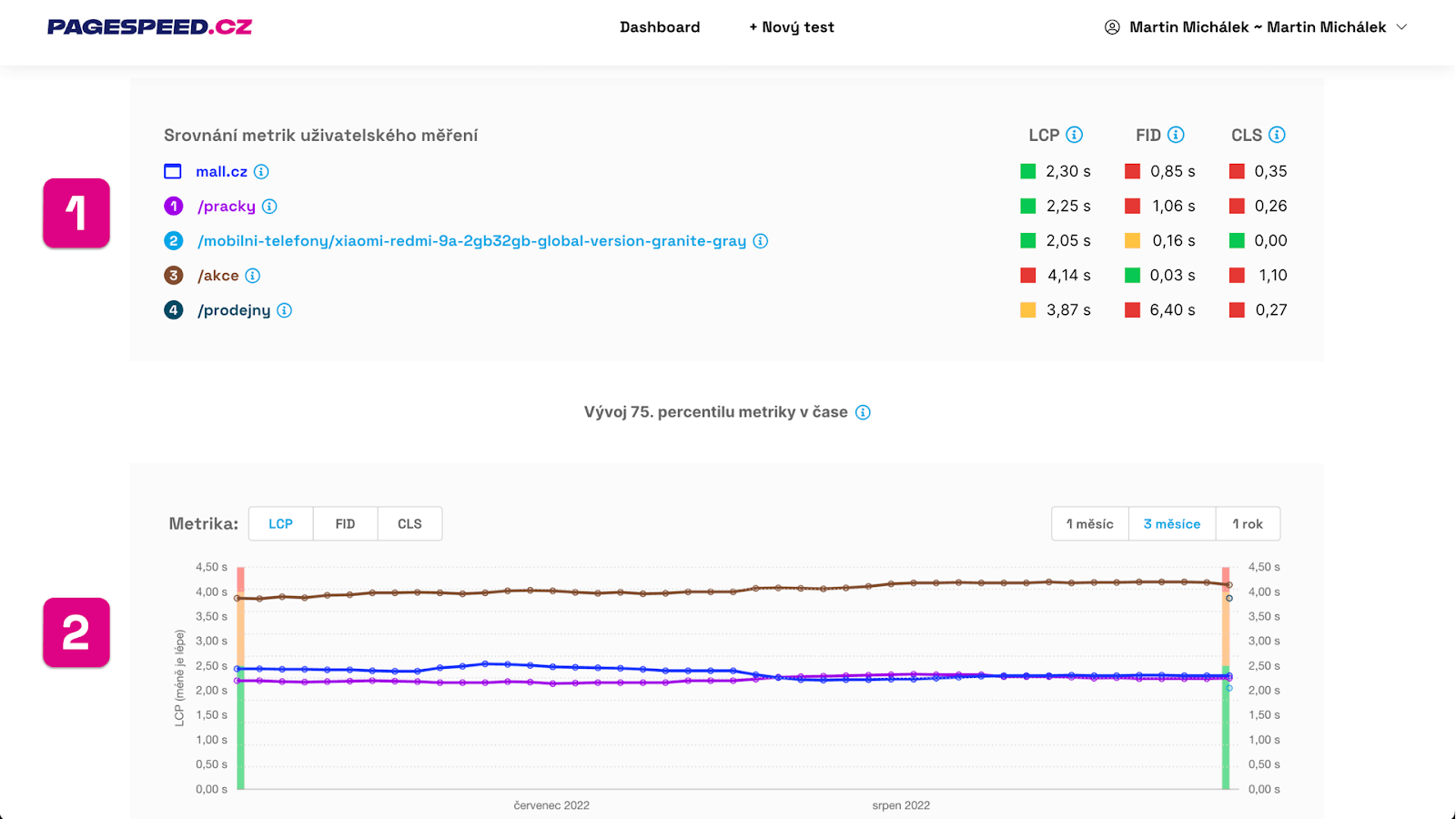
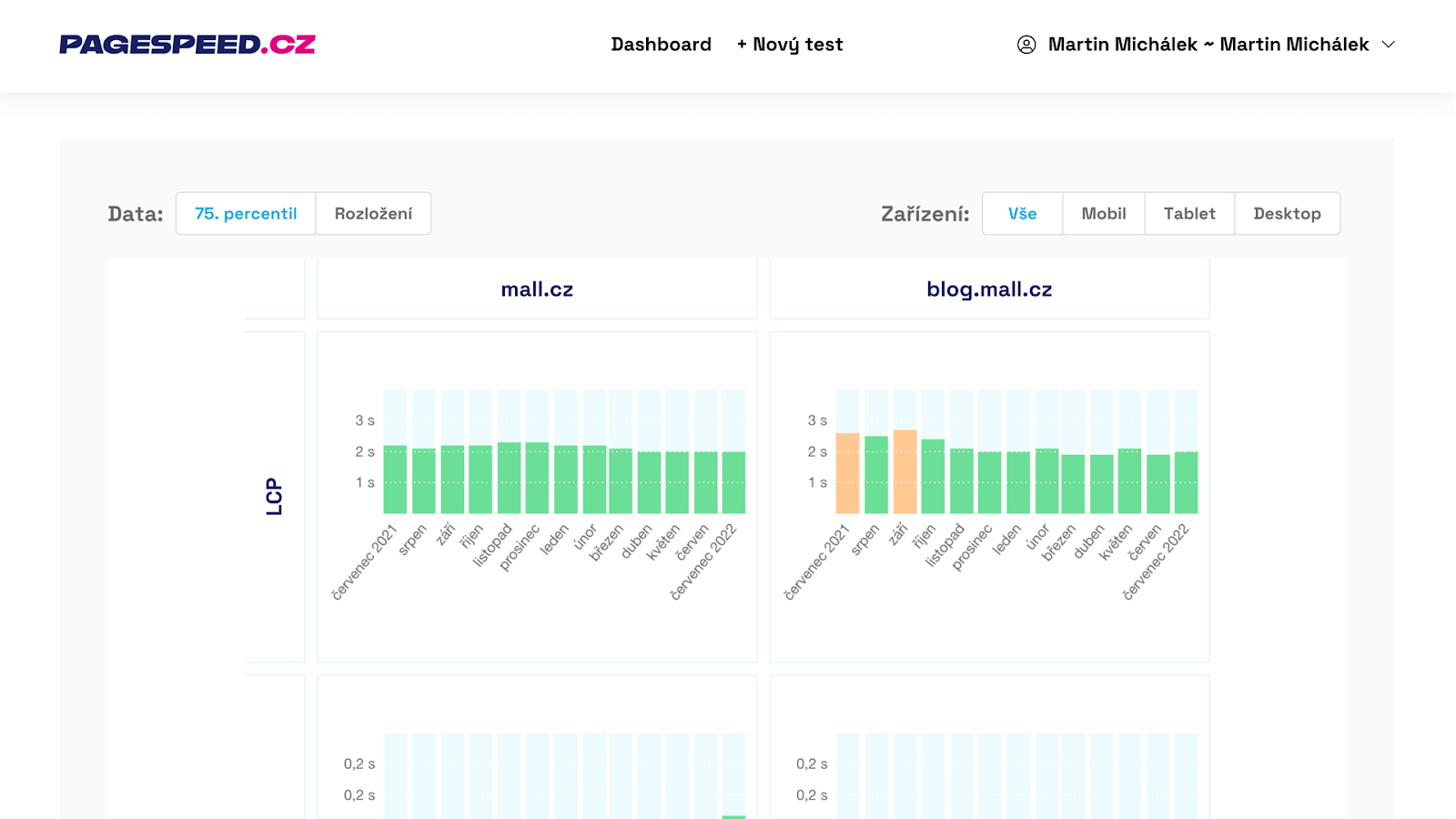
The Domains tab gives you an overview of Chrome UX Report data development in a longer-term, monthly perspective:
Step 4: Change Test Settings
This step is optional. You might not know that by adding a test to your collection for monitoring in the dashboard, you and your team’s administrators can adjust its settings.
Besides changing the test name or its URL, we highlight the section where you can add domains to the test:
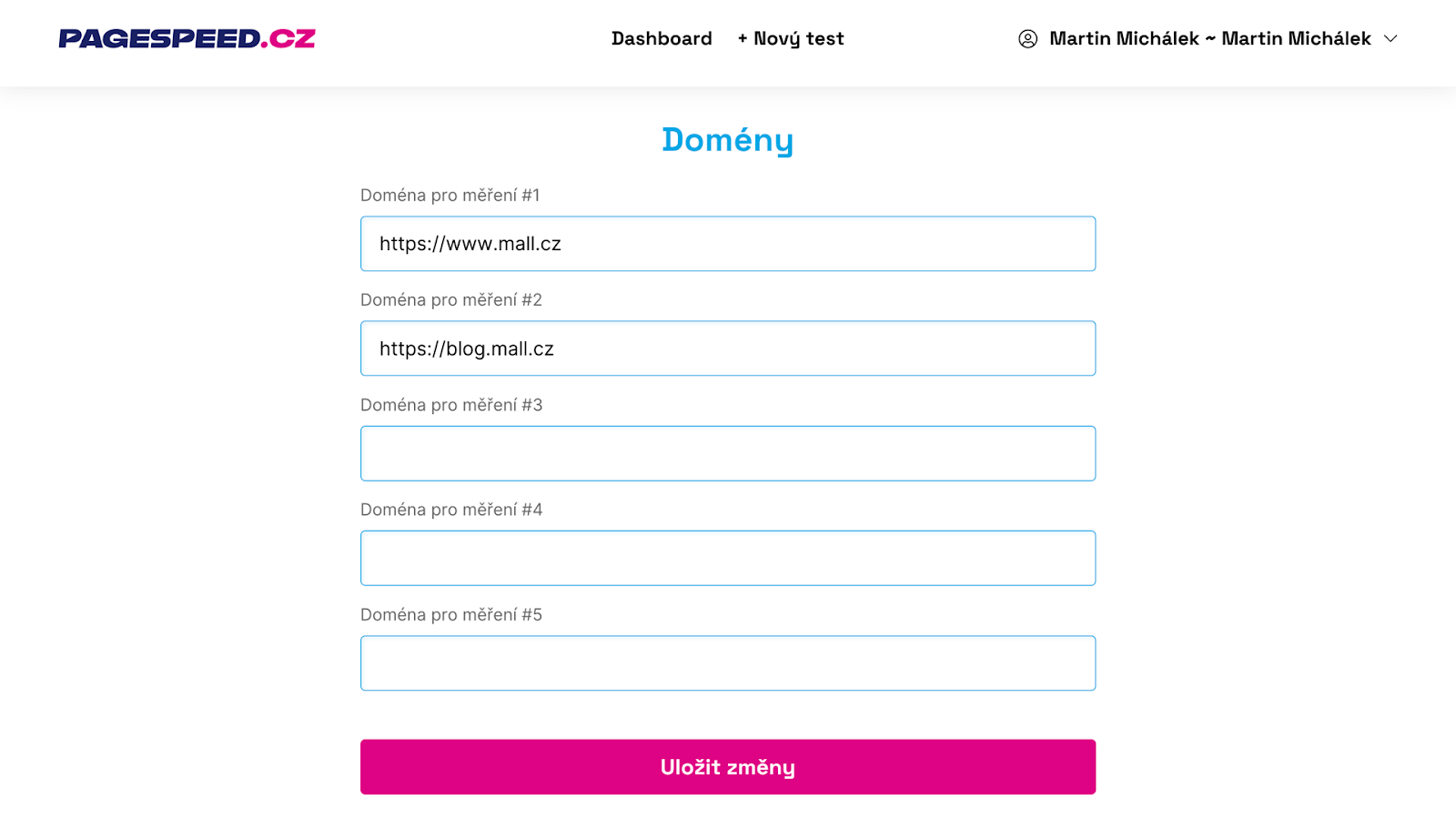
Some domains may have already been added automatically from the inserted URLs. Within the test, you can monitor the speed of up to five domains.
Adding domains to a test is useful in three situations:
- The website has subdomains. Google evaluates the speed of each subdomain separately.
- You own multiple websites of the same type, e.g., different language versions.
- Besides this site, you wish to monitor competitors as well.
We’re almost there. Steps 2 through 4 can be repeated with other websites you wish to monitor, filling your dashboard as we have filled ours with our clients.
Step 5: Monitor Speed on the Dashboard and in Email Reports
Now, every visit will show you the current Web Vitals metrics (3) for all domains (2) from your tests (1):
Two things to keep in mind:
- Google provides this data cumulatively over the last 28 days, so you might not see changes immediately. However, this is the "right" data that Google’s algorithms use to evaluate your domains' speed in the context of Page Experience signals.
- For some websites, you might not receive data, usually due to lower traffic. Unfortunately, nothing can be done about this, but Google does not take speed into account in such cases.
As mentioned at the beginning, once a month you’ll receive an email report for each team (or dashboard) you’re a member of. You’ll see what has changed over the past month and what hasn’t. You can of course unsubscribe from these emails.
I trust the updates in the tester and the email reports will serve you as well as they serve us. Don’t hesitate to reach out if you have ideas for improvement.
Tip: If you’re interested in speed updates but don’t want to monitor your websites, we now also send a separate newsletter with the latest happenings.
Jak je rychlý váš web?
Jak rychlý je váš web v porovnání s vaší konkurencí? To zjistíte
pomocí našeho online testeru.