Paid Tests PLUS: Speed Monitor and Notifications
In the third part of this series, we introduce its flagship feature or rather its standard-bearer as the key member of the news army. Let’s focus on the Speed Monitor.
The Website Speed Monitor is a combination of features from Paid Tests PLUS, on which you can delegate the concern for your website's speed. No unnecessary complexities, no spamming, and no need for data interpretation—just at the right place and the right time.
Why Introduce the Speed Monitor and What the Competition Lacks?
We develop the PageSpeed.ONE speed tester based on research of competitive tools for speed measurement, but primarily on years of experience in monitoring website speed for dozens of clients through our web speed consulting.
We want our Speed Monitor to be...
- easy to use even for performance novices,
- free from overwhelming informational noise,
- automatic with no need for ongoing configuration,
- and available across various communication channels.
The monitor was created because no available tool adequately meets our needs, nor those of our clients. How exactly does the Monitor differ from PageSpeed.ONE?
1) Sends Only Essential Messages
Notification emails from all existing monitoring tools will eventually overwhelm you. Only a few contain relevant and important changes in website speed. We spend hours each week evaluating these notifications for our clients. Most of the time, they are false alarms that didn't need to be sent.
2) Focuses on Important Metrics
Traditional tools cling to older metrics like page load time (Load event) or invent their own metrics. However, we have the Metrics that capture user experience well. Yes, in our tester, we focus on Web Vitals metrics and auxiliary indicators.
Let’s dissect the features of the Monitor.
Speed Monitor
The "Speed Monitor" report serves as the main dashboard for the entire functionality of tracking and reporting website speed.
We can summarize it in the following image:
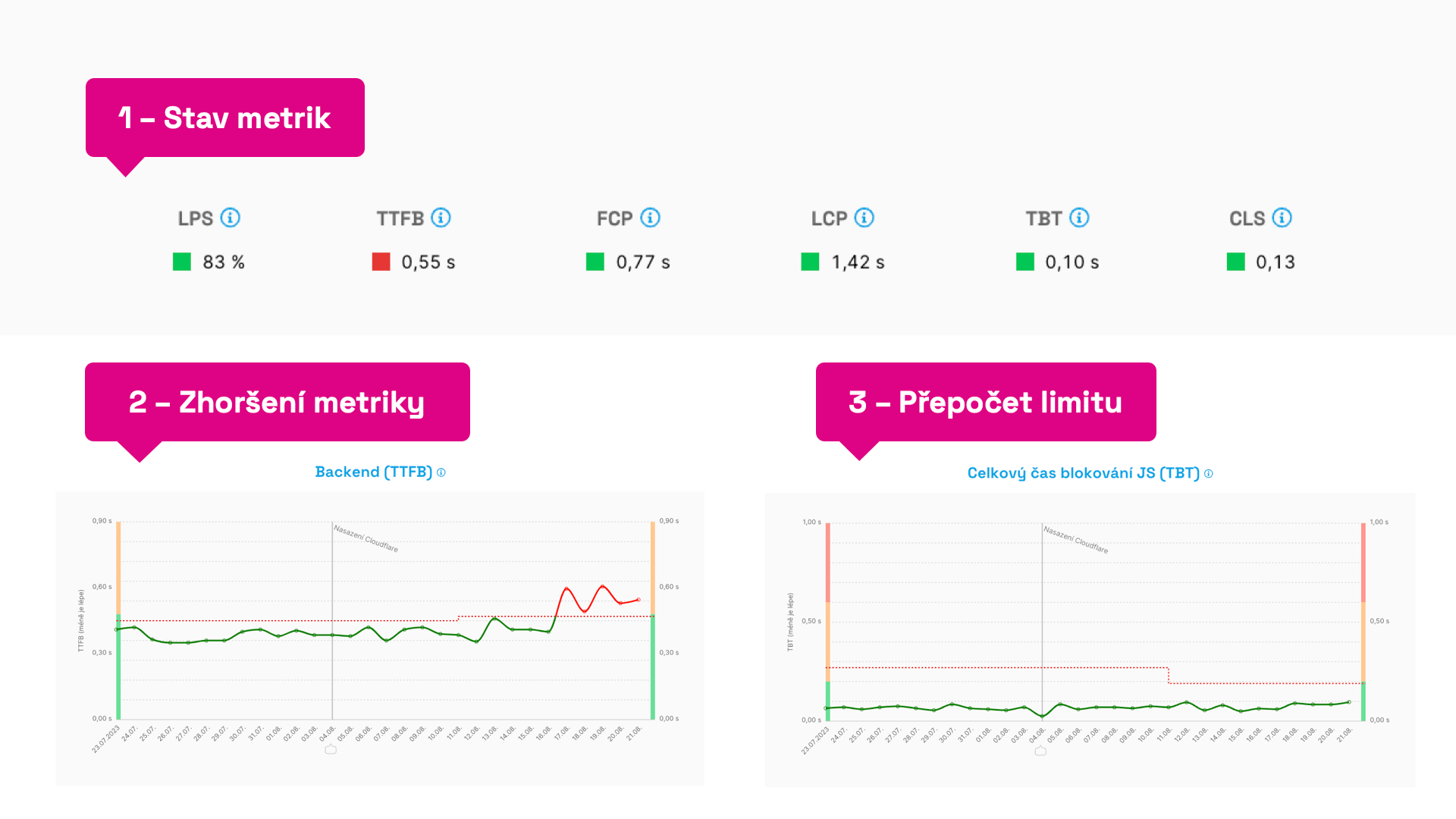 Different states in Speed Monitor reports.
Let's comment on the individual points:
- Metric Status – at the top of the "Speed Monitor" report, we see the monitored metrics and their current status. If they meet the set limits, they are green. "Broken" metrics appear as red.
- Metric Deterioration – if you see a red line in the graphs for several days, it means the limit for this metric has been exceeded. We recommend paying attention to it. More on finding causes is below in the article.
- Limit Recalculation – the Metric limit, the dashed line in the graph, can recalculate itself if the metric shows a good state for two weeks. Likewise, if a metric shows a poor state that doesn’t change. We want to prevent worsening of already poor values, so we always monitor current values.
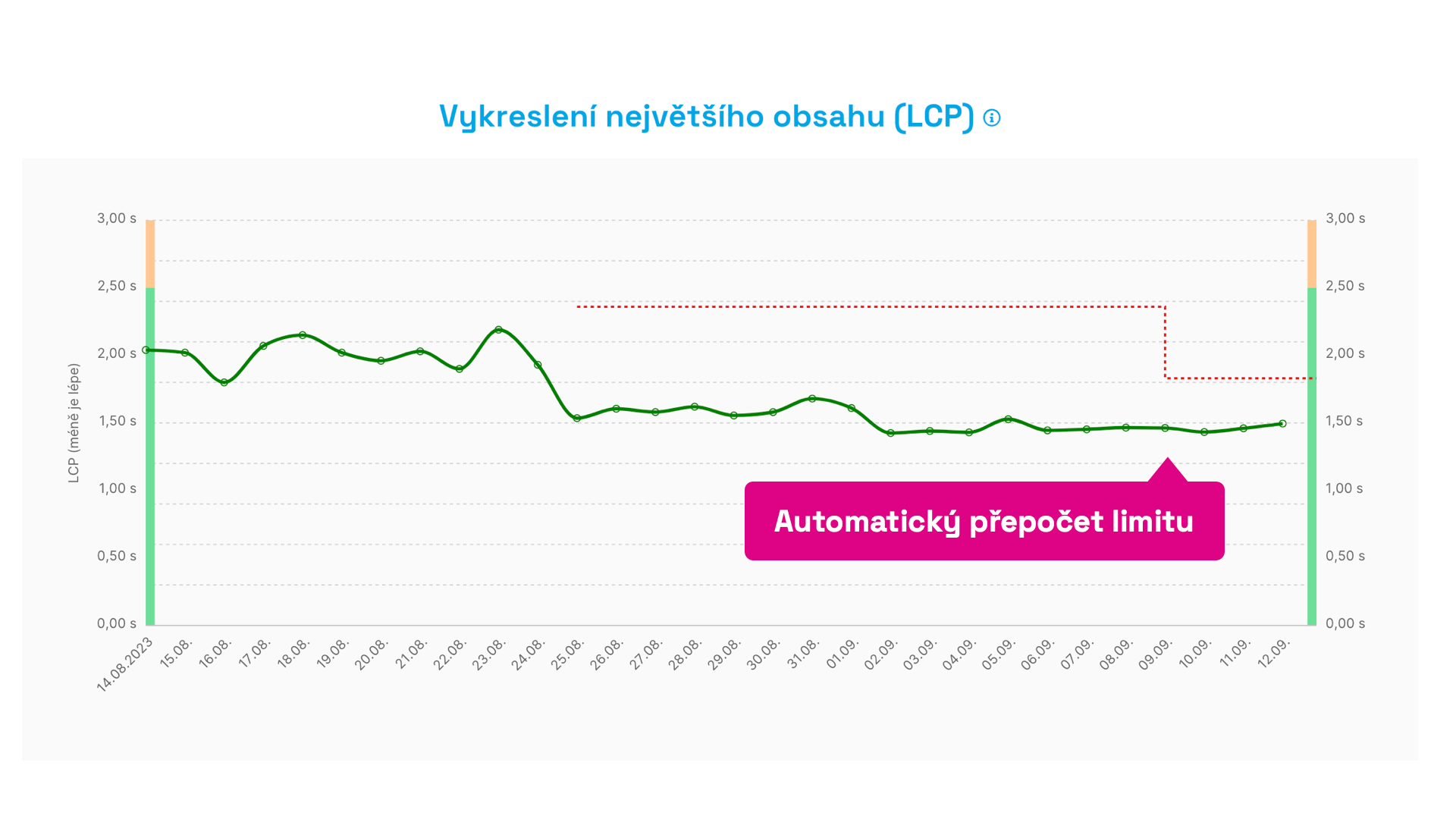 Automatic limit recalculation. After two weeks of improvement, we automatically start monitoring the new metric value.
The key is the speed limit, the metric value itself, and then timing. But let’s dive deeper.
How Exactly Does Speed Monitoring Work? New Data Every Day and Minimal Spam
- Measurement Method – these numbers are measured by the Lighthouse tool, thus synthetically. We take the median measurement of each URL and calculate an average. This has proven to be a sufficiently sensitive calculation for possible changes.
- Metrics – we selected Web Vitals metrics (LCP, CLS…) but supplement them with other auxiliary metrics like TTFB (backend speed) or TBT (total JS blocking time).
- Time – monitoring occurs in two-week cycles. If during this time the metric doesn’t change above or below a certain value, the limit remains as it was. If the value changes and it lasts more than three days, we will notify you and highlight it in the graph.
- Limit – in the graph, you see it as a dashed line. The limit is always set above the metric threshold and doesn’t have any optimal values; it always stems from the previous state. This allows us to detect changes in metrics effectively.
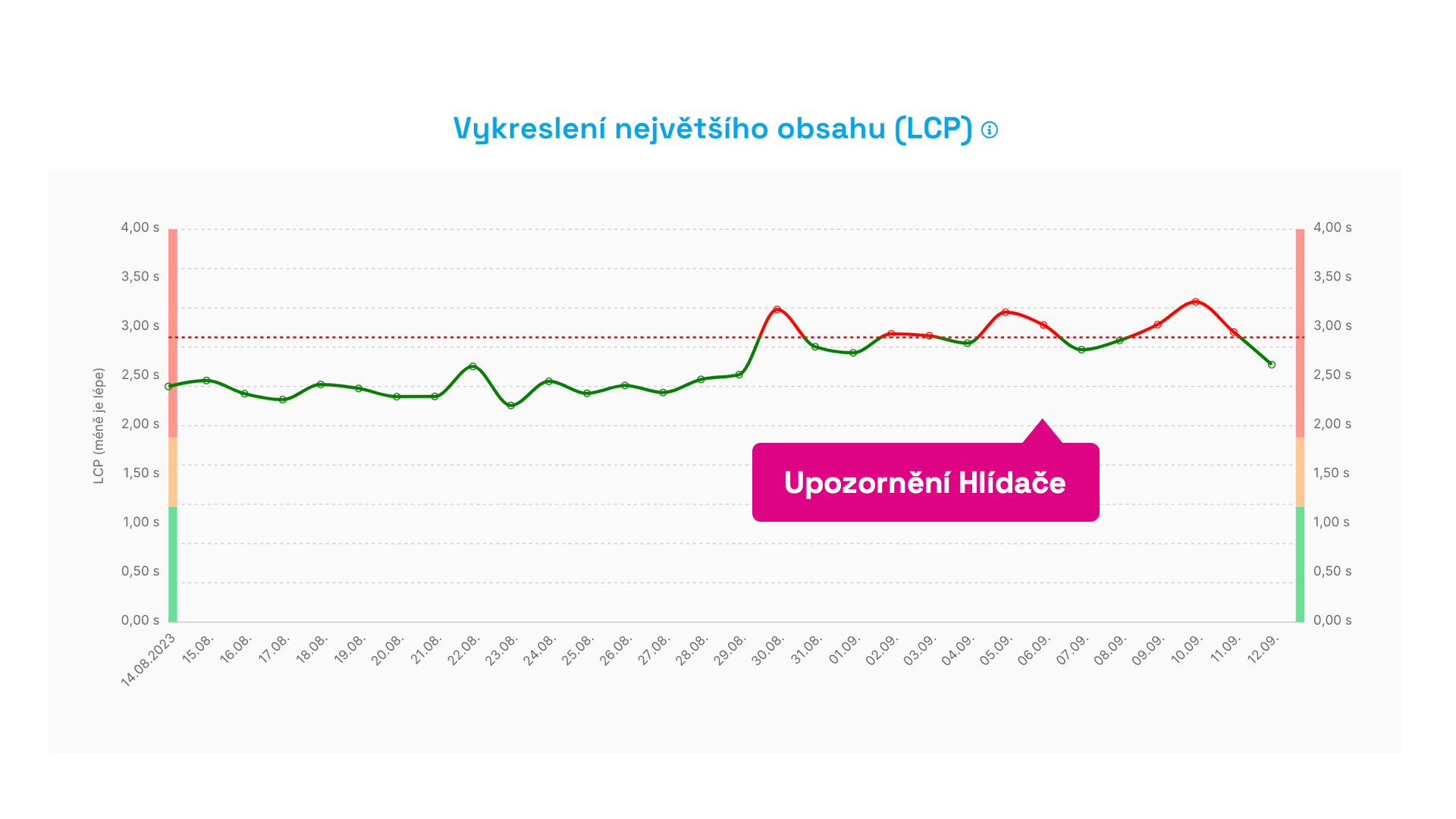 Something went wrong here. An alert will be sent on the third consecutive day of exceeding the metric limit. This avoids situations with one-time fluctuations.
It's also good to know that after many iterations, we abandoned detecting metric changes based on percentages.
For example, a 10% change in a low metric value doesn't have the same significance as a 10% change in a higher metric value. Some metric changes carry more weight (let’s say LCP as part of Web Vitals), while others fluctuate frequently (like TBT and other JavaScript metrics), requiring less sensitive limits.
In our algorithm, we therefore use smart detections where different metrics behave differently at various values.
The main goal? To spam you as little as possible with insignificant changes.
What If I Change the URL in the Settings?
Changing or adding a URL within the test settings will naturally alter metric values due to the calculation method and likely trigger reports of improvement or deterioration. Now, when you change a URL, a note is automatically added to the graph.
Notifications - Slack, Teams, Email
We understand, and we know from client practice, that not every team monitors speed measurement tools as often as needed.
During the design of the Speed Monitor, we kept this in mind, and our goal was for you to ideally visit the speed tester app only when addressing a specific problem.
Therefore, the Speed Monitor offers several ways to receive information about a problem or improvement passively:
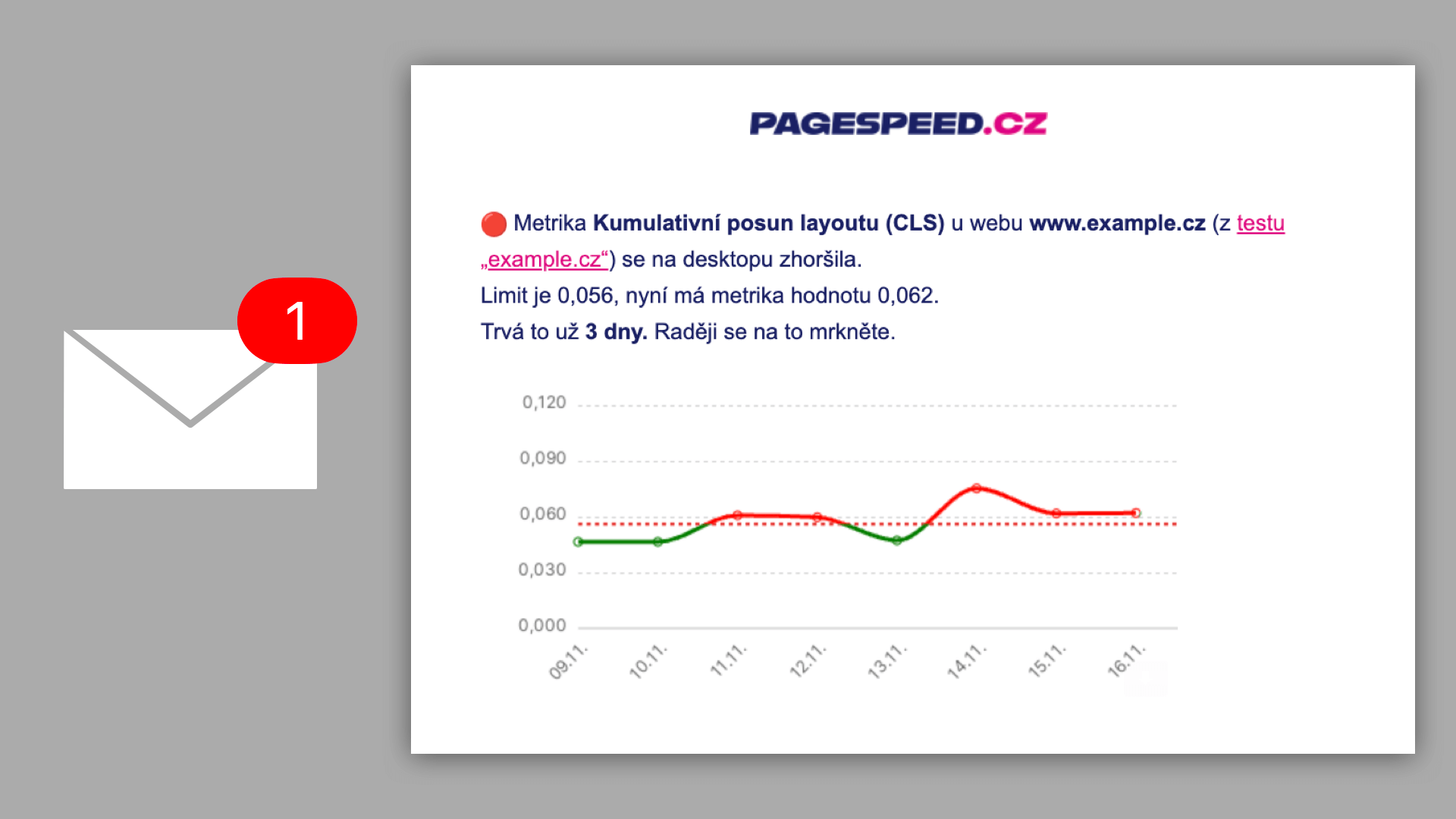 Attention, something went wrong here. It's better to take a look.
Speed Monitor email notifications are sent to every Team member. Unless, of course, they turn them off, which can be done with one click from the incoming email.
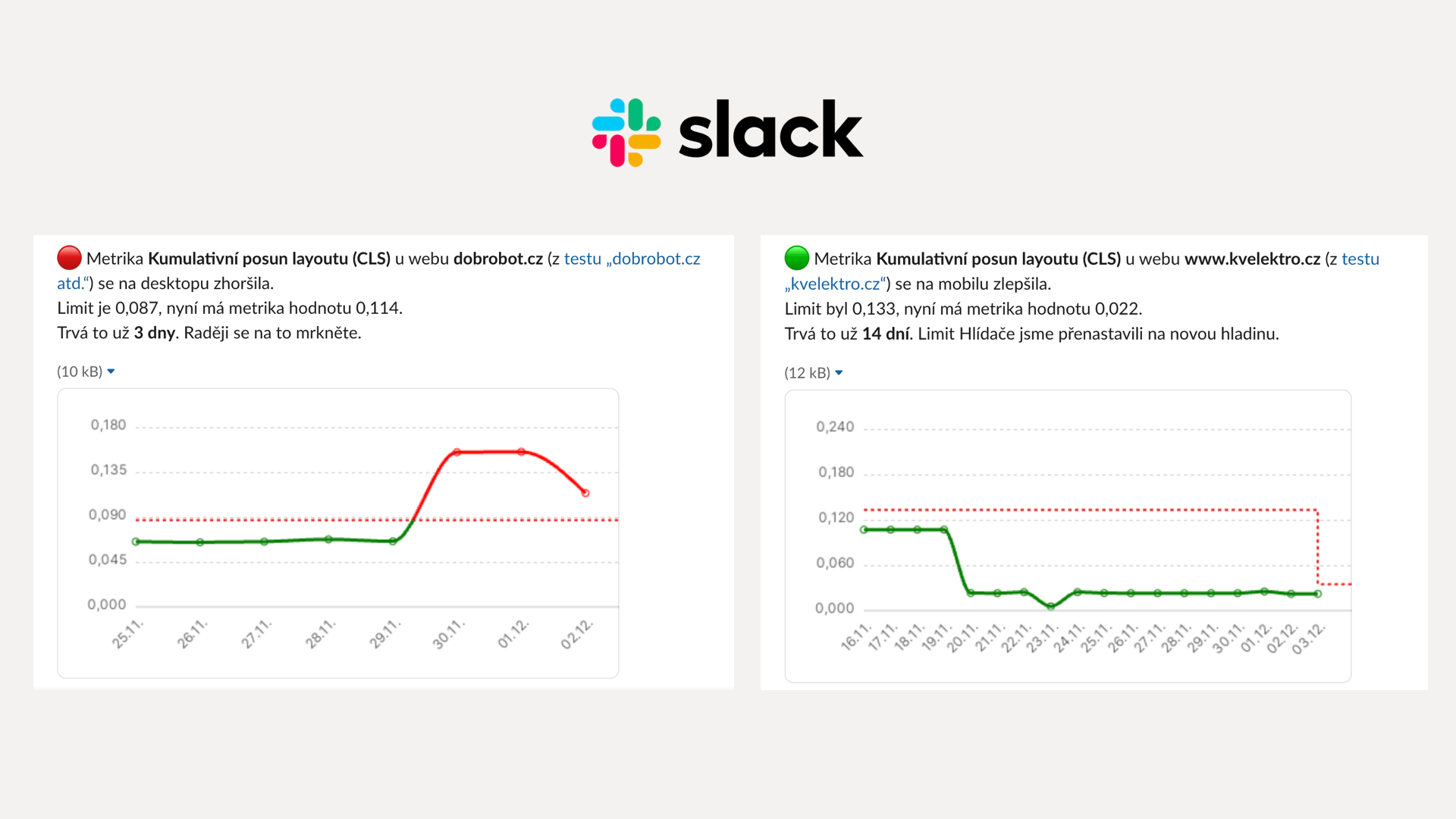 Have important, but also good news sent to Slack.
Notifications to Slack and Teams are very useful if you already use these tools for internal communication.
For setting up Slack and Teams correctly, a few steps are necessary. We’ll write about this later, and a brief guide can be found in the settings of each test.
How to Debug, or Find Causes of Deterioration?
Let's take a specific case of problem-solving after a Monitor alert.
A notification arrives indicating that the CLS metric has deteriorated on the website. In the graph, it looks roughly like this:
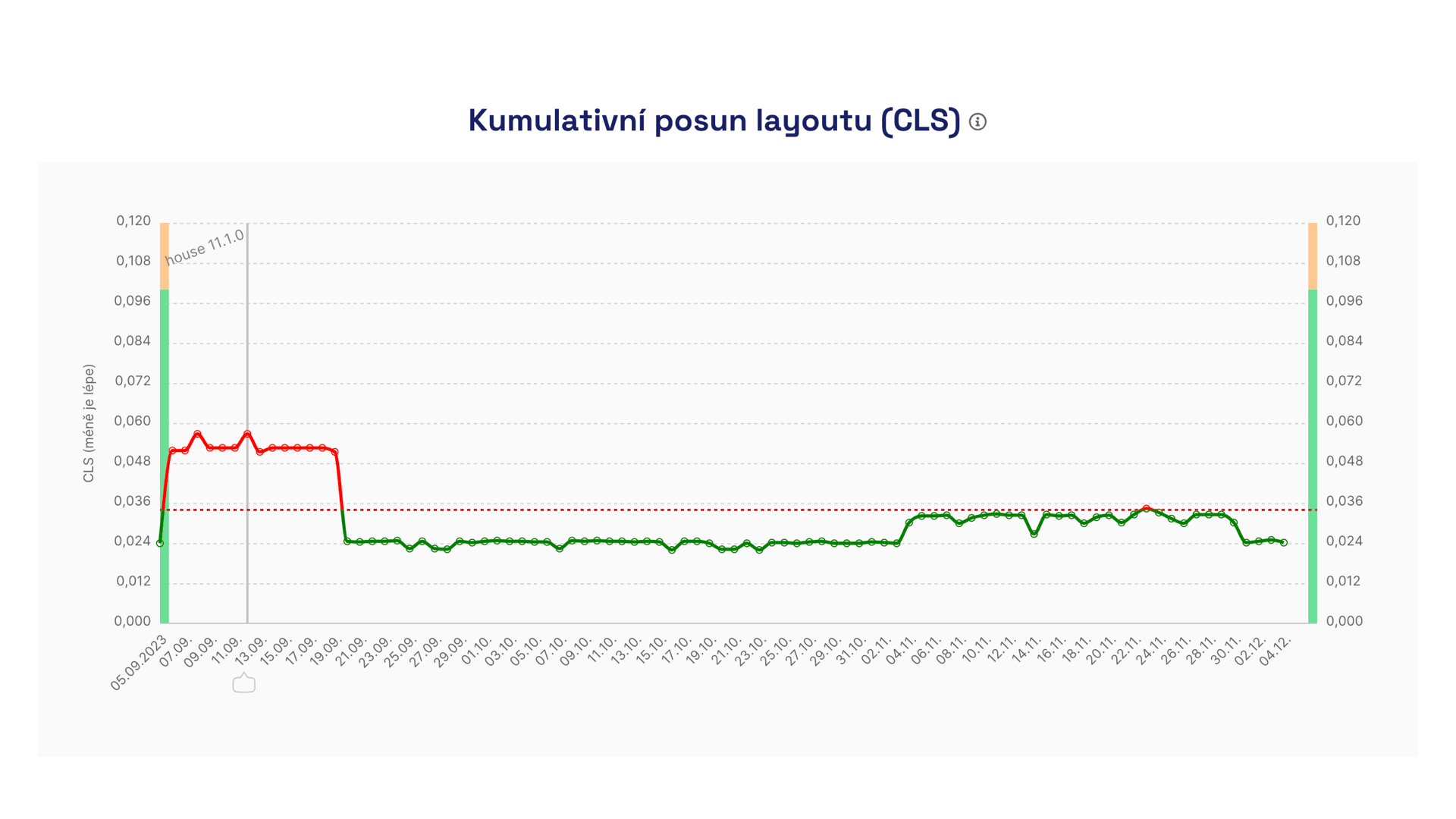 CLS metric measurement progress in the Speed Monitor.
Indeed, around September 5th, the Cumulative Layout Shift metric significantly worsened.
The breakdown of metric development by specific URLs can then be seen by clicking into the graph:
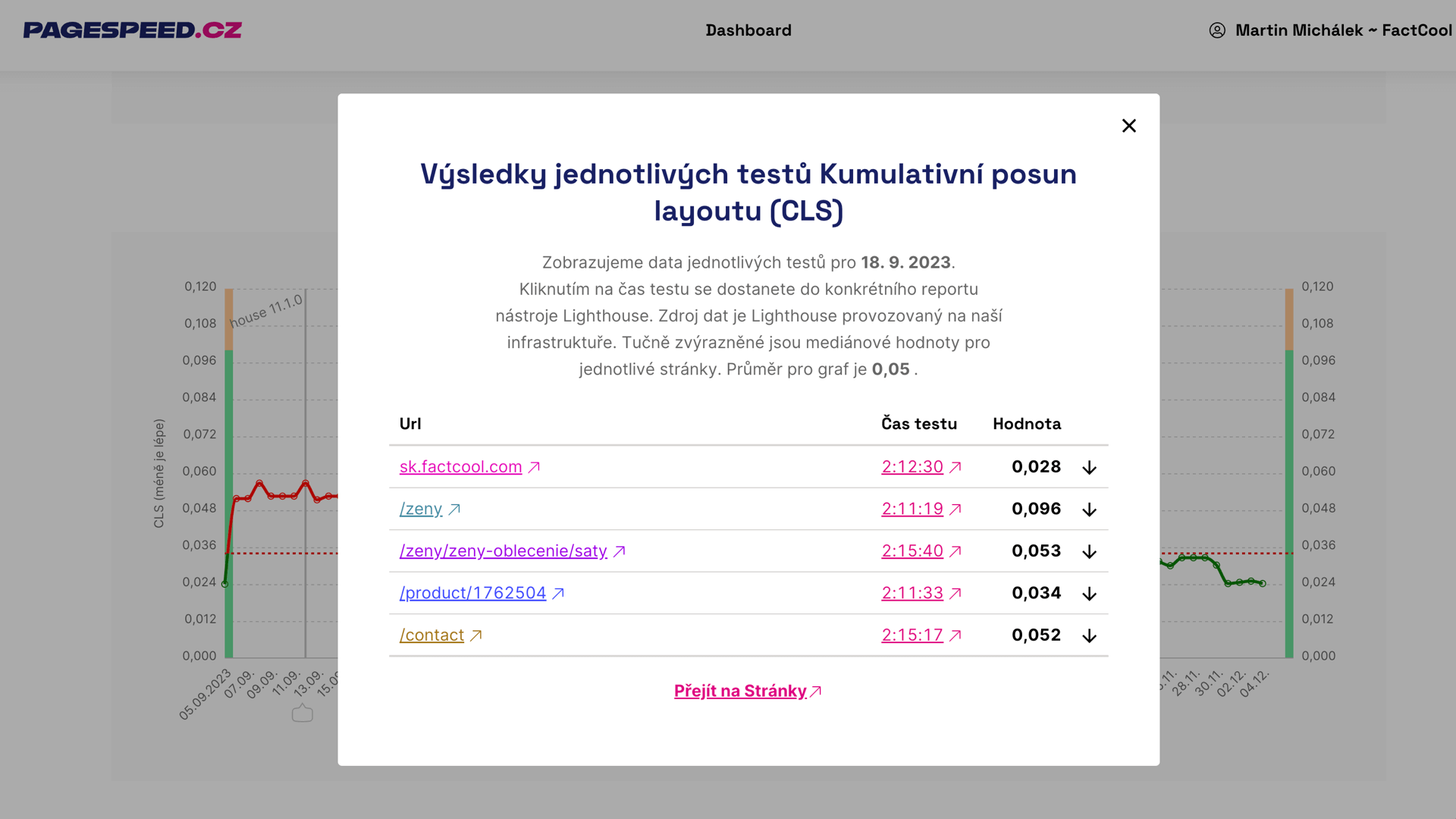 In the test results, we can see which pages are most affected.
Here, it is noticeable that all measured URLs deteriorated. It is therefore clear that the cause is likely a design change across the entire website.
Clicking on a specific test time leads us to the Lighthouse report details:
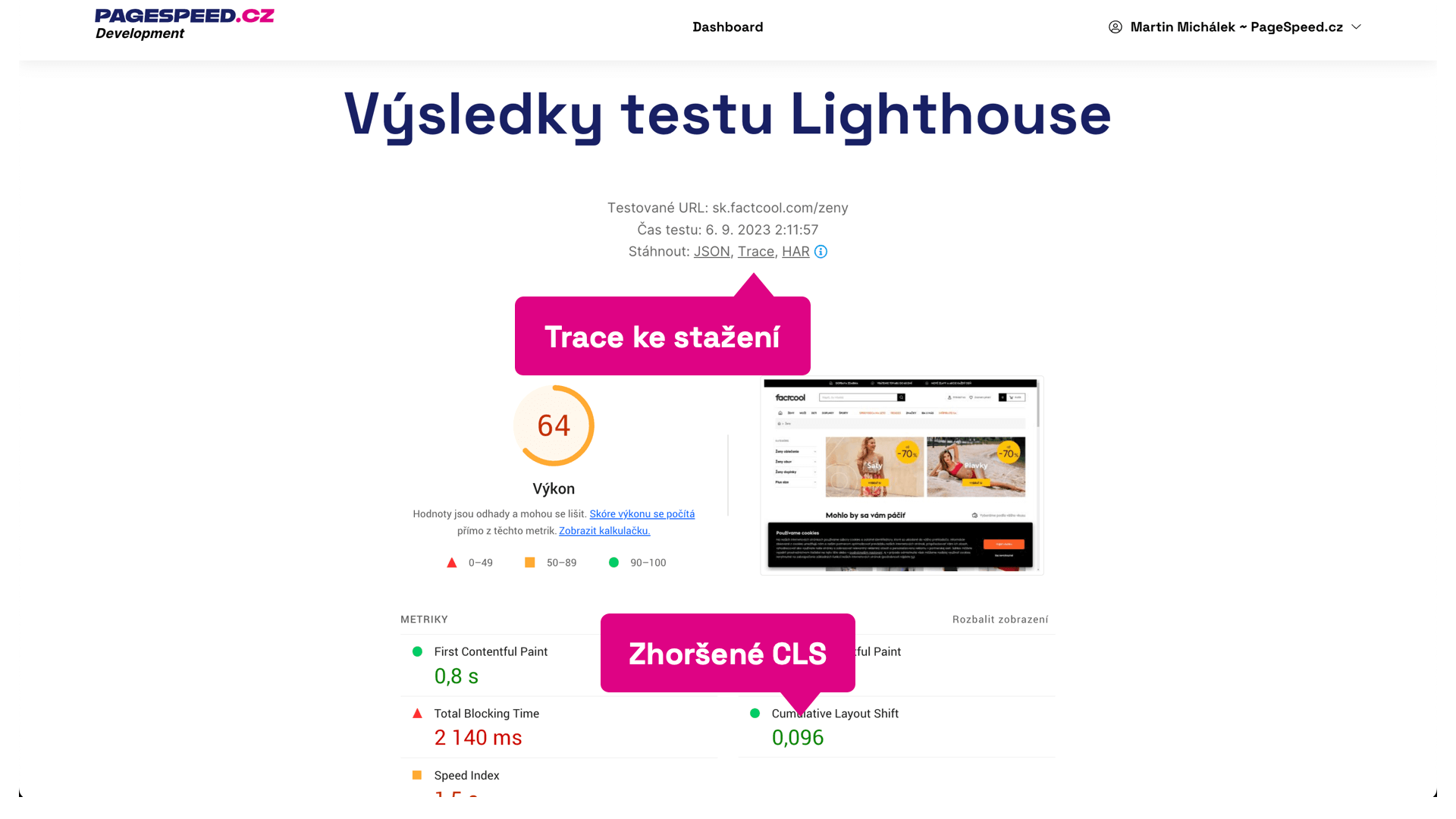 Lighthouse test results for one URL.
Here, besides the deteriorated CLS value, we also see the possibility to download detailed reports. For tuning CLS, Traces are most useful, which can be opened in tools like the Performance tab in Chrome DevTools.
Here, we focus on layout shifts and see that the last one is caused by an asynchronously rendered top bar. This is also different from previous measurements and a problem that we can report to the development team.
The Monitor is the most important feature of PLUS tests. We've seen that with the help of the Monitor, no problem escapes our notice, reports can be received in various channels, and there won't be too many of them. In the tester itself, we can then find the problem.