Cumulative Layout Shift (CLS) Metric: How to Identify and Eliminate Unwanted Page Shifts
Annoyed when an ad pushes away the text you’re reading? Frustrated when content jumps just as you’re about to click, causing a misclick?
These unwelcome experiences on the web are called layout shifts. All shifts on a single page contribute to the Cumulative Layout Shift metric, abbreviated as CLS.
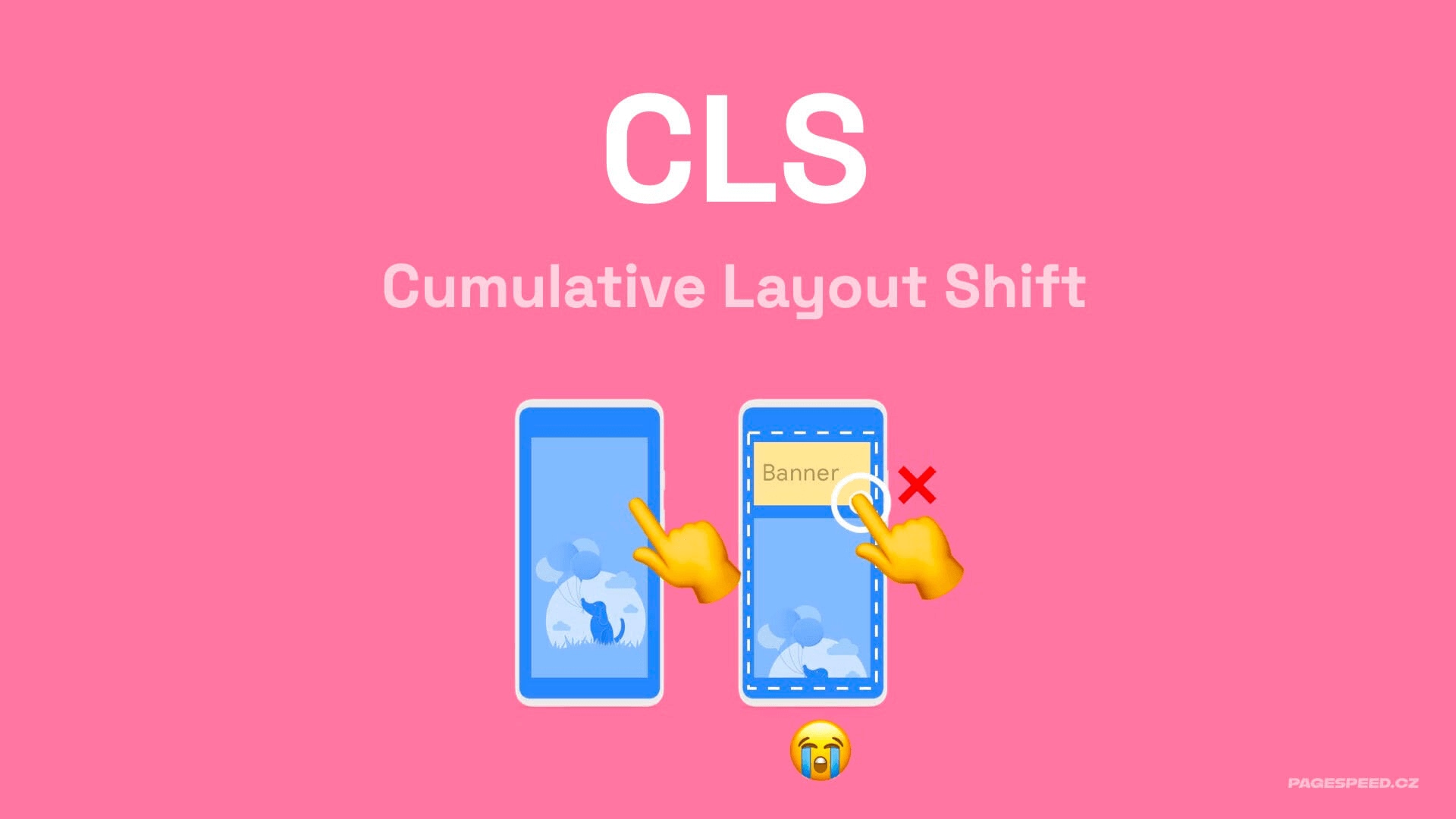
Let's delve deeper into this metric.
Understanding the CLS Metric
The goal of optimizing CLS is to ensure the highest possible visual stability during page rendering and subsequent user interactions. This makes it easier for people to consume page content.
Technically, the definition is more complex: CLS measures the total of all individual layout shifts within the worst five-second window during a user's interaction with a page.
This metric is part of Core Web Vitals, used by Google to assess web page quality. Core Web Vitals metrics are also one of the signals considered when ranking search results.
CLS Value Limit is 0.1
To keep your Cumulative Layout Shift in the green, acceptable range, the metric value must be under 0.1. Achieve this, and you've won the battle.
If your CLS is between 0.1 and 0.25, you're in the orange range, and improvements are needed.
Should user measurements reveal a value over 0.25, Google considers your CLS unsatisfactory.
| Good | Needs Improvement | Poor | |
|---|---|---|---|
| CLS | < 0.1 | 0.1 - 0.25 | > 0.25 |
The Importance of a Good CLS Score
The Cumulative Layout Shift (CLS) metric can be crucial for your website:
- CLS affects SEO and ad pricing due to its inclusion in Core Web Vitals.
- Optimizing CLS increased page views per session by 15% on Yahoo! JAPAN News. More in the case study on Web.dev.
- Mail.ru achieved a 10% increase in conversion rate by optimizing this metric, see study.
- CLS also impacts Lighthouse scores. In Lighthouse tools, as of version 10, the CLS metric influences the overall score (LPS) with a weight of 25%, similar to the LCP metric.
Some of our clients have seen increased traffic after optimizing CLS.
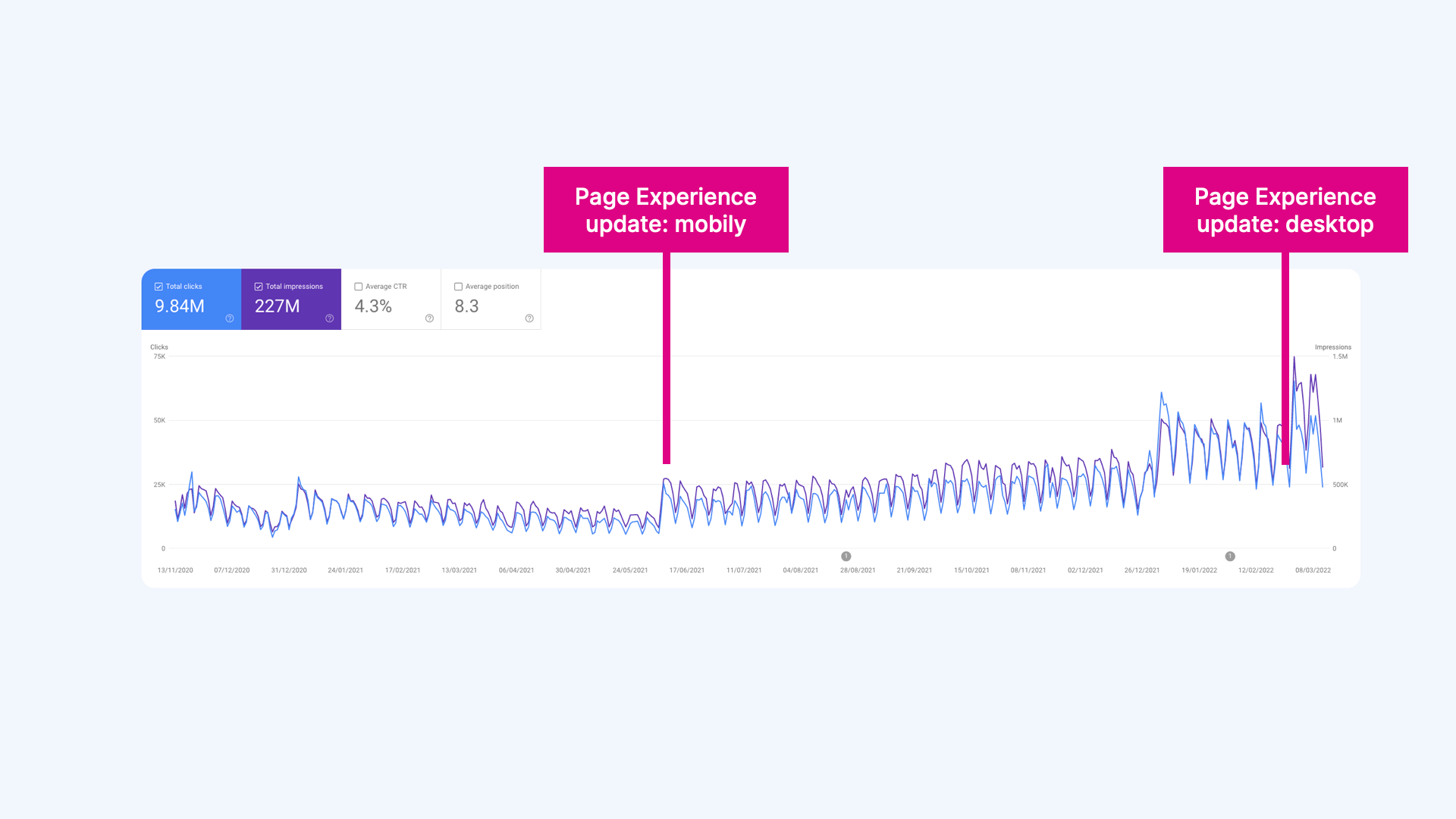 On one content site, we achieved "green Core Web Vitals" post-optimization. Following Google's Page Experience update, there was a significant boost in traffic.
How is CLS Calculated Precisely?
First, let's discuss what constitutes a layout shift.
 Cumulative Layout Shift
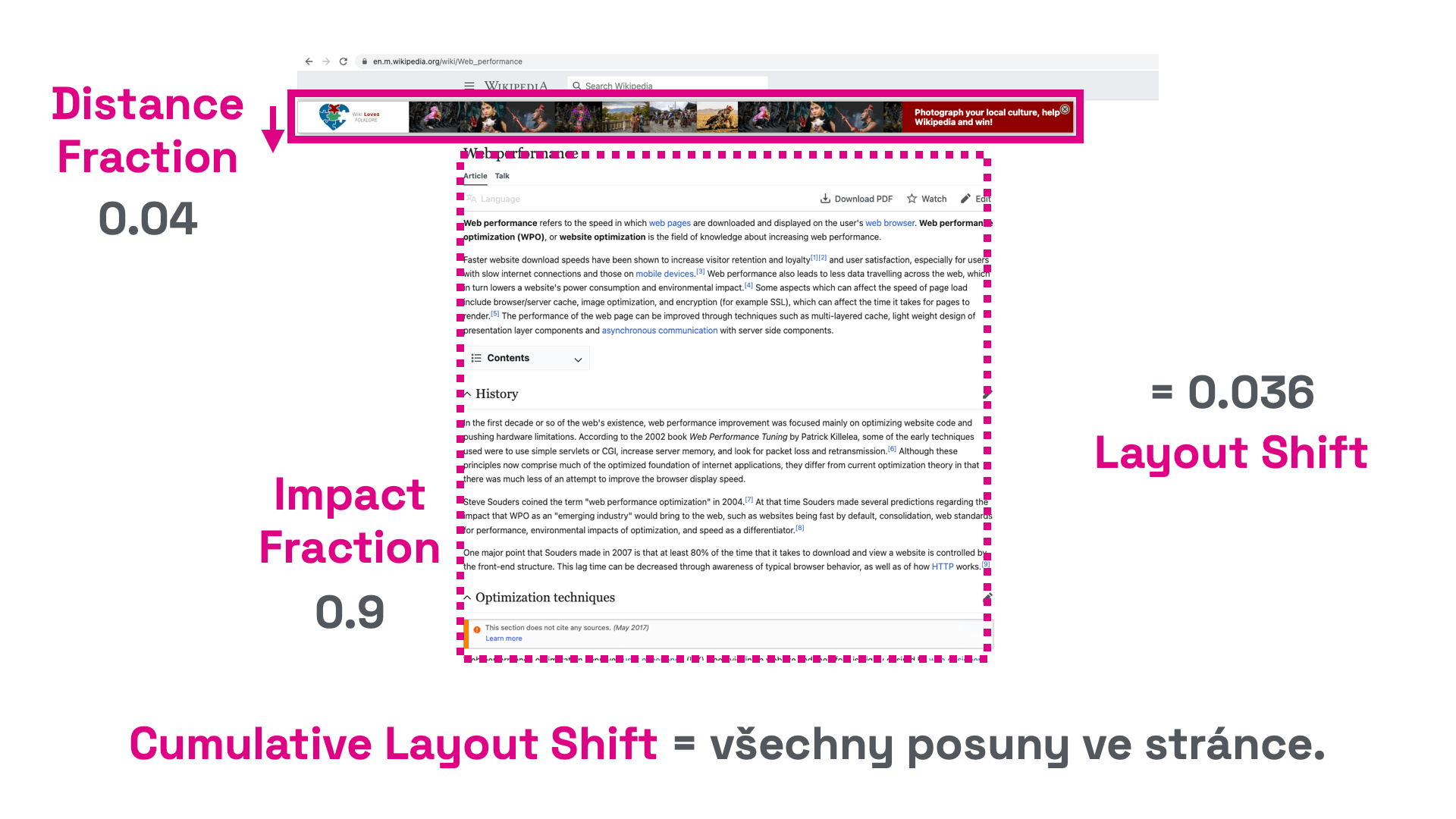
- Individual layout shifts are calculated from the total affected area size (Impact Fraction) and the distance of the unstable element shift (Distance Fraction) along both the X and Y axes.
- In the example below, the unstable element's size is approximately 90% of the viewport.
- The element shifted by 4% of the total viewport height. The shift distance is thus
0.04. - In this example, the total affected area size is
0.9, and the shift distance is0.04. - The layout shift is, therefore,
0.04 * 0.9 = 0.036.
However, there can be multiple such elements on a page, hence the "Cumulative" in the metric name.
Tip: Why have a fast website? It can boost your conversions and traffic.
The Session Window Arrives
It’s important to note that CLS is calculated from the entire user session on the page in the Chrome UX Report.
However, the total CLS score is currently limited to the maximum CLS measured in a session window limited to five seconds with a one-second gap. Simply put, it takes the worst five seconds:
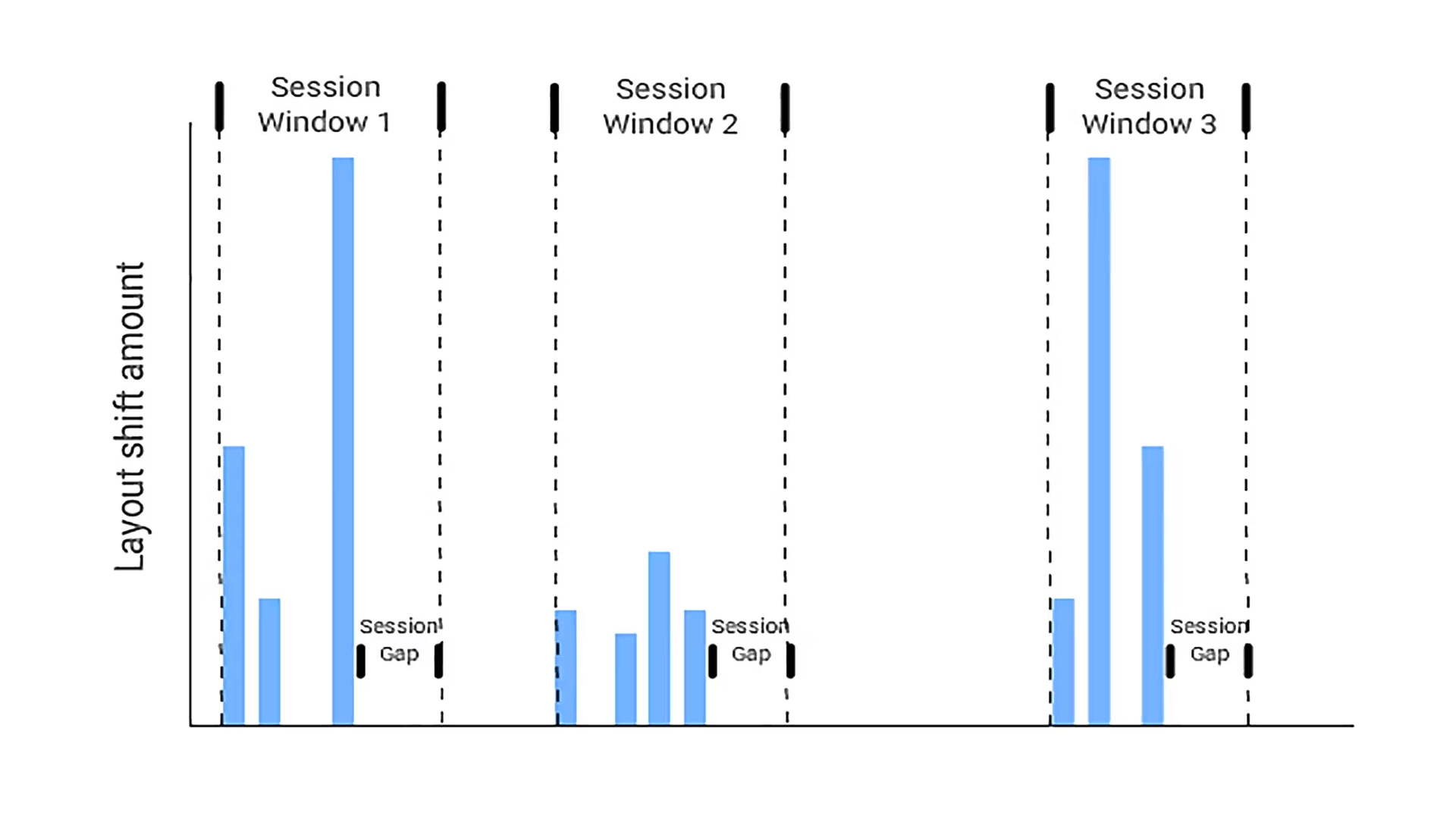 Calculating CLS. Only one, the worst window is taken. Here, Session Window 1.
- Unwanted shifts (layout shifts), as described above, are always counted into session windows with a maximum length of five seconds.
- If there’s a second without shifts, the window ends before reaching five seconds.
- Throughout the entire duration of a visit to a specific URL, only the worst window is selected (the first one in the image). This is reported as the CLS score for that page.
Calculating over individual sessions prevents unnecessarily high CLS values for visits where the user stays long on one URL.
More information on measuring CLS can be found at web.dev.
How CLS Actually Occurs
In practice, unwanted shifts are often caused by the following common reasons:
- Shifts caused by progressively loading elements within the content. These are elements without predefined dimensions, such as images or JS components.
- Poor animations and element shifts using CSS properties. Avoid CSS animations that don’t support transformations.
- Failing to complete a requested shift within 500 ms. If you can't redraw the content in time, at least create space for new content. This applies to AJAX pagination, for example.
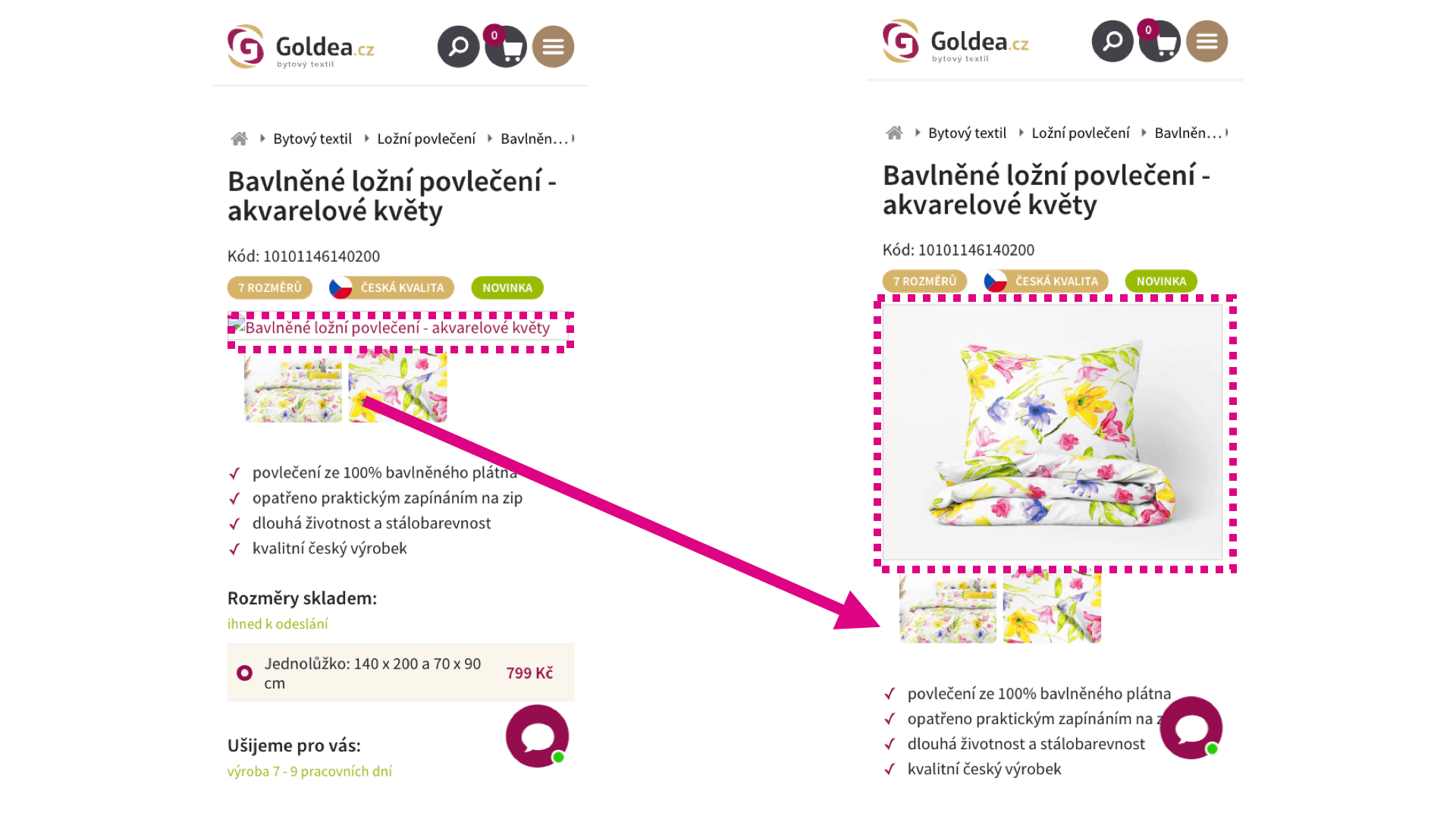 Beware of asynchronously loaded elements like images. They like to shift.
Measuring CLS
Chrome UX Report
The ideal approach is to gather CLS data from nearly all your visitors using the Chrome UX Report. It returns the 75th percentile of CLS values for all page views for your domain.
This data includes measurements from users with the Chrome browser on both desktop and mobile. Measurements from, for example, Apple product users are not included.
Data from the Chrome UX Report is available in tools like PageSpeed Insight, our PageSpeed.ONE tester, or Google Search Console.
Chrome DevTools
A great option for developers and advanced users is to measure your site's CLS locally. Measure on each individual page separately. Chrome, with the Web Vitals extension, is the ideal helper, allowing you to start measuring immediately.
Initially, measure the first CLS in the first viewport and gradually proceed to interactions like scrolling and clicking on web elements.
PageSpeed Insights or Lighthouse
PageSpeed Insights or Lighthouse will measure CLS on individual pages of your site in the first viewport. It's a good starting point for fine-tuning basic layout elements, shifts in menus, mobile headers, ad banners around the site, etc.
The downside is that it only measures CLS in the first viewport, whereas we want to measure cumulative shifts.
Specific Recommendations to Avoid Layout Shifts
From our web speed consulting, we've identified several recurring issues:
Always Specify Size for Images and Asynchronous Elements
Ensure that all images on the site have defined width and height attributes. Asynchronous elements like JS components or ads should use the CSS property aspect-ratio.
Don’t Embed Third-Party Components Without Placeholders
Before initializing ad systems or social media plugins (Facebook, Instagram, TikTok), always prepare space with a placeholder or again using the aspect-ratio property. Choose placeholder dimensions that reserve a similar area to the content generated by the plugin.
Utilize BFcache
Enable the browser to utilize BFcache to reduce CLS scores on your site. Thus, when navigating browser history, the page doesn’t need to be re-rendered and is displayed from memory, avoiding all rendering shifts. This cache has been operational for years, but Chrome began supporting it for both mobile and desktop in 2023.
Tune Custom Fonts
Substituting system fonts with custom ones often causes unwanted shifts.
Here are some recommendations:
- The fewer individual cuts and variants, the better.
- Start downloading fonts as soon as possible.
- Use preload to prioritize download.
- Use only the modern WOFF2 format.
- Ensure text readability before the external font is fully loaded with the
font-displayproperty. - Sync external and placeholder system fonts using
size-adjust.
React to Requested Shift Within 500 ms
If, after a click, you redraw part of the page using JavaScript, and the new content has different dimensions than the original content, the surrounding elements will shift. This shift must be completed within 500 ms.
This applies to AJAX pagination, for example. If you can't safely deliver the new content within this time on slower devices, shift the surrounding elements immediately after the click and insert the actual content into the prepared space later.
Place CSS in <head>
Keep CSS styles in the header if possible. They will be processed at the start of page loading all at once. Adding more CSS properties inside the HTML document can cause further layout shifts due to the gradual processing of these styles.
Reserve Space for Icons
If you’re using an IconFont or SVG sprite with many icons, this file can take a while to download. Only after these large files are loaded will icons appear on the site and may start to shift content. Always define icon dimensions before they are loaded.
Animate Only Using transform
The CSS transform property allows animating elements without causing layout reflows. Instead of changing width and height properties, use transform: scale(). To move elements, avoid changing the top, right, bottom, or left properties and use transform: translate().
Final TIP: Case study on optimizing CLS on our client Goldea.cz’s site by Martin Michálek from the Webexpo 2023 conference.
Bonus: Beware of Scrollbars
If you measure a CLS of 1.00 immediately after page load and can’t think of anything else to optimize, try overflow-y: scroll. Gradual processing of HTML and CSS files can cause the side scrollbar to turn on and off.
Insert this snippet into your CSS styles; it might save you a lot of headaches searching for additional CLS issues.
html { height: 100%; overflow-y: scroll; }
The CLS metric is part of our unified speed metric - PageSpeed.ONE score (SPS).
We have more on CLS optimization in a dedicated article.
We Can Help with CLS
On the SIKO website, we managed to improve layout stability sevenfold. Speed is crucial for SIKO, but the new JavaScript-based frontend exhibited significant issues with Core Web Vitals user experience metrics.
Tagy:MetrikyCore Web VitalsCLSCrUX
PředchozíInteraction to Next Paint (INP)DalšíTotal Blocking Time (TBT)