Faster Web Made Easy: New Technologies and Tools for Developers
 Martin Michálek6/26/20239 minutes reading
Recently, I gave a talk at the Plzeň meetup of our Frontendisti.cz community, presenting ten tips on the latest in web speed, tailored specifically for developers.
Let's explore these fresh, piping-hot technologies and tools in written form. Developers can use the following text as a guide for what to learn over the holidays, so they can start creating faster websites come September.
I won't beat around the bush too much, so let's dive straight into the tips.
1) WebP, AVIF, still underutilized image savers
To simplify a bit, traditional image formats have their primary purposes:
- GIF is for animations
- JPEG supports lossy compression
- PNG allows for semi-transparency
- SVG is the only format that handles vectors
New image formats WebP and AVIF can handle both lossy and lossless compression, animations, and semi-transparency. Both, however, with significantly smaller data sizes.
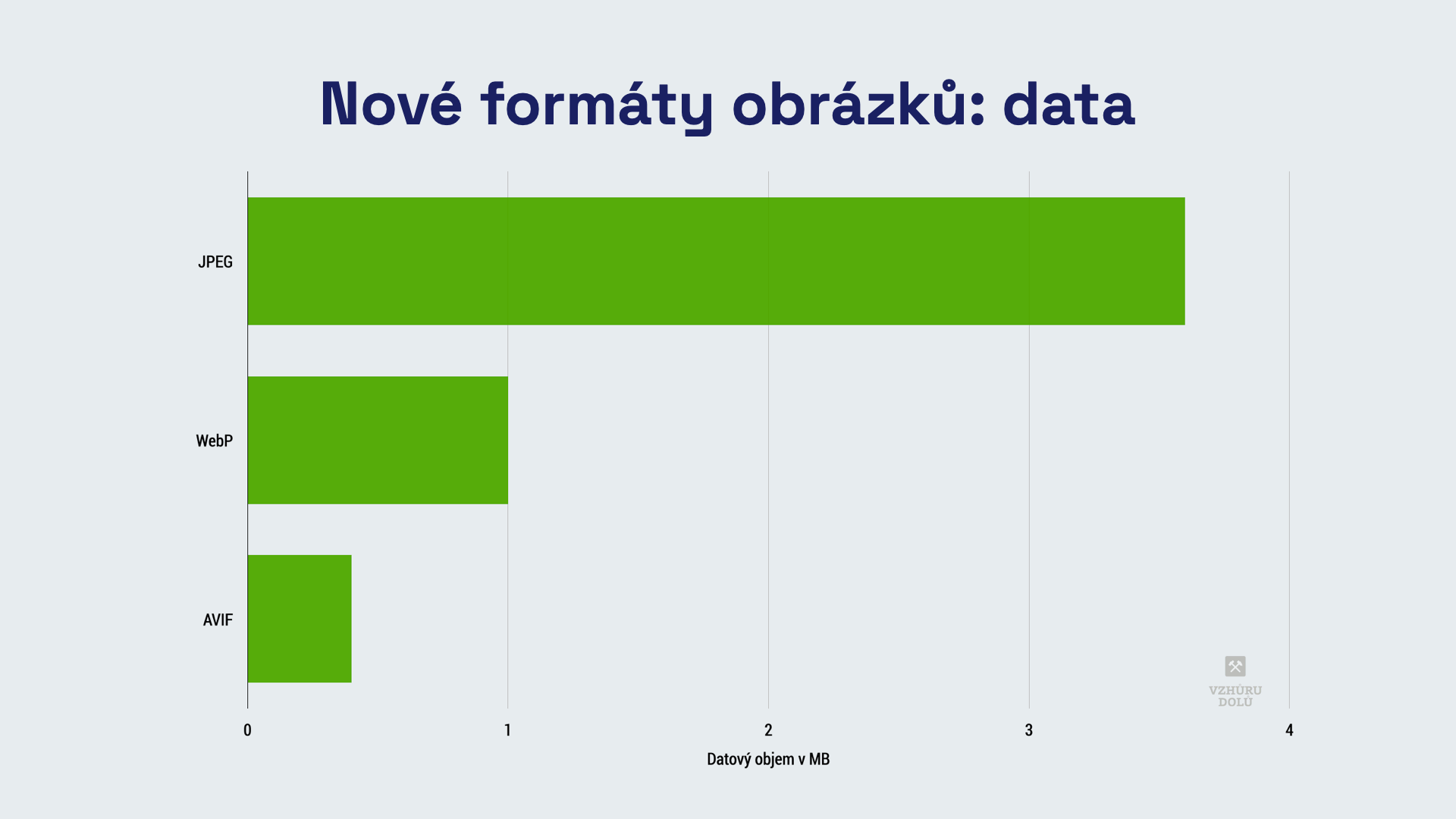
You'll still need SVG for vectors, but all other older formats are overshadowed by these newcomers.
Not using WebP or AVIF yet? You should:
- WebP is practically fully supported in all modern browsers.
- For AVIF format, we're waiting on Microsoft and its Edge browser. Yet, thanks to the picture tag, we don't have to wait too long.
Always serve images on websites in WebP and consider AVIF if you can.
2) Priority Hints, speed up LCP in no time
Priority Hints are the spice for optimizing the LCP (Largest Contentful Paint) metric.
Preload can sometimes be quite useful for boosting the loading priority of a specific element, such as fonts:
<link rel="preload" href="font-1.woff2" as="font" type="font/woff2" crossorigin />
The new fetchpriority attribute allows defining a higher priority for loading an HTML element. It also allows lowering the priority.
Take, for instance, two images in a carousel. I increase the priority for the first and decrease it for the second. The first will load and display much faster, improving my LCP metric:
<img fetchpriority="high" href="image-1.webp" /> <img fetchpriority="low" href="image-2.webp" />
It's also quite interesting to reduce the file download priority using fetch in JS:
<script>
  fetch('https://example.com/', { priority: 'low' }).then((data) => {
    // Run fetch with higher priority
  });
</script>
In the lecture recording (see above), I mentioned the possibility of increasing fetch priority, but that's nonsense. When adding priority to fetch, you can only decrease it. Higher priority is its default state.
Preload is supported by all browsers, while fetchpriority is currently only supported by those with the Chromium engine, but Safari is catching up.
Lacking support in Firefox (and currently Safari) shouldn't be much of an issue. Look at it from the perspective of progressive enhancement – some users gain the advantage of faster loading, but missing support for others breaks nothing.
Just a note, use this spice sparingly. Only adjust prioritization when you really know what you're doing and can measure the impacts directly in the browser.
3) aspect-ratio, everything asynchronous needs an aspect ratio
This image is pretty, but sad:
<img src="image.webp" alt="Image" />
Do you know why? The browser will likely need to repaint the content below it once it's rendered. This is better:
<img src="image.webp" width="500" height="500" alt="Image" />
Always define width and height attributes for images. They reserve space, preventing layout shifts and improving the CLS (Cumulative Layout Shift) metric.
Don't have an image but perhaps a JavaScript component? Use aspect-ratio:
<p style="aspect-ratio: 4/3"></p>
The CSS property aspect-ratio sets the aspect ratio for elements that aren’t images, removing the need for the “padding trick”.
Support is comprehensive across all modern browsers, see width/height and aspect-ratio. Use this for all asynchronous elements, including ads.
4) size-adjust, prevent layout jumping caused by fonts
You can see the problem in the following image from an optimization for our client, Sazka.cz:

A common issue in layout shifting, measured by the CLS metric, is the different size of the system font and custom font.
The size-adjust descriptor solves this:
@font-face {
  font-family: 'Montserrat-fallback';
  size-adjust: 113.56999999999995%;
  src: local('Arial Bold'), local('Arial');
}
This setup adjusts the system font size to the custom font, minimizing layout shifts and thus CLS degradation due to custom fonts.
Supported by all browsers except Safari. But again, this isn’t an issue.
5) BFcache, or how Chrome finally woke up
BFcache stands for “back & forward cache”. It's a browser cache storing pages navigated through the browser history. Nothing new here, but you might be surprised that Chrome has only recently mastered this feature.
The speed boost of a website with back/forward cache is immediately noticeable:
Properly implementing BFcache (without breaking things like measurement) is quite tricky. Read more about it, perhaps in the link above.
What’s important is that as developers, you should, among other things, avoid using the following properties:
- Events unload, beforeunload.
- Headers Cache-Control: no-store.
- References to window.opener.
Testing BFcache support on your websites is possible in Chrome DevTools, either in the Application tab or via Lighthouse.
BFcache support is now comprehensive, thanks to Chrome finally embracing it. There are case studies suggesting it can be quite beneficial. So far, we haven't observed a dramatic speed improvement with our clients, but we consider BFcache a potentially easy step for a slight nudge towards faster speeds. It's somewhat like implementing Brotli compression.
6) Prerender, the new version of preemptive page rendering
Using prerender instructions, you can download and prepare another page for rendering while a user is on one page.
This is particularly useful for straightforward navigation, like browsing through a purchase process.
Prerendering can also greatly impact user experience. Once upon a time, there was quite a “hype” about page prerendering in the developer community:
<link rel="prerender" href="/next-page/" />
However, this old method of prerendering will be removed from Chrome. It’s deemed too simplistic.
The prerendering instructions are newly defined as of Chrome 108:
<script type="speculationrules">
  {
    "prerender": [
      {
        "source": "list",
        "urls": ["next.html", "next2.html"]
      }
    ]
  }
</script>
Note the speculationrules syntax. Yes, it’s indeed about “speculative rules”. They express the probability that a user might continue to certain specific pages. In the next version of Chrome’s implementation, numeric expression of this probability should not be missing.
You can again count on support only in Chromium-based browsers for now. As for us? We're waiting to see how it pans out with our clients.
7) INP, a brand-new interactivity metric
In the talk, I mentioned that the INP (Interaction to Next Paint) metric will likely replace the FID metric in 2024. We now know the Core Web Vitals change date: March 2024.
The new metric again focuses on the speed of interface response to user clicks (or other inputs). Its enemies are therefore slowly executed “ajax” queries or long tasks in JS that stall the rendering engine.
I calculated that only 17% of the top 100 most visited Czech e-shops meet this metric.
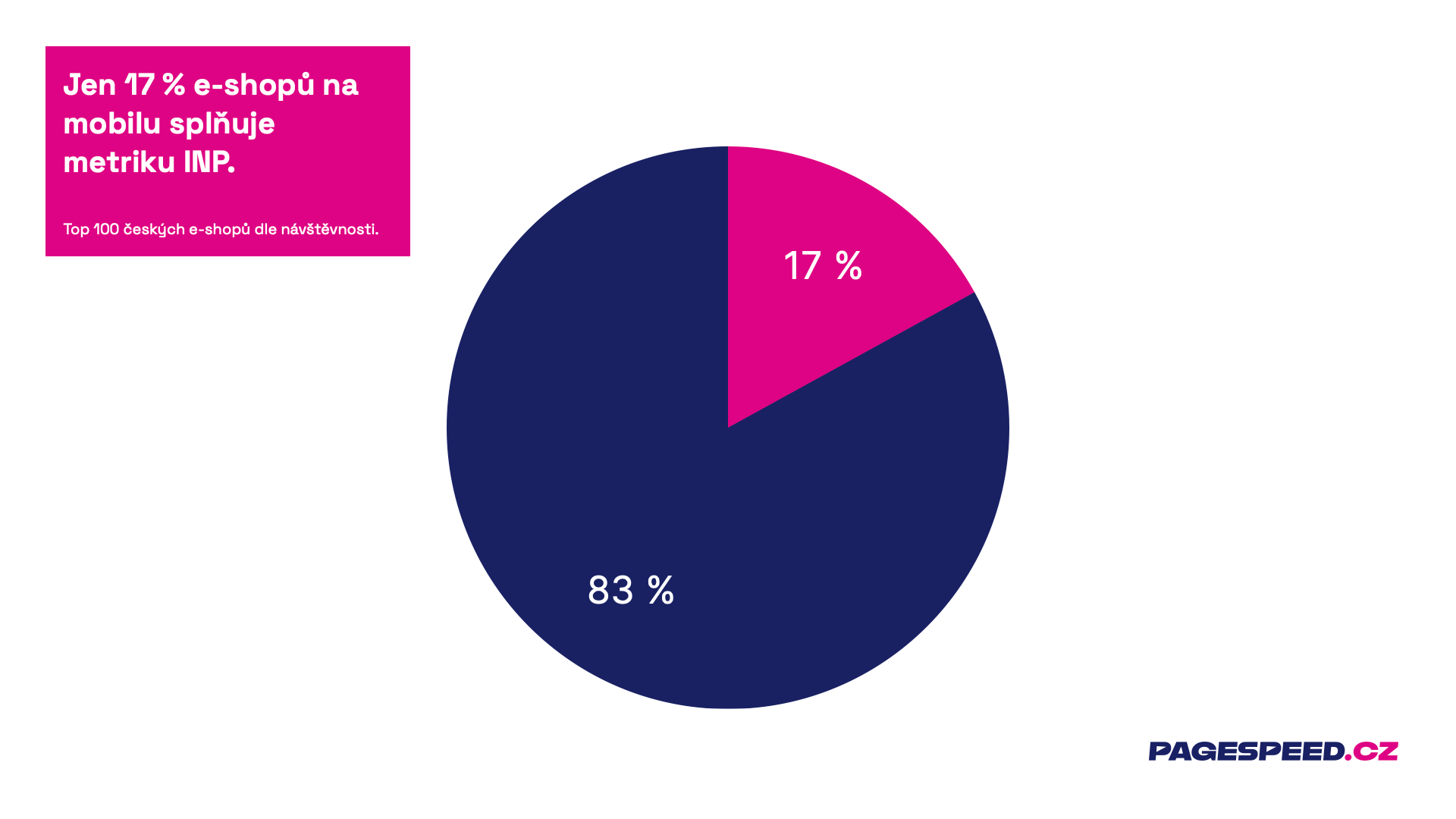
Globally, 95% of websites meet FID ⨉ only 66% meet INP. I fear this might cause some pain in the developer community next year, mainly for websites built on JavaScript frameworks.
What are the main differences between the INP and FID metrics?
- FID = first interaction × INP = entire page stay. It’s not enough to respond quickly only to the first click. The worst of them all counts.
- FID = first part of the reaction × INP = entire reaction. FID only measures the time before the click begins processing with JavaScript. INP literally waits for the page to repaint into the new state.
Optimizing the INP metric on your website may take some time, so we recommend starting to focus on this topic soon. INP is now also displayed in our speed tester, including its monitoring. We can, of course, assist you with optimizing this metric.
In the following tips, we'll move from technologies and metrics to tools.
8) Web Vitals overlay, a discreet but great helper
To fine-tune the right issues as developers, you must know how to measure metrics correctly.
The Web Vitals overlay is significantly better for local testing than Lighthouse. It shows the correct metrics, and they are also correctly calculated.
It’s important to realize that without special settings, Lighthouse measures synthetically and therefore can’t accurately measure metrics gathered from the user over their entire page stay.
How to access Web Vitals overlay?
- Open Chrome Dev Tools (F12).
- Cmd + Shift + P on Mac, or Ctrl + Shift + P on Windows.
- Start typing “Web Vitals Overlay”.
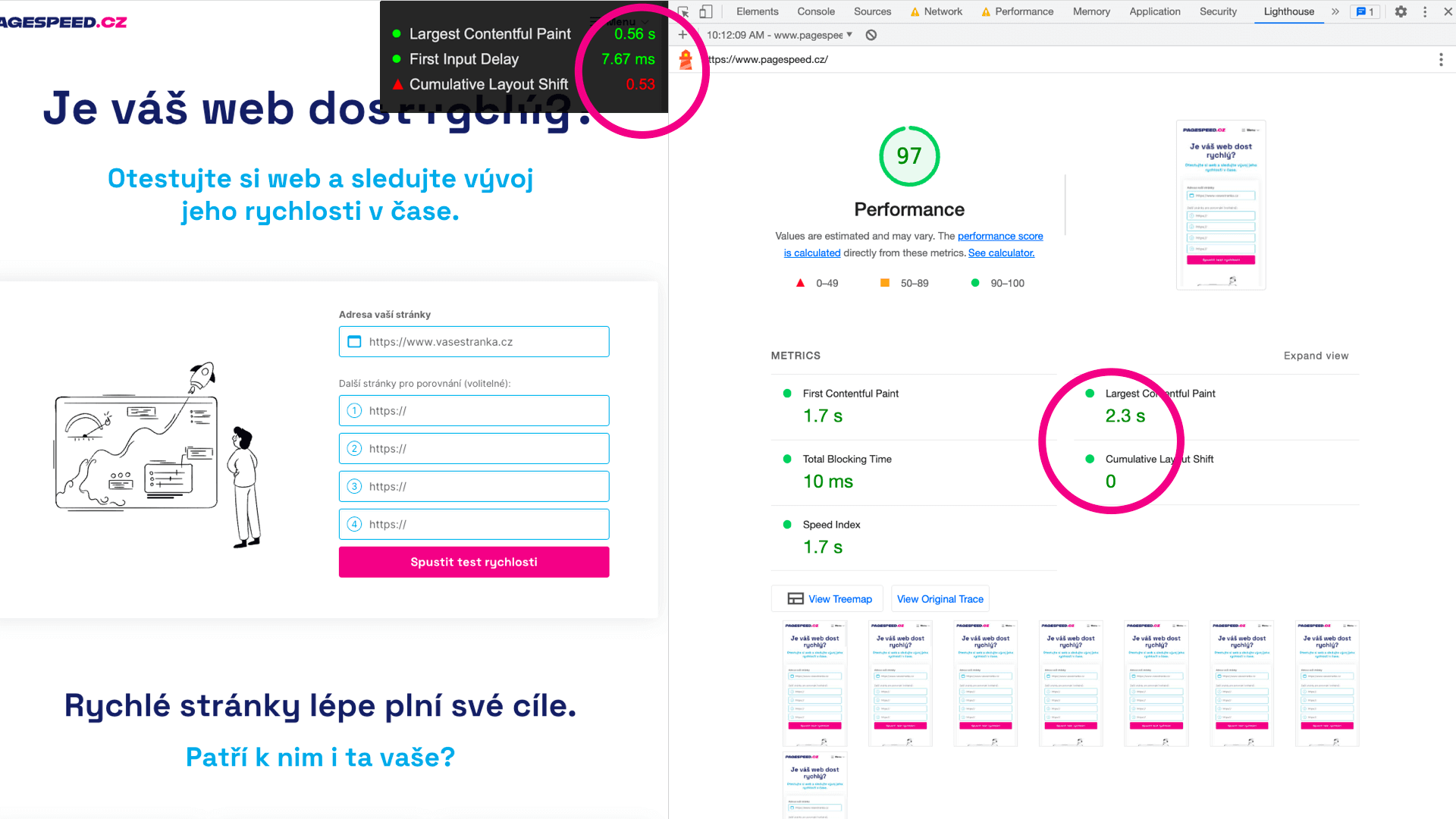
With metrics like CLS or the new INP, you won’t get the same numbers as you see in Google’s data.
A reasonable alternative to the Web Vitals overlay is the Web Vitals extension.
9) Perf. Insights, a new tool for speed tuning
Performance Insights is like the Performance tab, but for humans.
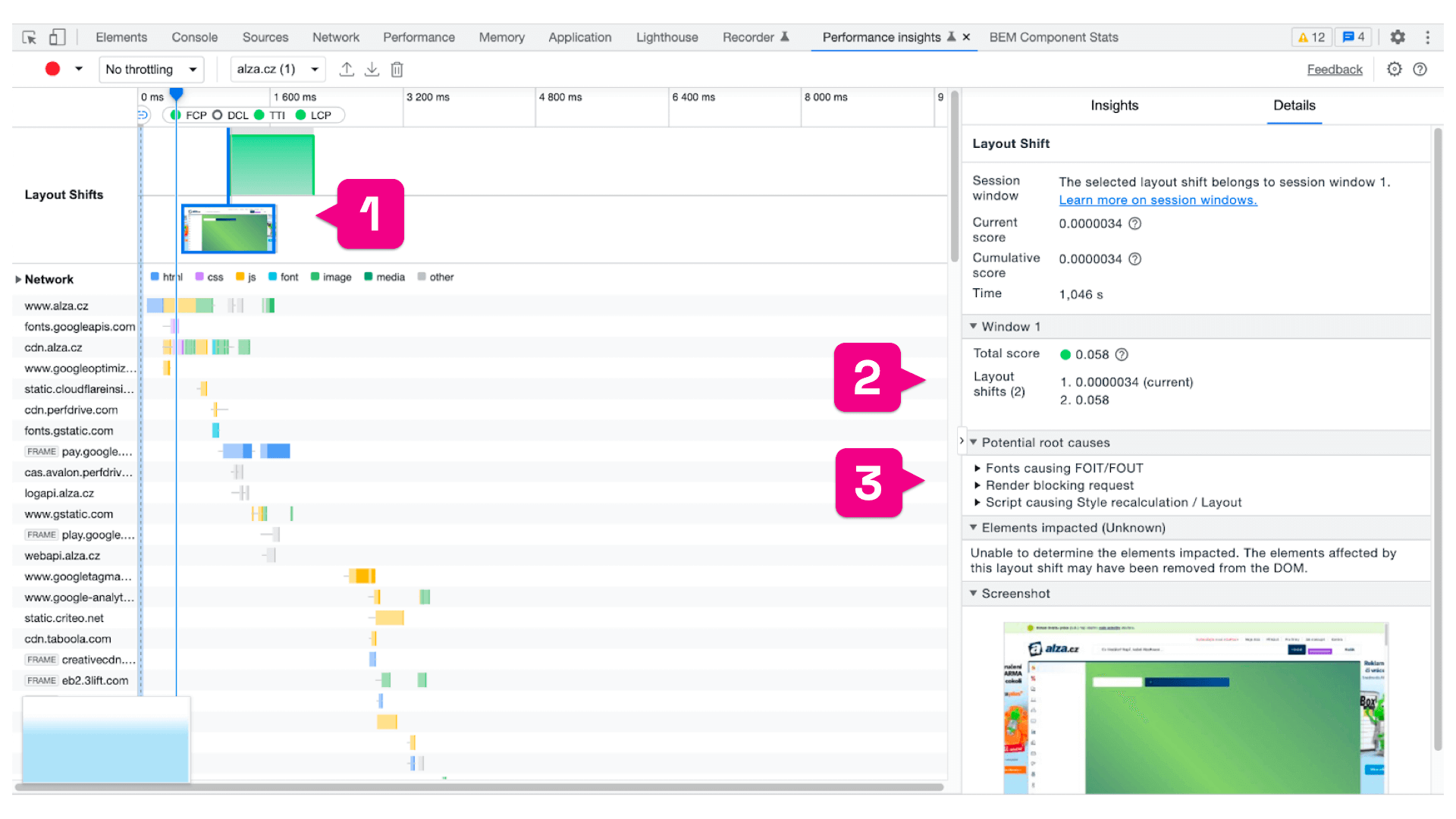
In Insights, Chrome shows specific information for tuning specific metrics, see for example with CLS:
- Specific unwanted shifts in CLS (1).
- CLS score (2).
- Potential causes of the problem (3).
If you need details for speed tuning and the Performance tab is too complex for you, consider Performance Insights.
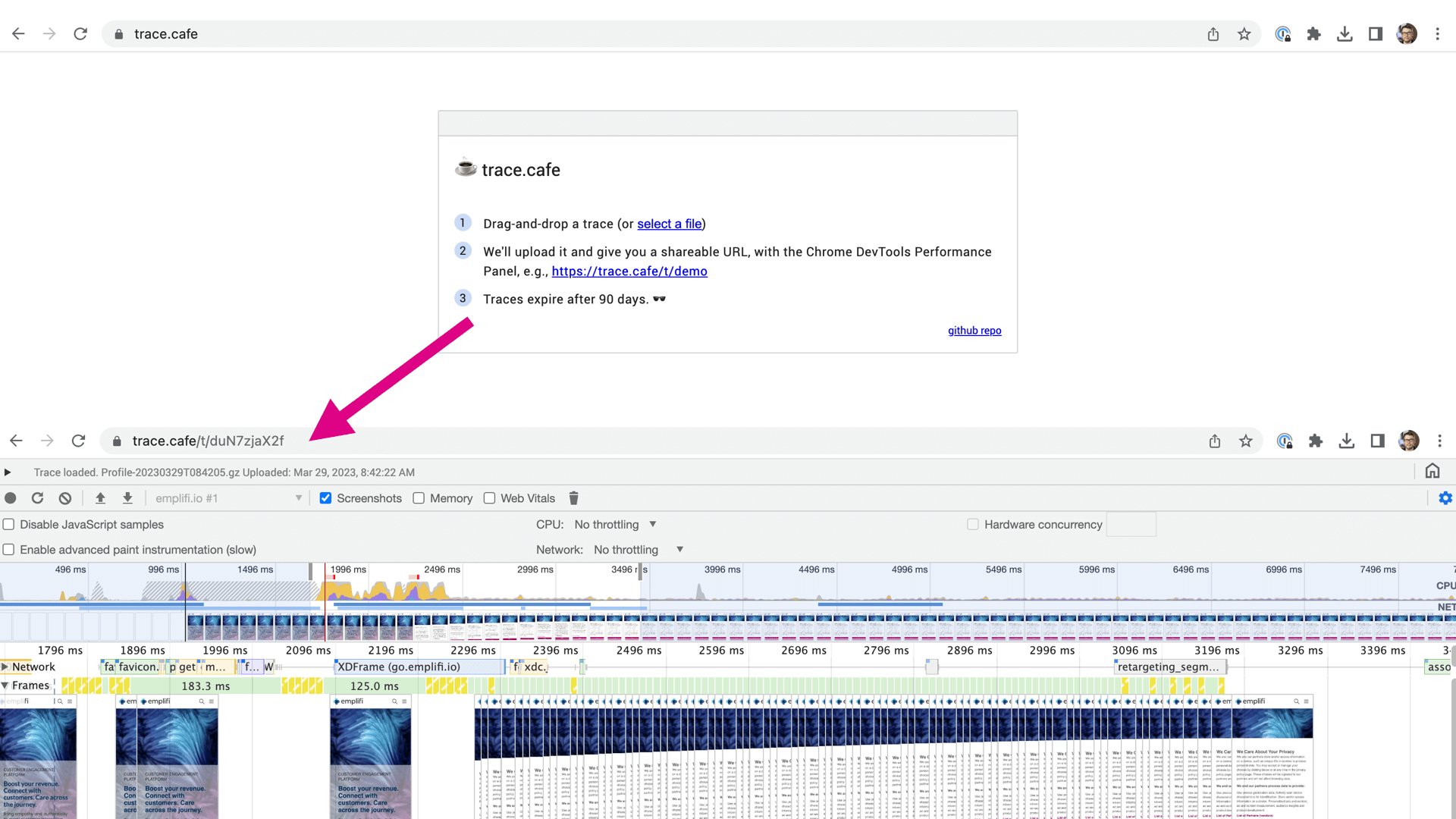
A very brief tip to finish. Trace.cafe allows you to share the output from Trace (Performance tab) at a specific URL.
Download the data in JSON, drag it into Trace.cafe, and share the resulting URL with colleagues. Paul Irish, the author of this great app, says your trace will last for three months at the given URL:
And that’s the end of this brief guide to the latest in speed for developers.
Would you like more tips? Each month we publish a newsletter, but we also publish on LinkedIn, Twitter, or Facebook.
Stay informed about your website's speed.
Subscribe to our newsletter. Each month, we share the latest in website speed for site owners, marketers, and developers.