WebP Images: How to Save Precious Kilobytes
 Radek ŠírUpdated 1/27/20264 minutes reading
WebP is an image format developed by Google in 2010. Google designed WebP as a replacement for JPEG, PNG, and even animated GIFs.
Using the WebP format can significantly enhance your website's performance without sacrificing image quality. Therefore, we recommend switching to WebP as a safe bet for all our clients.
WebP supports almost everything we want from web images:
- Lossy (like JPG) and lossless compression (like PNG).
- Transparency and semi-transparency (alpha channel like PNG).
- GIF-like animations.
WebP's success in optimizing data volume stems from its use of VP8 technology from video codecs. The result is far more efficient compression than older formats, such as JPG, PNG, or GIF.
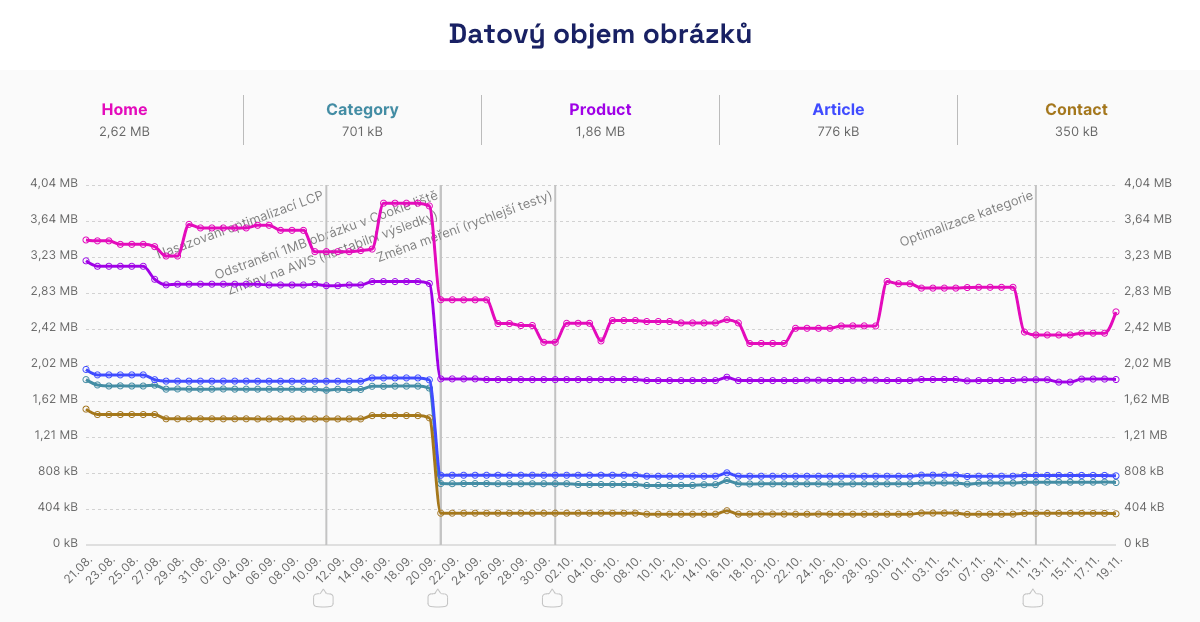 WebP can achieve such a noticeable reduction in image data volume. Source: Technical report in monitoring PLUS.
Speed Monitoring PLUS
Try our monitoring app free for a month.
5,400 CZK annually per website. Invoice only, no credit card needed.
Why Use WebP?
Using WebP images improves website speed:
- Faster Loading
WebP images are generally 25–34% smaller in data size than JPEG or PNG. This improves loading speed and thus the LCP metric. - Saves Data Transfer
This is particularly beneficial for mobile users with slower connections. - Compatibility
WebP is supported in all major browsers, including Safari (from version 14). No fallback solutions are needed.
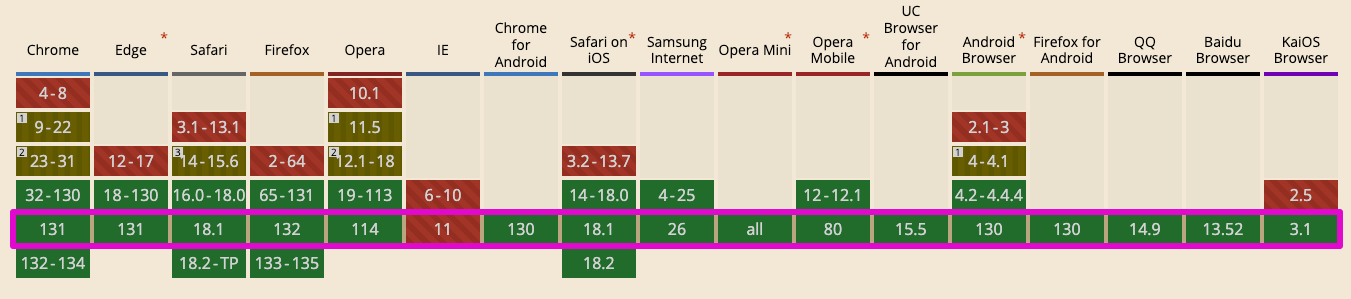 WebP support according to CanIUse. Internet Explorer is, thankfully, a thing of the past.
How to Implement WebP on Your Website?
The ideal solution is to automate the process and insert correctly compressed images into your website. However, there are several ways to incorporate WebP images:
- Automatic Conversions to WebP
Use tools like cwebp, ImageMagick, and similar libraries to generate images on your server. Once an image is uploaded through the admin or imported, it gets compressed into the appropriate format and quality. Compression can also occur on demand—created with the first browser request, though this will be slower. - Enable WebP Support in the Cloud
Most modern cloud solutions, such as Cloudflare, support conversion to the WebP format. Many also handle the newer AVIF format, which lacks wide support but offers more. The advantage is that you don't have to manage storage on your server, and the cloud selects the most optimal format for you. - Manual Conversion to WebP
For smaller static websites, manually compress images into WebP using tools like Squoosh or simply in Photoshop.
Our Experience: How to Set Quality?
Setting compression quality parameters can be tricky, so we share insights from our web speed consulting.
Compression settings can vary depending on the use of images on your site. Let's illustrate with examples:
- For product thumbnails in e-shop category listings, a quality of 70-80% often suffices.
- If selling cameras and showcasing true photo quality, it's wise to set WebP quality at 85-90%.
We always recommend dedicating time to compression settings. At least two steps are necessary:
- Testing
Take several typical photos for your site. Experiment with tools like TinyPNG or Squoosh and observe the quality-to-file-size ratio. - Choosing the Optimal Quality Level
A quality of 70-90% is recommended for lossy compression. Lossless images suit graphics with sharp edges (previously used as PNG) or detailed photos.
A final tip: Always monitor image data volume. Our experience shows that even changing a single image, perhaps on your homepage, can cause unpleasant fluctuations in website speed:
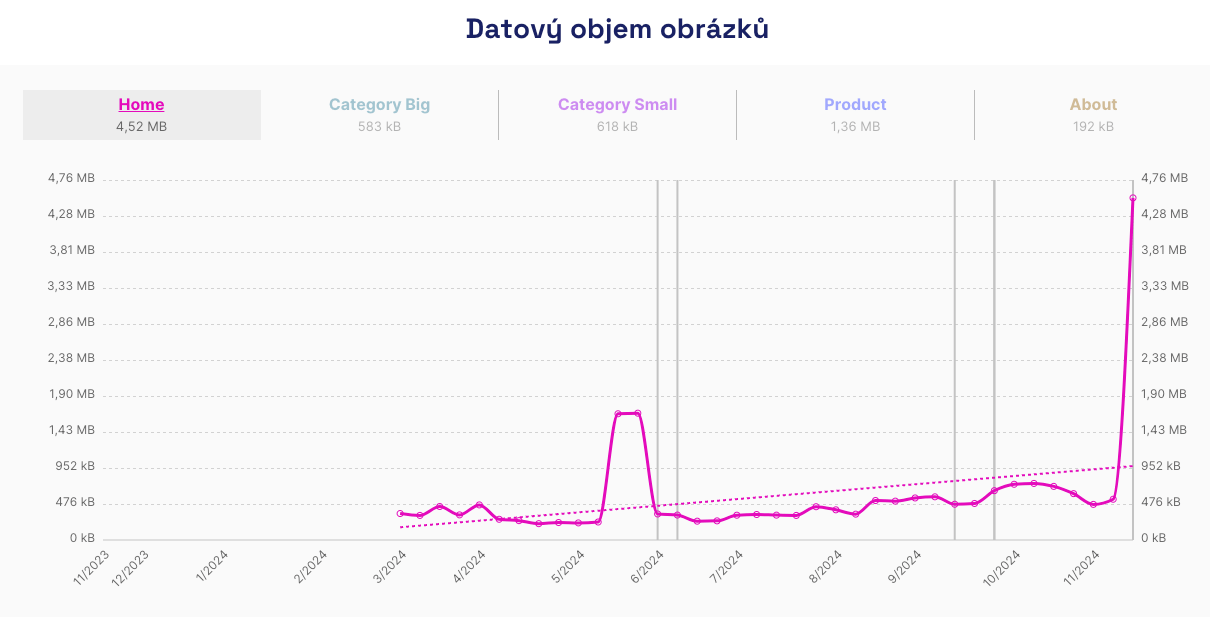 Timely detection of an issue caused by inserting a 4 MB image on the homepage. Source: Technical report in monitoring PLUS.
Here you'll find more tips for optimizing web images. If you're already using WebP and want to push optimization further, check out our article on the AVIF format, which offers even better compression.