Performance Budgets
 Zuzana FatrdlaUpdated 2/25/20263 minutes reading
Performance budgets are a methodology used to maintain website speed at a predetermined level. Think of a budget as a set of limits for different metrics.
Tools that monitor these speed limits alert us to potential issues when they're exceeded. This aids teams in maintaining the desired level of speed, even as new content is added or features are changed.
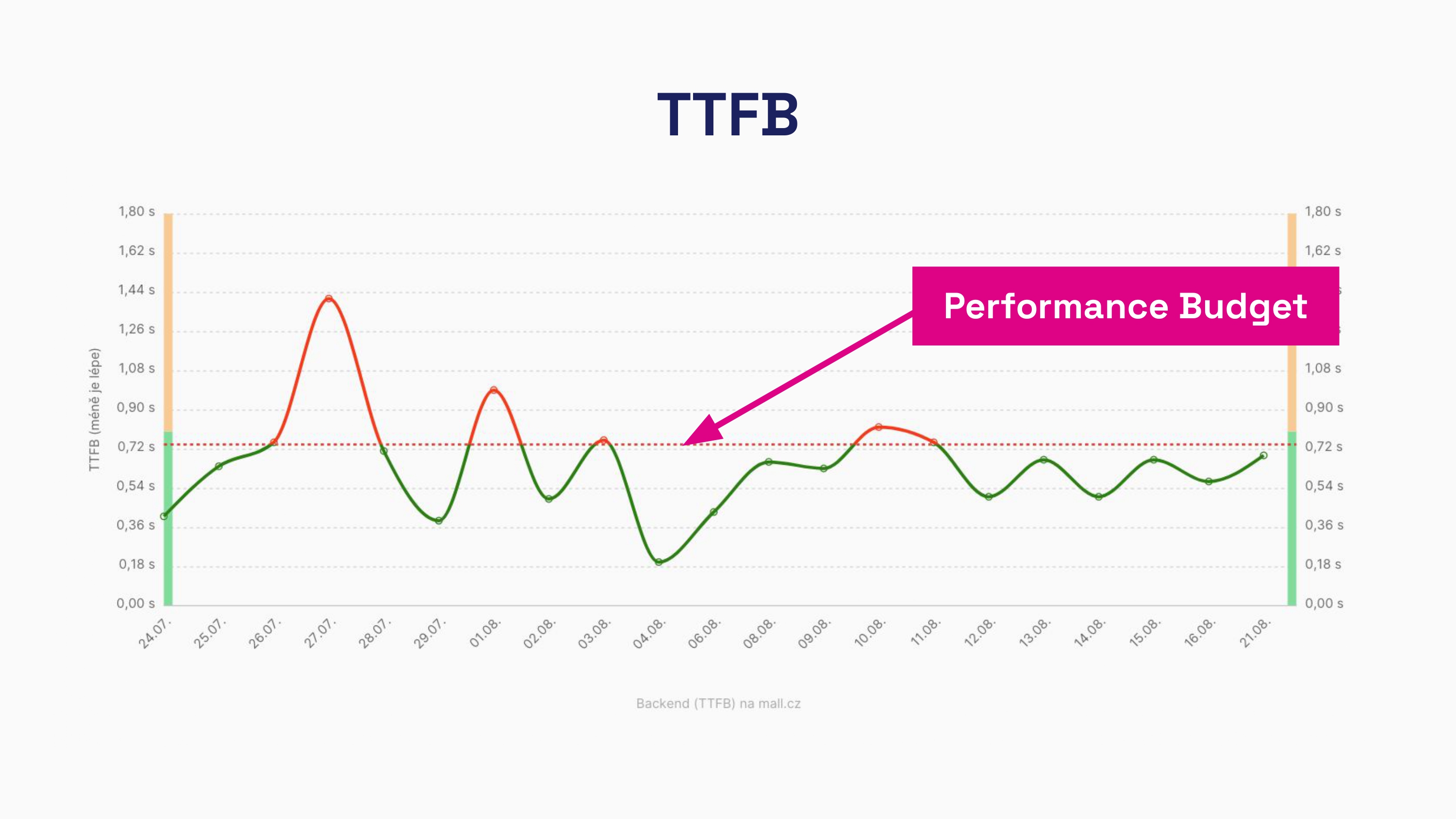 Performance budget for the metric value TTFB (server response)
How do speed limits assist in speed optimization?
Performance budgets are a set of rules ensuring that pages remain sufficiently fast and user-friendly. Limits work well with various measurements – both synthetic and RUM.
It's advisable to monitor speed limits for all important metrics. Specifically, we recommend keeping an eye on the Core Web Vitals and other auxiliary metrics. The list of monitored metrics should look like this:
- Time to First Byte (TTFB)
- First Contentful Paint (FCP)
- Largest Contentful Paint (LCP)
- Cumulative Layout Shift (CLS)
- Interactive to Next Paint (INP)
- Total Blocking Time (TBT)
However, keep in mind that there are rather significant differences between synthetic and RUM measurements in metrics.
Synthetic measurements are limited to metrics during page loading, which means results for metrics like INP or CLS are unavailable or inaccurate. Therefore, synthetic CLS results should be considered partial compared to user data (CrUX), and instead of using INP in synthetic measurements, monitor TBT.
Why do we recommend everyone monitor Performance Budgets?
Loading speed directly affects user experience and thus business performance. A slow website can decrease conversion rates and increase bounce rates.
Performance budgets help achieve this goal:
- Maintain a consistent level of metrics.
Setting limits prevents issues when deploying new features or content. - Automate monitoring.
With automatic alerts for issues, you don't need to manually monitor constantly. - Test long-term in a stable environment.
By maintaining the same testing environment, you can compare the current state with historical data.
If you use tools for website speed monitoring (Monitoring), the following tips for setting limits will certainly come in handy.
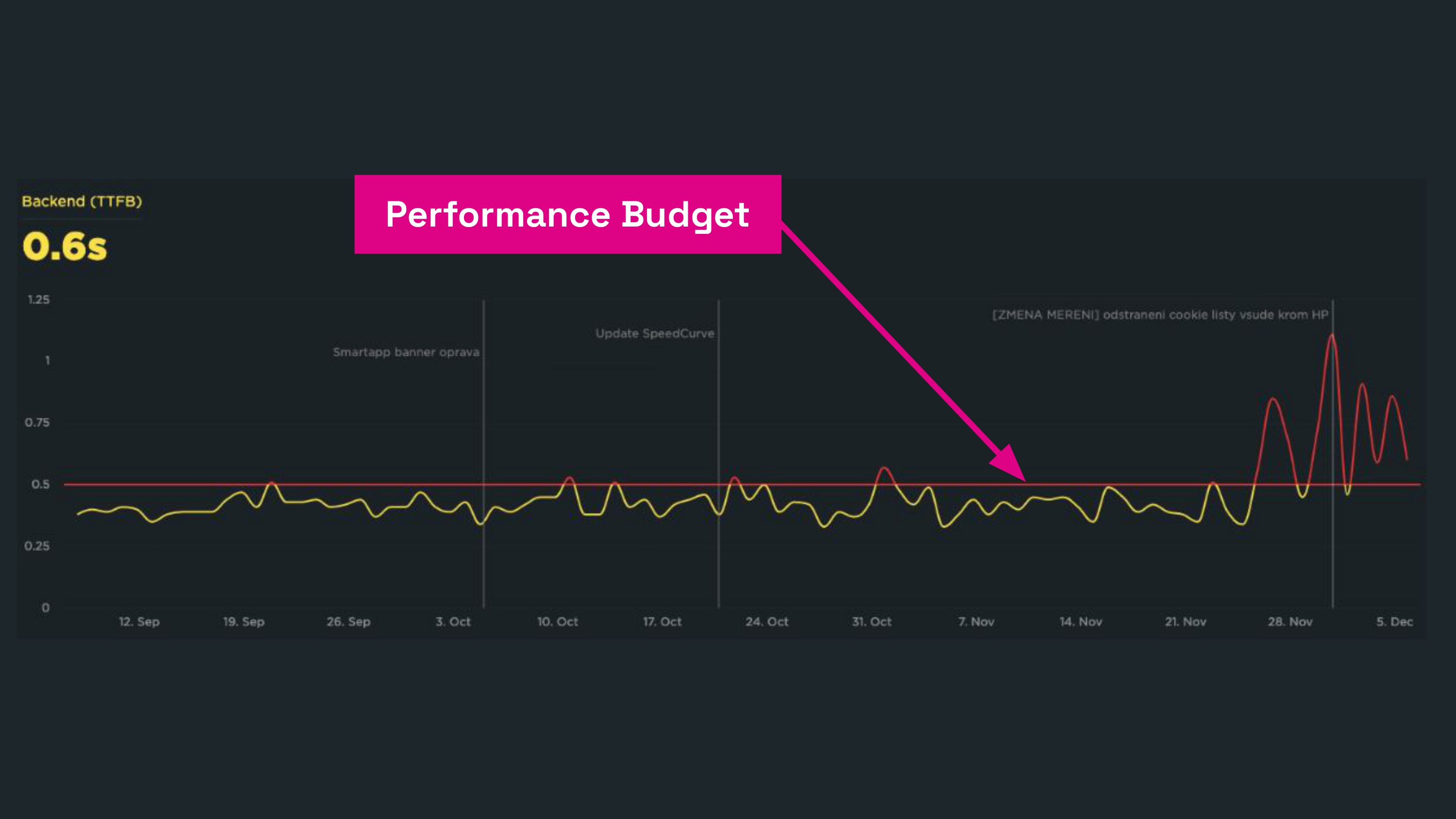 Example of Performance budgets in the SpeedCurve tool.
For a deeper understanding of setting speed limits, we recommend articles on MDN, SpeedCurve's blog, or by Harry Roberts.
Speed Monitoring PLUS
Try our monitoring app free for a month.
5,400 CZK annually per website. Invoice only, no credit card needed.
Monitoring PLUS approaches speed limits differently
In our Monitoring PLUS, we set performance budgets automatically, unlike traditional approaches.
Speed limits are part of the Watchdog report. The Watchdog monitors the speed of your site's measured pages daily. If any key metric changes, the Speed Watchdog will notify you.
Unlike other tools, the Watchdog operates without requiring active attention and without spamming. You can then focus on what is key for your projects.
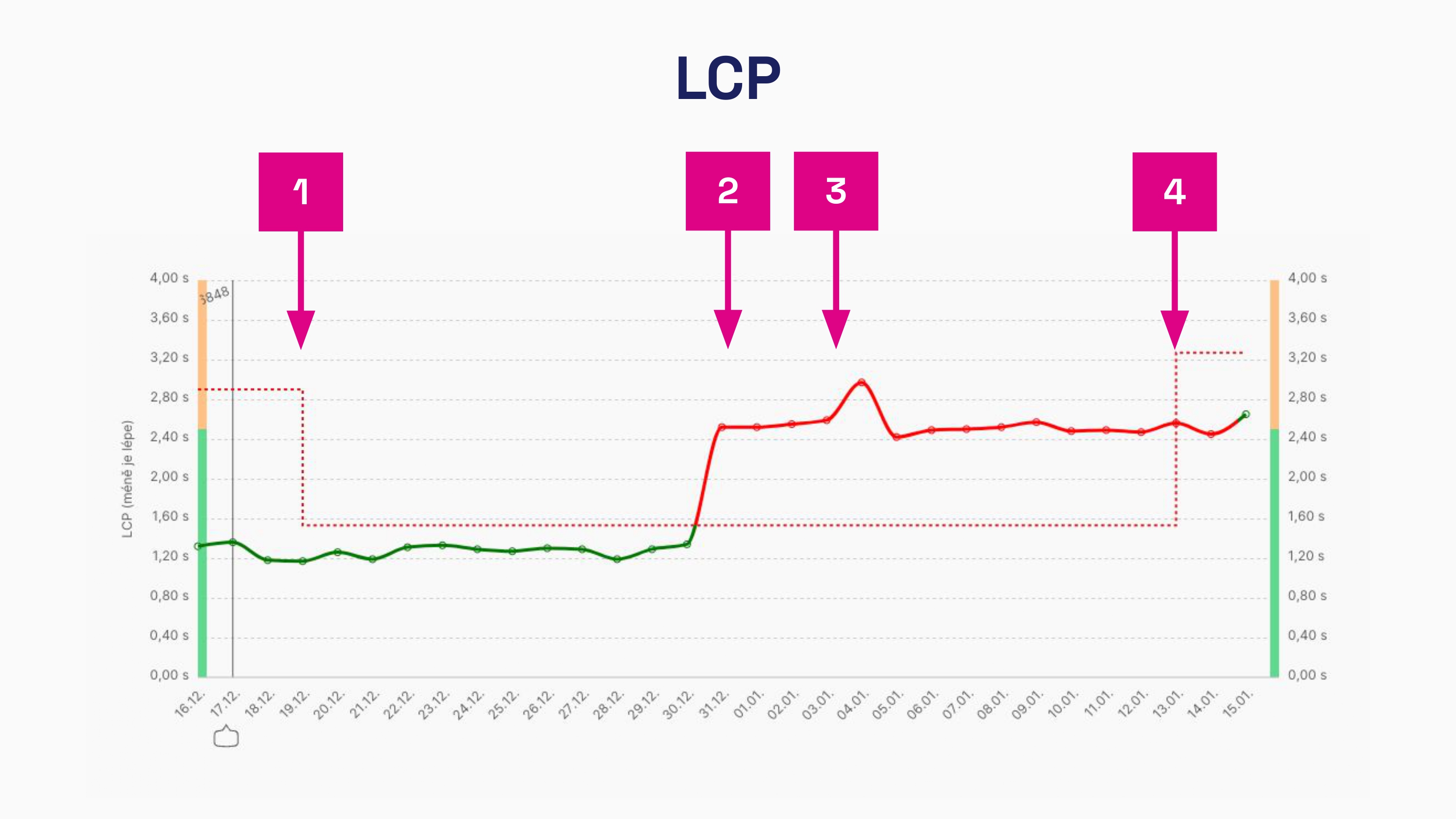 Operation of the Speed Watchdog in Monitoring PLUS.
Let us explain what you see in the image:
- The LCP metric has improved, so it is recalculated to lower values automatically.
- There is a sudden deterioration in the metric.
- If it is not a temporary change, the Watchdog sends a notification.
- Even after two weeks, no fix has occurred, so the Watchdog remembers the new level for monitoring the LCP metric.
In conclusion, web speed tends to deteriorate. The methodology of Performance Budgets is to maintain the existing level and monitor changes. The most crucial feature of monitoring is the ability to keep track of these limits and alert you to potential issues.
If you exceed limits and need to find out what exactly changed, Lighthouse Diff will help you – a tool for visually comparing two Lighthouse reports.