Optimising CLS Metrics
 Radek ŠírUpdated 2/7/20267 minutes reading
Greetings to all web speed enthusiasts! In December 2023, I gave a talk at a Frontendist meetup focusing on the CLS metric.
I highlighted common CLS issues encountered on our clients' websites and how we help eliminate them.
Let’s explore how to avoid CLS issues and how to fix them if they occur.
Read on or simply watch the recording:
1. Aspect-ratio, dimensions, min-height
Every element on a page has its own size. This could be an image, video, iframe, or another web component. When a page is loaded, the browser creates space for each element before it is displayed. More details are available in this article.
2. Font size-adjust
Use CSS descriptors like size-adjust and ascent-override to align system font dimensions with the web font used on your site. Ensure the system font renders as closely as possible to your chosen font.
Setting up these descriptors is straightforward. You might use this generator. Simply load your web font on the page and adjust the outlines with sliders to closely match the system font.
For Google fonts, settings are already prepared on pages like this one, showing how the final text will look.
 Here you see how the layout and positioning of paragraphs change after loading a web font.
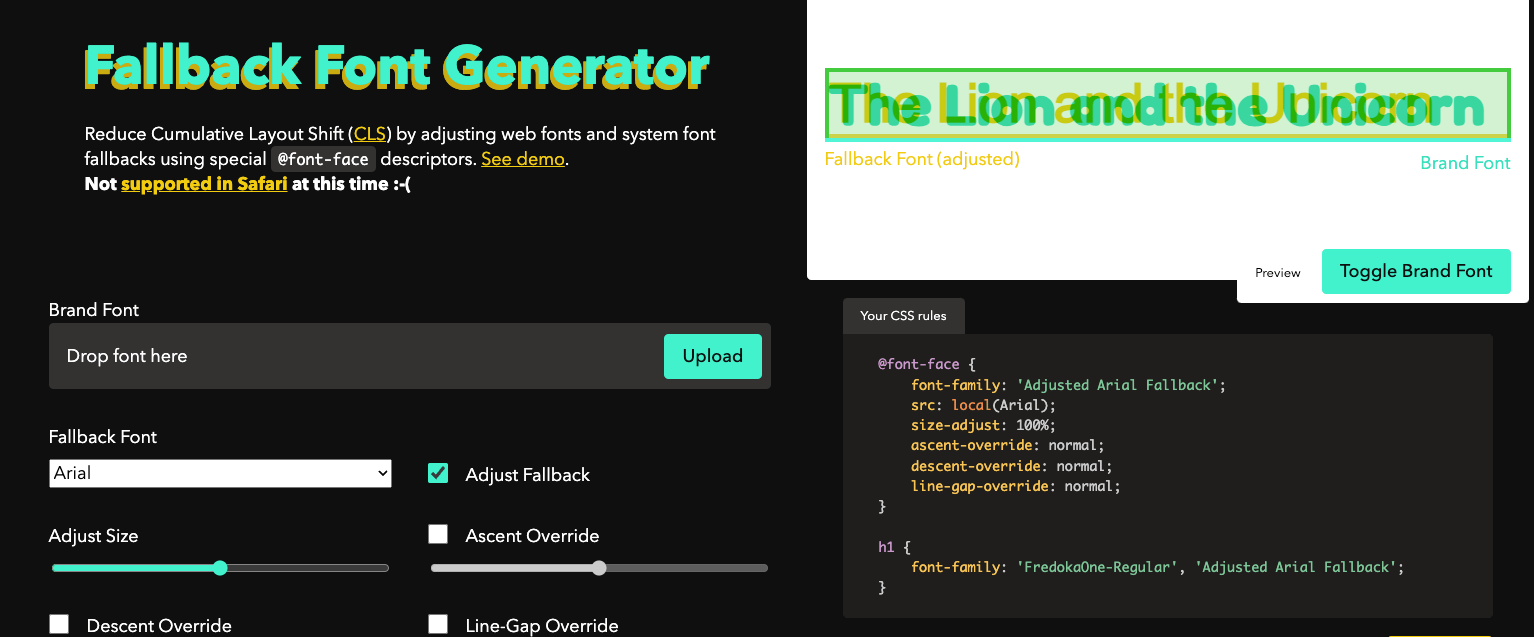 Example of a tool for adjusting system font size screenspan.net/fallback.
3. Progressive content loading
When rendering a page, the browser scans the HTML content, begins downloading source files, and processes them sequentially. Websites often consist of smaller components like headers, main content, and footers. Sometimes the main content has a complex structure or contains large amounts of data.
If your site is built using a JavaScript framework (Vue.js, React, etc.), it may happen that the JavaScript responsible for rendering the main content takes longer to load than the JavaScript rendering the header and footer.
If the footer is rendered first and then the main content, it leads to a shift in the footer and an undesired layout shift.
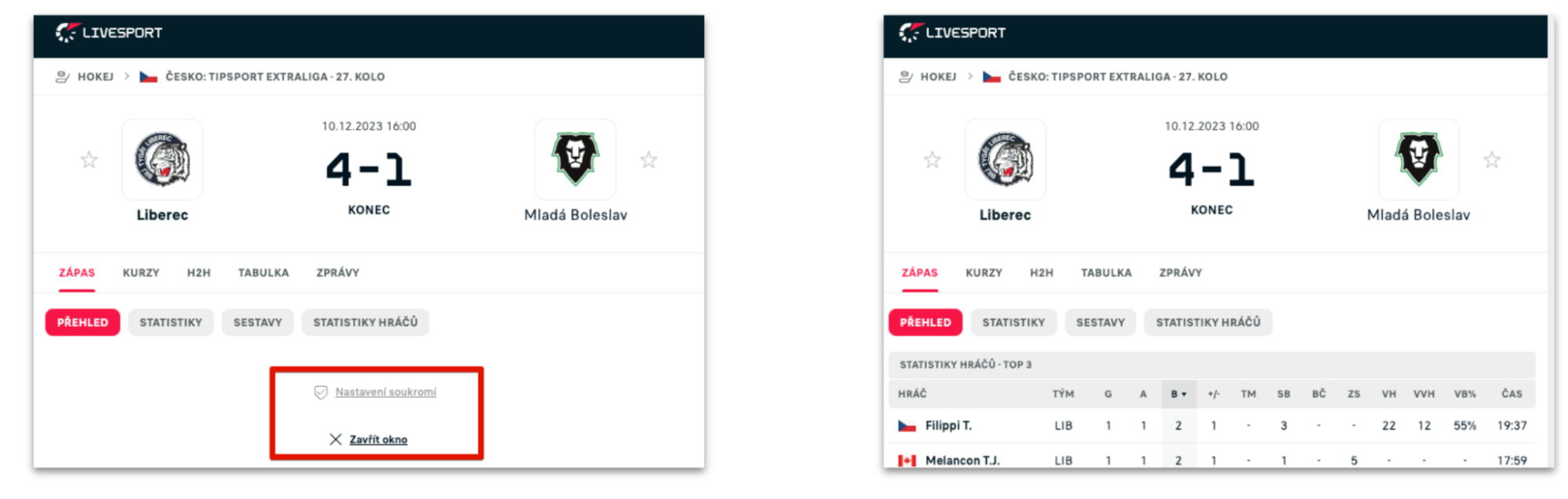 The main content was rendered late and moved the footer, causing a layout shift.
Solutions vary depending on the type and usage of the application.
- This issue often affects Client-Side rendering applications. If possible, enable Server-Side rendering for as many elements on the site as possible.
- Another solution might be to load the footer only after the main content has loaded.
- If you cannot fully control the timing of JavaScript file processing, you can move the footer out of the viewport immediately upon the first page render. For example, set a minimum height for the
<main>element using the CSS propertymin-height: 100vh.
Tip: Our PageSpeed Monitoring can detect CLS metric issues and notify you of changes via Watchdog monitoring to Teams, Slack, or email.
4. Content (not just) in modal windows and AJAX
If you use AJAX to load data on your site, ensure that the displayed data has pre-prepared space on the page to avoid shifting content below.
For example, displaying product availability, product descriptions, technical data, prices, or other tables. Other elements that can be problematic are various ads and advertising boxes, where the future height of the content is often unknown.
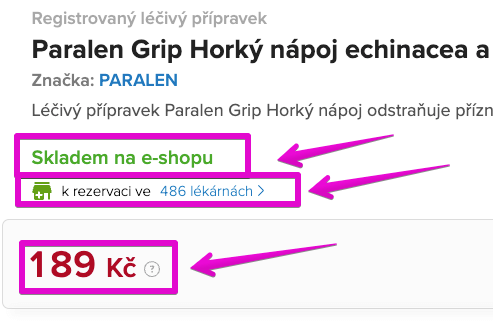
Information that loads later than on the initial page render shifts content and increases CLS.
The solution is often preparing suitable placeholders where the real content will be rendered later. If you do not know the future height of an element (e.g., an ad), prepare at least a placeholder with a minimum height to partially mitigate the impact on the CLS metric.
Mini Case Study: Optimising CLS on Datart's Homepage
Datart.cz significantly improved unintended layout shifts on its homepage in collaboration with PageSpeed.ONE. The issue was with a carousel loaded via the external Bloomreach service, which loaded only after the initial page render and shifted the content below.
The solution was relatively simple but not easy to implement on the existing setup. We reserved space for the carousel before it loaded. Thanks to this adjustment, the CLS value on the homepage decreased from 0.6 to 0.06, a tenfold improvement.
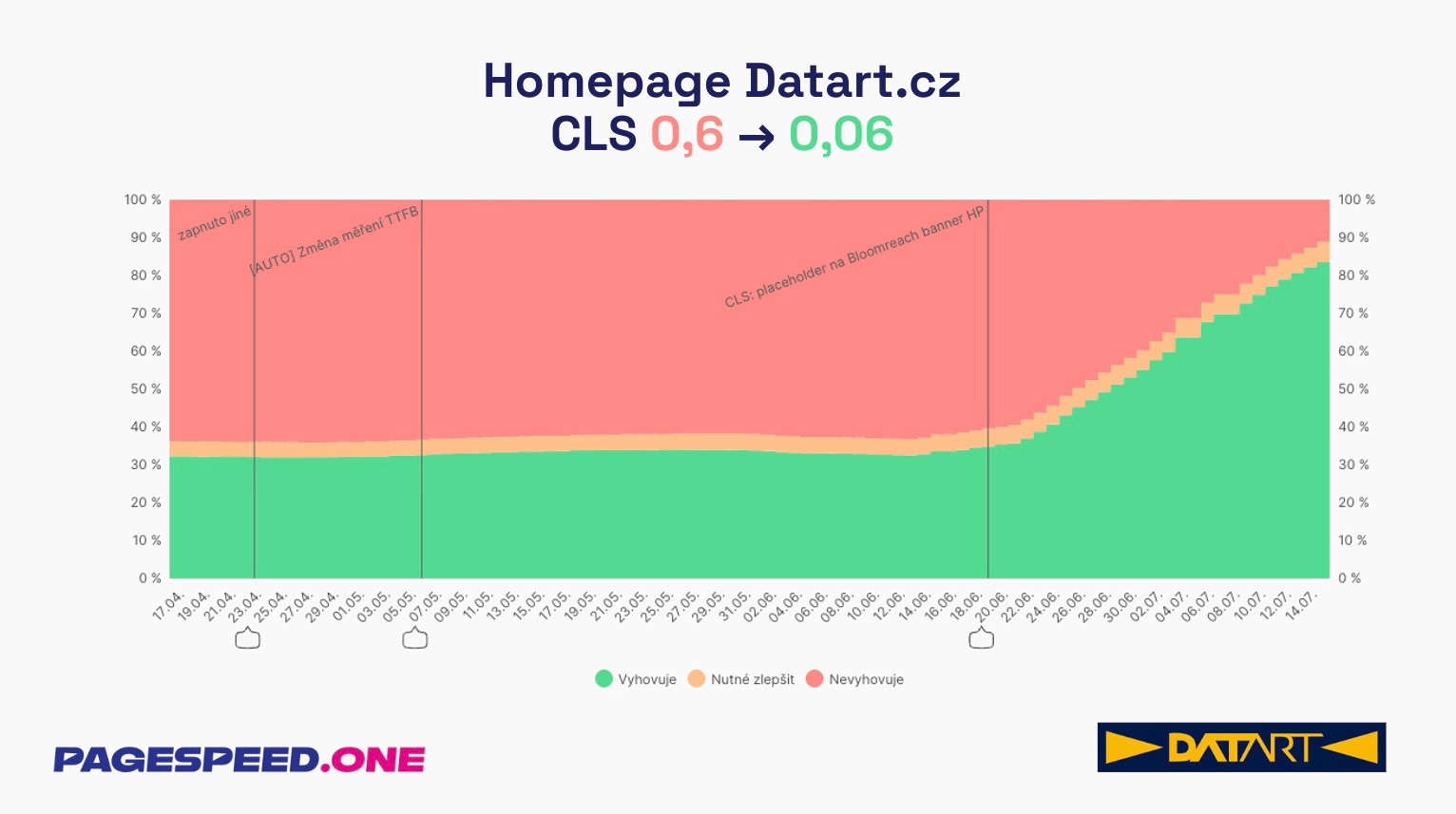 The graph shows the development of the CLS metric on Datart's homepage. The share of non-compliant measurements (red area) dropped from about two-thirds of page views to a minimum, while the share of compliant measurements (green area) increased to more than 80%.
Tip: It is always better to use a placeholder that is smaller than the content rather than none at all.
5. CLS after user interaction – click, hover, or touch
Sometimes we encounter developers who mistakenly believe that the CLS metric is measured only during the first page render in the initial viewport. This is incorrect. The CLS metric is calculated throughout the user's entire stay on the page.
If a button is clicked that opens a box and thereby shifts the content below, it can again be an element deteriorating the CLS metric.
If you change content on the page after some user interaction (click, touch, hover), the entire action from the click to the complete rendering of content should be completed within 500 ms.
Imagine AJAX pagination on a product listing in a category.
- The user reaches the end of the page.
- Clicks the "Load more products" button.
- A database query is called in the background to load products.
- A new chunk of HTML code is inserted into the page.
If these 4 steps take longer than 500 ms in total, an unintended layout shift may occur, and the new content may, for instance, push the footer down.
Sometimes it is not easy to load data quickly enough, especially on slower mobile connections. The cause might be the response time of the database server, an unoptimised database query, the response time of a third-party server, and so on.
If you cannot handle the request processing quickly enough, you need to prepare at least an empty space (placeholder) for the incoming data immediately after clicking the button. This way, immediately after user interaction, you move the footer out of the viewport and display the new data as soon as they arrive from the server.
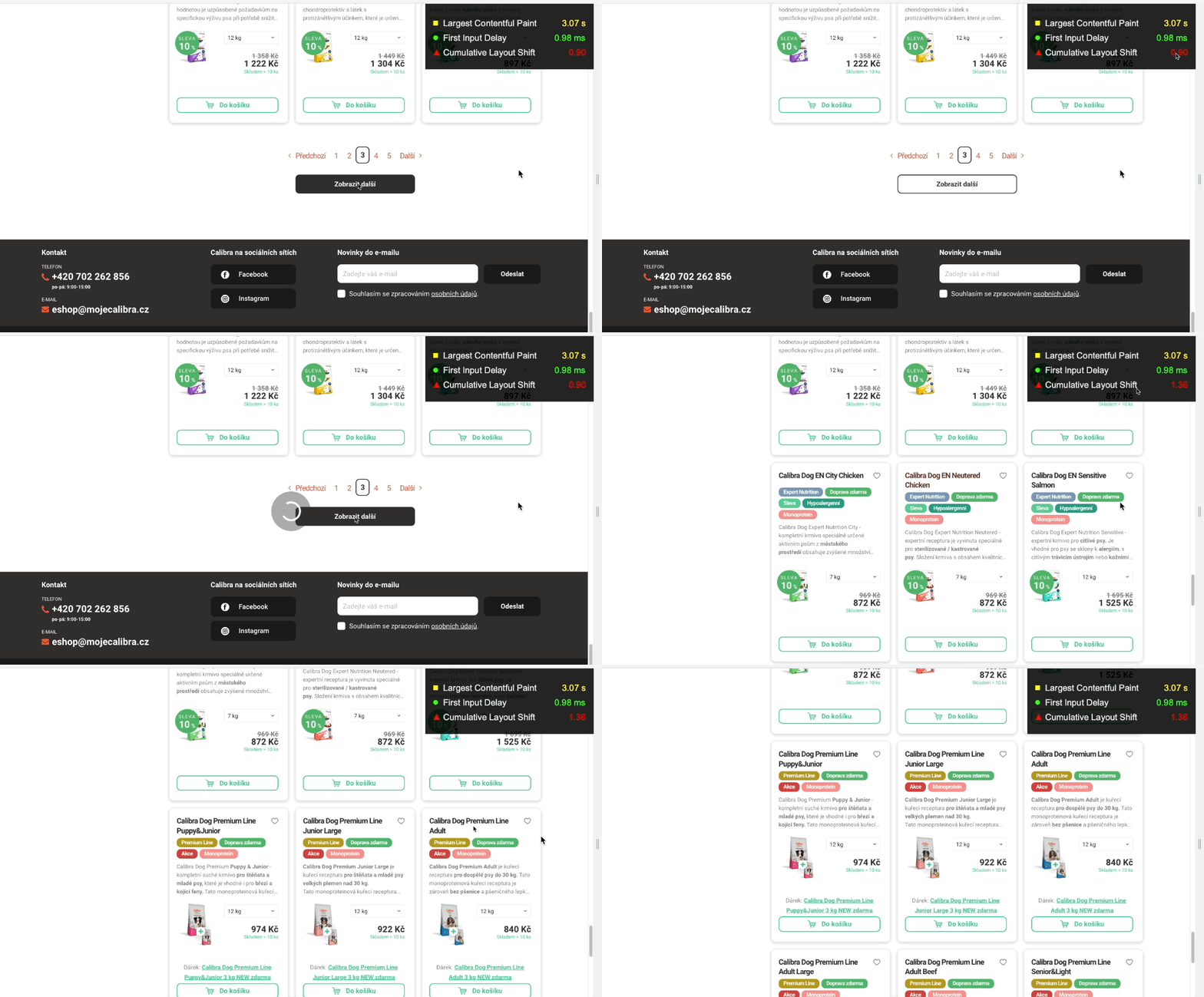 Slow database response causes layout shift and worsens the CLS metric after user interaction.
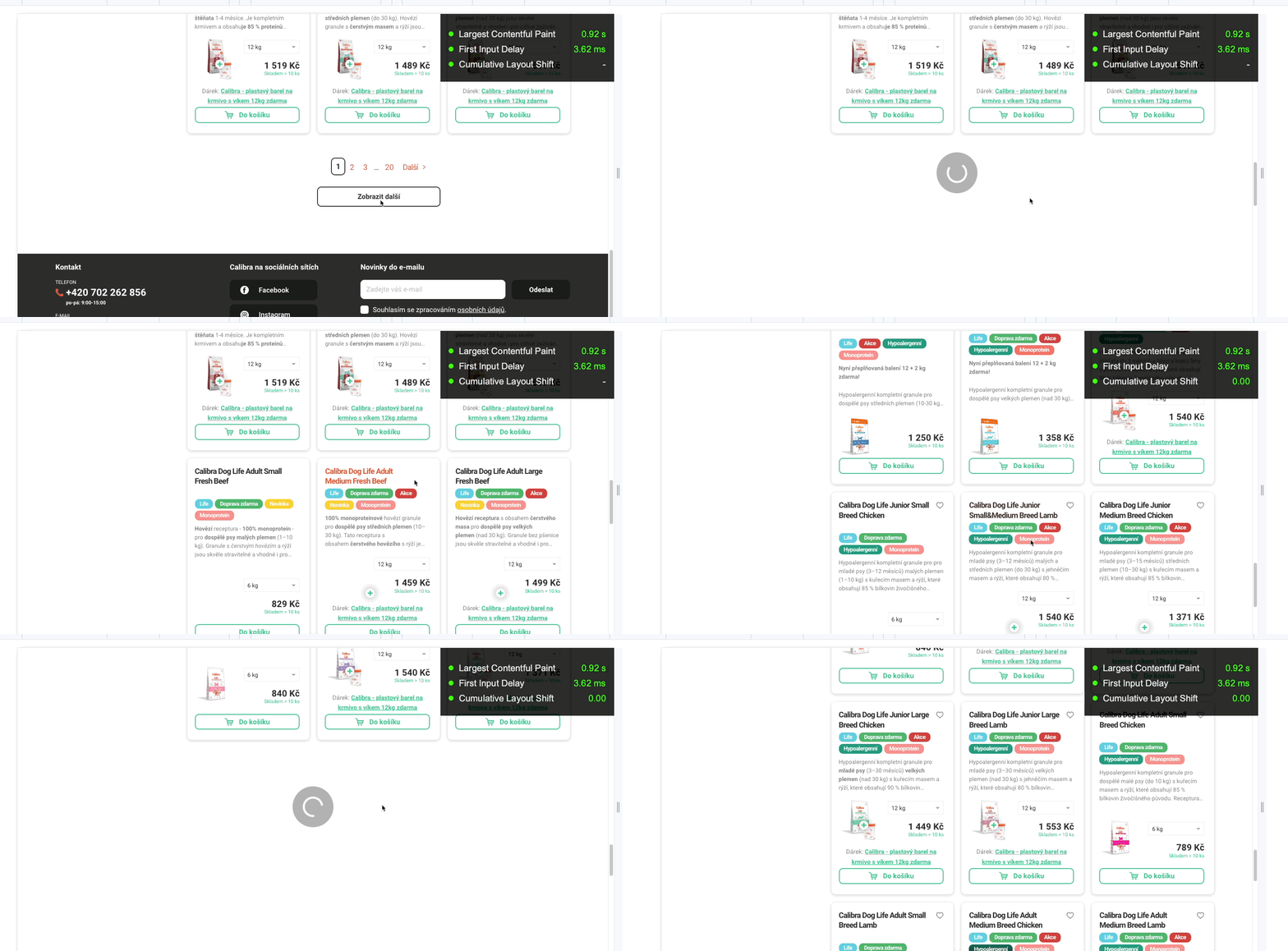 Adding a placeholder immediately after a button click prevents layout shift.
6. Animations using CSS transform only
Prepare animations of backgrounds, displaying and moving boxes, bouncing elements, resizing, etc., using CSS transform. This avoids deteriorating the CLS metric.
If it's an element present in the layout, like in a menu or on the side of a page, poor CLS metrics can reflect on the entire domain evaluation.
- The CSS transform property allows you to animate elements without causing layout shifts.
- To move elements, avoid changing
top,right,bottom, orleftproperties and usetransform()instead. - Instead of changing height and width properties, use
transform().
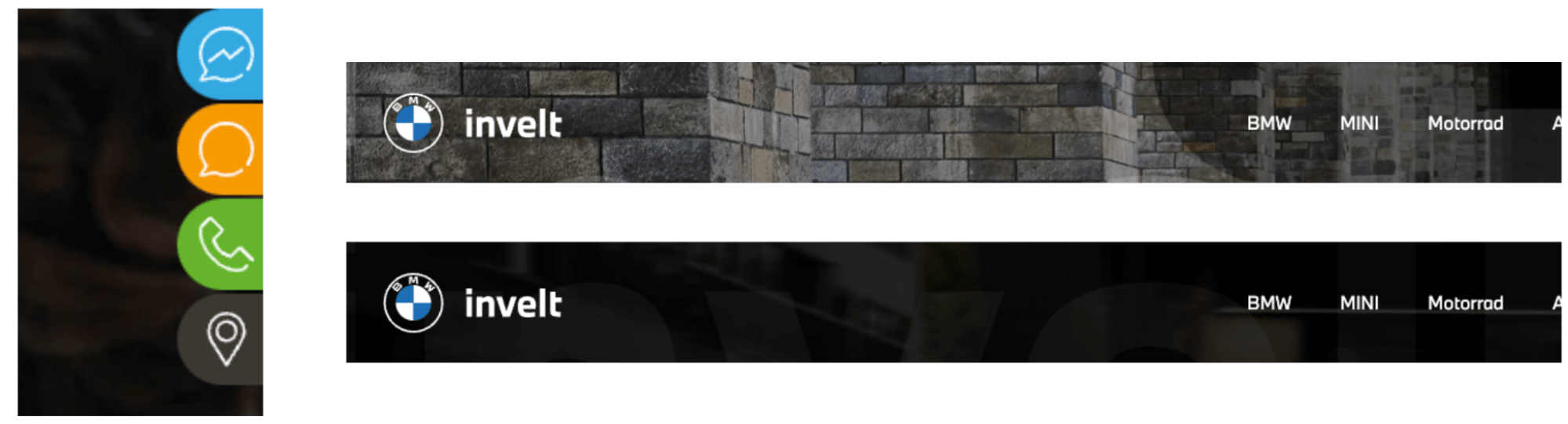 Poorly prepared right-to-left moving buttons or animations of dark background overlays in the header can significantly worsen the CLS metric.
Final Tip
If during testing your website the CLS metric shows a value of 1.00 or more, it means the entire page area has shifted.
Try a hack and apply the rule overflow-y:scroll with a height of 100% to the <html> tag.
Sometimes such a high CLS value can be caused by the appearance of the scrollbar during page rendering. This way, you display the scrollbar at all times.
html {
  height: 100%;
  overflow-y: scroll;
}
We cover the topic of optimising Core Web Vitals metrics in full breadth, read our other texts: