Web Compression with Gzip and Brotli: Are You Doing It Right?
 Zuzana FatrdlaUpdated 11/28/20255 minutes reading
In the broadest sense, it's about processing computer data to reduce its size while preserving the information contained within. Here, we focus on lossless compression, which saves data volume when downloading text files like CSS or JS from the server to the browser.
There are two main compression methods we know:
- GZIP is older, more widespread, and less efficient.
- With Brotli, you generally achieve greater savings. It's not as widespread, but it has full support in browsers.
Why is Compression Important?
Compressing text files on the web is fundamental. We apply compression to HTML, JS, and CSS files, which are resources affecting the first rendering time of a page. Logically, we want these resources as small as possible.
Additionally, we use it for favicons, SVG files, and fonts. Fonts are a special category, though – modern ones in WOFF and WOFF2 formats already have compression implemented at the time of file generation. If you enable additional compression on fonts in these formats, the result will be a file with a higher data demand than the original. So, be careful with that. :)
You can easily determine the compression method in the browser. Open DevTools and the Network tab. In the table, find the content-encoding column.
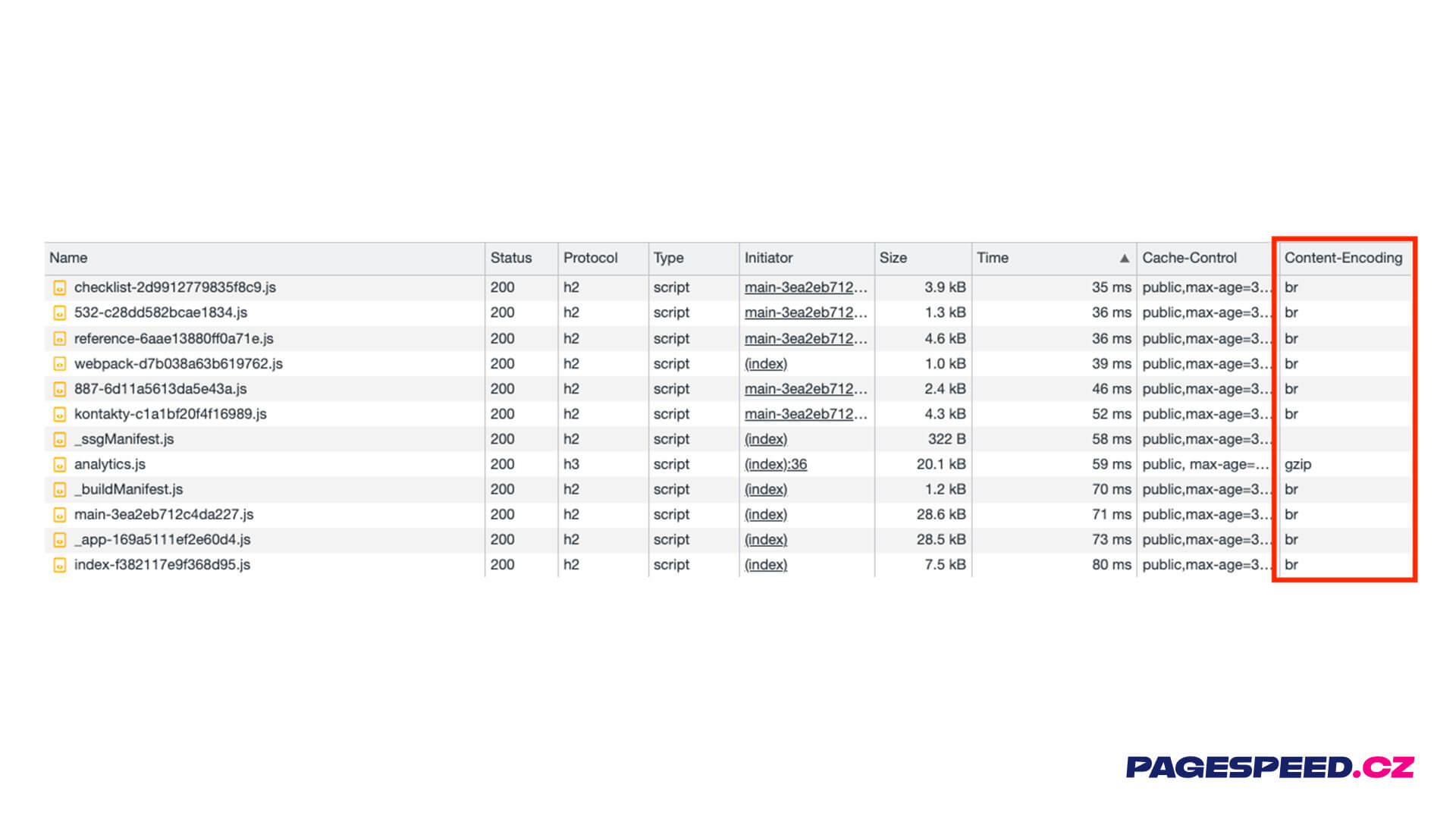 Content-Encoding in DevTools: If nothing's there, it's not right.
Revealing the Secrets of Compression Levels
Setting Brotli and GZIP is certainly not where our work ends – that would be too simple. Both compression methods also allow you to set the compression level. GZIP has 9 levels, while Brotli has 11.
How does such savings from different compression levels manifest on a 55 kB HTML file or 261 kB of jQuery data? Quite significantly.
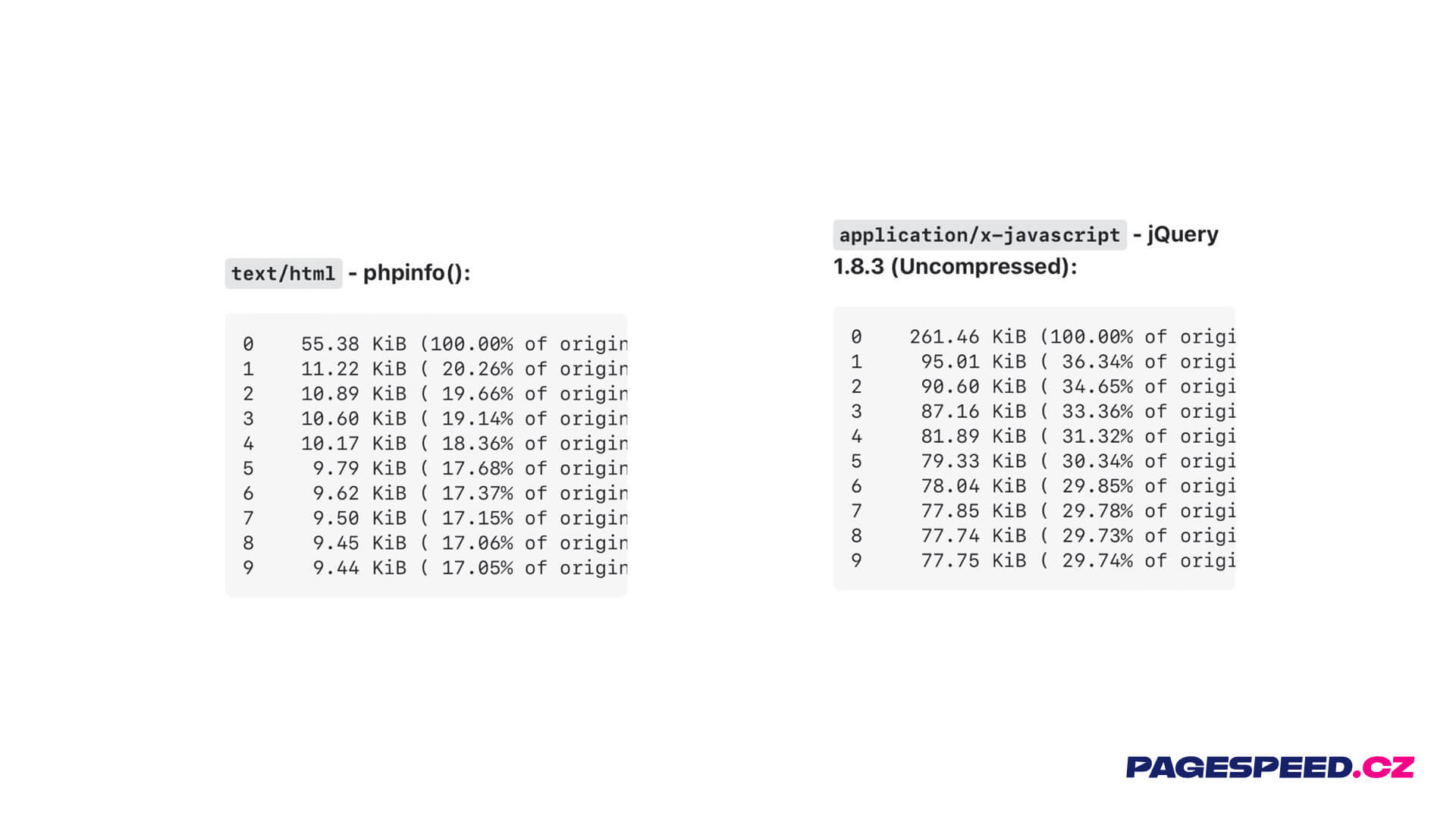 Boring compression? But what if it saves up to two-thirds of the data volume?
A significant jump is seen, of course, when comparing uncompressed and level 1 compressed files. Further levels save only a few percentage points of data size. Thus, we should ask: What is the best compression level?
The Hunt for the Ideal Compression Level Setting
When considering the compression level setting, you must also take into account your infrastructure and servers. The truth is, the higher the compression level, the more computational power it requires. Higher compression levels take more time to execute.
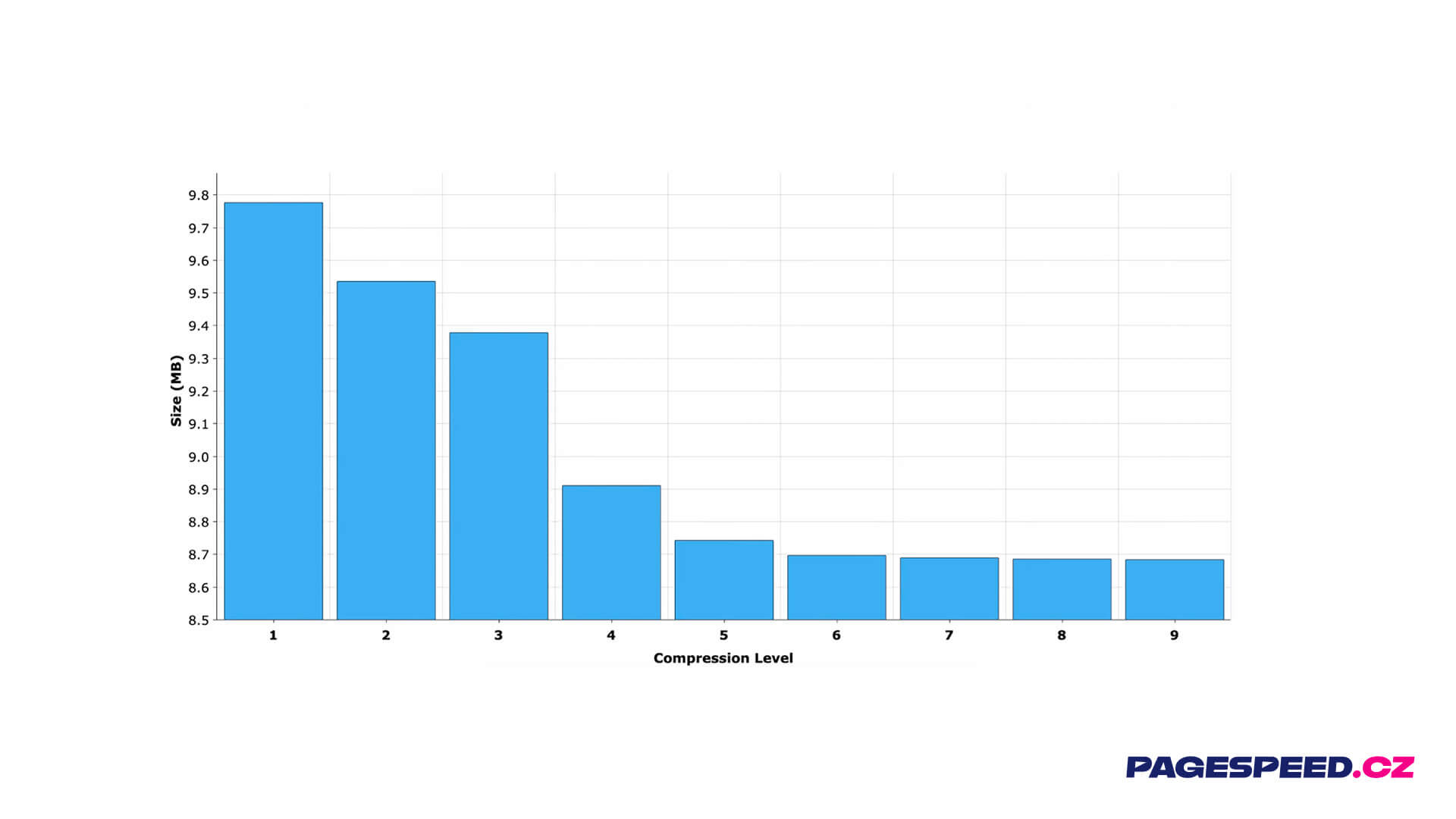 Beyond the sixth level, you don't gain much more.
Generally, at PageSpeed.ONE, we recommend level 6 as the ideal. If you prefer a more detailed explanation, check out the video What is the GZIP compression level sweet spot?
The Quickest Way to Determine Compression Level
Perhaps you've paused here and asked yourself how to determine the compression level on your own website. For a quick check, an online tool where you enter the URL can be useful. By evaluating it, you'll find the probable compression level.
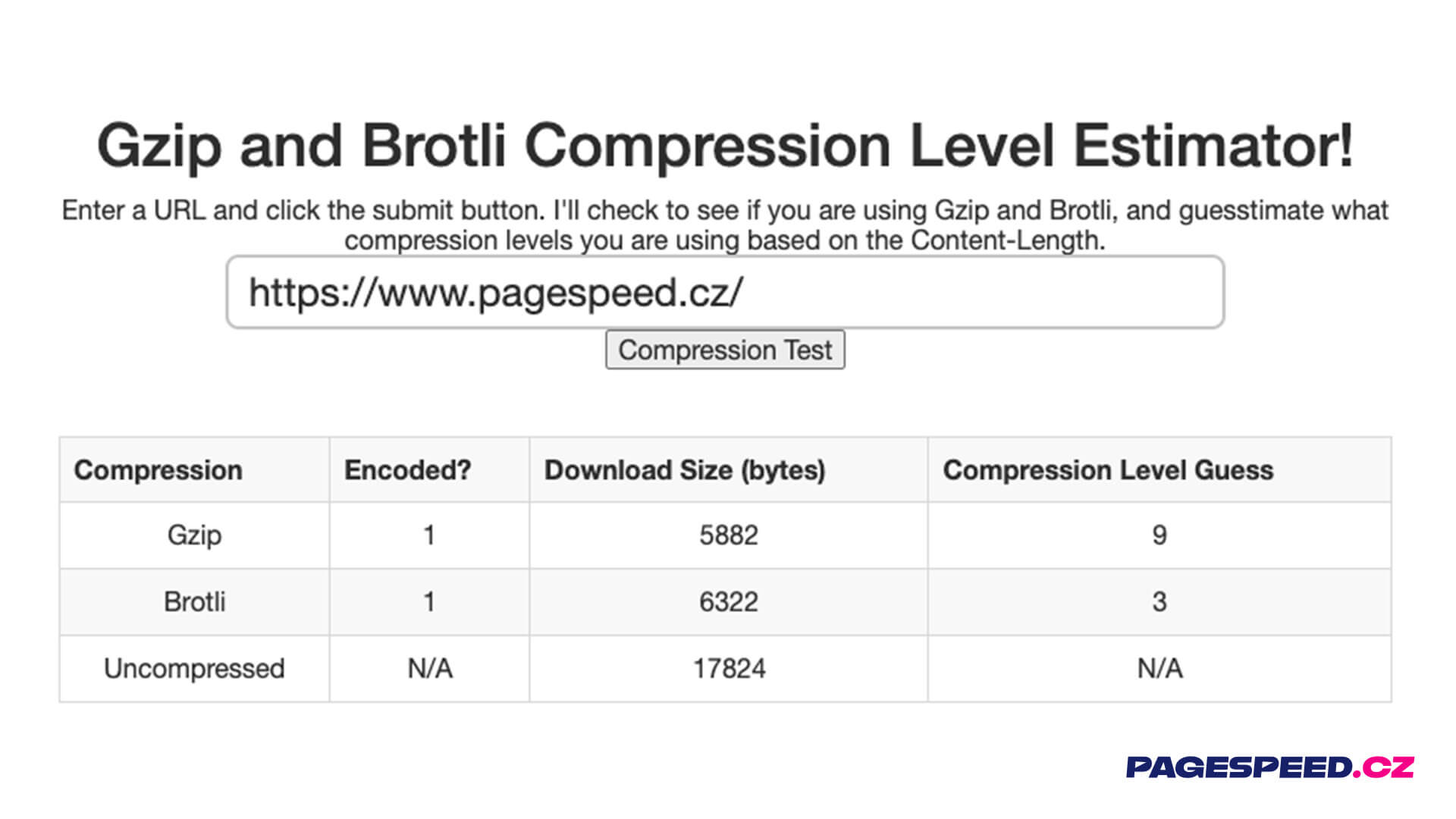 This tool reveals the compression level you've set.
Proper Compression Settings Are Not a Given
At PageSpeed.ONE, we conducted a survey of some of our clients' websites. The result was that 6 out of 24 sites did not have the ideal compression level set.
Solving such a problem isn't complicated. For GZIP, the person responsible for infrastructure, someone from web hosting, or a skilled backend developer should adjust the compression level setting. The compression level is set at the APACHE level and involves a single line of code:
DeflateCompressionLevel 9
Simple, isn't it? We resolved such a setting with one of our clients. GZIP LEVEL 1 was initially set for HTML, which we had adjusted to LEVEL 6 upon consultation.
The result? We achieved approximately 22% savings in HTML size (from 81 kB to 63 kB).
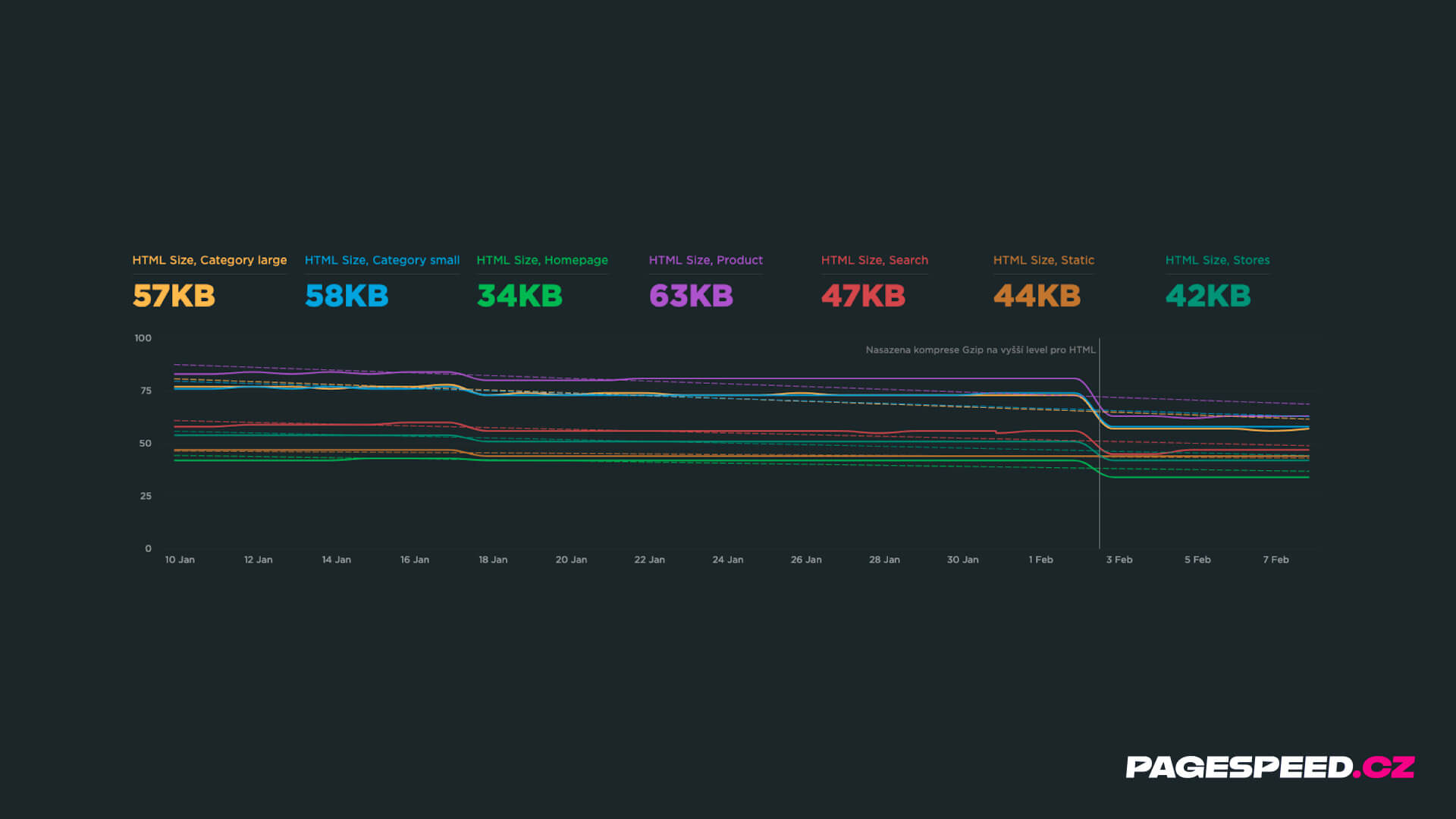 See what happens to the HTML data volume when you set a higher Gzip level.
We also discussed enabling Brotli compression, but it wasn't possible. Although the newer algorithm ensures greater data savings, the page would realistically load later for the user. Brotli compression takes longer, especially its "runtime" version, which is initiated upon server request.
Tip: Are you already subscribed to our newsletter? Each month, you'll receive tips on how to improve your website speed.
It can also happen that, for some reason, data compression completely fails at a client's site.
In the graph, this is expressed by those large "humps". Whether 600 kB or 100 kB of CSS is downloaded makes a substantial difference and is an argument for measuring technical data on websites and sizes. These issues can then be quite easily uncovered.
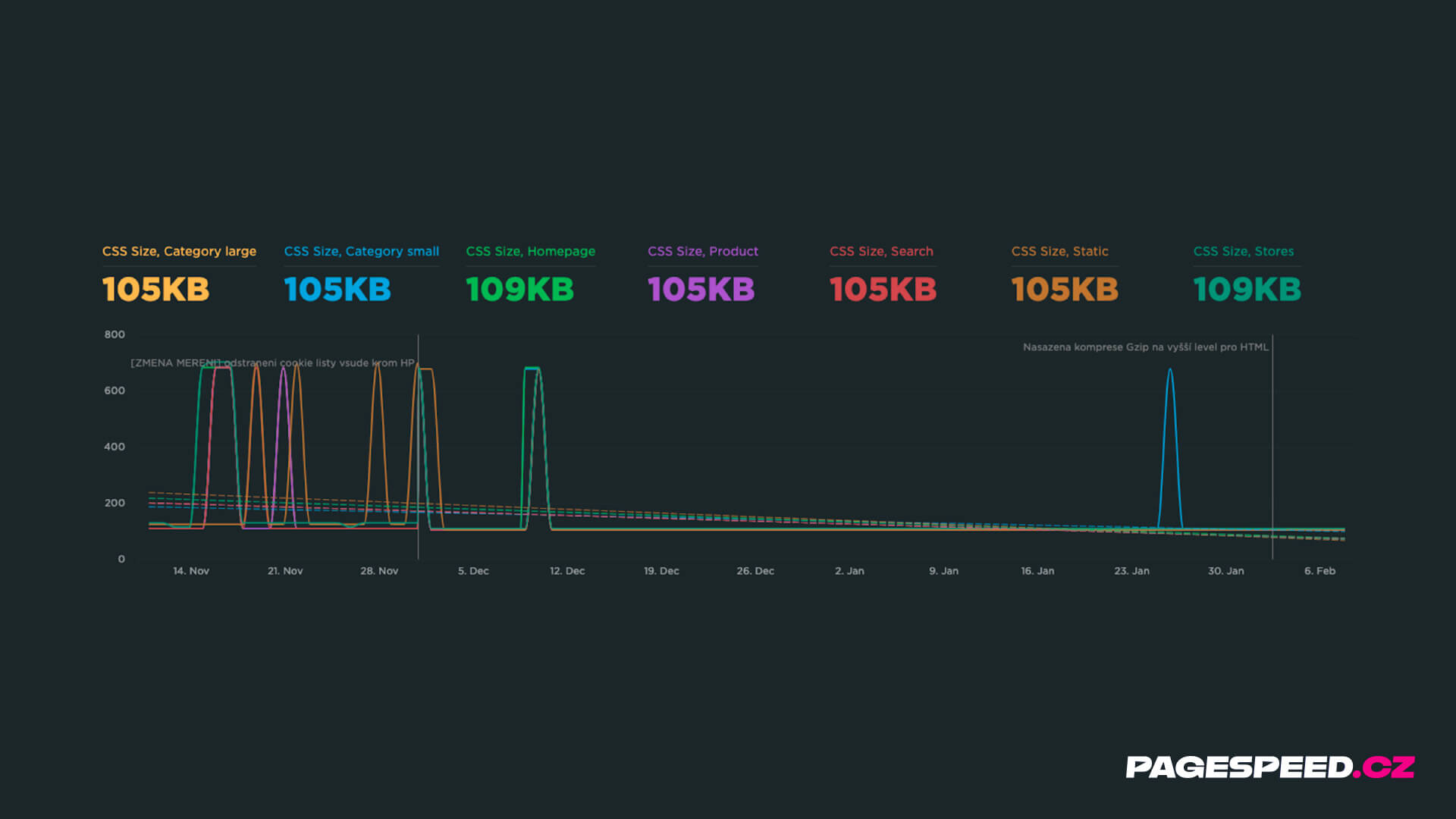 This is not something you want to see in a graph. That's when compression occasionally fails.
A Lifesaver for the Lazy: Cloudflare
Another way to resolve compression levels is to set up Cloudflare for your domain. It starts storing your text files and applies the best possible compression. Specifically, Cloudflare automatically enables Brotli for CSS, JS, SVG, etc.
If you're using this service, you can check your settings. For some plans, Brotli needs to be enabled.
Cloudflare will be useful even if your website runs on popular CMSs like WordPress, Shoptet, or Drupal.
Want to implement Cloudflare on your site? Check out our Cloudflare setup service.
If you're dealing with Cloudflare mainly due to bot traffic, take a look at our AI Bot Strategy service.
Conclusion
- Check your compression settings in DevTools (Network Tab) or in Lighthouse.
- Generally, level 6 is recommended for compression.
- Higher levels than 6 do not result in significant file size differences.
- Fonts (WOFF and WOFF2) are already compressed.
- The higher the compression level, the greater the demand on server performance and time.
- If you identify a problem, adjust the compression level.
- Cloudflare can automatically resolve this for you.
Also, see how you can further assist with backend optimization.