Lazy Loading Images: A Comprehensive Guide
 Radek ŠírUpdated 1/26/20268 minutes reading
“Lazy loading” is a deferred content loading technique that optimizes page loading speed. Images and other resources are only loaded when they are close to appearing in the user's viewport.
What exactly does this technique help with?
- Reduces initial page load time (metric First Contentful Paint)
- Helps display the LCP element faster (improves the metric Largest Contentful Paint)
- Saves data volume and reduces the number of requests
Overall, this method enhances the user experience, especially on mobile devices or with slow connections.
In this detailed guide to lazy loading, you'll learn how to implement this technique, how to measure its impact, and what speed improvements we've observed after its implementation.
The Loading Attribute on the IMG Tag
HTML provides the loading attribute, which allows you to specify how elements load. This attribute is simply added to the <img> tag.
<img src="image.webp" loading="lazy" alt="…" width="200" height="200" />
The loading attribute can have two applicable values:
lazy– images are loaded only when they are near or within the viewport.eager– images are loaded immediately. This is the default setting.
How to Implement Image Lazy Loading?
Generally, we recommend a conservative approach, applying loading="lazy" to all images that are reliably outside the first visible part of the screen. However, there are more approaches, and we'll take a look at them together.
Conservative Approach: Images Outside the First Viewport
Load all images outside the first viewport lazily using the loading="lazy" attribute. This is a suitable solution for most situations.
In addition to the LCP element, we also recommend prioritizing images that form important user interface elements or help users recognize the brand and clearly identify the website. The loading="eager" attribute, which serves this purpose, should be set on the LCP element, header icons (especially in the mobile header), and the brand logo.
Radical Approach: All Images Except the LCP Element
If you are among the more experienced developers, you might consider applying lazy loading to all images except the largest image in the first viewport (the so-called LCP element).
This is achieved by making an exception for the LCP element, where you set loading="eager" or omit the parameter altogether.
All other images on the page will thus have loading="lazy". We must caution that this solution is risky in terms of potential errors, for instance, if the HTML code or website design changes.
A lazily loaded image must always have defined dimensions using the width and height attributes. This prevents potential issues with the CLS metric. We also recommend always using the WebP image format.
Beware, Never Lazily Load the LCP Element!
Never use the loading="lazy" attribute on the LCP element, as this will worsen the LCP metric. The loading="lazy" attribute assigns a lower priority to the element and delays its loading.
The worst combination is using a JavaScript lazy load and applying it to the LCP element, which some JavaScript libraries do automatically. First, it waits for the JavaScript to be downloaded and processed, and only then does the browser download the image source.
JavaScript Lazy Load
For a more advanced implementation, JavaScript and the Intersection Observer API can be used.
The Intersection Observer API is a JavaScript API that allows you to monitor elements as they approach the viewport. This can be used, for instance, for custom lazy loading implementations.
However, this is a very advanced method and is definitely not recommended for regular optimization.
Advantages:
- Flexibility
- Ability to define more complex loading conditions
- This type of lazy load can be used in JavaScript components like carousels and similar.
Disadvantages:
- Higher complexity
- Delay due to downloading and initializing JavaScript code
- Requires an alternative solution using
<noscript>for browsers without JavaScript enabled - Cannot fully utilize the browser's preload scanner
- If implemented incorrectly, images might not be visible to search engine bots
Comprehensive web management systems like WordPress or Drupal often offer plugins that implement lazy loading via JavaScript. If you're using such a plugin, we recommend disabling it and instead using native lazy loading with the loading="lazy" attribute.
More about optimizing WordPress can be found in the article WordPress Optimization.
What Do We Recommend?
- Use native lazy loading, which is widely supported.
- Use JavaScript lazy loading only for more complex cases that cannot be covered by the native attribute.
The Relationship Between the Loading Attribute and Increasing Load Priority with Fetchpriority
The eager value is an instruction to load the image immediately, without delaying the load even if the image is off-screen. The image loads as quickly as one without the loading attribute.
If you want to increase the load priority of an important image (such as the LCP image), use priority hints and the fetchpriority="high" attribute.
An image with both loading="lazy" and fetchpriority="high" attributes will not load until it is off-screen. If it is within or near the viewport, it loads with high priority. This combination is not necessary, as the browser would likely load this image with high priority anyway.
Distance from the Viewport: Image Loading Thresholds
All images that are immediately visible in the viewport without scrolling the page are loaded immediately. Images that are far below the device's viewport are only loaded when the user approaches them.
The implementation of lazy loading in the Chrome browser ensures that off-screen images are loaded early enough to finish loading by the time the user scrolls to them, by loading them much earlier than they become visible in the viewport.
How is this set in the Chrome browser? For fast connections (4G and above), Chrome has a threshold of 1250 px from the viewport, and for slower connections (3G or lower), it has a threshold of 2500 px.
The final decision on when an image starts downloading is purely up to the browser, and the values given here are just indicative.
How to Analyze Whether Lazy Loading Is Implemented Correctly?
When implementing lazy loading, it is necessary to determine which elements are suitable for lazy loading. It's also good to know how to verify whether we've implemented lazy loading correctly.
Analyzing Lazy Loading in the Browser Timeline
Lazy loading can be analyzed using Chrome Developer Tools in the Performance section. Image loading is visible here as separate requests over time during user scrolling.
On the initial page view, only images visible in the first viewport or very close to it are downloaded.
Other images with the loading="lazy" parameter start downloading only upon user interaction, such as scrolling the page.
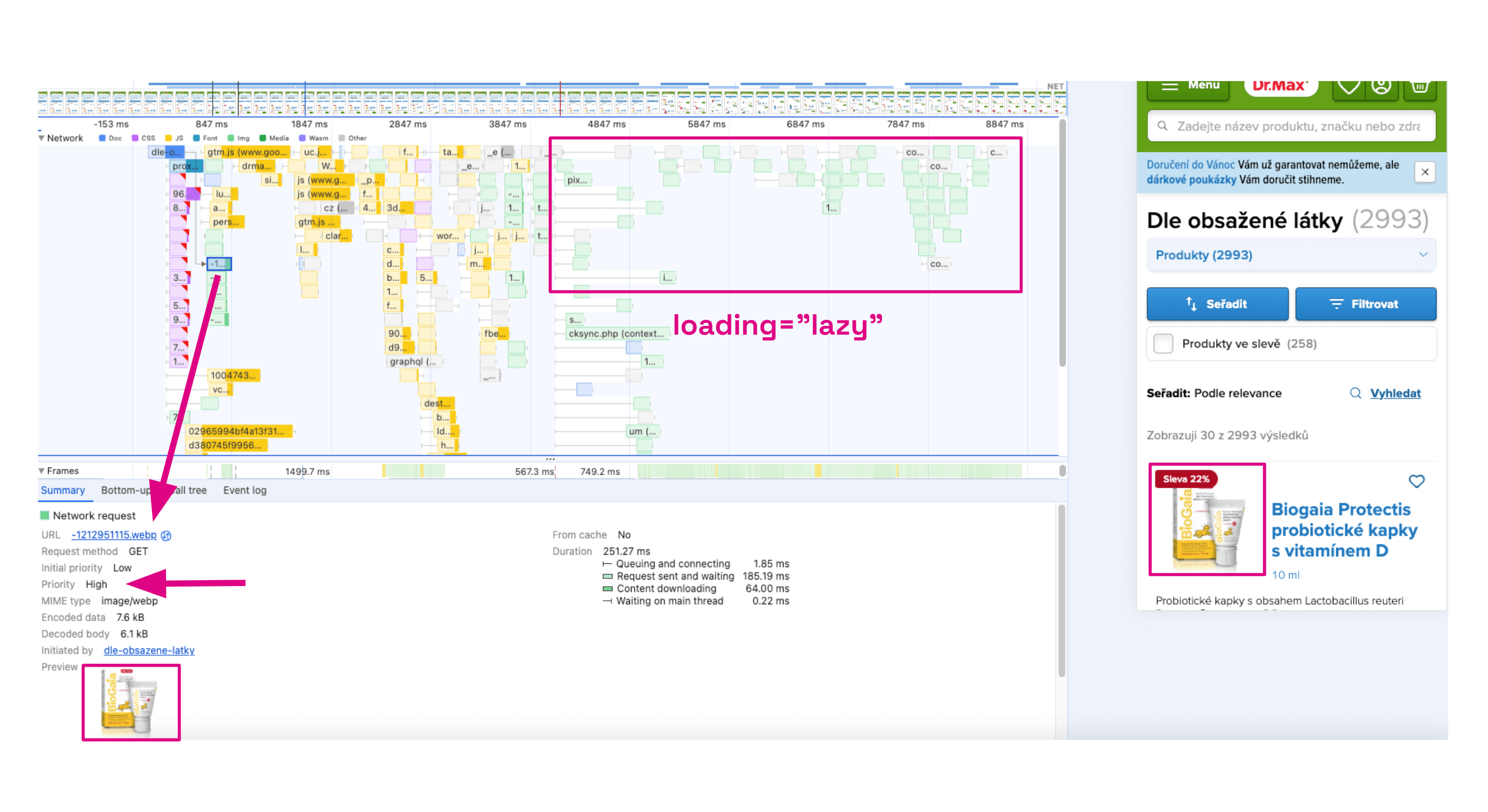 Images with the
 loading="lazy" parameter start downloading only upon user interaction
Analysis in Lighthouse or Monitoring PLUS by PageSpeed.ONE
In Lighthouse or Monitoring PLUS, you can identify images suitable for lazy loading in the “Test Run Details”. Images are listed in the warning “Defer offscreen images” in the synthetic Lighthouse test.
-
In the main menu, select the “Opportunities” tab.
 Monitoring PLUS, Lighthouse test
 -
Select the test for a specific URL.
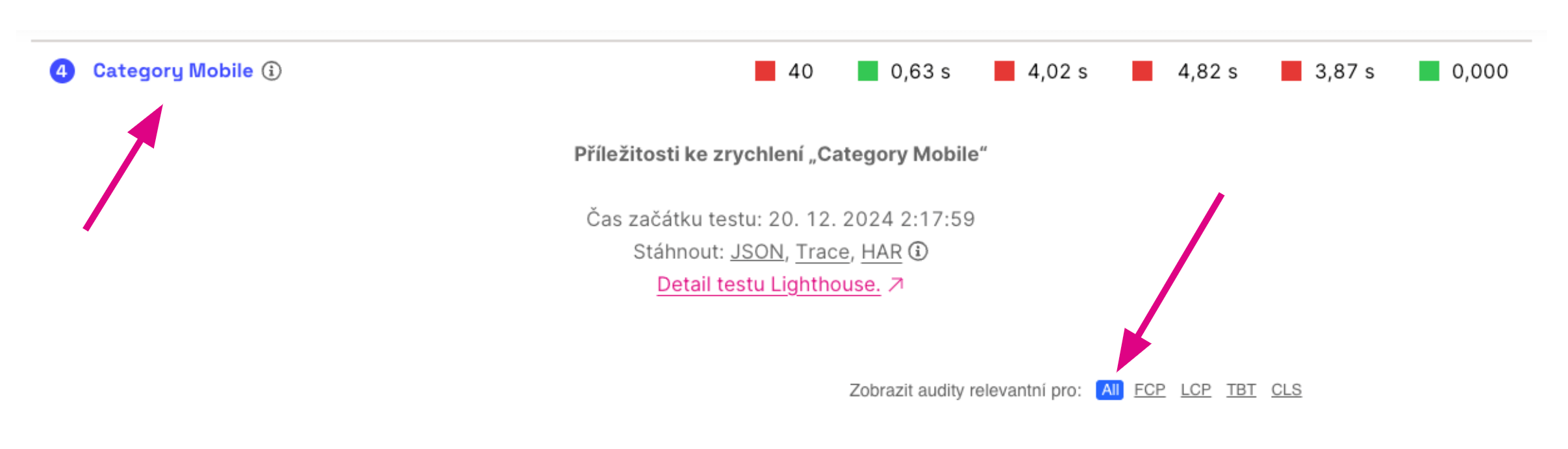 Monitoring PLUS, Lighthouse test
 -
Find the item “Defer offscreen images”. Here, the images suitable for lazy loading are listed.
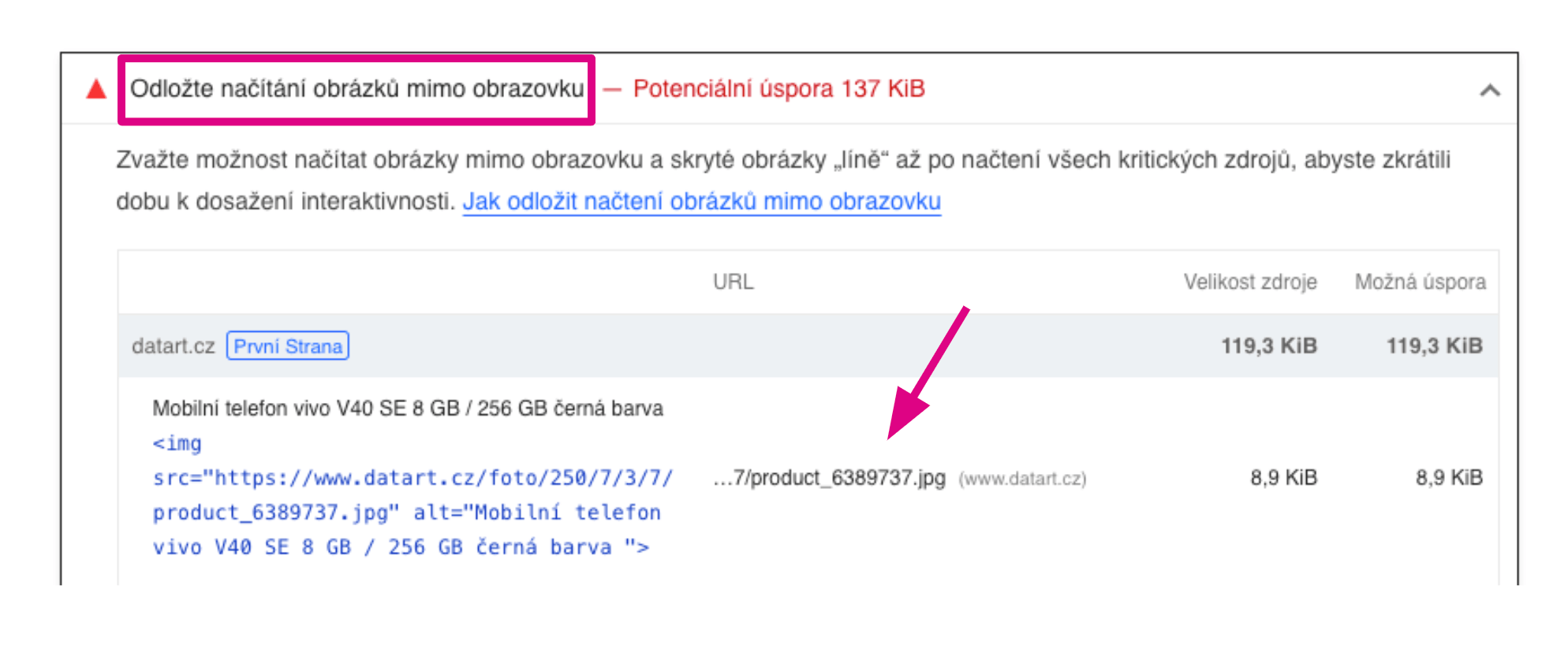 Here are the images suitable for lazy loading.
The advice you receive in this section is of high quality and roughly corresponds to what we mentioned above about the conservative approach to lazy loading.
Lazy loading can also be used on other web elements besides images.
Lazy Loading for Iframes
Lazy loading can also be applied to iframes, which can significantly improve Core Web Vitals metrics on pages with embedded videos or maps. Its use is very similar to that of images:
<iframe src="https://example.com" loading="lazy"></iframe>
Browser Support for Lazy Loading
All modern browsers support the loading attribute. We always recommend using native lazy loading over a JavaScript solution.
Real-World Examples from Our Speed Optimization Practice
Implementing Lazy Loading on Images
For this client, applying lazy loading to images in the main menu and footer resulted in a significant reduction in image data volume.
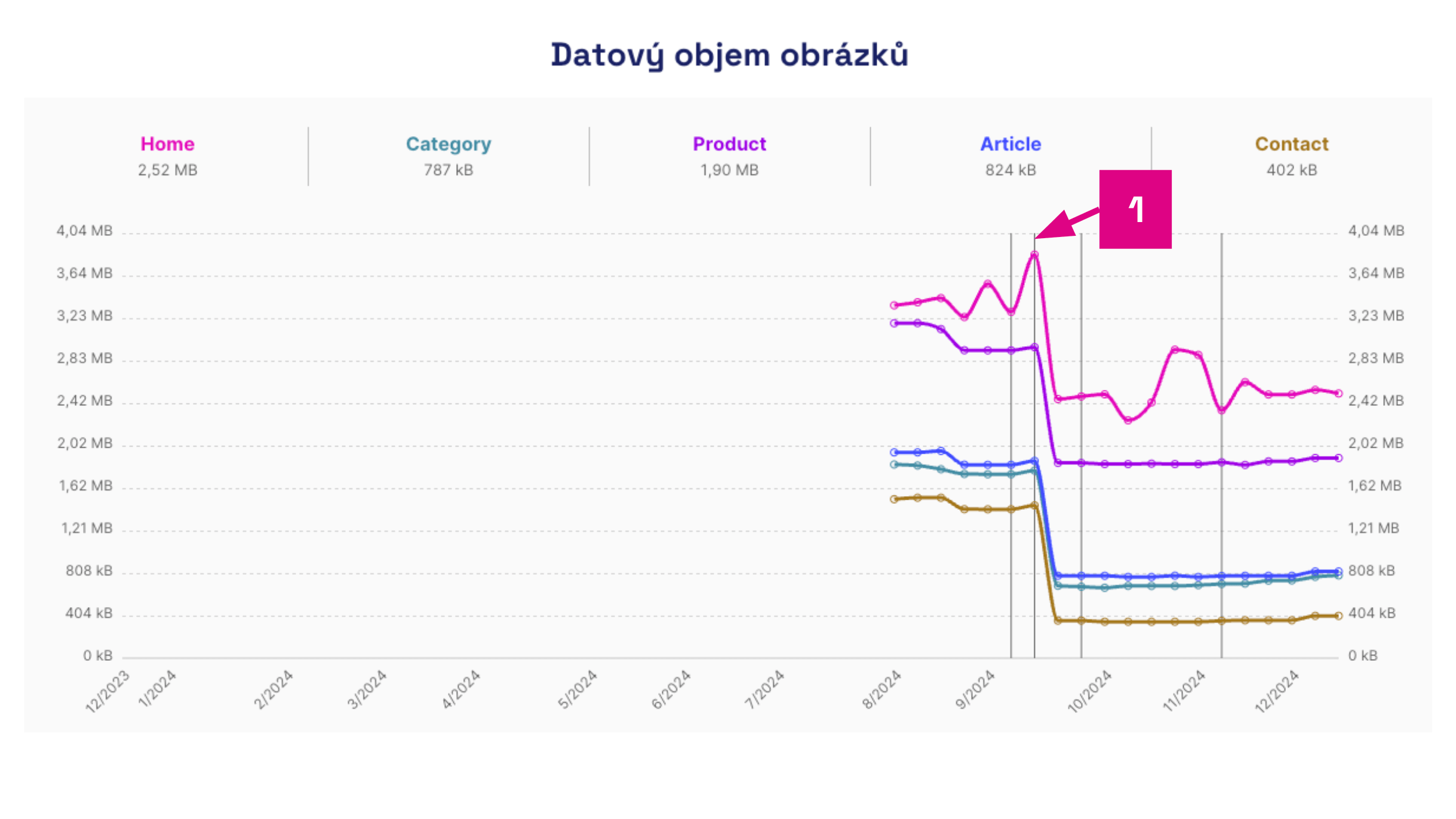 Monitoring PLUS - Reduction in Image Data Volume.
Numbers in the image:
- Reduction in image data volume through lazy loading
The result was also an improvement in the LCP metric.
Replacing JavaScript Lazy Loading with a Native Solution
Replacing JavaScript lazy loading with native lazy loading and increasing priority with the fetchpriority="high" attribute causes the LCP image to start loading very early, significantly improving the LCP metric. In this case, the LCP metric was sped up by about 2 seconds on a slow connection (Fast 3G).
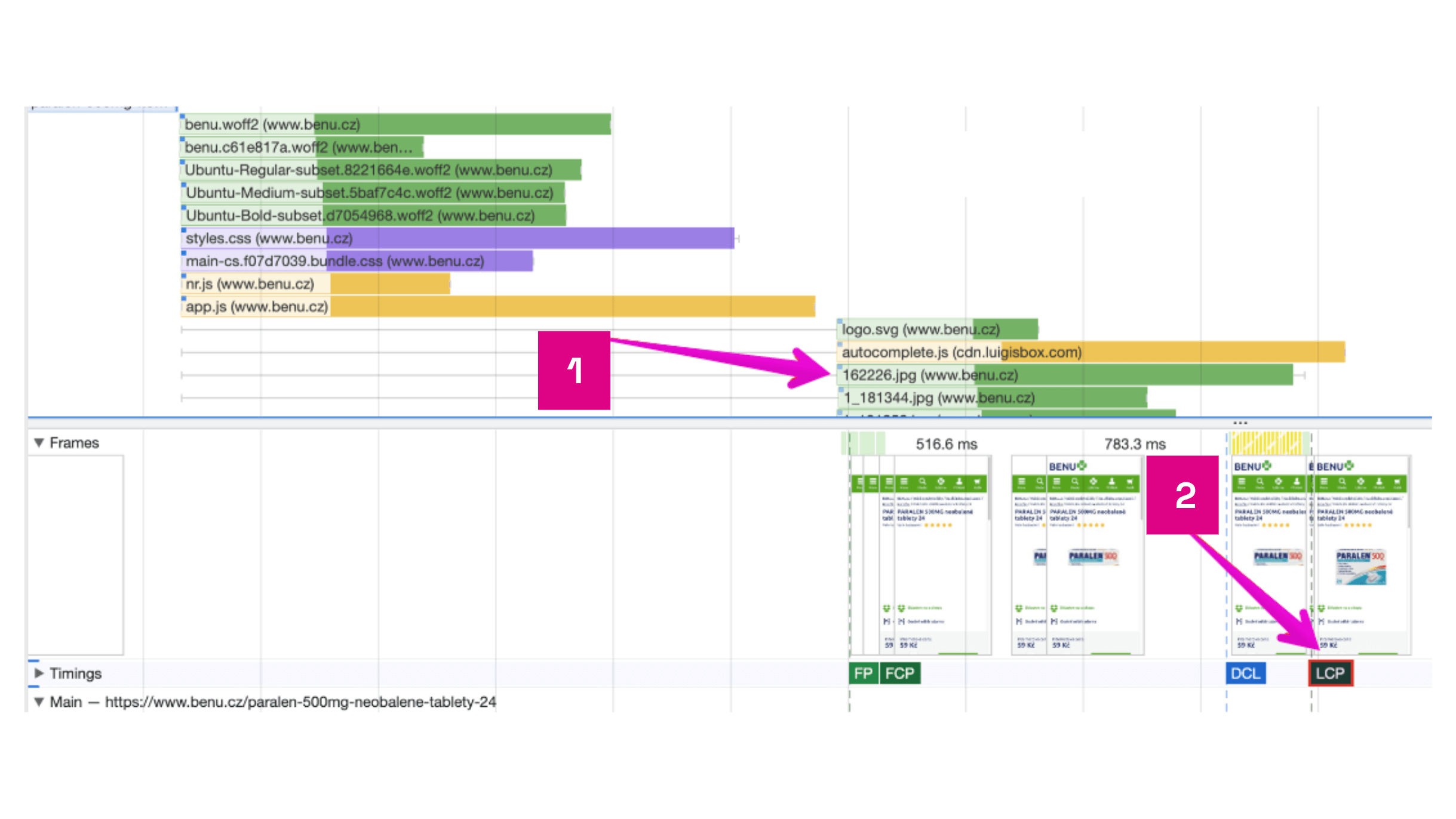 Original State
Explanations for the image:
- Start of LCP image download only after JavaScript app.js is processed.
- Display of LCP image on the page.
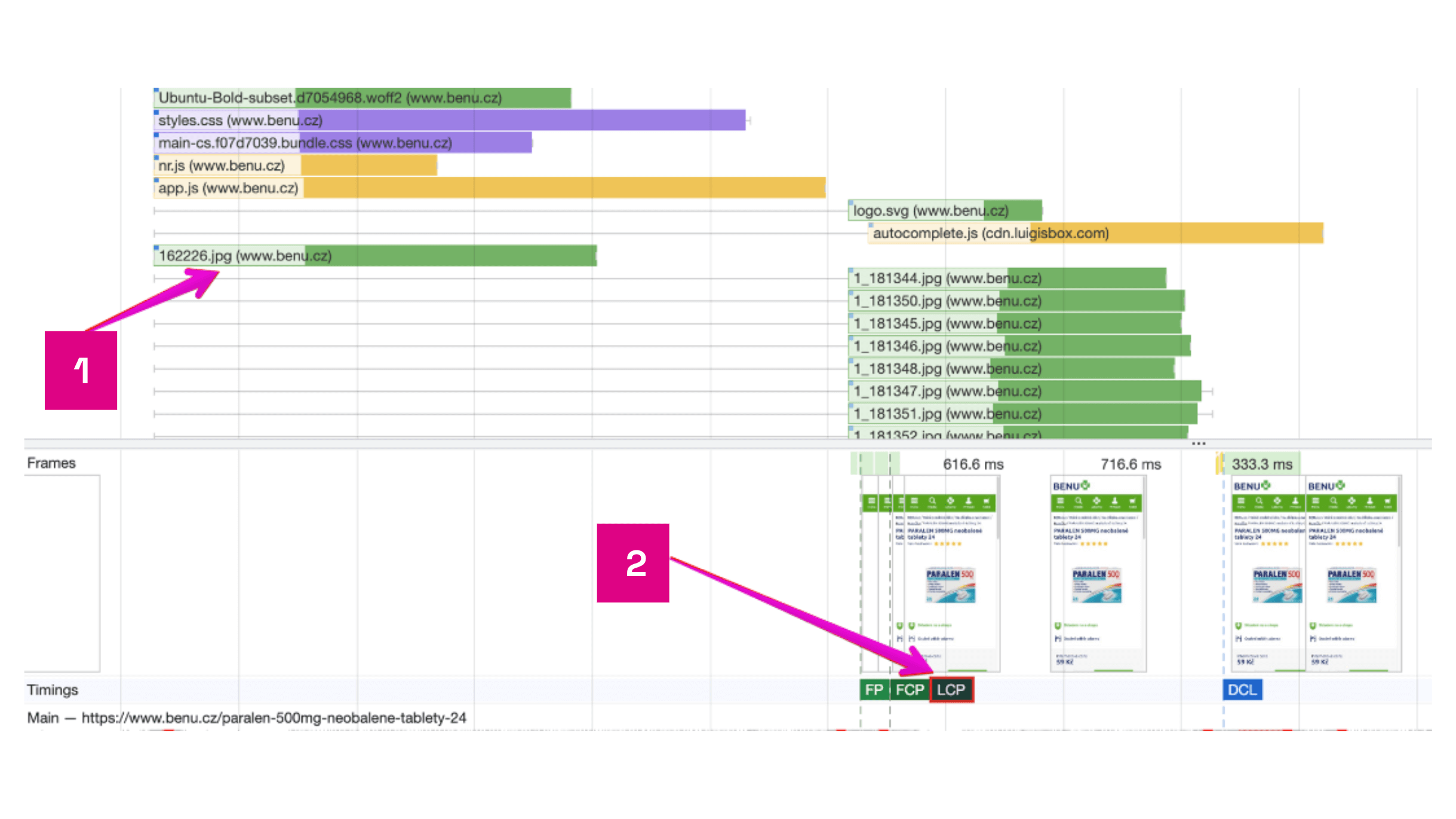 State After Optimization
Explanations for the image:
- Start of LCP image download occurs right after the HTML document is downloaded.
- Display of LCP image on the page.
Summary
We recommend lazy loading images as one of the fundamental yet highly effective methods for optimizing page load speed. We suggest conservatively deferring the loading of all images outside the first viewport. Be cautious when applying lazy loading to images that are LCP elements, as this can actually worsen speed.