Test Run Detail Report
 Martin MichálekUpdated 2/25/20265 minutes reading
In the test run detail, you can see the results of specific testing for one of your website’s URLs.
The test run detail caters to those with a technical bent who crave the specifics of speed testing we conduct using the Lighthouse tool.
What can you find in the test run detail?
- The status of metrics for this test run.
- Files with detailed logs.
- Recommendations for speed optimization.
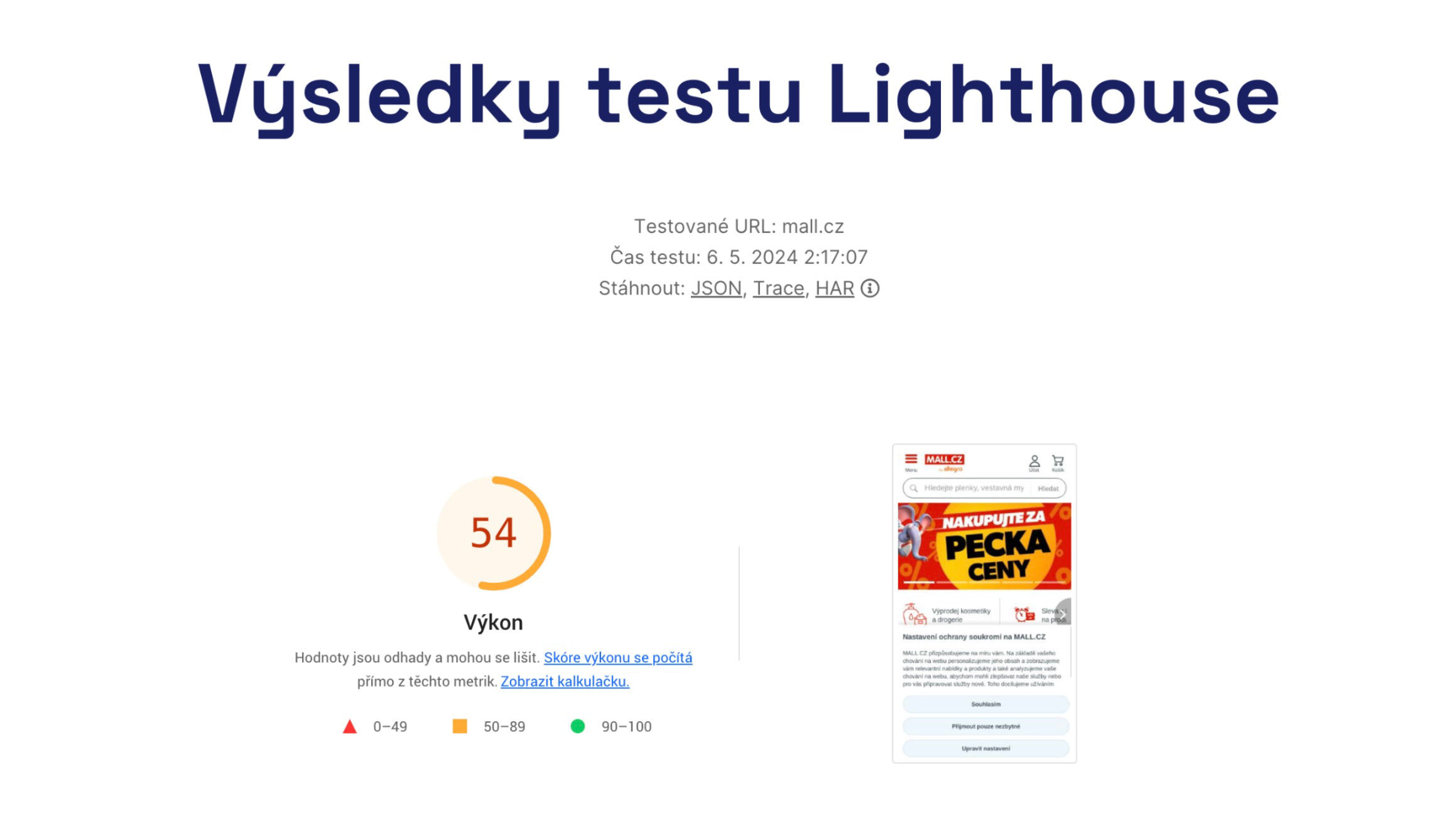 Test run detail.
Before reading further, ensure you understand the differences between synthetic, CrUX, and RUM data about web speed.
It's also beneficial to familiarize yourself with how we test your websites.
How to access the test run detail?
You can view the test run detail as follows:
- Click on a point in the synthetic test results graph.
- In the opened modal window, click on the test time for the specific URL.
- You will arrive at a standalone URL for the test run detail.
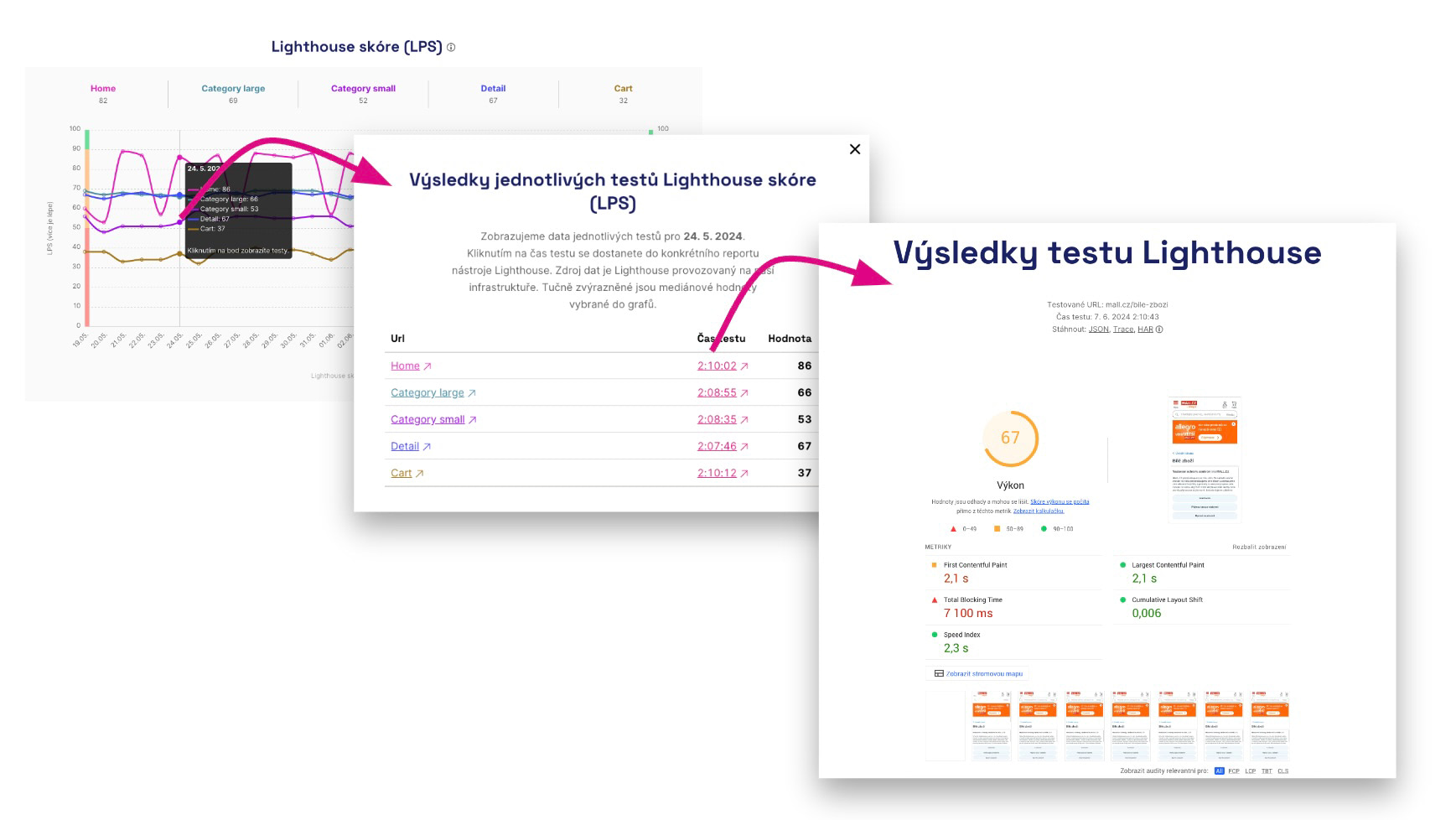 How to access the Lighthouse test run detail.
What will you see in the test run detail?
Let's dissect the various components on the screen and their relevance:
1) The status of metrics for this test run
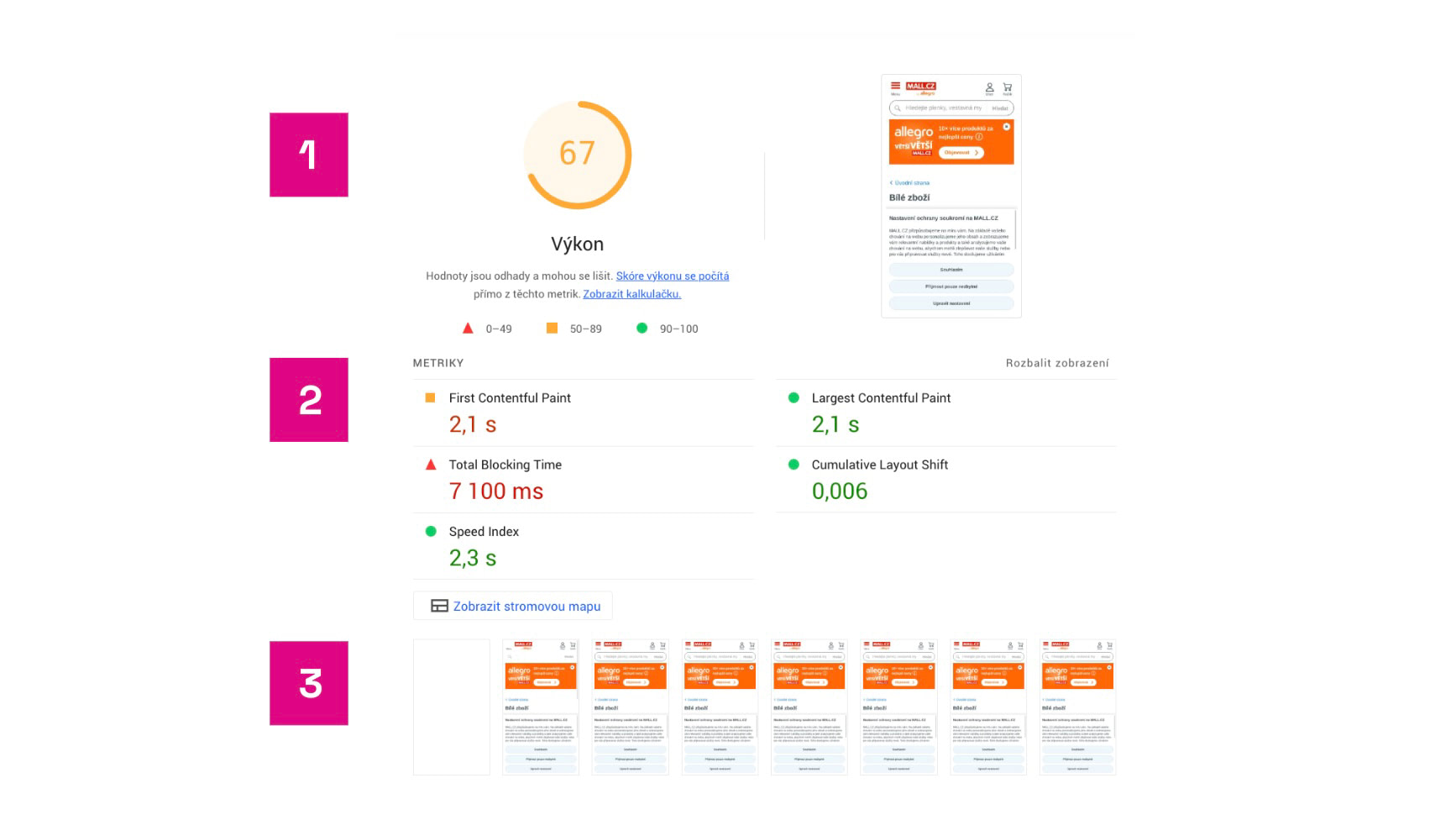 Lighthouse test result and metrics.
Here you will see the following:
- Lighthouse score, i.e., the overall score calculated based on metrics.
- The status of individual metrics. Apart from Core Web Vitals (LCP, CLS, TBT, bear in mind they are measured differently than in CrUX data), you also see FCP and Speed Index metrics.
- The page rendering process during the Lighthouse test.
Do take care not to cling too tightly to metric values here. They are not meant for evaluating your page's speed (for that, we have CrUX data). Consider synthetic data as a starting point for speed optimizations. They will easily reveal if your optimizations are on track or not.
2) Downloadable files
At the top of the test run result, you can download JSON, Trace, and HAR files. What are they for?
🔒 Downloadable files are offered only in PLUS tests.
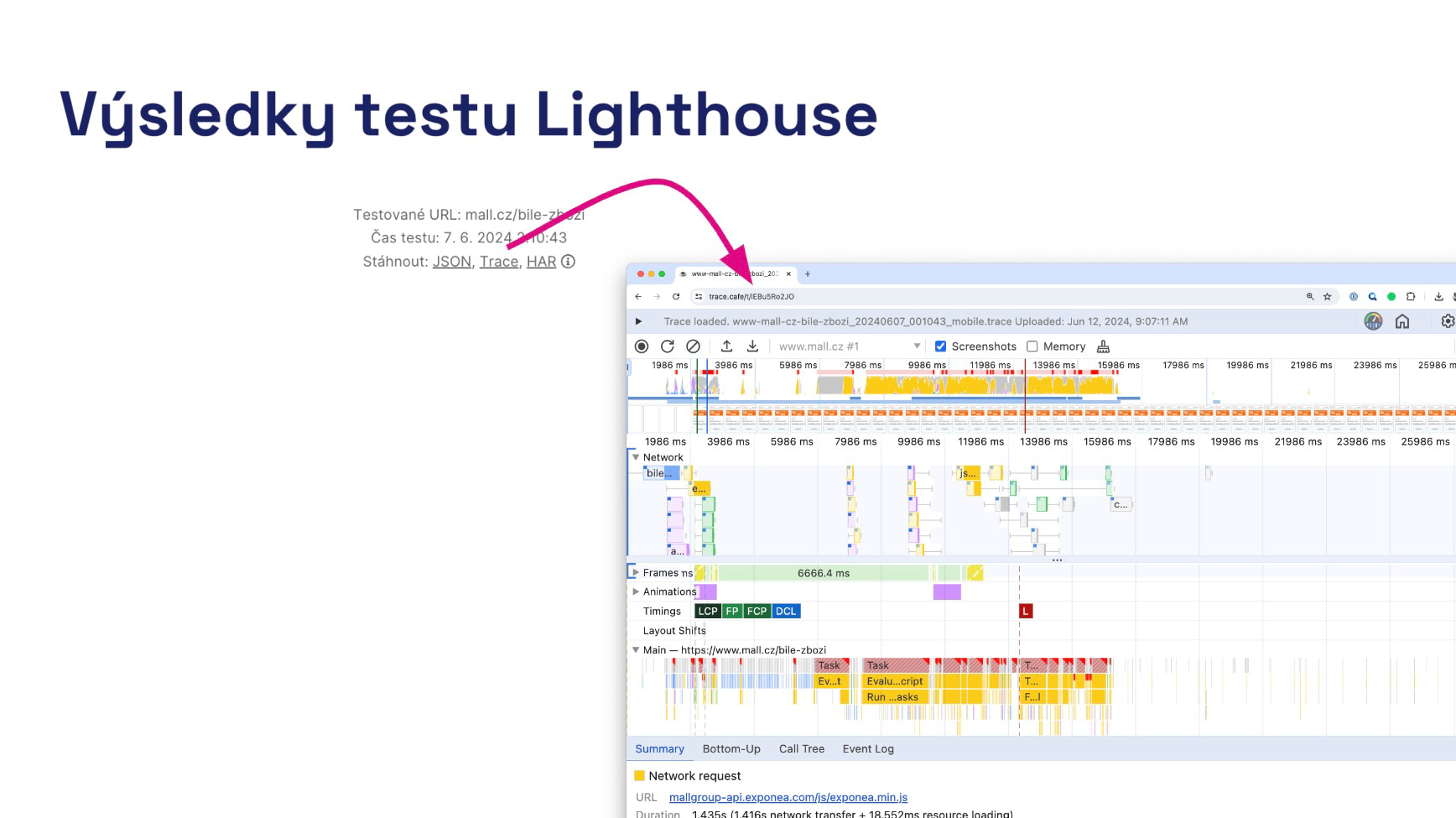 Opening the web load detail in the Trace.cafe tool.
What are these mysterious abbreviations JSON, Trace, and HAR you see in the image?
All three files are an essential assistant for any speed optimizer when needing to pinpoint causes of changes or opportunities for improvement.
JSON: Portable output of the Lighthouse report
Open it, for example, in the Lighthouse Report Viewer or compare it with another test in Lighthouse Diff.
JSON will be useful for comparing two speed tests in the event of a change. Or use it to save a test that shows unexpectedly positive or negative results.
Trace: Detailed page performance report
In our web speed advisory, we consider Trace to be the most crucial snapshot of real page load speed and subsequent performance.
The Trace file can be opened in the Performance tab within Chrome DevTools or in the Trace.Café tool.
Michal Matuška discusses the Performance tab and other tools in Chrome DevTools in this video.
HAR: Page load report
This is an additional report that will show you in detail any potential issues in the actual page loading, including element prioritization, resource loading sources, protocol used, or compression.
Open it, for example, in the Network tab inside Chrome DevTools.
3) Optimization recommendations
Beyond metric values, knowing what to do when you want to optimize websites is crucial for web optimization.
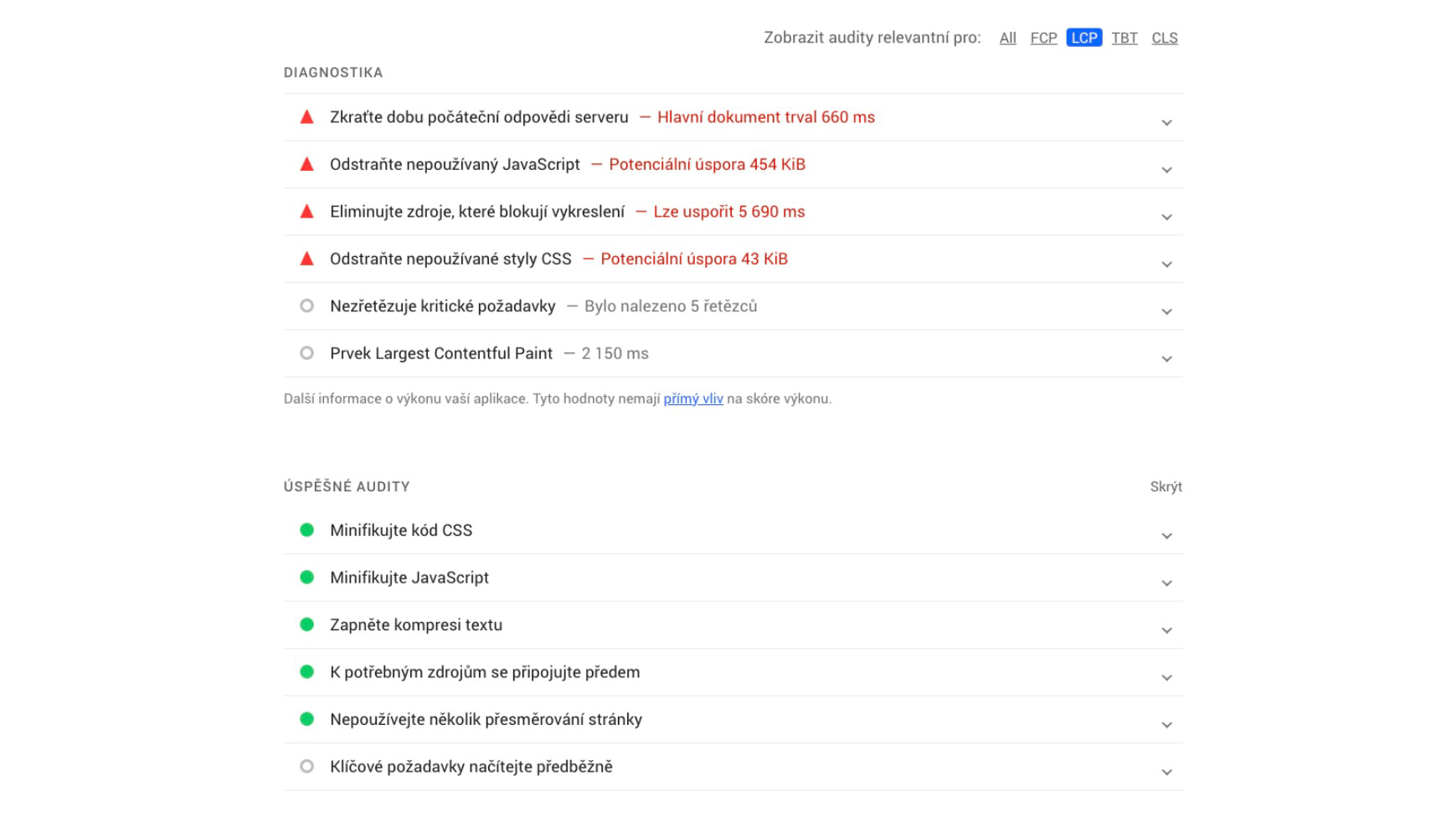 Lighthouse has several recommendations for you.
Naturally, Lighthouse recommendations should be taken with a pinch of salt. Some critical recommendations may not be provided here, and Lighthouse will never account for the effectiveness of specific recommendations within your technological setup. Some of these recommendations are hardly feasible in a reasonable time or may not have a significant impact.
From version 4.10, you can also run manual measurements and set multiple measurement times (beta); summary in changelog for release 4.10.
Lighthouse tool error messages
You may encounter various error messages in the test, which we will discuss here:
Timeout exceeded
The most common error is failing to measure the entire testing cycle due to a timeout, which Lighthouse has when running on our infrastructure. This can manifest as errors like NO_TTI_CPU_IDLE_PERIOD or PROTOCOL_TIMEOUT.
In our experience, however, some of the five tests always pass, which is why we test five times. If this does not happen, contact us.
Page failed to load
Another possibility is errors where the page fails to load at all, such as:
ERRORED_DOCUMENT_REQUEST– the requested page failed to load reliably.NO_FCP– the page rendered no content, no FCP metric was generated.NOT_HTML– the page is not HTML, delivered with MIME typetext/plain.
In such a case, ensure the page exists, and if it does, check whether access by bots is not blocked or whether it is not hidden behind a login or VPN.
Summary and where next?
The test run detail allows you to obtain truly detailed data from Lighthouse synthetic tests. It is very useful for developers to learn to work with this page.
Our article How We Test and Test Run Detail offer a complete guide on how to optimize web speed using pagespeed.one and the test run detail.
Speed Monitoring PLUS
Try our monitoring app free for a month.
5,400 CZK annually per website. Invoice only, no credit card needed.