“Domains” Report
 Martin MichálekUpdated 9/2/20267 minutes reading
The “Domains” report displays the speed status of measured domains. It is the most crucial report when it comes to the speed development of the entire website.
It answers all these questions:
- How are we doing with speed right now?
- What is the trend of the metrics?
- Have optimizations been successful?
- Did changes to the website worsen the speed?
- What are the priorities for optimization?
In the “Domains” report, besides the main Core Web Vitals metrics (LCP, INP, CLS), you will also find additional data from the Chrome UX Report. These allow you to see the speed of the website in a broader context – such as what types of devices visitors use, how far they are from the server (RTT), what content source determines LCP, or what exactly is delaying image loading.
Before you continue reading, ensure you have the following in mind:
- All data in this report comes from Google (Chrome UX Report), so it's essential to know the differences between various types of speed measurements (synth, CrUX, RUM).
- You should also know how we measure website speed in our monitoring.
- We highly recommend setting up your measured domains well here. You might have domains for your language versions or even competition.
Got it? Let's move on.
Relationship Between “Watchdog” and “Domains” Reports
You may already know that the “Watchdog” report is the primary tool for monitoring potential improvements or deteriorations in metrics and thus the speed itself.
However, we consider the “Domains” report more important. The main benefit of the Domains report is that it tracks user data (CrUX). The Watchdog only collects synthetic data from measured URLs.
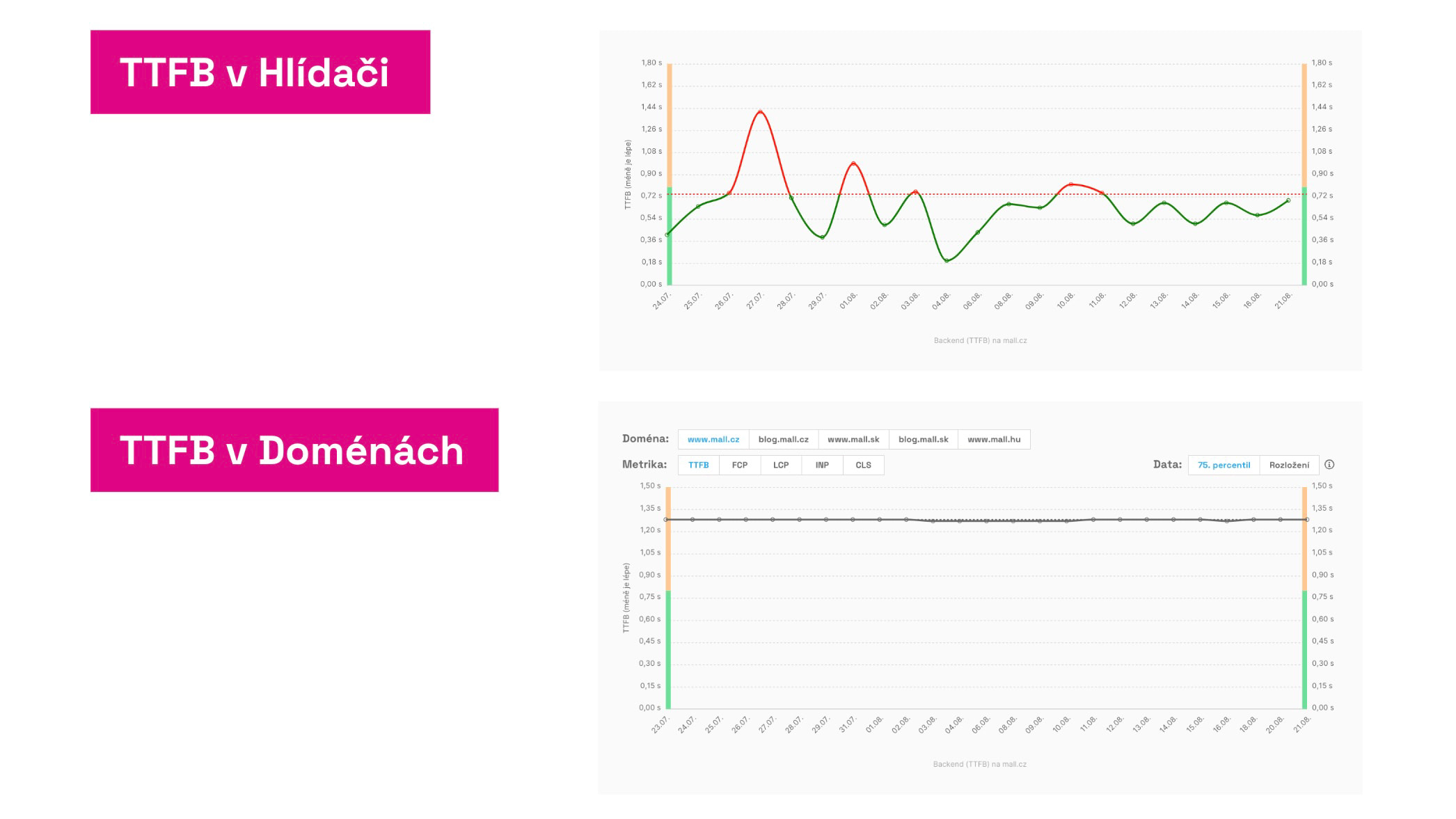 Same metrics, different results. Why?
The Watchdog has the advantage of quickly detecting metric improvements or deteriorations. However, the actual state needs to be verified in the “Domains” report, which displays CrUX user data. These are displayed cumulatively over the last 28 days, which is unusable for daily notifications sent from the Watchdog.
Therefore, we need both the fast Watchdog and the accurate Domains report.
Specific Charts in the “Domains” Report and How to Use Them
Let's now look at the individual charts, their content, and significance:
User Measurements for Domains
The first chart displays the current state of metrics for a particular device type (mobile or desktop) and any movement of metrics for better or worse:
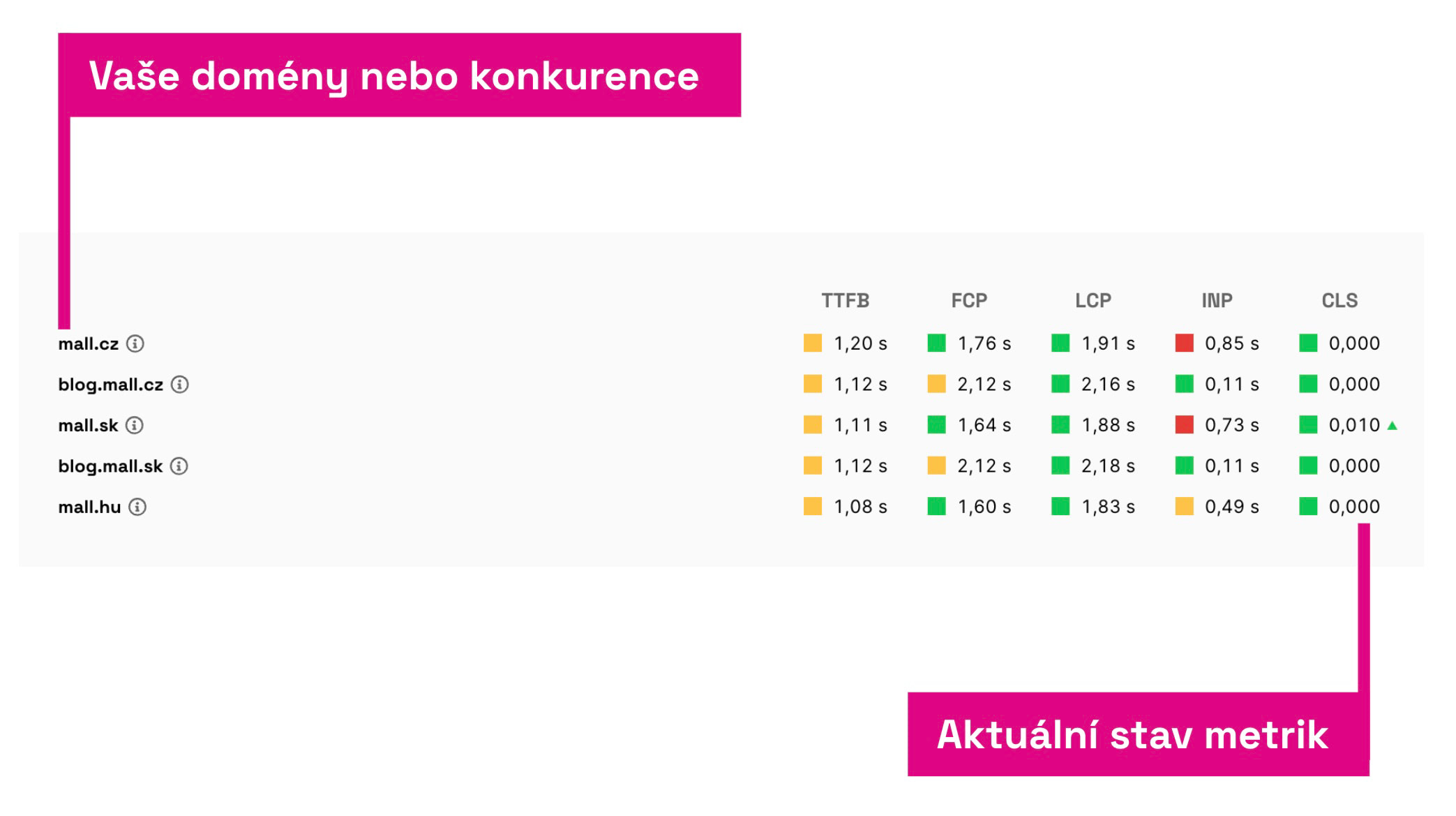 Here you see data from Google users, from the Chrome UX Report.
Both Core Web Vitals metrics (LCP, INP, CLS) and auxiliary metrics – TTFB and FCP – are represented here.
In the table, you can see how you stand with metrics compared to competitors or other your domains.
Red or green triangles next to numbers indicate significant changes compared to the state a month ago. Such marked metrics should receive more attention.
User Metric Trends Over Time
The next chart shows the trend of metrics over time:
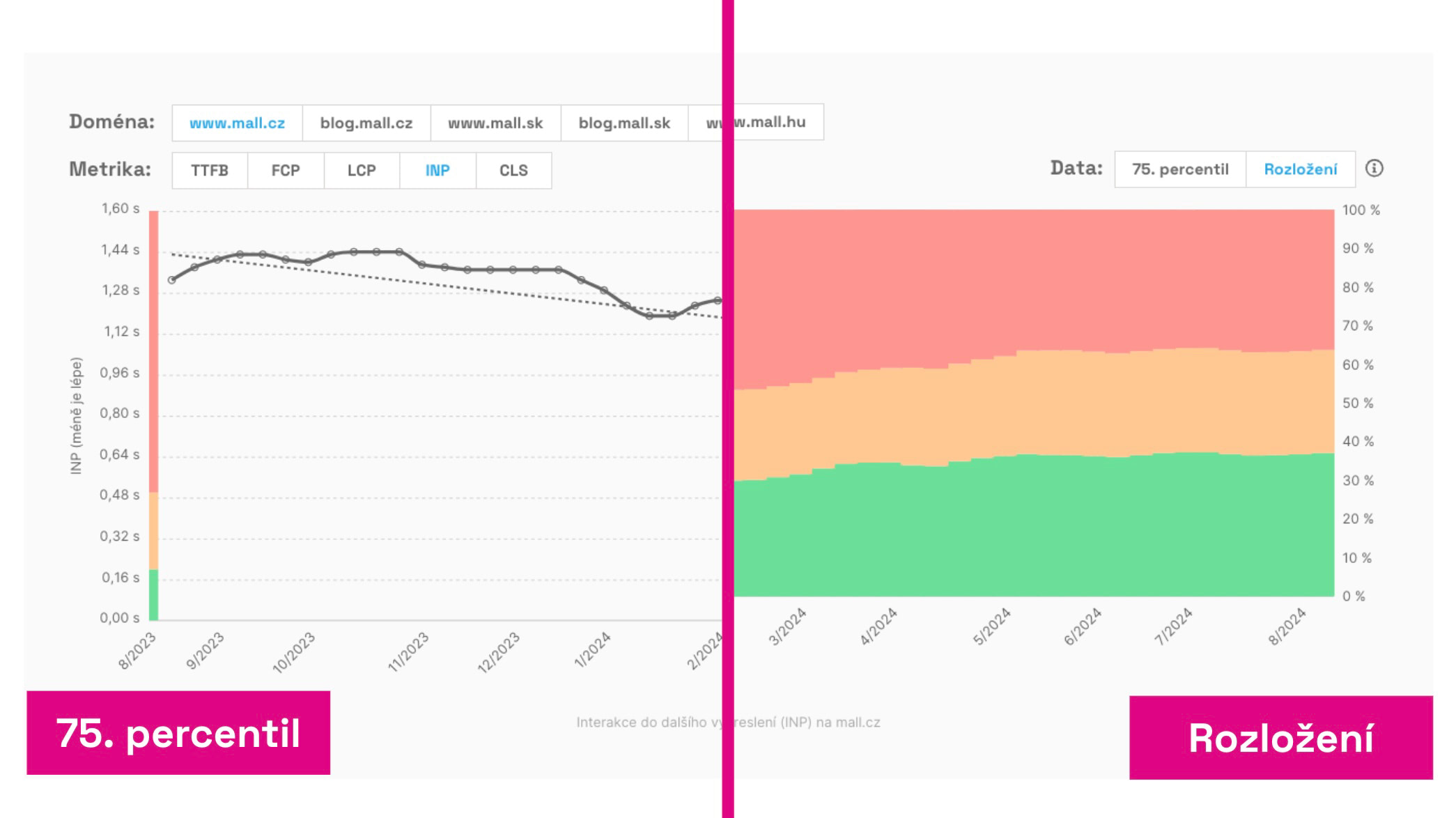 Two different views on user data: metric value trend (75th percentile) and distribution of three types of values.
As with other charts in speed monitoring, you can choose how to display the data here:
- 75th percentile – Google uses this value for evaluating the entire domain for Core Web Vitals metrics. On the sides of the chart, you see whether the value is in recommended (green), needs improvement (orange), or poor (red) ranges.
- Distribution – You will see the percentage share of different metric values for all users. Here too, you see what portion of users meets the metric (green), needs improvement (orange), or records as poor (red).
And note, in both cases, these are cumulative data for the last 28 days. What does “cumulative” mean? The value for the current day in such a case does not show today's state but the 75th percentile from values collected over 28 days.
Larger changes in metrics simply won't be visible immediately in such a case, but will gradually appear in the chart over nearly a month. Even a small change can indicate a larger shift in the metric value.
The value at the 75th percentile may seem stable, but if the distribution changes, it is likely to affect the metric value sooner or later.
How to use this chart? In our PageSpeed.ONE advisory team, this is the chart we monitor the most. Implementing optimizations can indicate positive changes after just a few days. We primarily monitor the Metric value, but if it's stable, we also look at the distribution trend.
Histograms of Current Values
The distribution of metric values among users over the past month. The histogram provides a more detailed picture than the 75th percentile or distribution.
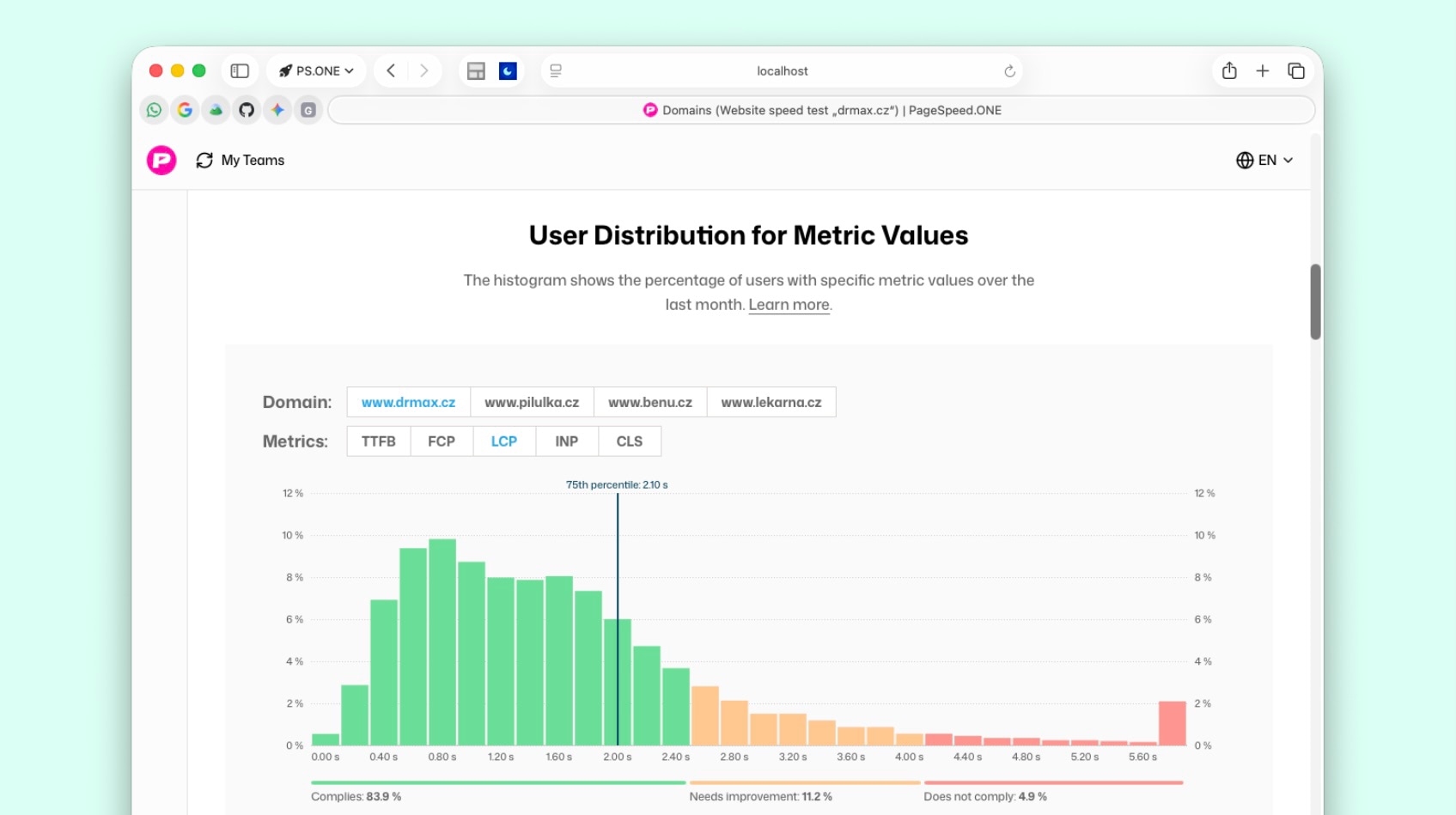 Histogram in the Domains report: value density, colour zones, and the 75th percentile line.
How to Read the Chart?
- The histogram has 30 columns with equal bandwidth.
- Colours correspond to Core Web Vitals bands: green (meets), orange (needs improvement), red (does not meet).
- A vertical line marks the 75th percentile of the metric.
- Hovering over a column displays the percentile, value range, and display share.
- Below the chart is a summary of three aggregated shares – the same information as the simpler “Distribution” on the metric trend chart above, just alongside detailed columns.
This is an advanced view – for regular tracking of developments, the charts above suffice; use the histogram when you need to see the shape of the distribution (majority at the threshold vs. a thin tail of slow displays).
How to read the histogram and when to use it for optimization, we discuss in the article on the Chrome UX Report.
Domain Speed by Month
Another set of charts again displays metric values, but not by day, rather by month:
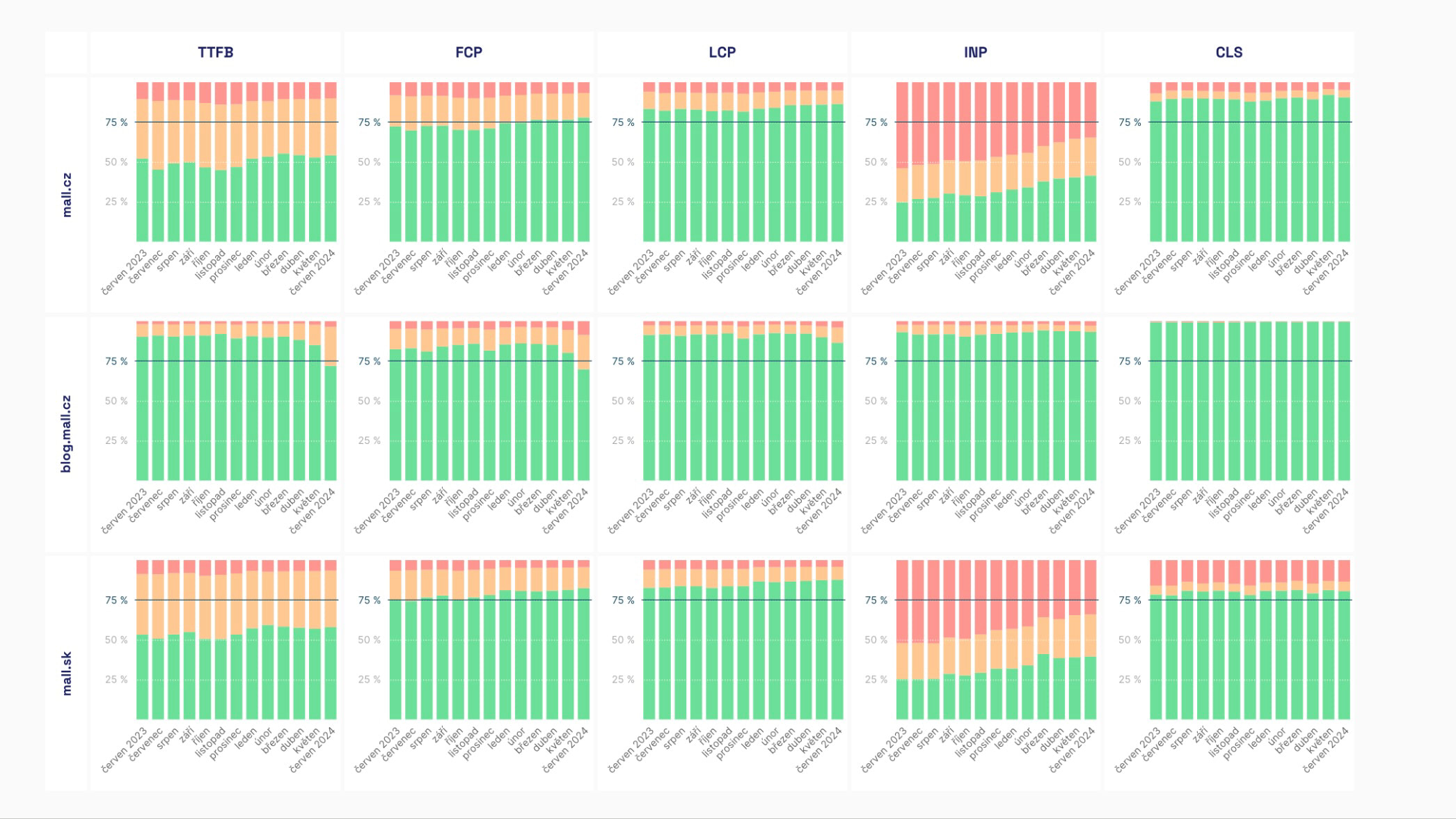 The domain speed by month chart is full of colours. The more green, the more speed.
In these charts, you can also decide whether you will see the metric value (75th percentile) or simply the distribution of green, orange, and red values.
You'll see the following:
- Trends of Core Web Vitals metrics (LCP, CLS, INP) and others (FCP, TTFB).
- Trends of navigation types (see also chart below).
The data here shows a long-term view and comes from CrUX database values in BigQuery, where numbers are stored cleaned up.
We take this chart as a managerial view over a longer time frame, indicating whether your speed optimization efforts are successful or not.
Charts Available in PLUS Tests
All data comes from the Chrome UX Report (CrUX), so these are data from Google users.
🔐 These reports are available only for PLUS test users.
Device Types (Form Factor)
The “Device Types” chart shows from which devices your users access the website. Data is divided by User-Agent into three categories: mobile, tablet, and desktop.
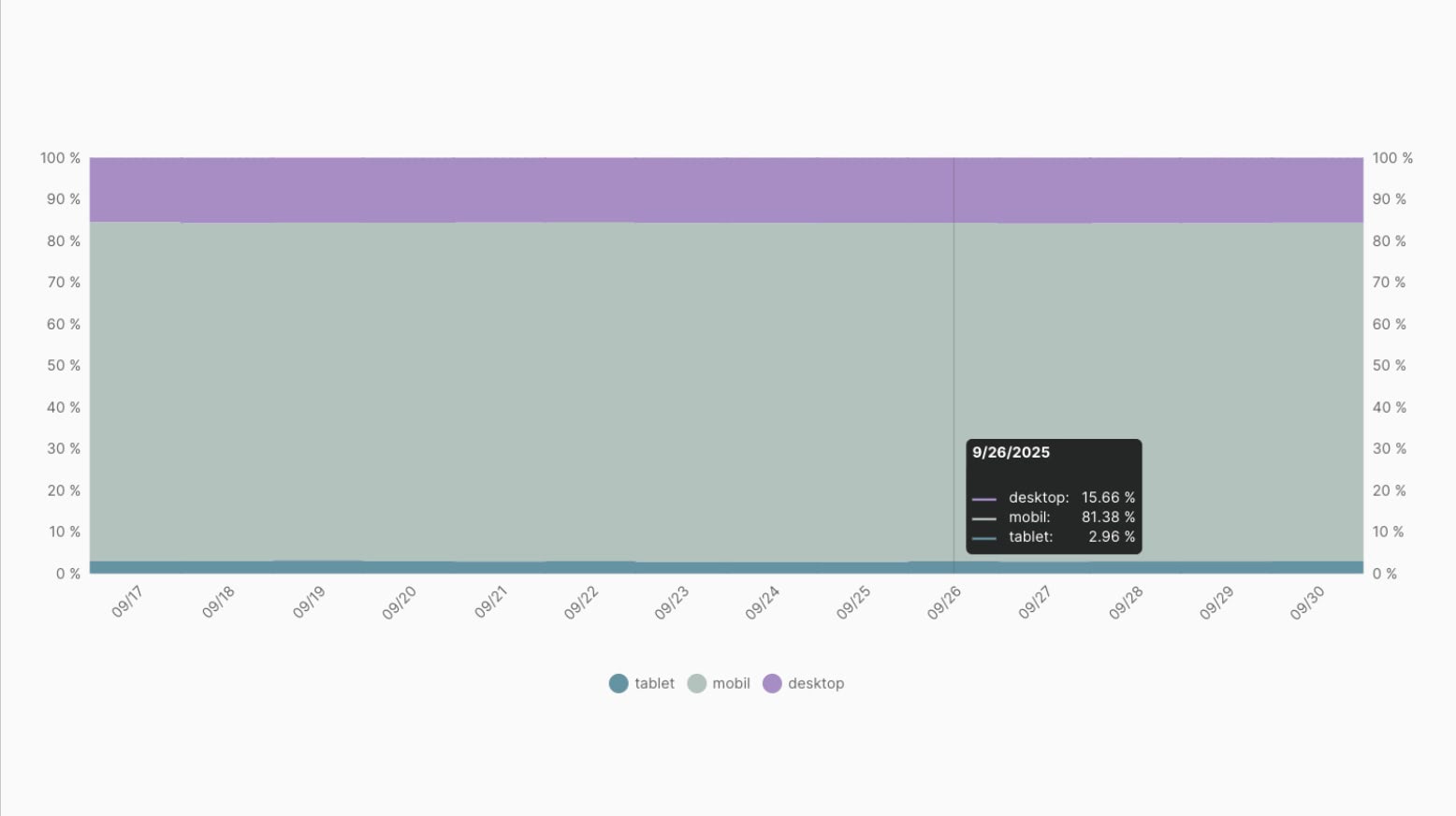 Is it necessary to optimize more for mobile or desktop? And what about tablets?
How to Read the Chart?
- The X-axis shows the time axis in individual days.
- The Y-axis shows the percentage representation of individual devices.
- Each colour represents a device: mobile, tablet, or desktop.
- Hovering over a specific date shows the exact share of visits from the device.
How Does the Device Type Chart Help You?
- Easily find out which device type is most important to your users.
- If most visitors come from mobile, it makes sense to focus optimizations there.
- Small device shares (like tablets) often don't need to be prioritized unless they have major speed issues.
- Watch if the device ratio changes over time. For example, a growing share of mobiles means higher demands on speed and simplicity of the mobile version of the website.
Round Trip Time (RTT)
The Round Trip Time chart shows how “far” or “close” your users are from the network's point of view. The Round Trip Time (RTT) metric expresses the time it takes for a request to travel back and forth between the user and the server.
How to Read the Chart
- The Y-axis shows the RTT value in milliseconds.
- The X-axis represents the time axis in individual days.
- There are two display methods available:
- 75th percentile – the value surpassed by only a quarter of the worst connections.
- Distribution – the percentage share of different RTT values among users.
RTT values in the distribution are divided into three categories:
| Network Latency | From | To |
|---|---|---|
| Low | 0 ms | < 75 ms |
| Medium | 75 ms | < 275 ms |
| High | ≥ 275 ms | ∞ |
How Does the RTT Chart Help You?
- If RTT is consistently high (well above 150 ms), consider using a CDN like Cloudflare or bringing content closer to users.
- Stable low RTT values mean that network speed isn't a limiting factor.
- A sudden increase in RTT may indicate network or infrastructure issues.
The Navigation Types Distribution chart shows how users arrived at your domain's pages. Data distinguishes between several navigation types, such as standard loading, cache loading, or instant loading through back/forward cache.
Navigation Types show the technical way people arrive at specific pages of a domain.
Let's illustrate how to think about this chart with an example:
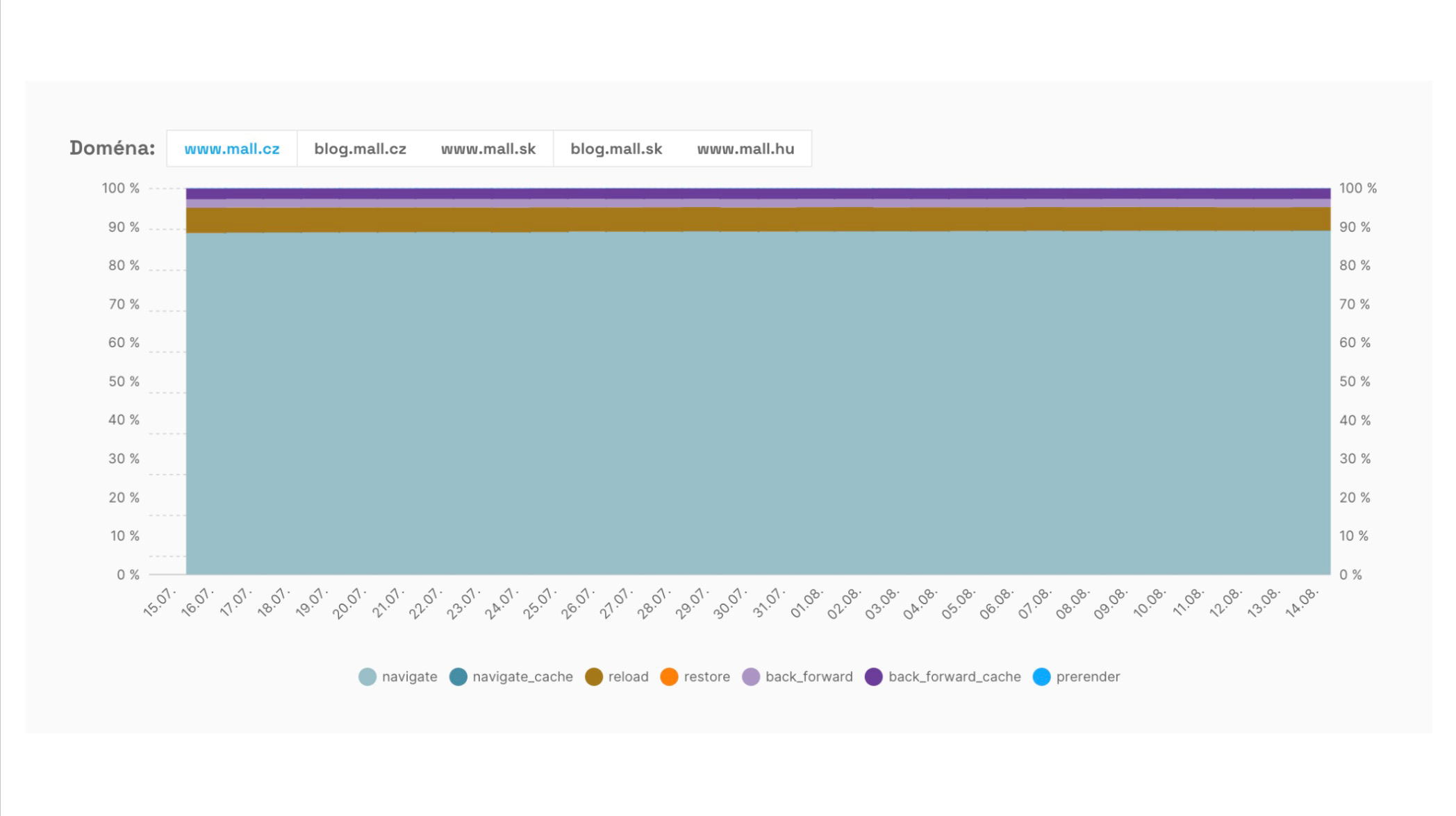 The trend of various navigation types on domain www.mall.cz.
- The X-axis shows the time axis in individual days.
- The Y-axis shows the percentage share of individual loading types.
- Each colour represents one loading type, for example:
- navigate – standard page load
- reload – page reload
- back_forward – back or forward in browser history
- back_forward_cache – instant load from back/forward cache
- prerender – pre-loading using Speculation Rules API
- navigate_cache – loading from HTTP cache
- See how often pages are loaded from cache or bfcache, which means an almost instant experience for users.
- If you have a high share of standard loads (navigate), look for opportunities to better utilize cache or prerender.
- An increase in reloads may indicate user dissatisfaction, prompting them to reload the page.
- The ideal state is for as many navigations as possible to occur instantly (bfcache, navigate_cache, prerender).
LCP Resource Type
The LCP Resource Type chart shows whether the element determining the metric value (LCP element) comes from an image or a text element (such as a heading or text block).
How to Read the Chart?
- The X-axis shows the time axis in individual days.
- The Y-axis shows the percentage share of individual resources.
- Each colour represents a different element type – image or text.
- Hovering over a specific date shows the exact ratio of both resources.
How Do LCP Resources Help in Tuning This Metric?
- If most LCP elements come from images, focus on optimizing them – formats (WebP, AVIF), compression, and loading.
- If text elements prevail, it makes sense to address web fonts and text rendering.
- This chart quickly helps you understand what to focus on to improve LCP.
We also have tips on LCP optimization in our help.
Reasons for Delays in LCP Element Images (LCP Image Subparts)
The Reasons for Delays in LCP Element Images chart breaks down the image loading time into several parts. This way, you see which phase of image loading most affects the final value of the Largest Contentful Paint (LCP) metric.
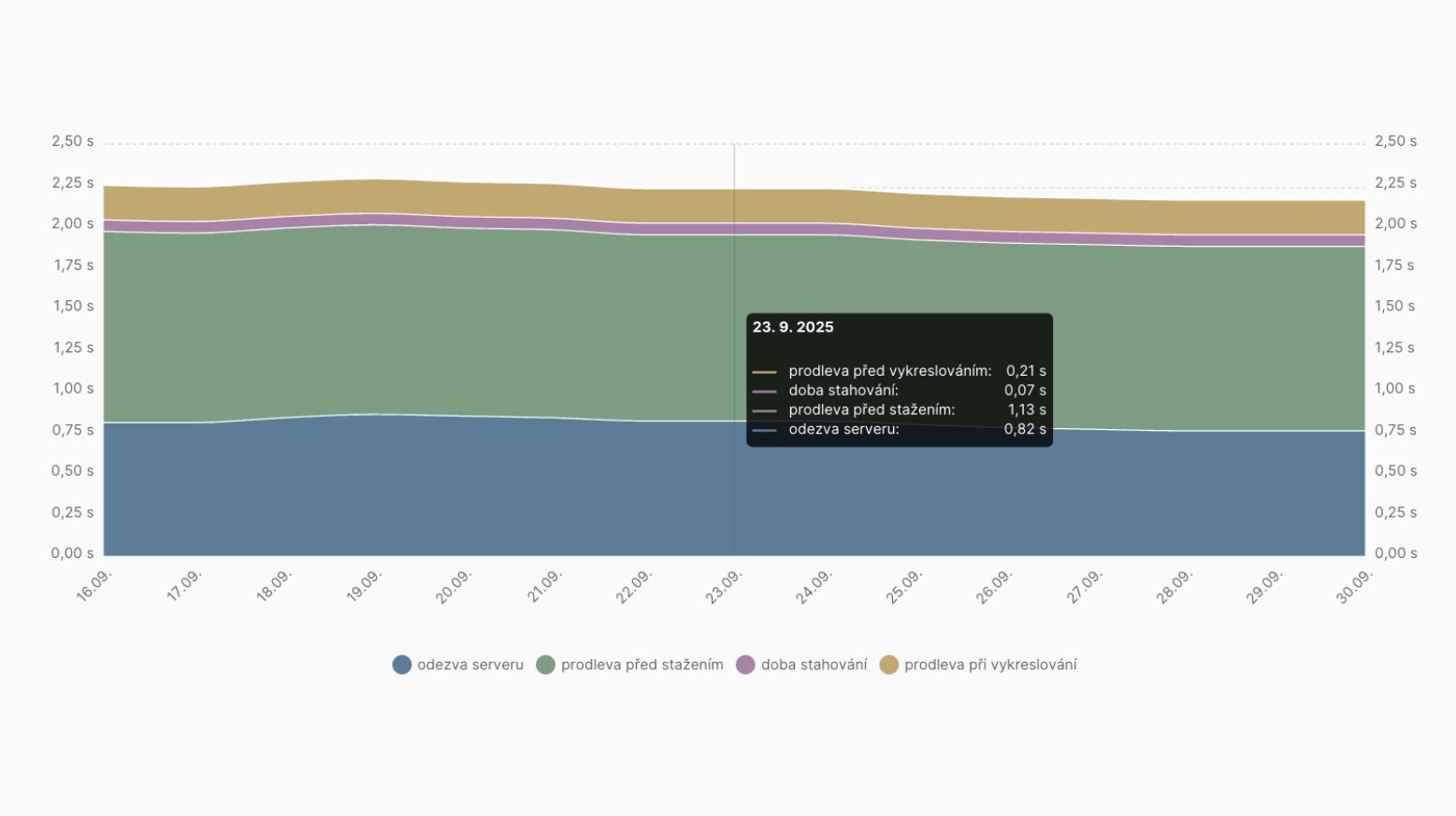 What's delaying our LCP image loading here?
How to Read the Chart
- The chart consists of several coloured parts, each corresponding to different phases:
- Server response – time before the server starts sending the image.
- Download delay – waiting before the image download actually starts.
- Download time – how long the data transfer takes.
- Rendering delay – time between downloading and displaying the image in the browser.
- The height of each part shows how much time it takes.
- Hovering over a specific date shows exact values in milliseconds.
How Does This Help You
- If download time dominates, image optimization (compression, modern formats, CDN) helps.
- If server response is high, the solution is backend acceleration or CDN deployment.
- If rendering delay is significant, there might be an issue with JavaScript or the way images are embedded in the page.
- This chart allows you to focus precisely on the loading part that most hinders LCP.
Summary
Let's summarize the information about the “Domains” report:
- This report is one of the most important in our monitoring. It allows you to track speed metric values from the Chrome UX Report for all measured domains.
- In addition to the immediate state, you see the trend over days, which is excellent for monitoring the impact of specific changes on the website, and also the trend over months, giving you feedback on whether you are progressing successfully with speed optimizations.
- Histograms of current values complement the 75th percentile and three-coloured distribution with a detailed shape for the last month.
- The Navigation Types report shows your room for utilizing instant navigation types.
The “Pages” report provides detailed information on the performance of specific URLs, and the “Watchdog” report gives feedback on the daily trend of metrics for your URLs.
Speed Monitoring PLUS
Try our monitoring app free for a month.
5,400 CZK annually per website. Invoice only, no credit card needed.