Test Settings
 Martin MichálekUpdated 9/2/20267 minutes reading
Proper settings are crucial for accurate speed measurement, so please pay close attention to this text.
Before you proceed, ensure you understand how we test your websites and are familiar with the difference between speed data from CrUX (Chrome UX Report) and synth. Settings are particularly crucial for professional web speed monitoring using monitoring PLUS.
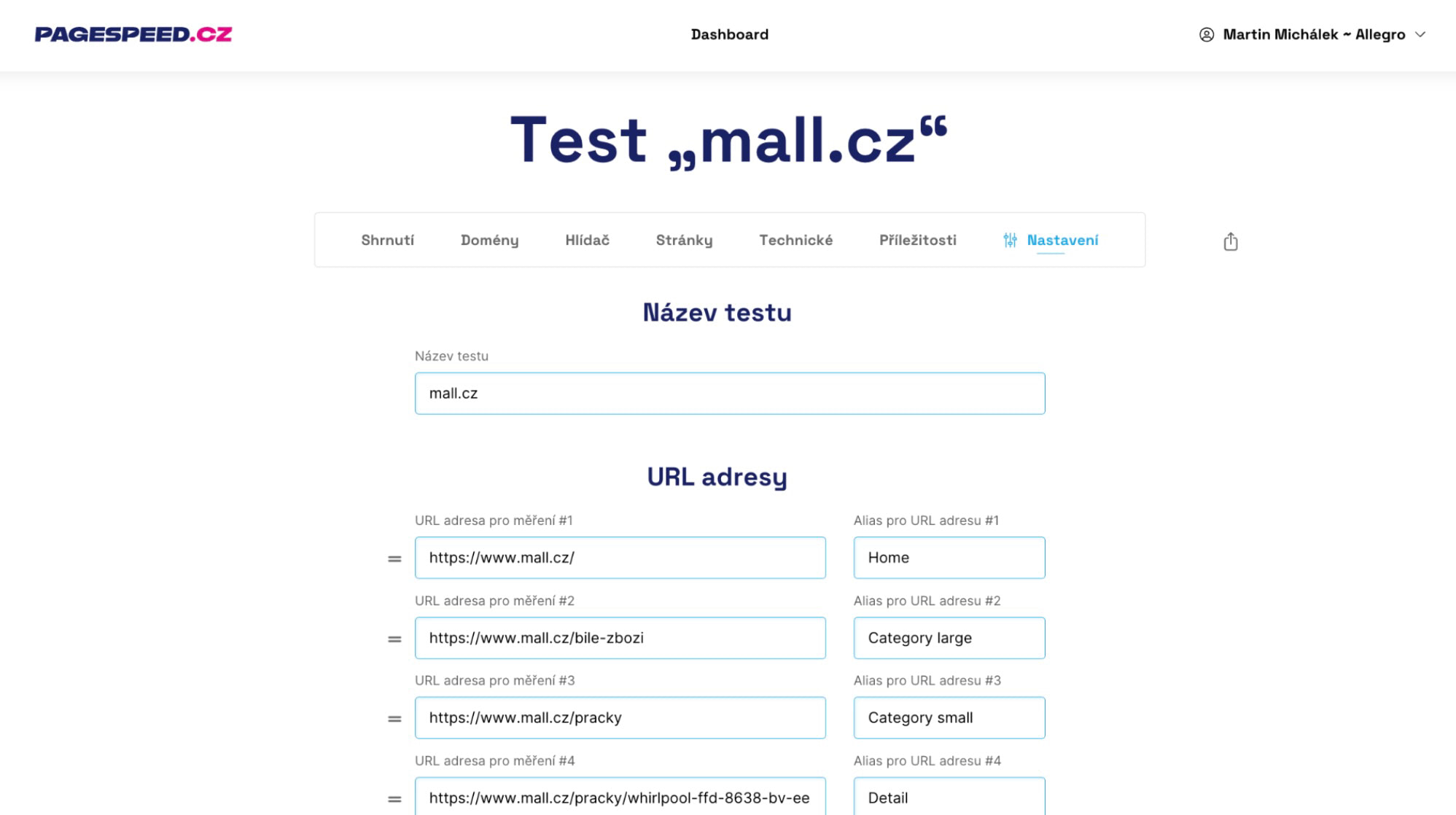
In the test settings, make sure not to overlook the following:
- Carefully choose the URL of your site for detailed testing (synth and CrUX).
- Select domains wisely (yours and competitors').
- Set up alerts for changes (email, Slack, Teams).
Now let's delve deeper into each part of the test settings in pagespeed.one monitoring.
Test Name
Choose a test name. Examples: “Website XYZ.cz”, “Competitor for XYZ.cz”… If you don't specify a test name, we'll name it according to the domain of the first URL. You can change this anytime.
The name is used to identify the test on your team dashboard.
URLs
Enter the URLs of the pages you wish to test and obtain CrUX data (speed from Google users) or synthetic measurement results (from our tests), including Watchdog data.
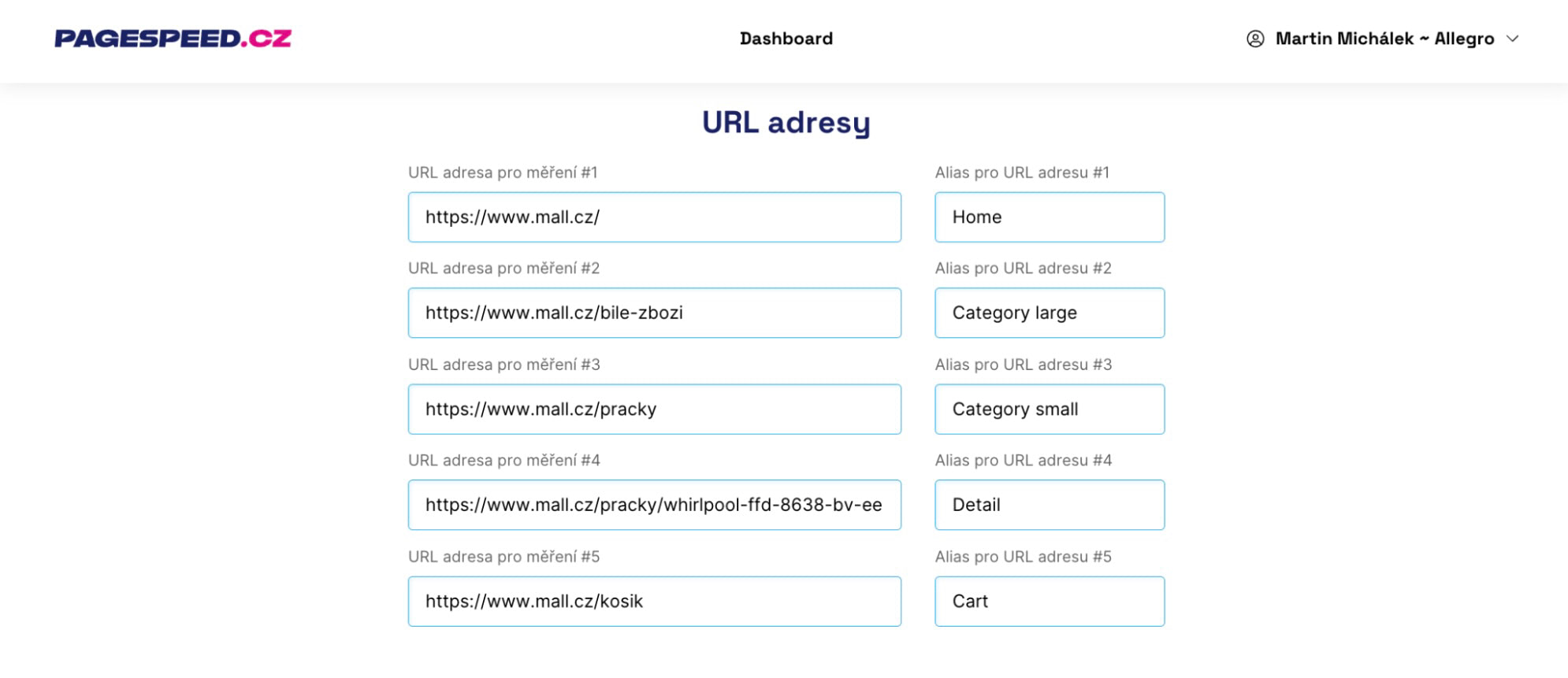 Set the correct input URLs for testing.
We recommend entering the most important page types of your website here. Also, add a label (alias such as “Homepage” or “Product”) to simplify your graphs.
🔐 In monitoring PLUS, you can enter five addresses.
Well-chosen URLs meet these criteria:
All important entry page types are represented
For example, for a smaller e-shop, this would be the homepage, product category, product detail, and perhaps a blog post.
Measuring something like a cart isn't as crucial since it's not an entry page, but for larger websites, we recommend it.
They are the most visited URLs and have CrUX data
Aside from the homepage, you'll typically have more URL options for each page type. Choose the most visited ones, as they will be more loaded and significantly impact Google user data (CrUX).
It is also useful if these URLs have their own CrUX data. Not every URL has its own CrUX data. Even on large sites, only dozens of URLs will have their own data. However, if the entered URL has data, it will facilitate measuring changes.
To check if your URL has CrUX data, the easiest way is to use our website speed test or PageSpeed Insights. Enter the URL and see if there are data metrics in the “This URL” switch.
They are more content-rich pages
Always choose page types that have more content components. For example, e-shops often have simpler and more complex page types for categories.
Choose the more content-rich ones, as they will better reveal potential issues with the user experience.
Google Analytics or Google Search Console can help you select suitable page types, where you can see their traffic.
Beware of URLs with parameters
You might want to enter URL variants with parameters, such as:
example.com/some-url
example.com/some-url?id=203
example.com/some-url#anchor
It's important to know that from a CrUX data perspective, all these URLs are identical because anchors and parameters after the question mark are not stored in CrUX data.
URLs are from one domain
For the proper functioning of Watchdog and other reports, we highly recommend not entering URLs from different domains or subdomains.
An exception might be when different page types “sit” on different domains, such as:
www.heureka.cz
mobilni-telefony.heureka.cz/xiaomi-redmi
Be cautious, altering a URL affects data and test settings. Changing the URL or domain naming does not have these consequences.
What happens when a URL changes
- Old synthetic and CrUX data for the original URL are discarded, as they are not comparable with the new address.
- The history of Watchdog is not discarded – the green line remains.
- Watchdog recalculates levels – temporary budgets are created for 3 days, then new ones are set.
- An automatic note with details of the change (original and new URL, who made the change) is added to the graphs.
- If you have alerts set up for Slack or Teams, you'll receive a notification about the change.
These URLs will then appear in the Pages and Technical reports.
Domains
Enter the addresses of your domains. In Domains and other reports, we will then display speed data from Google for these domains (CrUX).
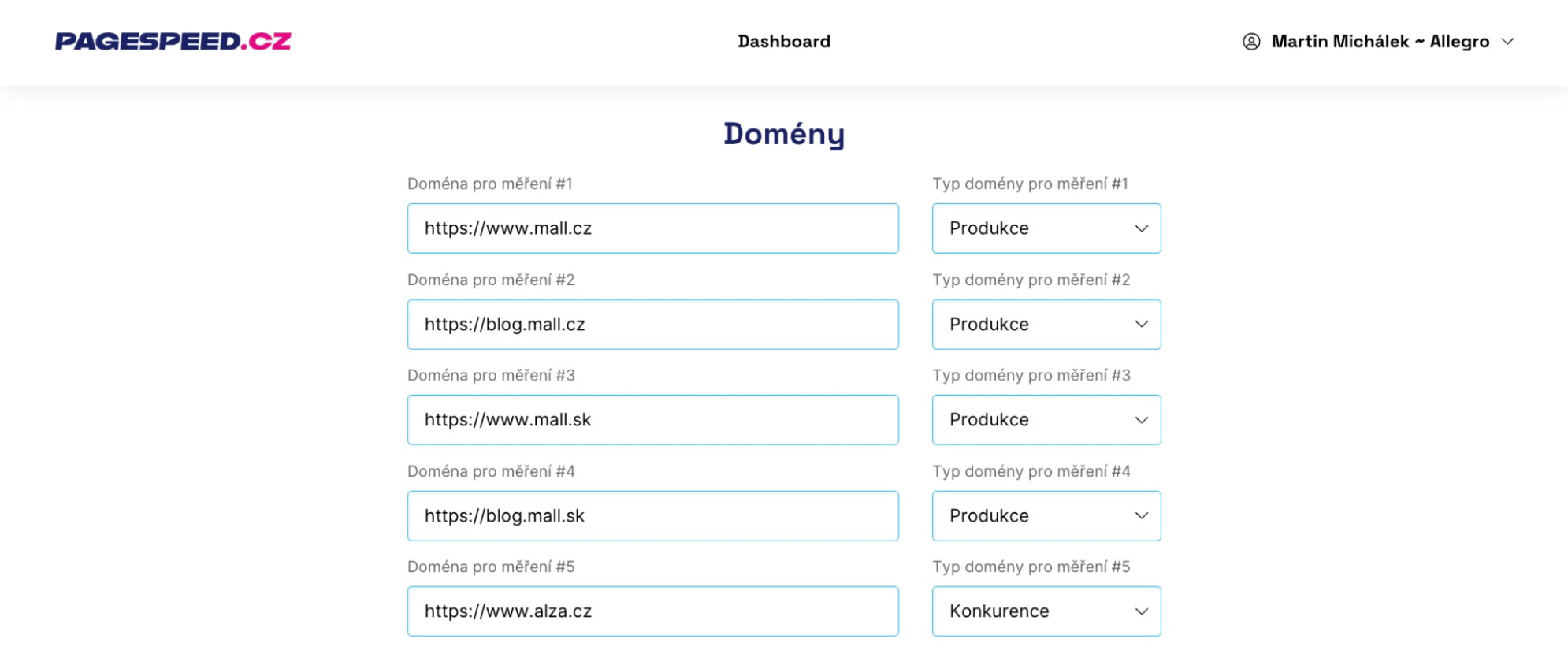 Set up your own and competitor domains.
In addition to the main domain of your monitored site, we recommend entering:
- Competitor domains
- Language versions of your website
- Subdomains of the site (if you send significant traffic to them)
Specifying the domain type will clarify reports and especially email notifications, so don't forget to select them. If you select a site as “competitor” or “other”, we won't send change notifications for them.
🔐 In monitoring PLUS, you can enter five domains.
What if five URLs or domains aren't enough?
Some of our clients find that five URLs or domains aren't sufficient. Large websites, for instance, may have a greater number of entry pages that need testing.
Other clients might have numerous language versions of the site they wish to track in domains. In such cases, it's possible to add more URLs or domains to the test for an additional fee, up to 20. See the pricing.
If interested, contact us at info@pagespeed.cz.
How to test websites behind a login?
We can test sites hidden behind a login, but usually, some preparation on your part is required.
Testing a website behind HTTP authentication is certainly possible; just expect a delay in loading speed.
Another option is to detect our bot and remove the login for it.
The second option is authentication via htpasswd. In such cases, contact us at info@pagespeed.cz.
Speed Watchdog Alerts
🔐 This feature is available only in monitoring PLUS.
Opt to receive alerts if the Watchdog detects a significant deterioration or improvement in the speed of tested URLs.
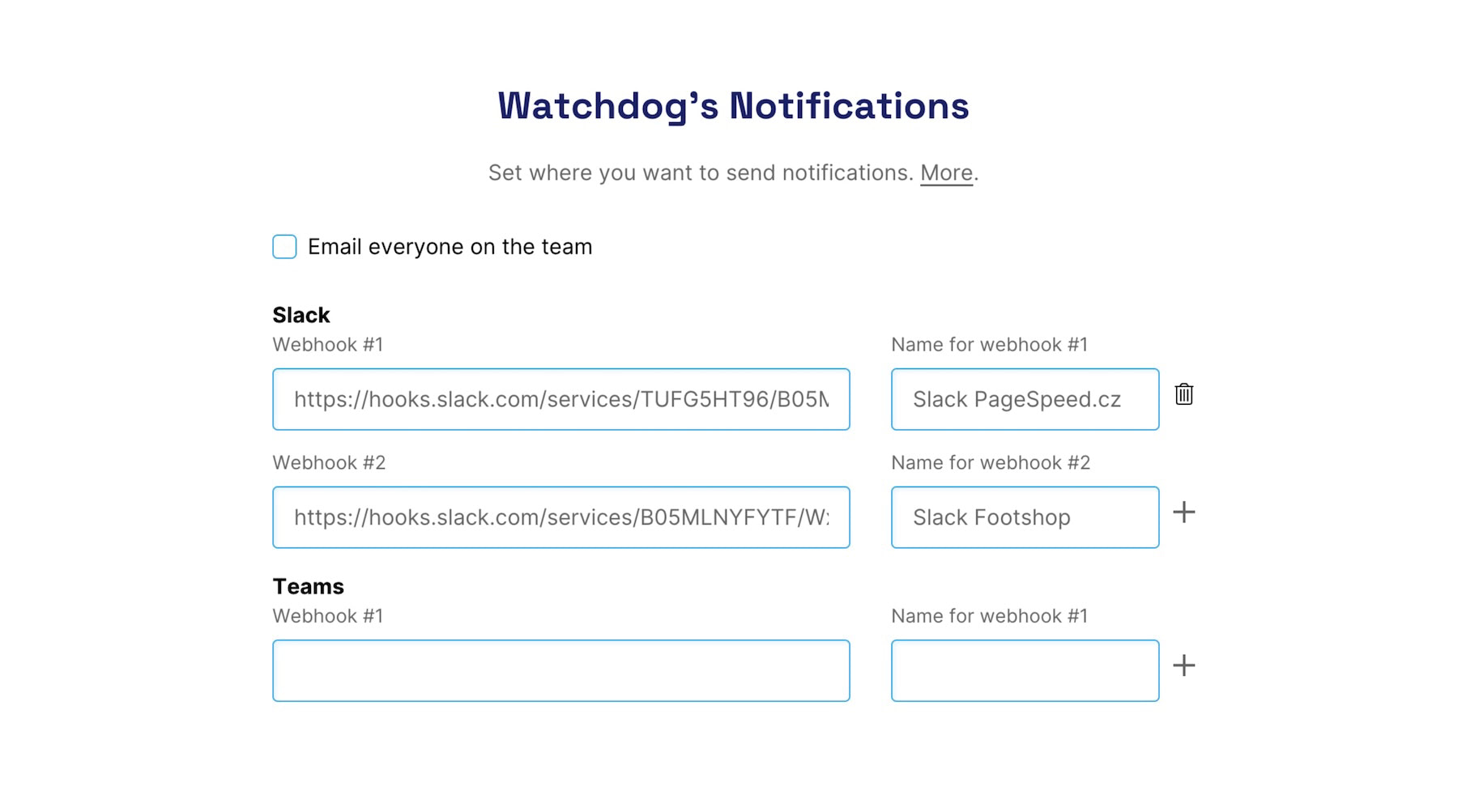 Ensure that Watchdog alerts reach where your team communicates.
By default, alerts are sent via email to all team members unless they unsubscribe.
If you use Slack or Teams for internal communication, we recommend adding a channel and having alerts sent there.
It's possible to add multiple channels, such as one for developers and another for the agency. We also recommend naming these channels for easier differentiation.
More information, including how to set up notifications for Slack or Teams, can be found in the notification help guide.
Testing Start Time
🔐 This feature is available only in monitoring PLUS.
New in version 4.10 is the ability for multiple measurement times (beta) and faster test launches; details in the release 4.10 changelog.
Only adjust the advanced settings if you know what you're doing.
In the “Testing Start Time” field, select the time when speed tests will begin each day. This can be useful if testing conflicts with server maintenance, such as various cron job runs at night.
Note that the start time is approximate. Tests occur within several tens of minutes from the set time.
The default approximate start time for monitoring PLUS is 4
.Watchdog Sensitivity
🔐 This feature is available only in monitoring PLUS.
From version 4.14 you can choose how sensitively Watchdog reacts to speed changes in the test settings. One control applies to both synthetic measurements and Chrome UX Report data. Details are in the release 4.14 changelog.
Watchdog should alert you when speed has really moved. Not when nothing substantial happened on the site. That is why we offer three levels:
- Higher (default) – you work on speed intensively, alerts come more often.
- Medium – medium alert frequency.
- Low – fewer alerts. Smaller changes may slip through.
The default comes from team settings. You can override it on a given test if you follow one site differently from the rest of the team.
Have you set everything up correctly? Explore now other parts of our speed monitoring and focus especially on Speed Watchdog.
Speed Monitoring PLUS
Try our monitoring app free for a month.
5,400 CZK annually per website. Invoice only, no credit card needed.