Optimising WordPress Speed: 6+1 Tips to Please Google and Your Visitors
 Martin MichálekUpdated 9/29/202512 minutes reading
A slow website is like a rusty door handle – no one wants to touch it. When your WordPress site is sluggish, you lose not only visitor patience but also search engine favor.
A sluggish WordPress is often blamed on poor plugin choices, bloated themes, or a lack of knowledge about website speed optimisation.
WordPress, in its essence, is quite speedy. Let's explore how to restore your site's quickness to delight both Google and your users.
Why is WordPress Speed Crucial?
Website speed isn't just a cosmetic detail – it is a crucial factor influencing the success of your online business.
Don't feel like reading and just want to speed up your WordPress? Check out our WordPress acceleration service.
Speed affects search engine rankings, conversion rates, bounce rates, and even ad costs.
Faster Websites = Better Results
What can you gain from speed optimisation?
-
Lower Bounce Rate
According to Google, the likelihood of a visitor leaving increases by 90% if page load time extends from one second to five seconds. -
Higher Conversions
An analysis by Portent found that at a one-second load time, the average conversion rate is nearly 40%. At two seconds, it drops to 34%, three seconds to 29%, and at six seconds it reaches the lowest point. -
Meeting User Expectations
According to Kissmetrics, 47% of users expect a webpage to load in two seconds, and 40% will leave if it takes more than three seconds.
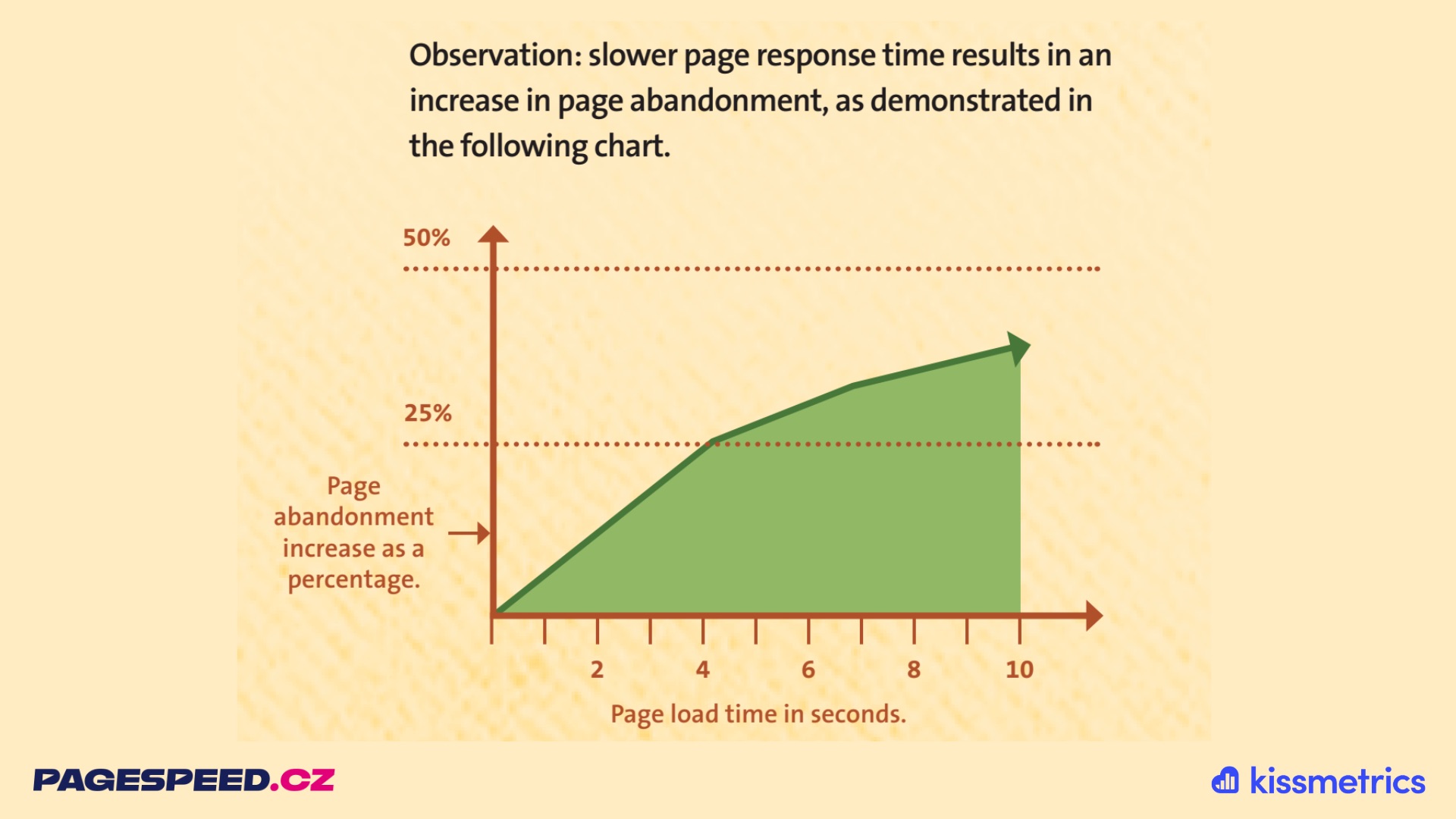 The average user lacks patience for a slow site. And rightly so.
Swift websites achieve better rankings and can even reduce PPC advertising costs, lowering the price per click in Google's ad systems. Check out our text on reasons for web speed optimisation where we delve deeper.
Core Web Vitals: It's Not Just About Speed, But Stability and Responsiveness
The key term here is Core Web Vitals – a set of crucial speed metrics Google uses to evaluate websites.
These metrics show how quickly content loads (LCP), how stable the page layout is (CLS), and how responsive the website is to user interactions (INP).
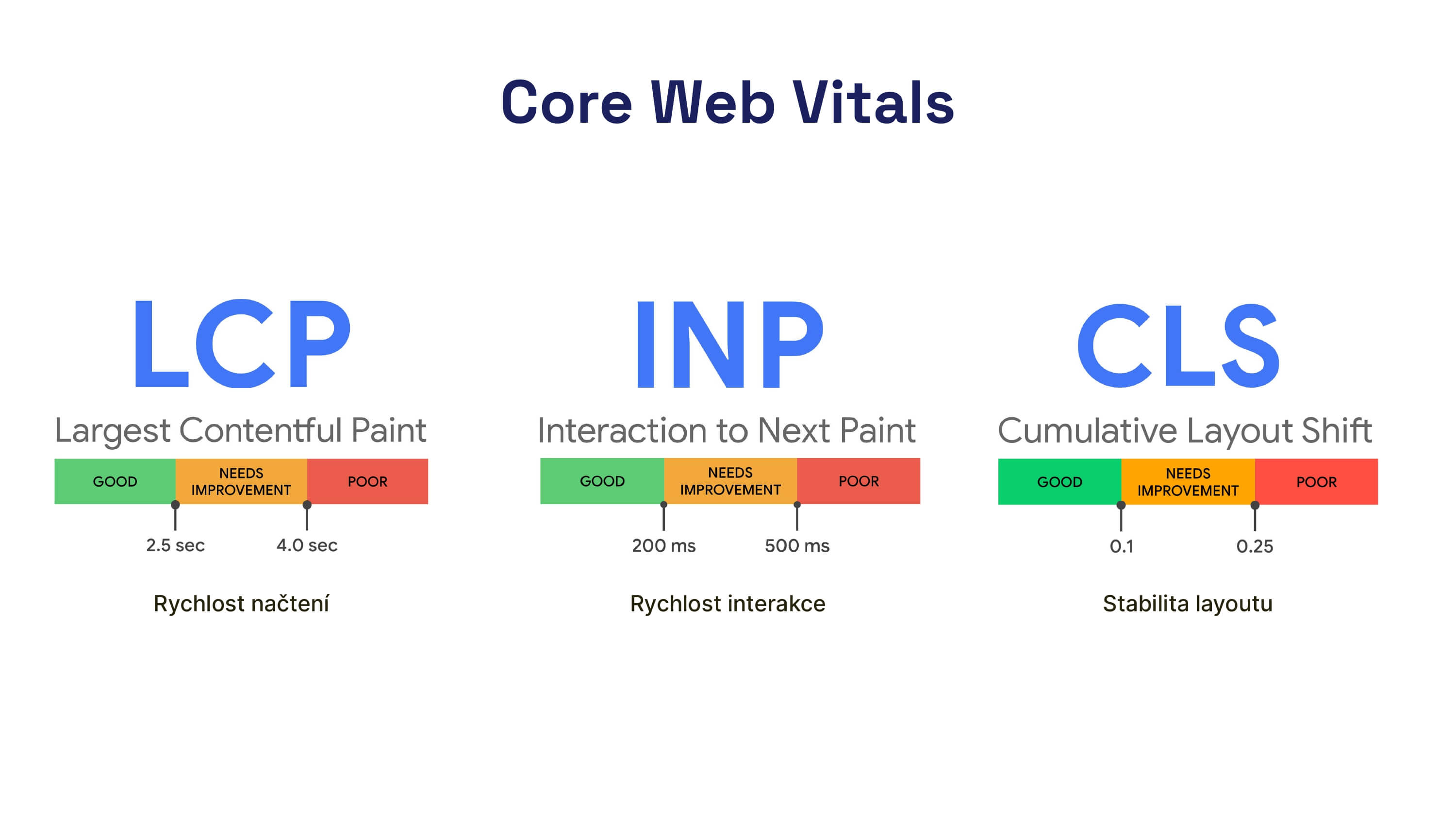 Core Web Vitals Triad. Not only do they measure user experience, but they also help Google evaluate websites.
What You Don't Measure, You Can't Improve!
Before you start speeding up, you need to know where the shoe pinches.
Remember! A one-time speed check of your WordPress is like visiting the dentist once every ten years – without regularity, it might start to hurt!
Measurement is fundamental. How to begin?
-
PageSpeed Insights is a free quick test from Google, suitable even for beginners. Focus primarily on the Core Web Vitals results for mobile devices. Yes, those numbers at the top. Be cautious not to fixate too much on the Lighthouse score, which we discuss below.
-
Google Search Console shows you how your site performs in real-world usage concerning Core Web Vitals for various page types.
-
PageSpeed.ONE website speed test. We offer a free one-time test, but for professional use, we recommend monitoring PLUS. Speed can degrade over time, so regular speed monitoring is essential.
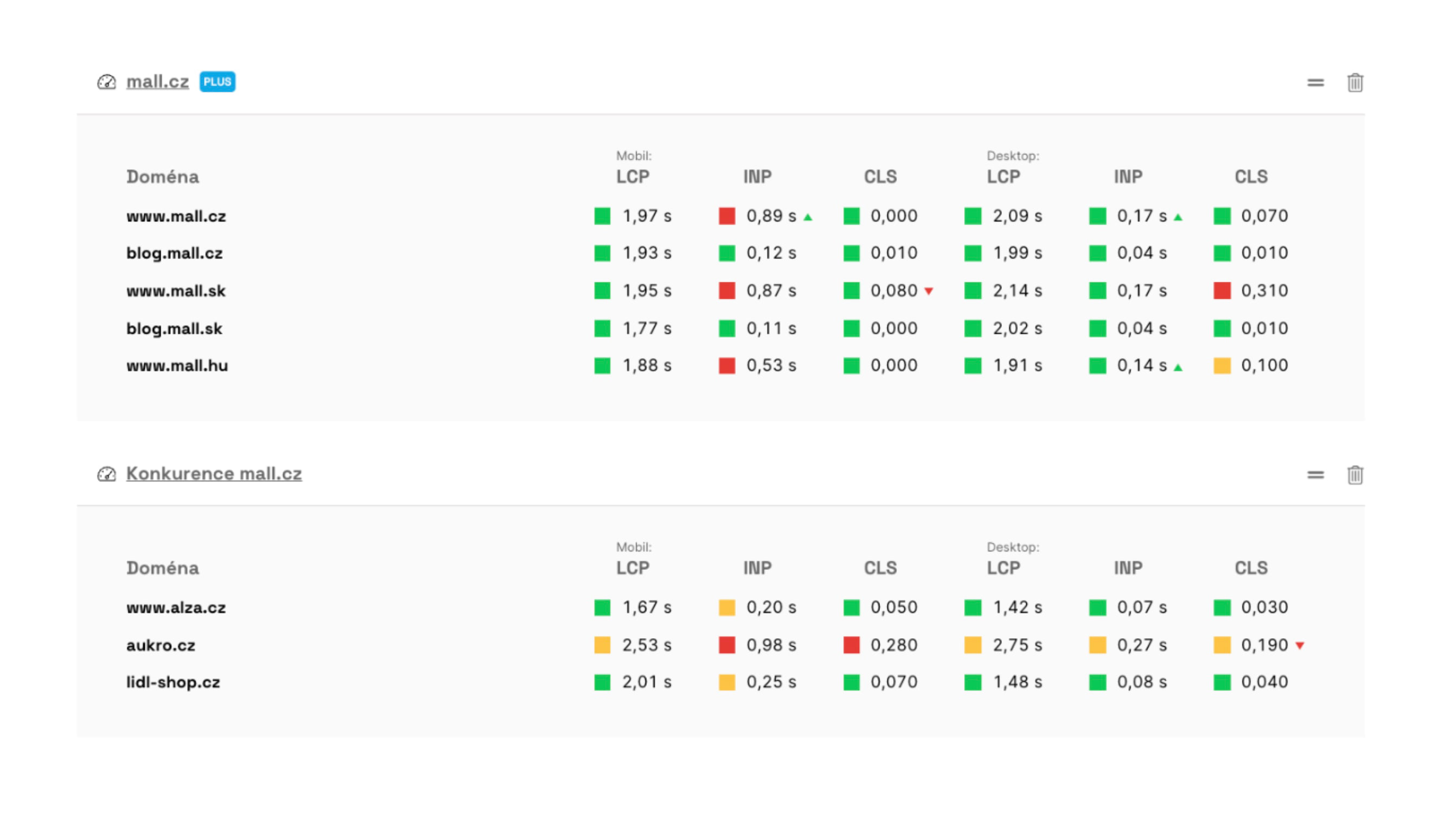 How is your website faring? We know thanks to Core Web Vitals metrics in PageSpeed.ONEs monitoring dashboard.
Good measurement is like a quality diagnosis before treatment. At PageSpeed.ONE, we often see webmasters optimising completely the wrong part of the website – like treating a cold when the leg is broken.
Tips for Optimising WordPress Speed: How to Oil the Machine
WordPress is a complex machine with numerous components. Many can be the culprits of slowdowns.
Let's see where, based on PageSpeed.ONE's experience, WordPress optimisation often stumbles.
1) Hosting: The Solid Foundation of a Fast WordPress
At PageSpeed.ONE, we've seen it all, including large WordPress sites hosted on sluggish servers costing a few euros.
Are you skimping on hosting? It's like building a race car with a Trabant engine. Without quality hosting, optimisations can only be a partial solution.
What are the first steps to ensure your hosting is in order?
-
Regularly Measure Server Response
Remember the acronym TTFB (Time to First Byte). This metric indicates server response time. If your TTFB is slow (above 600-800 ms), it may be due to a slow database, poorly configured cache, or unsuitable hosting. In our monitoring, we track this metric's values daily. -
Assess Your Hosting
Our favourite tool for testing hosting is the WordPress Hosting Benchmark tool. Check the image below to see what a handy tool it is. -
Beware of Database Performance
A slow database manifests mainly when loading more complex pages or in the admin. If, even without traffic, page display takes seconds, it's time to check the hosting. Try the Query Monitor plugin to see if slow SQL queries are holding back the site. -
CDN (Content Delivery Network)
If you're targeting an international audience, consider using a CDN for faster content delivery worldwide. A popular choice is Cloudflare.
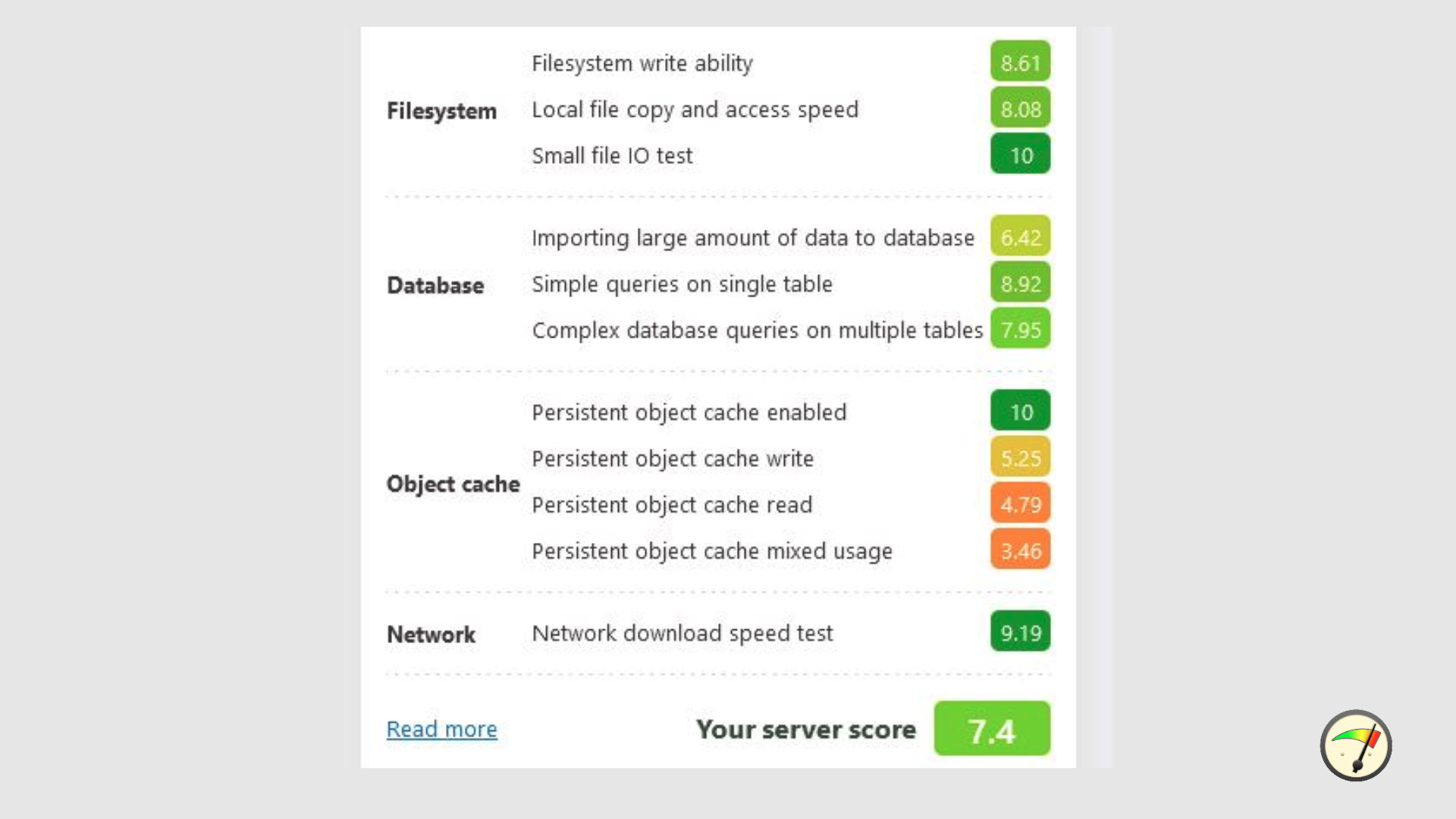 Heading to optimise WordPress? First, ensure strong foundations using the Hosting Benchmark tool.
Good hosting is like a strong, reliable engine.
Without it, you'll always just be driving, never racing.
2) Cache: The Memory Booster of Your Site
Imagine having to rebuild your house every day. That's exactly how a WordPress site functions without cache – needlessly repeating work already done.
What to do?
-
Ensure You're Using Quality Caching Plugins
Try plugins like Super Page Cache, flying press, or W3 Total Cache to help with optimal settings. -
Configure Cache Properly
Don't rely solely on automatic settings. Ensure cache is correctly configured and functional for all content types. You'll notice this primarily through server response values (TTFB). -
Set Up Browser Cache
This tells the browser to remember images, CSS, and JavaScript, avoiding repeated downloads. It is set inCache-Controlheaders. It's quite a science, but Harry Roberts can explain it to you if needed. -
Establish Database Cache
DB cache stores results of frequently repeated database queries (e.g., product lists). It is useful for more complexly structured websites. -
Don't Forget Object Cache
The so-called "object cache" stores results of database queries. This is especially helpful for sites with dynamic content or WooCommerce, where complex calculations are often repeated. -
Mind Personal Data
Just to be sure – never cache pages with individual content (e.g., shopping carts, user profiles). It's dangerous.
Want a specific tip for beginners? In W3 Total Cache, you can simplify settings thanks to the "Setup Guide". After installing the plugin, just click and the plugin will guide you through basic choices and set up the cache for you. See the image:
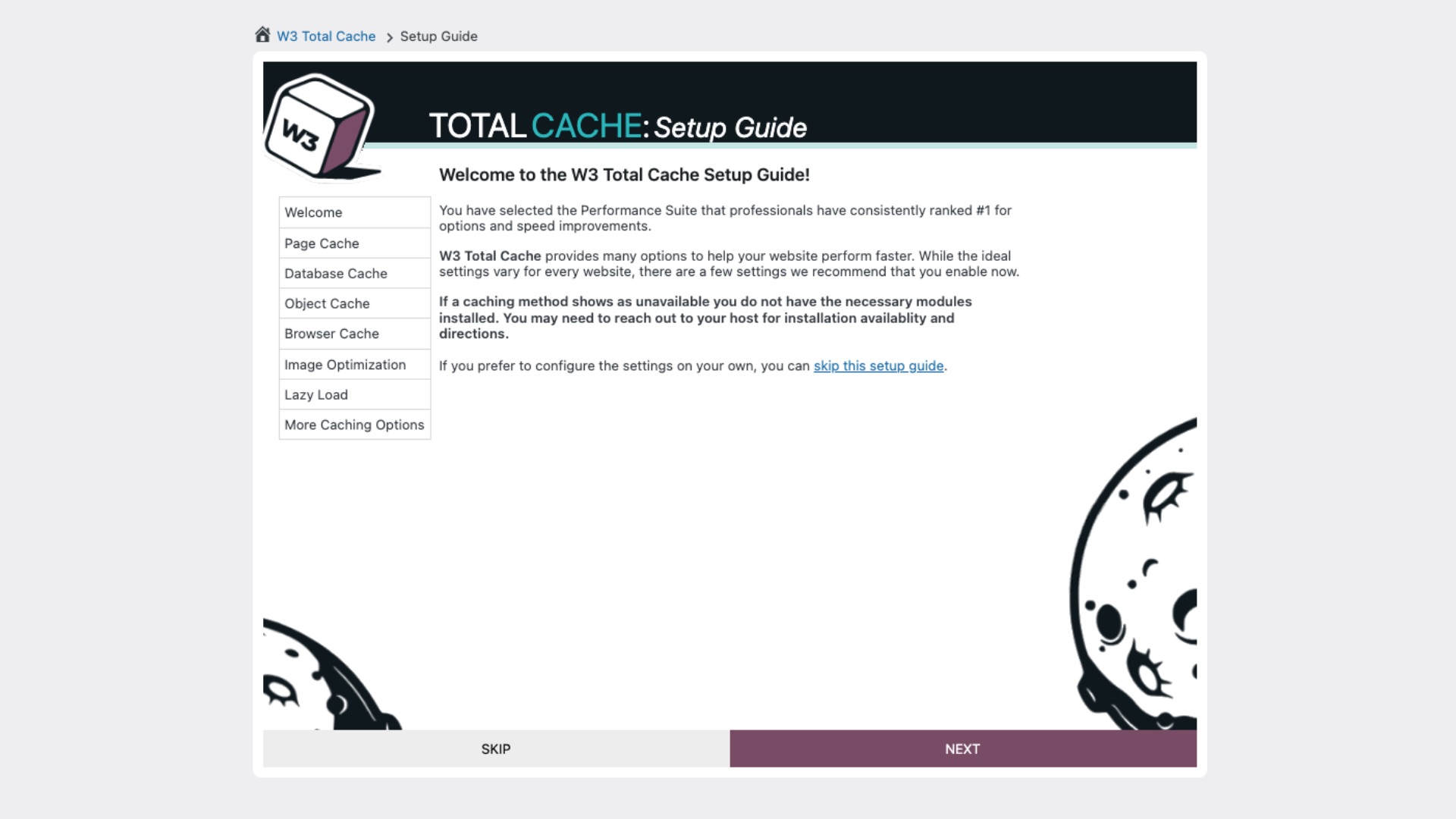 W3 Total Cache helps you set up cache in WordPress with an easy guide.
The plugin automatically enables the most critical cache types, which you already know from the list above:
- Browser Cache: ensures the browser doesn't repeatedly load static content.
- Page Cache: stores entire pages.
- Database Cache: stores results of database queries.
- Object Cache: speeds up work with repeated requests.
Configure everything well. An experienced developer can tweak values in detail, but recommended values will suffice for you. After setting up, check that the cache is functional – you'll notice it mainly through improved server response values (TTFB) and long-term improvement in Core Web Vitals.
WordPress simply doesn't run well without cache. Give it the attention it deserves.
For the client ECLISSE ČR, s.r.o., we managed to significantly reduce the Time to First Byte (TTFB) value, partly due to cache optimisation.
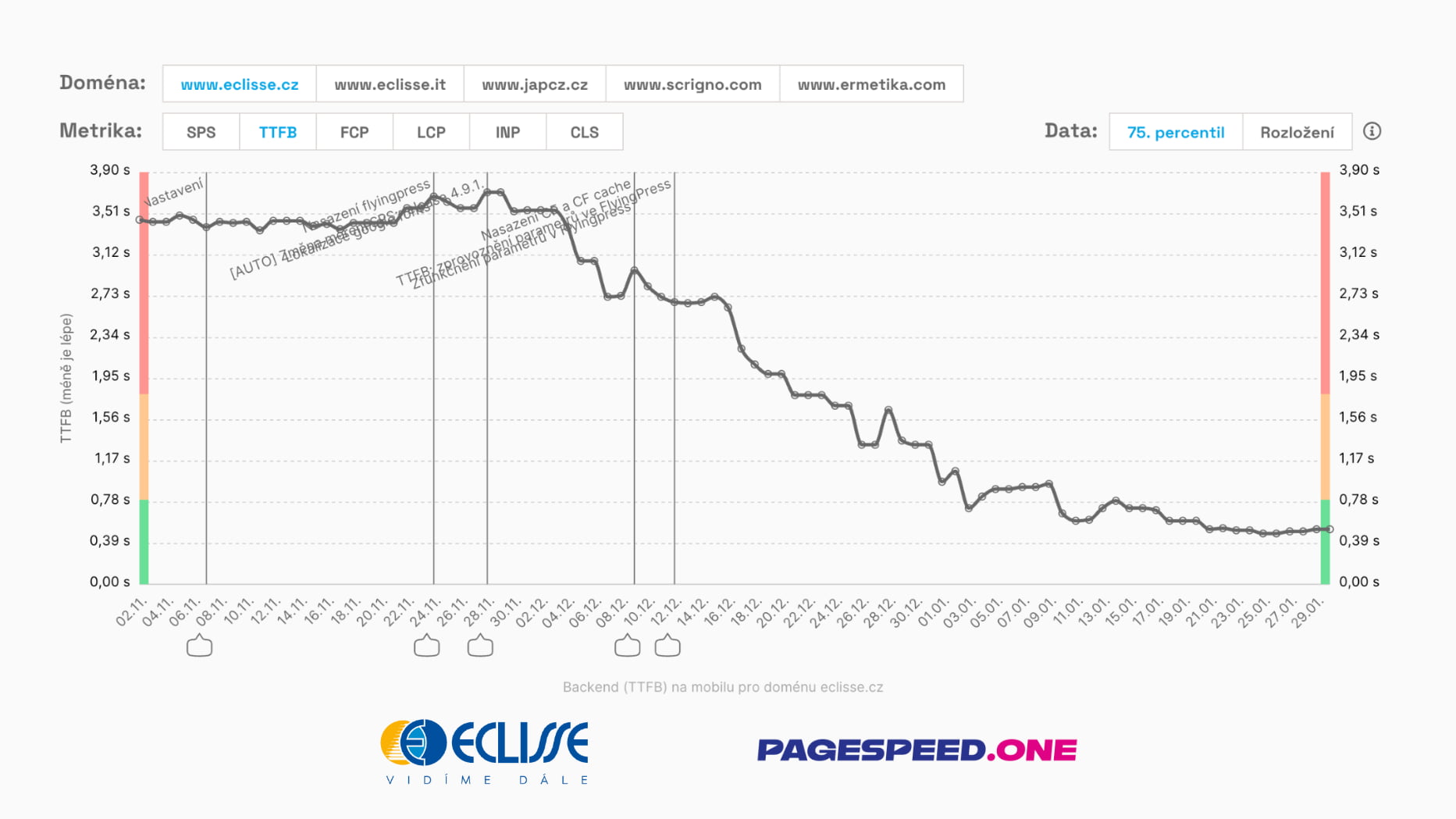 TTFB value significantly decreased over the monitored period, from the original 3.5 seconds to 0.6 seconds. This is below Google's recommended limit.
3) Plugins: Fewer Additions, More Speed
Plugins in WordPress act like spices. The right amount enriches the dish, but overdo it, and you'll ruin the entire meal. Each plugin is a potential brake on WordPress loading speed.
-
Every Plugin Counts
Every installed plugin burdens your WordPress. Regularly check and remove unused plugins. Prefer plugins that address your specific problem over "Swiss Army knives" that load your site with unused features. -
Test Performance After Each New Plugin Installation
After adding a new plugin, always check site speed or simply add a note to monitoring. -
Conduct a Plugin Audit
Query Monitor or Code Profiler can help, popular tools for performance tuning in WordPress. Check the output section tracking "Plugins and theme execution time" – how much time each plugin and theme execution takes.
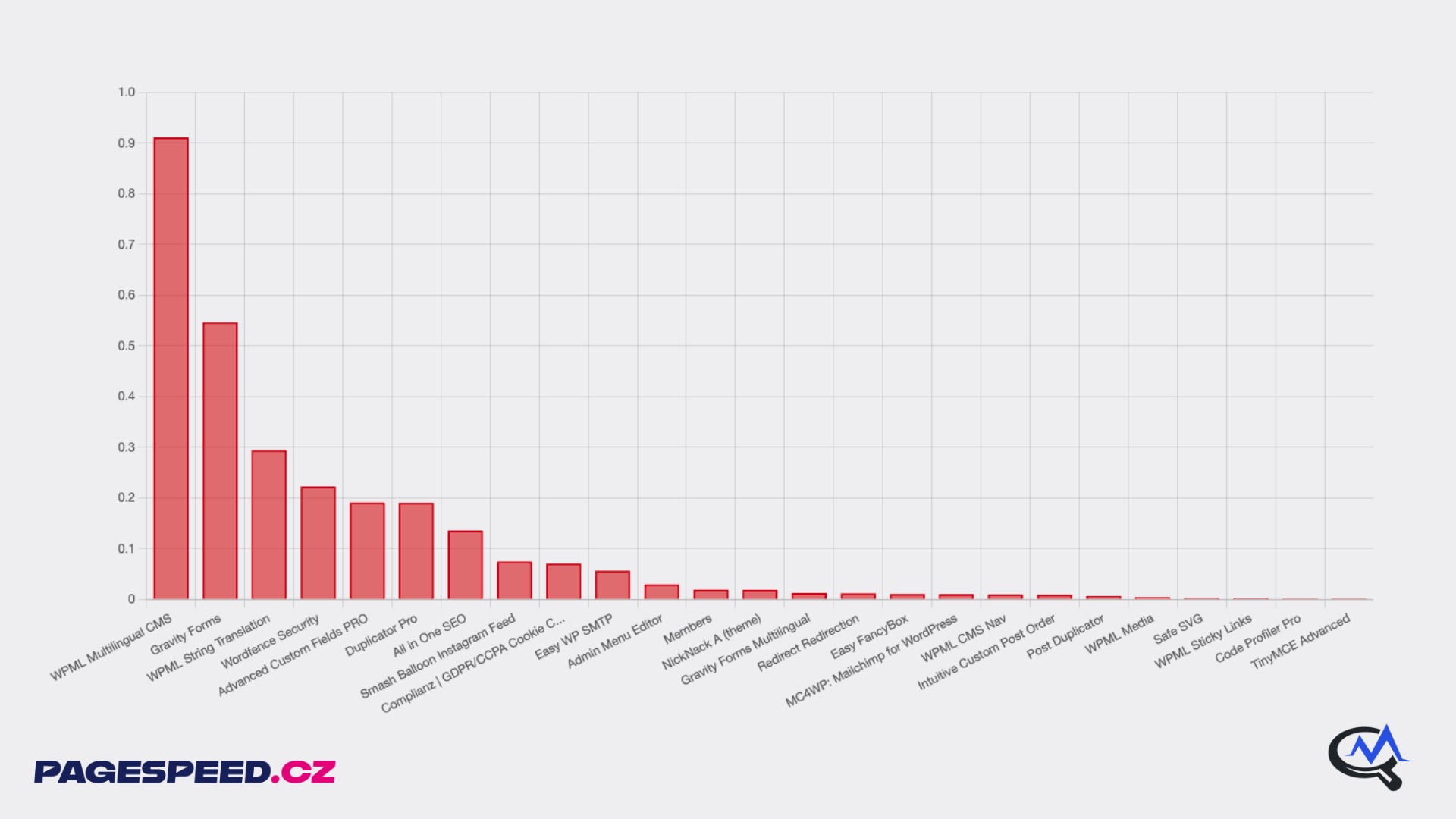 Who's eating up the performance here? Code profiler output by plugins.
Plugin Rule:
WordPress is not Pokémon.
You don't have to catch them all.
4) Page Builders: When Convenience Comes with a Hefty Speed Bill
Visual page builders like Elementor or Divi simplify website creation but often generate redundant code (known as "bloat"), slowing down loading. Use them sparingly or consider lighter alternatives.
Page Builder is a great servant but a poor master. Consider whether the visual flair is worth the additional seconds in loading time.
In PageSpeed.ONE's web optimisations, we've encountered situations where the Page Builder was unnecessary and only complicated matters.
A properly used builder can be both quality and fast. Use their options efficiently and turn off what you don't use. For instance, Elementor allows you to disable unnecessary widgets so their code is not loaded at all – helping you achieve a summer-ready form even with a builder.
Builders tend to be problematic, especially when an inexperienced webmaster uses them and addresses every obstacle with a plugin or a large inefficient theme.
5) Themes: The Framework That Determines Your Site's Speed
Choosing a quality theme for your WordPress site is crucial. A theme affects not just appearance but also performance.
Don't underestimate theme selection, as it has a significant impact on site speed. Avoid heavy "jacks-of-all-trades" with many unnecessary features. Choose optimised and fast themes focused on performance, but be cautious – not just based on their Lighthouse score, as we explain below!
6) Images: A Dietary Regimen for Bulky Photos
Your beautiful photos might be secret saboteurs of speed. A single unprocessed image from a camera can add several seconds to page load time! We see it daily.
We know a lot about image optimisation, but you should remember the following:
-
Compression
Optimise image size without noticeable quality loss. Use tools like TinyPNG or the Smush plugin. -
WebP Format
Use the modern WebP format, which offers better compression than traditional formats like JPEG or PNG. Most current browsers support it. -
Lazy Loading
Load images only when they appear in the user's viewport. This significantly speeds up initial page loading. WordPress includes this feature by default from version 5.5, but ensure it works correctly. More on Lazy Loading. -
Monitoring
Don't forget to monitor image data volume, e.g., in our Technical report. Poorly optimised images uploaded by someone without sufficient know-how can often ruin site speed.
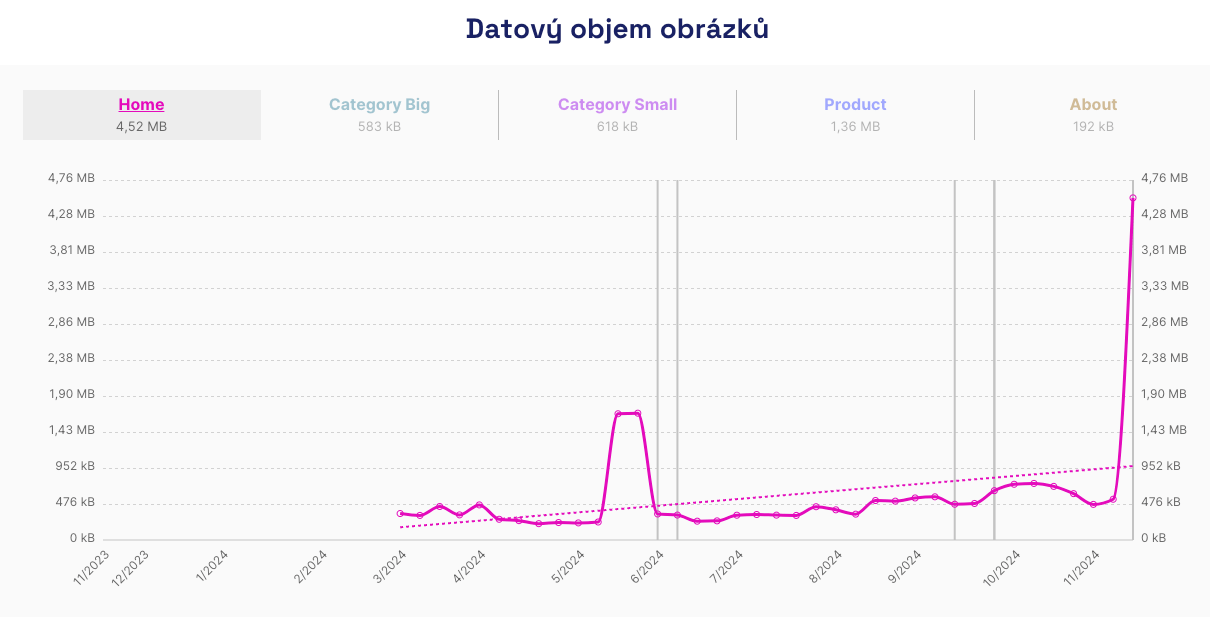 Someone solved the Christmas catalogue but not image optimisation.
6) CSS and JavaScript: Regularly Conduct Slimming Cures
Let's also look a bit at your site's frontend. Excessively large frontend code is like an overstuffed suitcase you're trying to close before a holiday flight.
How to lighten the load?
-
Minification
Reduce the size of CSS and JavaScript files by removing unnecessary characters (spaces, comments). The Autoptimize plugin can help you. -
Postpone Unused CSS
Identify unused CSS code and remove it or load it only after the main content is displayed. -
Asynchronous Loading of JavaScript
Load JavaScript asynchronously so it doesn't block page rendering.
Lighten your site by reducing CSS and JS file sizes.
Bonus Tip: Don't Measure Lighthouse Score and Beware of Fraudulent Plugins
Are you yearning for a full Lighthouse score? Be wary of cheap tricks! Some plugins achieve a perfect score by deceit – waiting for the user's first scroll before loading JavaScripts.
Lighthouse doesn't test interactions like scrolling, so plugins often achieve high scores by delaying the loading of important files. This practice is at least questionable – you're improving a test number, not actual user speed – how it is done and how to spot it.
In the WordPress world, there have even been cases of outright cheating in calculating the Lighthouse score. For instance, the WP-Optimize plugin was caught deliberately not loading certain JavaScript files when it detected a speed test was checking the page.
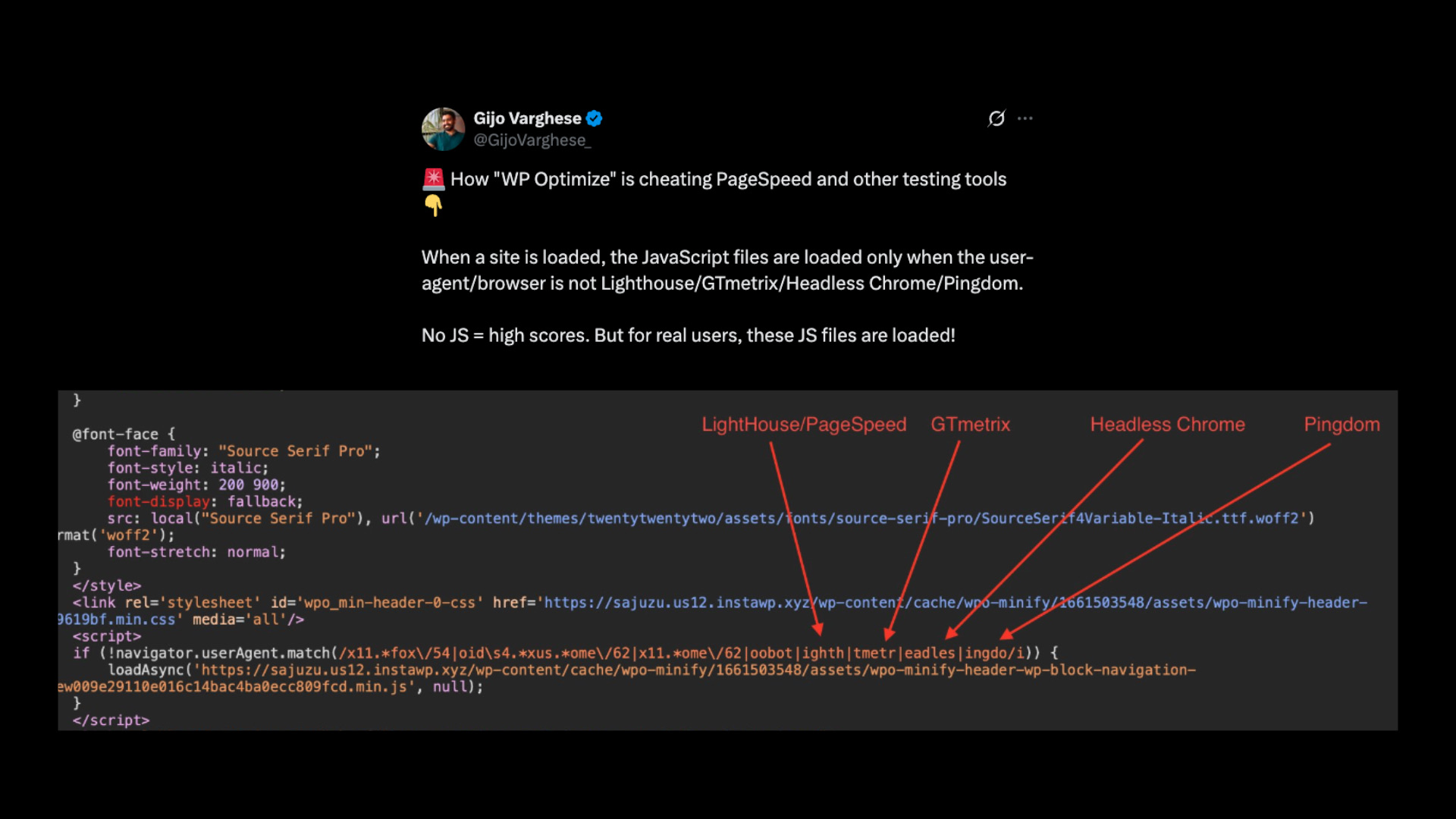 _Cheater caught in the act. Don't believe in miraculous Lighthouse score improvements._
Buying a plugin for a 100% Lighthouse score is like treating a cold when you have a broken leg. It looks good, but the benefit is zero.
Lighthouse score is misleading, and Lighthouse's advice often won't help you effectively or at all.
Remember: Lighthouse score is not the same as site speed. Focus on the real user experience – Core Web Vitals metrics from the Chrome UX Report.
Optimising WordPress Speed Doesn't Have to Be a Headache
At PageSpeed.ONE, we have extensive experience optimising website speed. We've helped many clients significantly improve loading speed, which not only enhanced user experience but also impacted SEO.
Our audits or smaller WordPress analyses reveal specific opportunities to improve Core Web Vitals (LCP, CLS, INP). No general advice from Lighthouse, but concrete recommendations that will help you speed up.
By speeding up your site, you'll improve user experience, achieve better search engine rankings, and positively influence your marketing results.
What You Don't Measure, You Slow Down
Don't forget regular measurement and ongoing review. WordPress continuously changes with updates, new plugins, and content, so monitoring its speed continuously is essential, and what you don't monitor, you can't quickly save.
Try our free one-time speed test at PageSpeed.ONE and find out how your site truly performs. It takes just a few minutes to get clarity.
Want peace of mind long-term? monitoring PLUS will alert you to any issue before you lose visitors or SEO rankings.
Start now. Optimising WordPress without data is like throwing darts blindfolded.