Common Mistakes That Ruin Web Vitals
 Zuzana Fatrdla7/13/20219 minutes reading
Under the auspices of the PageSpeed.ONE project, I've conducted dozens of speed audits and smaller analyses for websites of various sizes. I decided to review all the analyses to identify the most common mistakes recurring in our audits that ruin Core Web Vitals metrics.
You can watch the recording of the presentation on the Frontendisti YouTube channel. If you prefer the written word, delve into today's article below.
Contents
- Web Vitals in a Nutshell
- How to Measure Your Website's Speed?
- FID - The JavaScript Metric That's Hardly Needed to Optimize
- LCP - Perhaps the Most Important and My Favourite Metric
- CLS - A Metric Full of Misunderstandings
Web Vitals in a Nutshell
The speed of websites is an ever-growing and complex topic where one can easily get lost. And then there are those Web Vitals. What are they, and why should we care?
Web Vitals are metrics from Google intended to become one of the ranking criteria for search results. More details on Google Page Experience warrant a separate article, so if you're eager to learn about this update, I’ll direct you to Martin Michálek’s blog post on Google Page Experience.
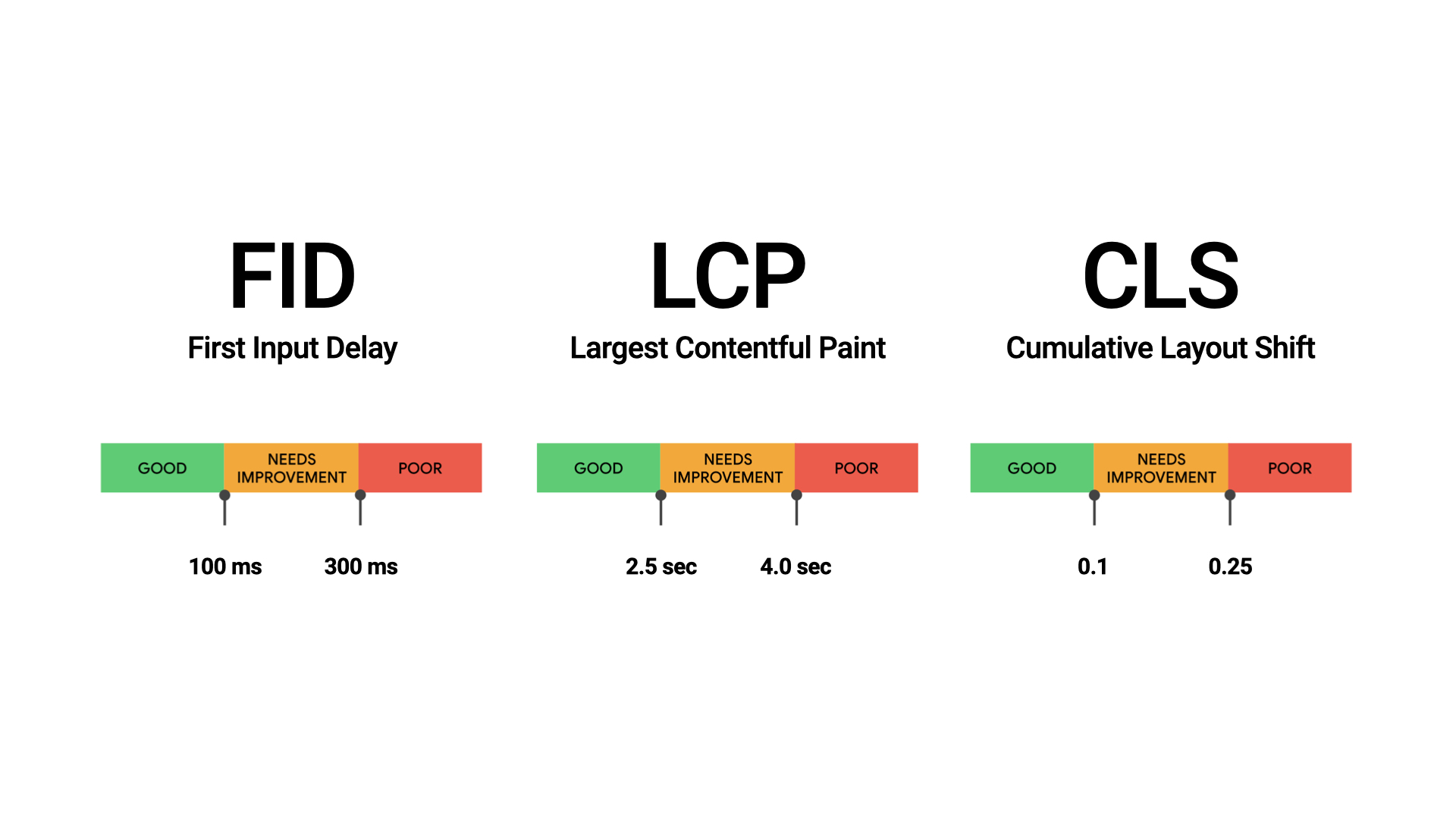
Now, a quick glance at Web Vitals. There are three core metrics: First Input Delay (FID), Largest Contentful Paint (LCP), and Cumulative Layout Shift (CLS). Each comes with recommended thresholds, as illustrated in the image.
But we still don't know how to measure Web Vitals.
How to Measure Your Website's Speed?
There are many options. One tool is Google Data Studio, where you can create reports with individual metric results. Unfortunately, working with Data Studio can often be complex and time-consuming.
Web Vitals can also be displayed by PageSpeed Insights, but the data there is limited and simplified. At PageSpeed.ONE, we have tackled this issue by introducing tester update 2.0, which provides a comprehensive overview of user data simply and clearly upon entering a given address.
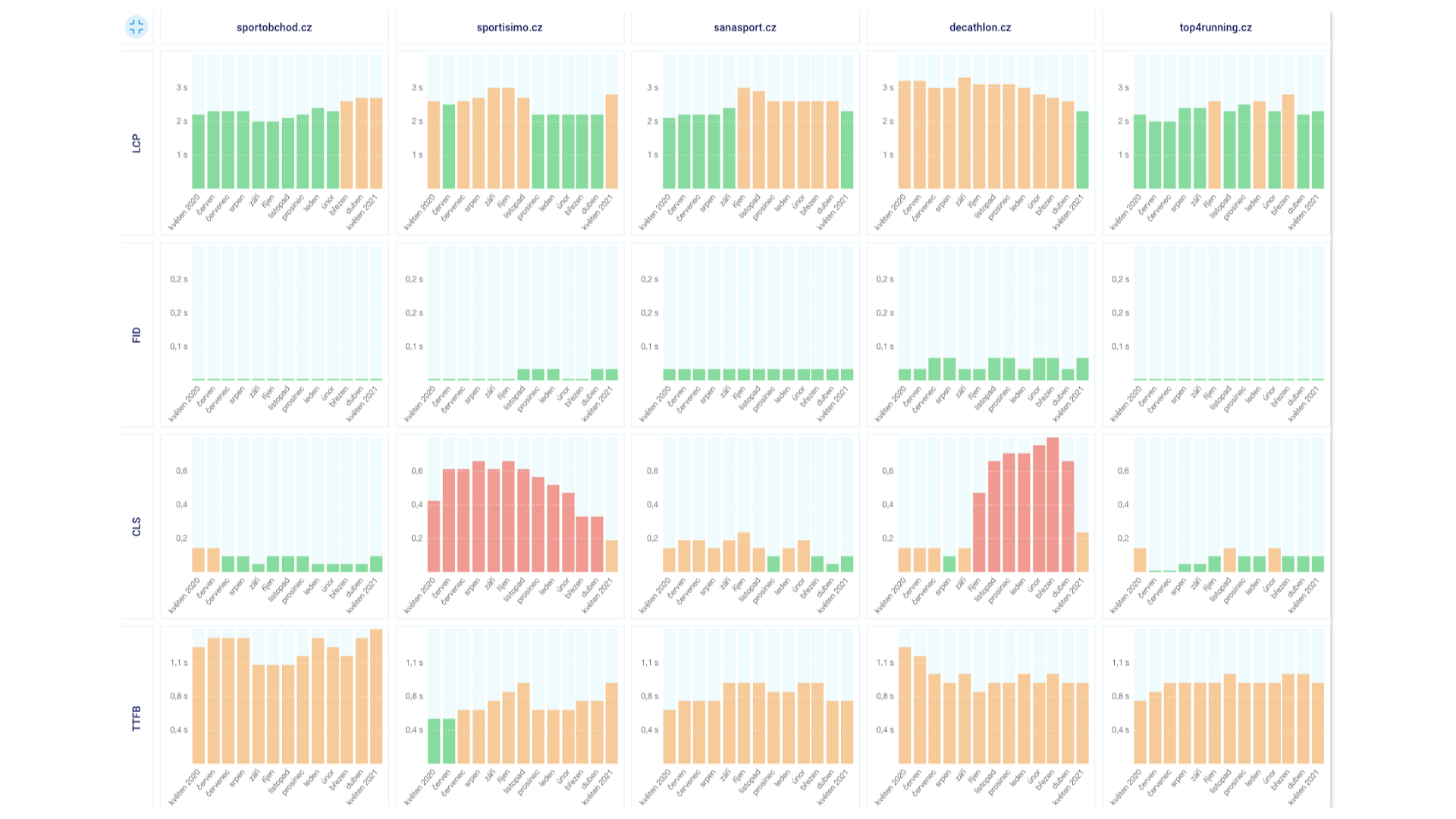
If you’ve just entered your website addresses into the tester and the results are disappointing, I have good news. Many mistakes are common across nearly all websites, so let's explore what you should be looking for.
FID - First Input Delay
Let's start with the metric First Input Delay. Despite its name, it's a JavaScript affair measuring the time from a user's first interaction with the page to the processing of that interaction by the browser.
So far, we haven't had to address FID significantly, as it appears to be a lenient metric. Its threshold for a good rating is 100 ms, which websites manage to meet.
A very similar JS metric is Total Blocking Time (TBT), with Google noting its relation to FID. However, in practice, we haven't found that poor TBT necessarily means poor FID scores. If you optimize TBT, you often improve FID as well.
One example of botched JavaScript metrics says it all. In the first half of the screen below is a measurement result of a page plagued by a YouTube video in an iframe, a notorious killer of TBT and Time to Interactive (TTI) metrics. The metrics spike because YouTube loads large CSS and JS files.
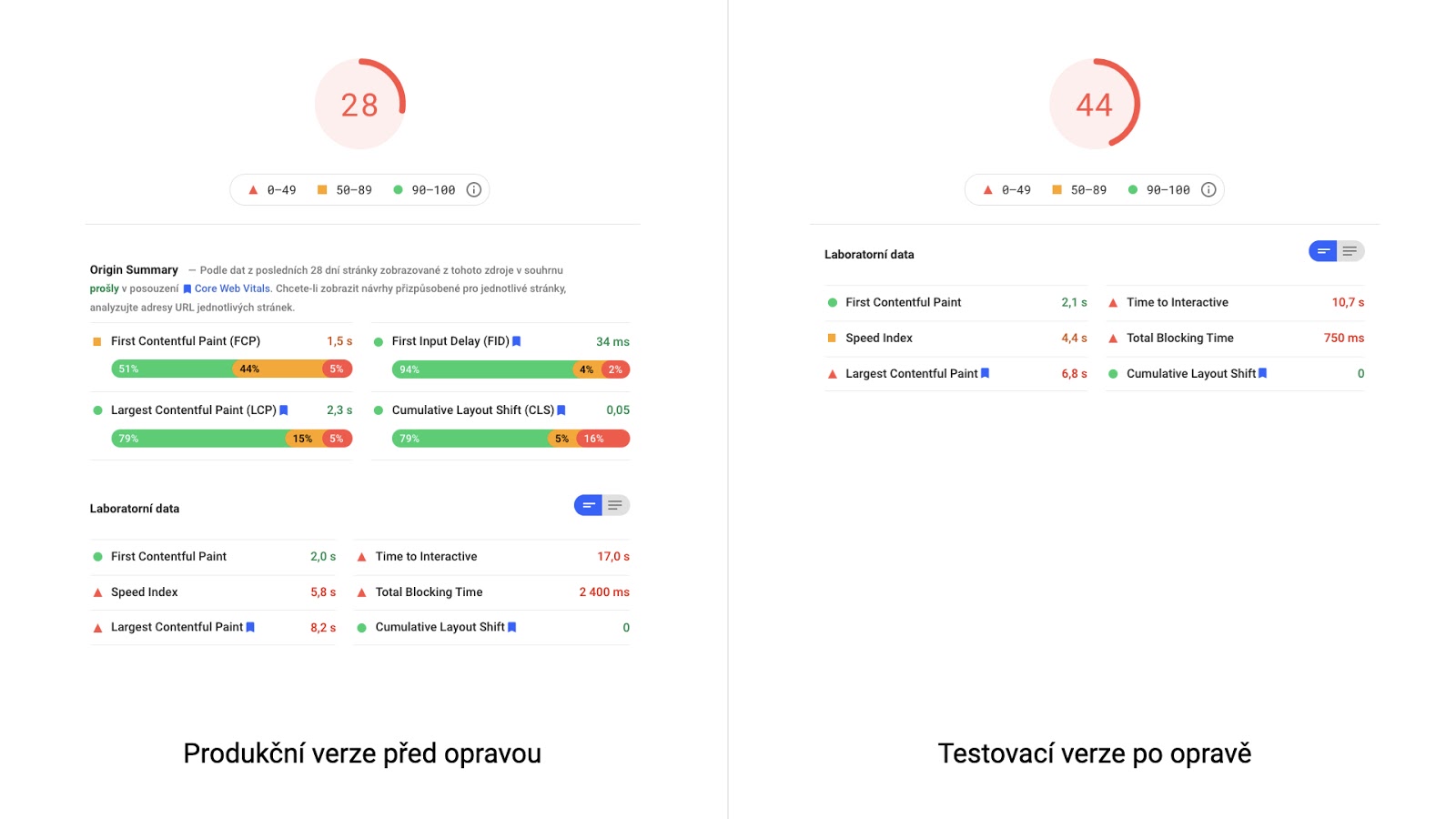
The solution for better metrics? For YT embedded via iframe, either use native lazyloading or Youtube Lite Embed.
LCP - Largest Contentful Paint
My favourite metric, the Largest Contentful Paint. It's my favourite because it's complex. To optimize it, you need to master many areas of loading. It solidly tests developers' knowledge in the process of loading a website and allows us to measure the rendering of the largest element on the page.
When tuning LCP, the first step is to identify LCP elements. They often differ between mobile and desktop. You can reliably identify your LCP elements using Lighthouse, PageSpeed Insight, or our PageSpeed.ONE tool's test detail.

LCP and Lazy Loading
Most websites harm their LCP metric with poorly implemented lazy loading. It's crucial to realize that lazy loading changes the order in which images are downloaded.
A common mistake is using lazy loading only on large images on the page. Logically, deferring the loading of the largest images saves the most data, but in the case of an LCP element, it undermines you.
The rule is that images without lazy loading are downloaded first. Images with lazy loading come later, even if they are in the viewport. If you have lazy loading on an image that is also an LCP element, it will download much later, increasing the LCP time.
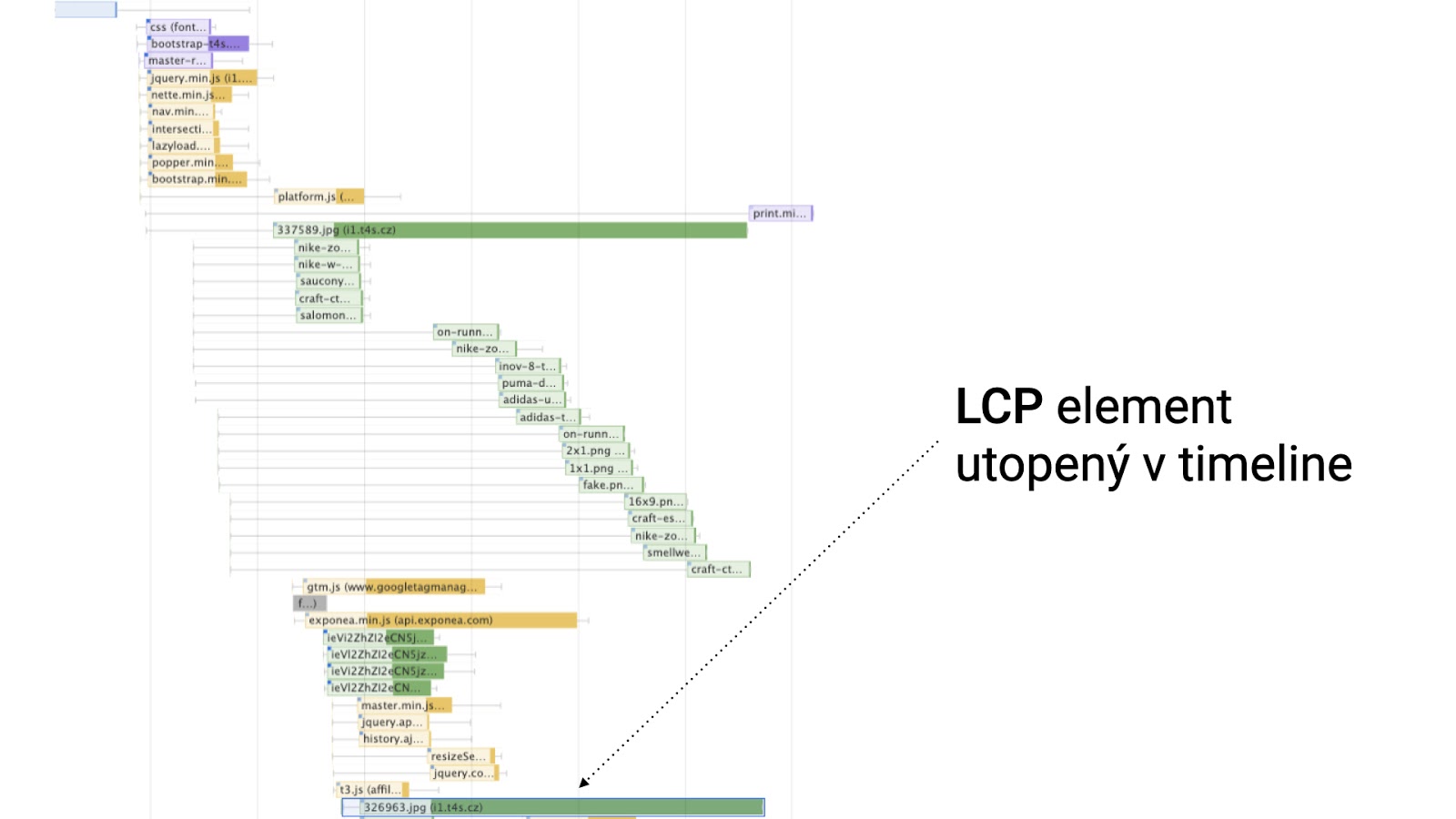
You've probably already deduced the solution while reading: remove lazy loading from LCP elements on your site and add lazy loading to all other elements.
LCP and Complex DOM
The bad news upfront – this usually takes a lot of time to optimize. On the bright side, I can offer you a hotfix until you get around to larger code changes.
The issue often arises in design, where there's a vast difference between desktop and mobile versions. You must, of course, resolve this, often by hiding elements on mobile.
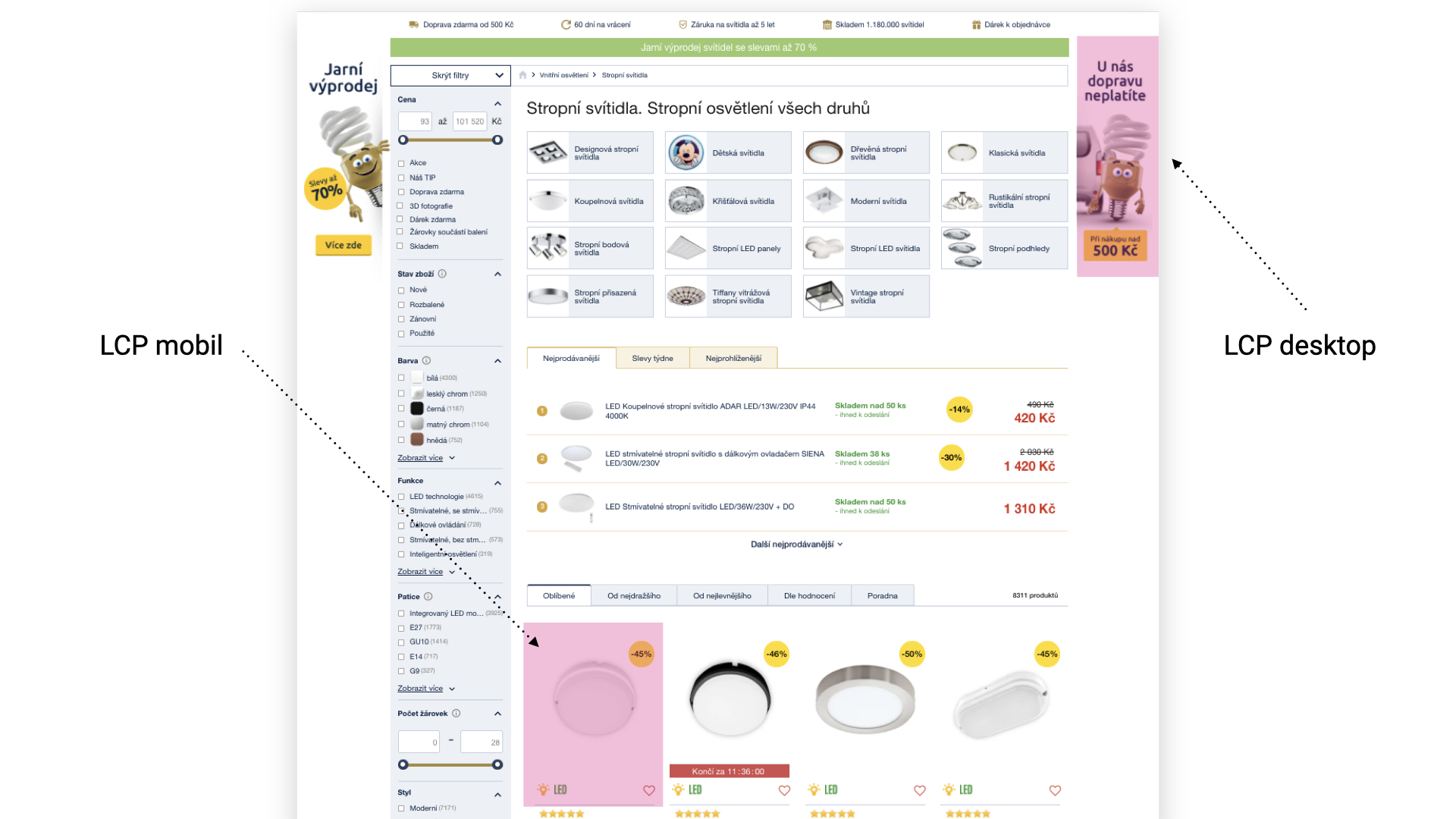
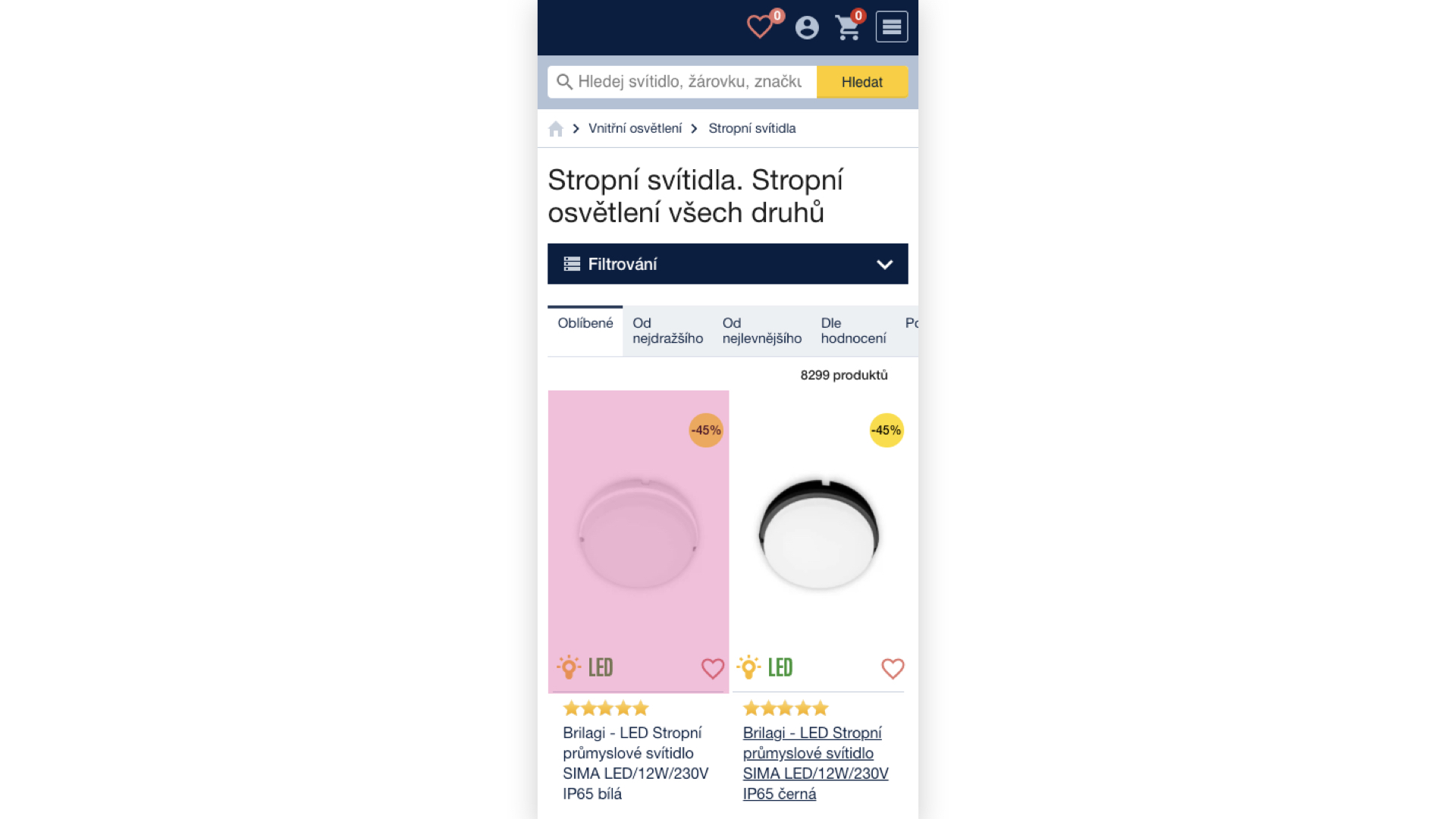
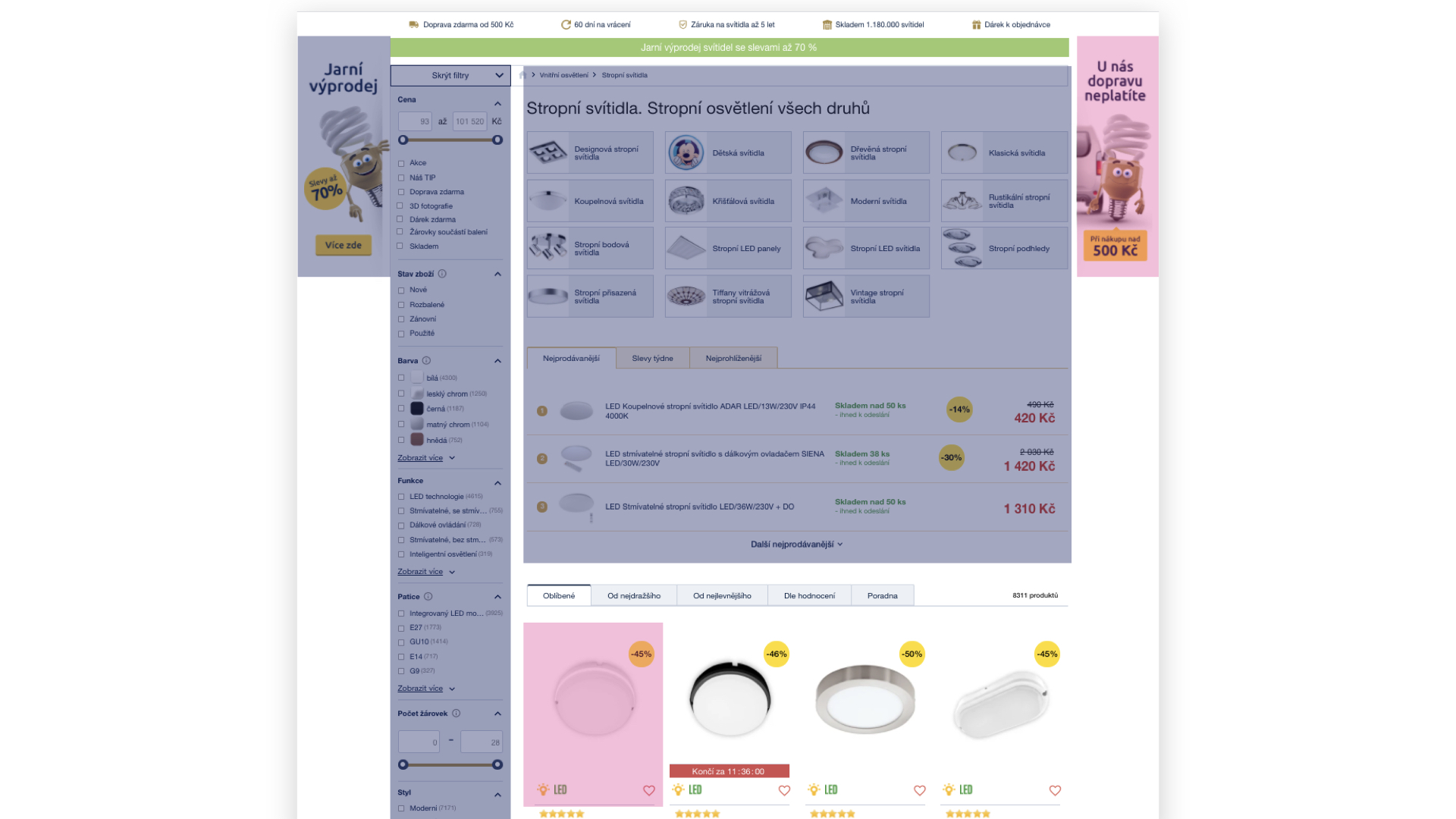
The dark blue area is quite extensive, isn't it? This will wreak havoc on your LCP metric. It's important to note that it wouldn't be a big deal if we were talking about simple DOM text elements. However, the problem here is with many images loading even when not visible.
There are several solutions. If you have the time and space, rewrite the HTML to reflect LCP elements. You can also use preload for the image identified as LCP on mobile.
<link rel="preload" as="image" href="image.jpg" />
But be very cautious with preload, especially if you already have other preloads on the page. You can also use loading="lazy", as images in hidden elements with this attribute won't be downloaded.
LCP and Images from WYSIWYG
Working with images in editors requires oversight. Many e-commerce sites write blogs under their domain, which can also ruin metrics – and often do. I don't mean to take a dig at developers, but what a user uploads through WYSIWYG is also your problem. You need to address sizes, compression, suitable formats, and srcsets here as well.

CLS - Cumulative Layout Shift
Cumulative Layout Shift is a metric concerning the shifting and jumping of the page layout. It's not just layout shifts during loading that are critical; synthetic tools measure those. You also need to address layout shifts while browsing pages. You can discover these by looking at user data from the Chrome UX report.
How to test CLS? Ideally, use the Chrome extension Web Vitals, or in Chrome itself, under the rendering tab, there is a checkbox for "Core Web Vitals".
CLS and Width and Height Attributes
Regarding CLS, we often highlight missing width and height attributes on image tags on every website. It's often an oversight, so you need to search all images on the project and verify missing attributes.
<img src="image.jpg" alt="img" width="150" height="200" />
Another solution for not just images but other content elements jumping is the upcoming CSS property aspect-ratio. With a single line of code, you solve the space an element reserves for its content.
.box {
  aspect-ratio: 4/3;
  background: grey;
}
If you need a bulletproof solution right away, we recommend the padding-top trick.
CLS and Carousels (for example)
It's not only carousels that can worsen your Cumulative Layout Shift score, but any content initialization via JavaScript. This often includes quizzes, calculators, widgets, etc.
Generally, JavaScript initialization occurs very late, hence CLS increases. It's not advisable to handle things with JavaScript that can be styled in CSS. Typically, this includes the widths of individual carousel items.
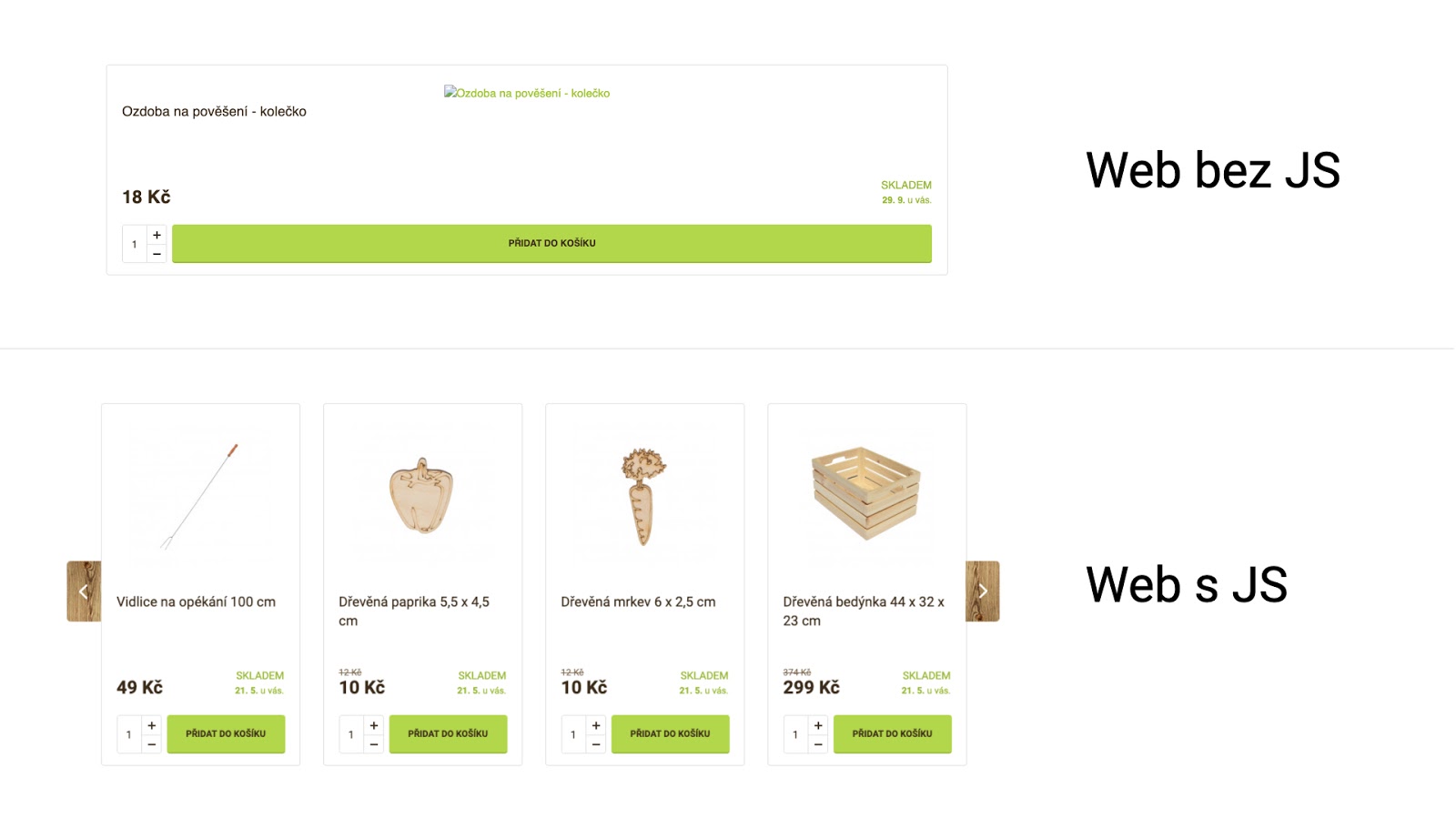
Therefore, handle the widths and heights of elements in CSS, and test your website with JavaScript disabled. This will help you identify weak spots on the site. The Web Developer Chrome extension can help, allowing you to disable JavaScript with a single click.
CLS and AJAX

The CLS metric isn't just calculated at the moment the page loads but also while users browse the page. If a user decides to "Load 24 more products" on the web, you have a 0.5-second window to display the content without further increasing CLS.
The instructions for such a situation are as follows: Test on slow networks and load content lazily when the browser is "idle" using RequestIdleCallback();.
A Few Words in Conclusion
If you're new to the realm of web speed and I've overwhelmed you with a plethora of new information, don't despair. First, go make yourself a coffee, then focus on data collection and testing. You should be interested not only in user data for Web Vitals but also in synthetic measurements. Ideally, consider everything in the context of several months.
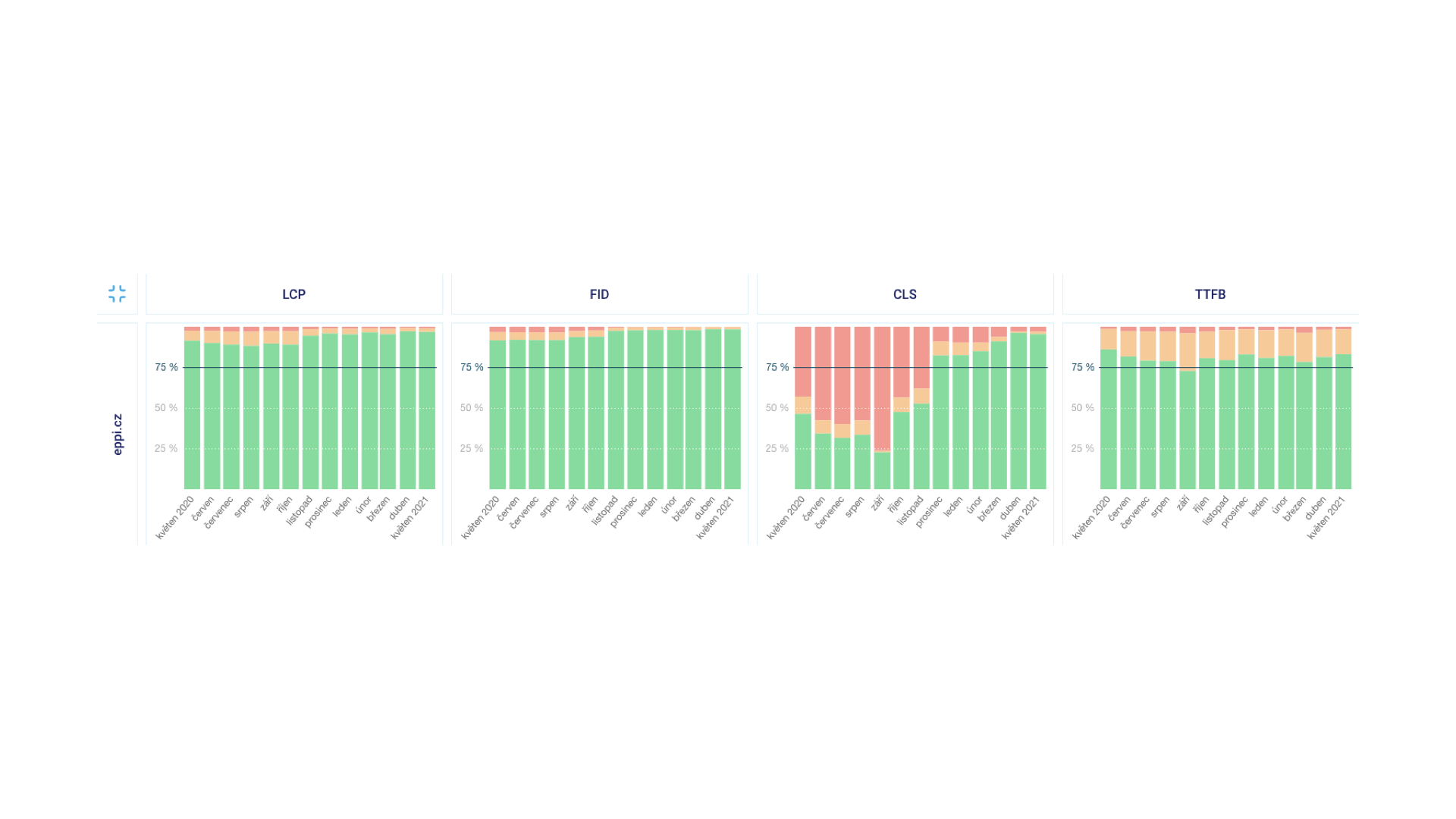
Speaking of synthetic data, Lighthouse has released version 8, which, among other things, adjusts the calculation of the overall score. For instance, the metrics TBT and LCP together make up 55% of the overall calculation weight. This alone suggests which metrics you should focus on.
Finally, I wish all developers the curiosity and desire to understand how browsers truly work. Focus on DevTools and the Performance tab for optimizations, think comprehensively, and try to understand how different elements on the web interact. You can also learn to optimize both problematic metrics – CLS and LCP.
Discussion
Following the presentation, a moderated discussion took place where I, along with Michal Matuška, answered questions from the audience.
Stay informed about your website's speed.
Subscribe to our newsletter. Each month, we share the latest in website speed for site owners, marketers, and developers.
Tags:Core Web Vitals