Metric “Total Third-Party JavaScript Blocking Time” (3PBT)
 Martin Michálek2/9/20264 minutes reading
3PBT stands for Third Party Blocking Time. It is a measure of the slowdown that third-party components might impose on your users during interactions.
This is an internal indicator of PageSpeed.ONE monitoring, allowing you to better focus on issues caused by third-party components, thereby potentially degrading the interaction metric (INP).
🔐 This metric is displayed only to PLUS test users in the Page Report.
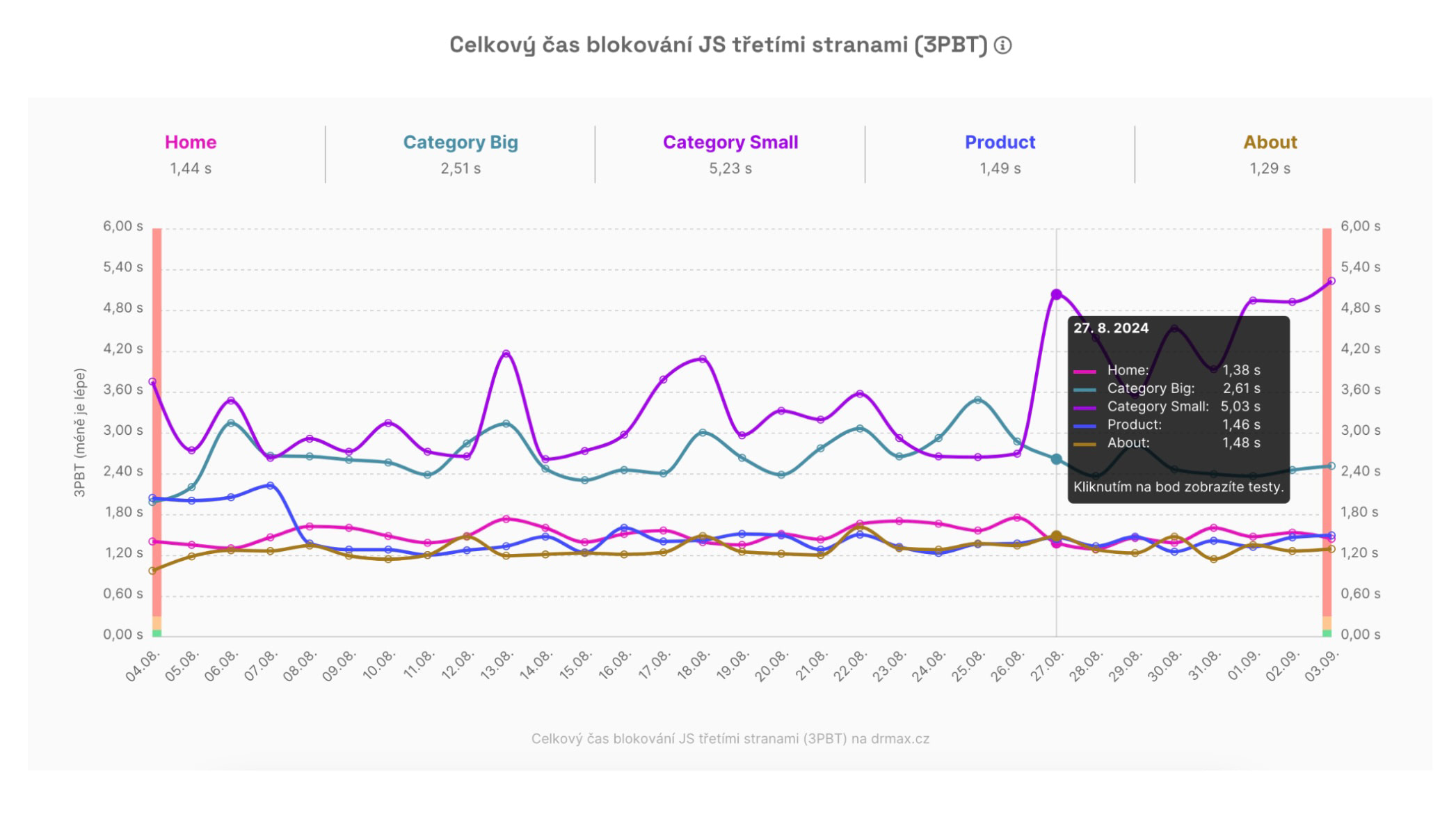 3PBT metric graph: Which page's third-party components are causing trouble?
How exactly do we calculate 3PBT?
Technically speaking, 3PBT is the sum of times between the First Contentful Paint (FCP) and Time To Interactive (TTI) metrics, during which third-party JavaScript blocked the browser’s work for more than 50 ms, potentially delaying user interactions.
In other words, it's a portion of the Total Blocking Time (TBT) metric caused by third-party scripts (analytics, A/B testing, etc.).
Interaction slowdown, not loading
It's worth noting that the Third Party Blocking Time (3PBT) metric does not focus on page loading slowdown, which is measured by the LCP metric.
A page may display very quickly even if it contains many third-party components. This is because they usually load with lower priority and asynchronously, without blocking the page's rendering.
The 3PBT metric becomes very useful when seeking issues causing slower interactions, measured by the INP metric. If you notice that the INP metric on your website (in the Domain Report) is outside the green zone, also look at the 3PBT values.
How do we detect third parties?
Third-party scripts are automatically detected by the Lighthouse tool, which we use for our synthetic measurements in PLUS tests (see how we test), though this detection may not be entirely accurate.
Lighthouse can very effectively identify well-known third-party components (Google Tag Manager, Google Analytics, Hotjar…), but it's less successful with less common or local component providers.
Thus, you should consider that the displayed figure might represent a fraction of the actual value. Nonetheless, it is a useful indicator, especially when compared with the overall Total Blocking Time (TBT) metric.
What is the optimal 3PBT value?
The optimal 3PBT value is up to 0.1 seconds.
However, don't be overly concerned if your website's measured URLs don't achieve this state. Consider the 3PBT using these questions:
- Is the INP metric at the domain level outside the green value (see Domain Report)?
- If so, check the Page Report to see which URLs have deteriorated INP or TBT metrics.
- For these pages, compare the 3PBT metric value with TBT.
The goal is to determine whether third-party components might affect the total blocking time (TBT) and therefore specific interactions measured by the INP metric.
How to determine which specific components have a negative impact?
In the 3PBT metric graph, you only see the overall impact of third parties on specific pages.
If you're interested in which specific third-party elements are causing issues, you need to dig into the specific Lighthouse report:
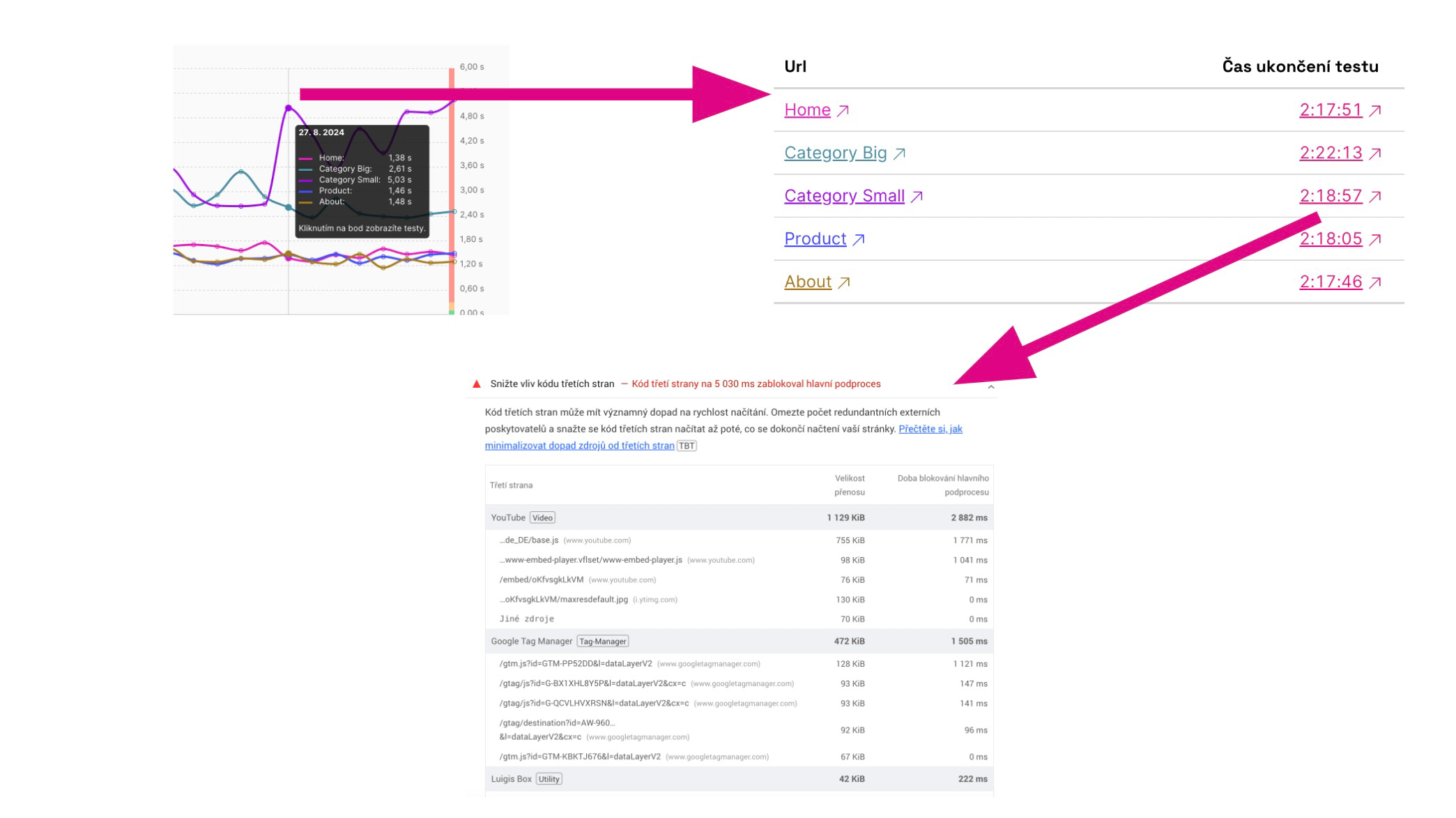 How to access the report with specific culprits worsening the 3PBT metric?
Let's outline the steps:
- In the Page Report, find the 3PBT metric graph.
- Click on a specific point on the graph.
- In the modal window, select a specific URL.
- Click on the test time.
- In the test run detail (in the Lighthouse report), look for the section “Reduce the impact of third-party code”.
This way, you will reach the specific problematic components on specific pages.
How to optimize 3PBT?
The topic of optimizing the impact of third-party components is rather complex, but in brief, the optimization options are roughly as follows:
- Consider whether you need the given component on the website.
- Remove components you only use occasionally, like Hotjar, entirely from the HTML code when not in use.
- Optimize the GTM code or use the trick with
setTimeout(). - For components that load only in a specific part of the page, use the lazy loading method.
- Stay in contact with third-party component authors.
More information on third-party code optimization options can also be found in the following texts:
- INP Metric Optimization in our help section.
- Optimization of Third-Party Component Speed and optimization of third-party JavaScript on web.dev.
- Optimize third-party JavaScript on web.dev.