Further Innovations in PLUS Testing (Stable Infrastructure, "Technical" Report, and Graph Annotations)
 Martin Michálek2/22/202411 minutes reading
In addition to the Speed Watchdog and notifications, PLUS monitoring introduces numerous other innovations that make tracking and evaluating your website's speed much easier.
This article will focus particularly on three of them:
- Our own stable testing infrastructure.
- The new "Technical" report.
- Graph annotations.
Stable Metrics (Custom Lighthouse and Testing Infrastructure)
With the PLUS version, you have access to our own testing infrastructure, where the open-source tool Lighthouse runs daily tests on your website.
Why is custom infrastructure so crucial for professional speed testing? There are two main reasons:
- The stability of results, ensuring that your tests are less influenced by external factors.
- The ability to leverage additional features, such as saving the Trace report.
Let's delve into why this is so important.
Stability of Results
In the free version of our tester, we've provided results from the PageSpeed Insights API since development began, which Google offers for free.
However, there's a slight hitch – the results from the PageSpeed Insights API are somewhat unstable.
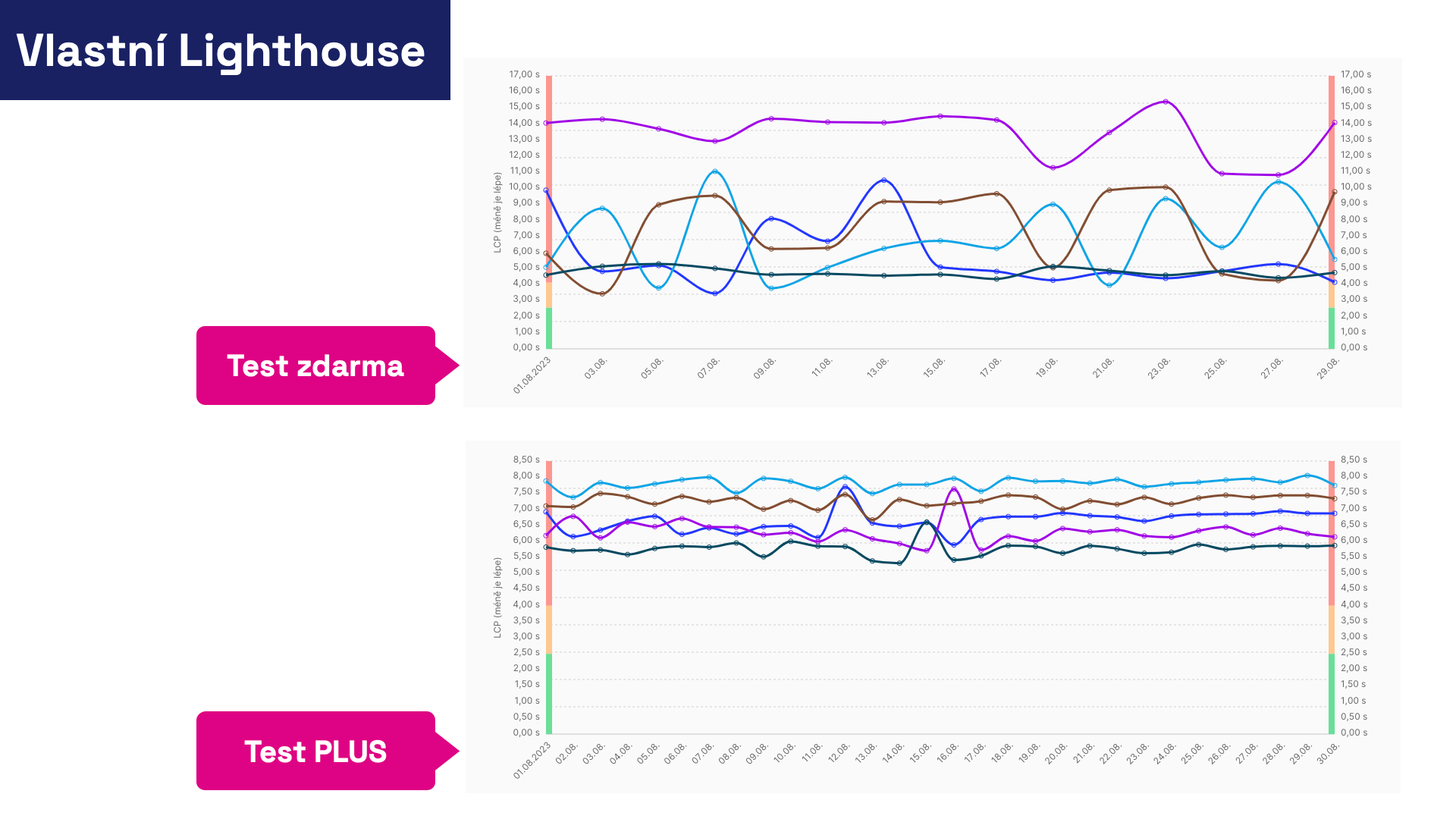
Google gathers results from PageSpeed Insights at varying times, in various locations, and from different parts of its infrastructure. As such, these data are more suited for one-off tests or long-term trend monitoring, rather than day-to-day changes.
The Lighthouse test results from our own infrastructure, seen below, provide far more stable data, allowing you to better identify what constitutes a negligible fluctuation and what is a more permanent metric change.
Test Results and JSON, Trace, HAR
In the PLUS version, you can trust the specific results of particular Lighthouse tests much more. Moreover, we've enhanced them by including the option to download source files, which you can use to further explore opportunities to speed up your site.
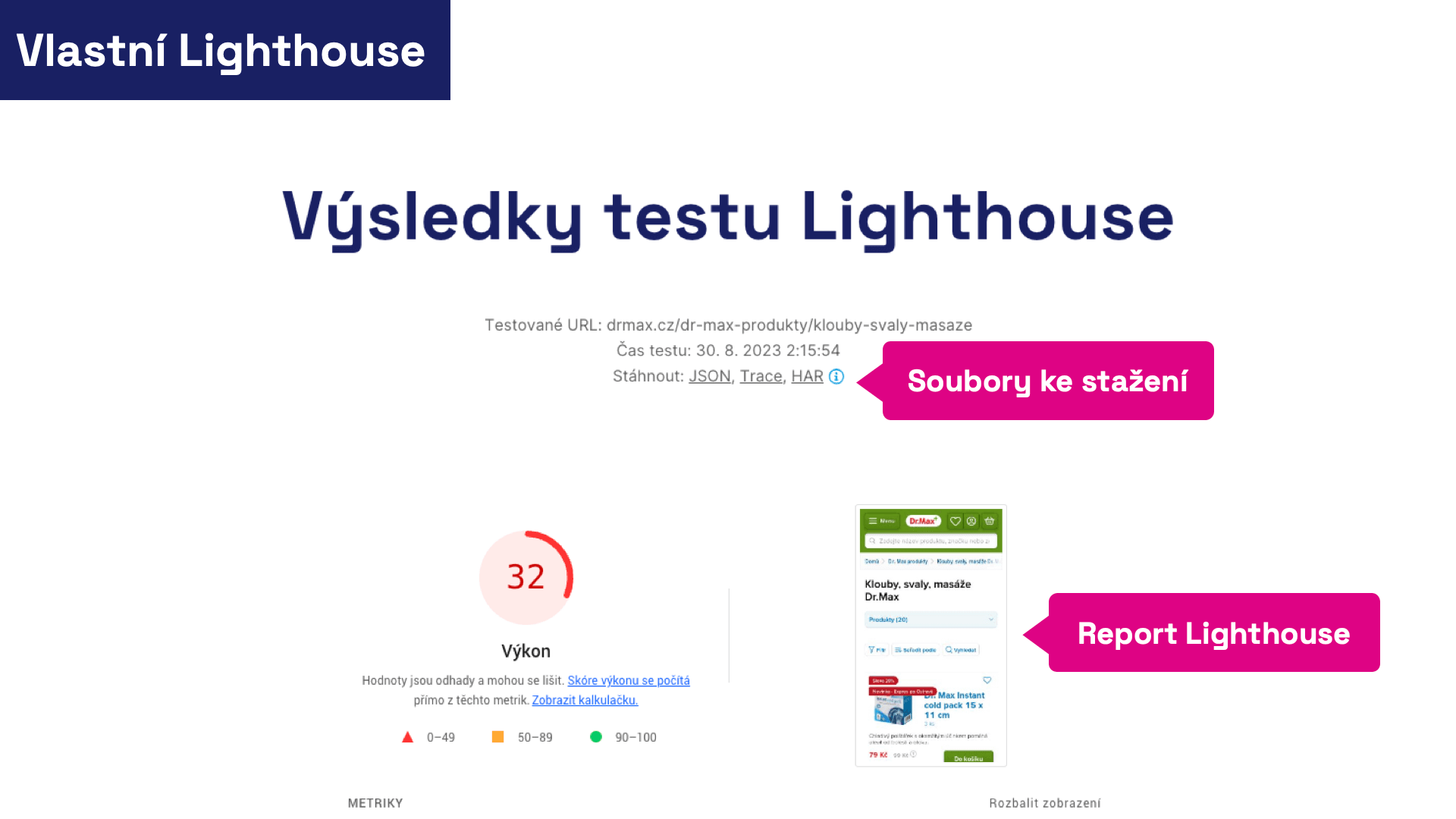 Lighthouse test results in the new version are richer with several features.
What do the mysterious acronyms JSON, Trace, and HAR on the image refer to?
All three files are essential tools for any speed optimizer when it comes to identifying causes for changes or opportunities for improvement.
- JSON: A portable output of the Lighthouse report. Open it in, for example, the Lighthouse Report Viewer or compare it with another test in Lighthouse Diff. This will be useful for comparing two speed tests in case of changes or for saving a test that shows unexpectedly positive or negative results for future needs.
- Trace: A detailed performance report of the page. It can be opened in the Performance tab within Chrome DevTools or in a tool like Trace.Café. In our web speed consultancy, we consider Trace the most crucial illustration of the actual loading speed and subsequent performance of a page.
- HAR: A report of the page's downloading. Open it in the Network tab inside Chrome DevTools. It's an auxiliary report that gives you a detailed view of potential issues in the page loading itself, including element prioritization, their source loading, the protocol used, or compression.
We're pleased to offer these beloved tools to you in the PLUS version.
How Exactly Do We Test Using Lighthouse?
Based on our experiences with other tools during web speed consultancy and numerous experiments conducted during the development of the new tester version, we've adopted the following method for testing each URL:
- Night-time Hours For short-term (days) and longer-term (months) monitoring, we consider night-time the best practice. At night, your servers are under less load, allowing us to test more calmly and see a long-term trend of speed improvement or degradation. The server response speed affects user metrics we look at, such as LCP or FCP. We find that night-time results are much more stable and reveal more about metric development over time. If night-time hours don't suit you – for instance, because tests coincide with ongoing website maintenance – you can change the test start time in the settings.
- Five Times in Quick Succession We know that one-off tests, like PageSpeed Insights in our free tests, can show very inaccurate results. Through experimentation, we identified the need to conduct five tests to eliminate most inaccuracies and achieve maximum stability in the numbers. Tests occur a few minutes apart, with precise times always visible in the Lighthouse test detail.
- Once a Day Each URL is thus tested typically within a few minutes, with these tests conducted once a day, often at night. It's important to note that our goal isn't to monitor availability, which requires much more frequent testing, but to track the development of user metrics such as LCP, CLS, or INP.
Testing is conducted on the European infrastructure of Amazon Web Services (AWS), but in the future, our tests can be conducted practically from anywhere.
"Technical" Report
Modern web speed tuning no longer primarily monitors technical indicators such as the data volume of page elements or the number of files arriving from the server.
From our experience in web speed consultancy, we know very well that even websites downloading large amounts of data can be fast for users, thanks to good optimization of first impressions.
Nevertheless, we're delighted to introduce the "Technical" report, which tracks these secondary indicators. Monitoring data volume, request count, and other metrics is worthwhile for various reasons:
- Technical metrics help find correlations between changes in user metrics (e.g., LCP, CLS, INP) and changes during web development (e.g., data volume of images or the size of blocking JavaScript).
- Saving on data volume is seen as a courtesy to users who may have limited data resources on mobile.
- Generally, the less data transferred, the more operators save on infrastructure.
In PLUS tests, you'll see the "Technical" report for all page types you add to the test settings.
As shown in the graph below, we display both the current state of the Metric and its development over time, separately for mobile and desktop.
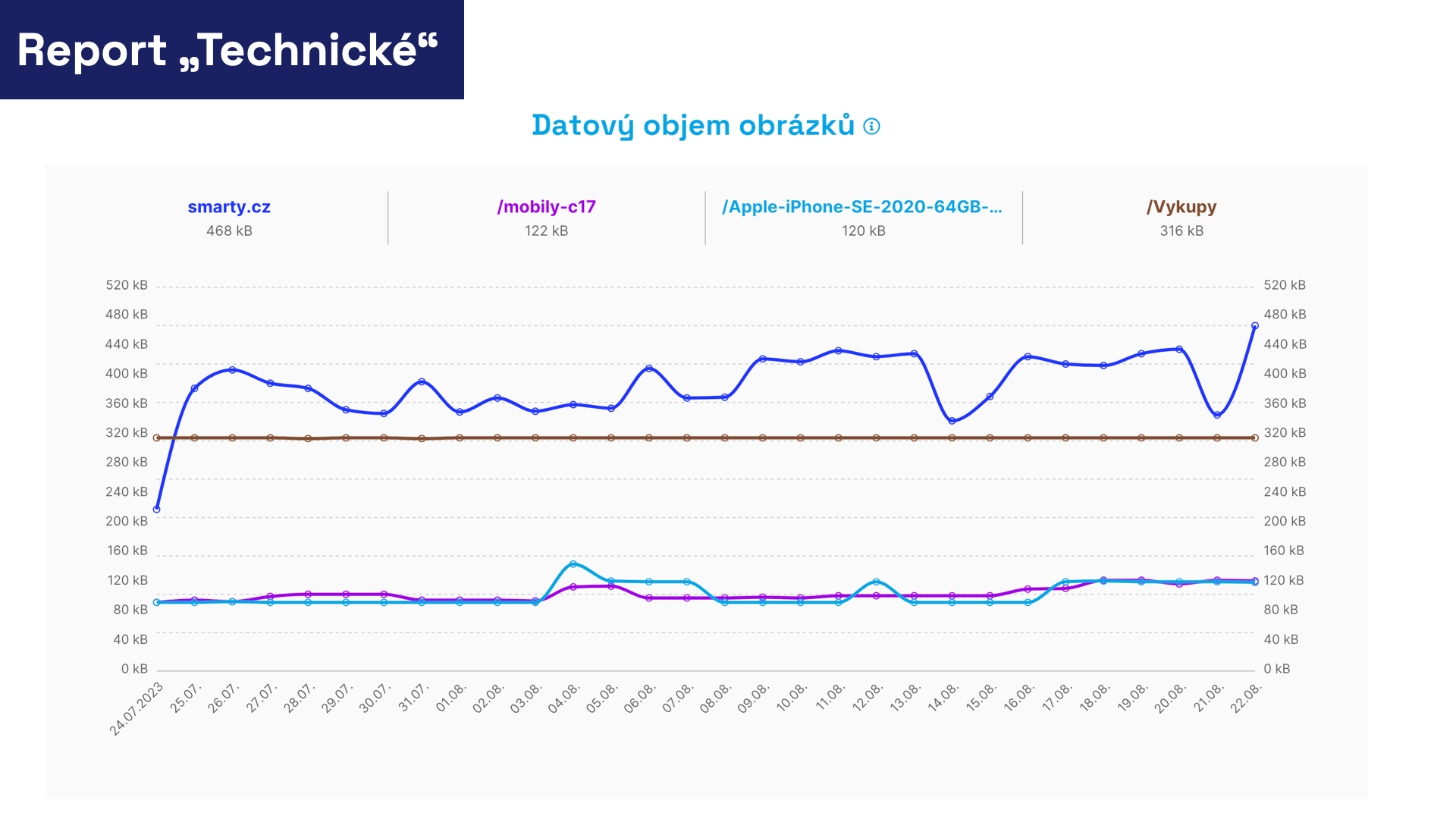 It's a bit hefty, but at least consistently hefty. It's the images.
Based on our consultancy experiences, we've included the following information in the "Technical" report:
- HTML Data Volume Development of HTML data volume for individual pages. This is the state in which HTML reached the test browser, even after Gzip or Brotli compression. The smaller the HTML data, the better. We recommend a size of up to 20 kB. It affects loading metrics like FCP or LCP.
- Number of DOM Nodes Development of the number of DOM nodes for individual pages over time. A complex DOM tree complicates JavaScript's work, potentially affecting metrics like TBT or INP. Google recommends a maximum of 1,400 DOM nodes.
- CSS Data Volume Development of CSS file data volume for individual pages over time. This is the state after potential Gzip or Brotli compression on your server. CSS is usually a resource that blocks the first render, so its size affects metrics like FCP or LCP. Ideally, keep the CSS data volume under 50 kB.
- Number of Blocking JS Development of the number of JS files that block the first render. JavaScript doesn't have to be blocking, unlike CSS. The fewer blocking JS files you have, the better for metrics like FCP or LCP.
- JS Data Volume Development of JS file data volume for individual pages over time. Here, both files blocking the first render and those not blocking are listed. The graph shows the state after potential Gzip or Brotli compression on your server. The smaller the JS, the less code there is for the browser to process and execute. It affects interaction metrics like TBT or INP. Blocking JS also affects FCP and LCP, thus the first render.
- Third-Party JS Data Volume Development of third-party JS file data volume for individual pages over time. This category includes JS executed outside your main domain, so you might even see your own files placed outside the main domain. Typically, you'll find the data volume of foreign code for components such as analytics tools, chats, A/B testing, advertising, etc. This code also affects interaction metrics like TBT or INP. Therefore, it's crucial to keep it as small as possible.
- Font Data Volume Development of font data volume for individual pages over time. Fonts are usually a resource needed for rendering content, thus affecting the LCP metric. We recommend keeping their data volume under 50 kB.
- Image Data Volume Development of image data volume for individual pages over time. Images are often a resource needed for rendering content, thus they can affect the LCP metric. We recommend keeping the data volume for each page under 100 kB.
- Total Data Volume Development of the total data volume of all downloaded files for individual pages over time. The total data volume may not affect metrics and user experience, but we still recommend keeping it around 0.5 MB for each page.
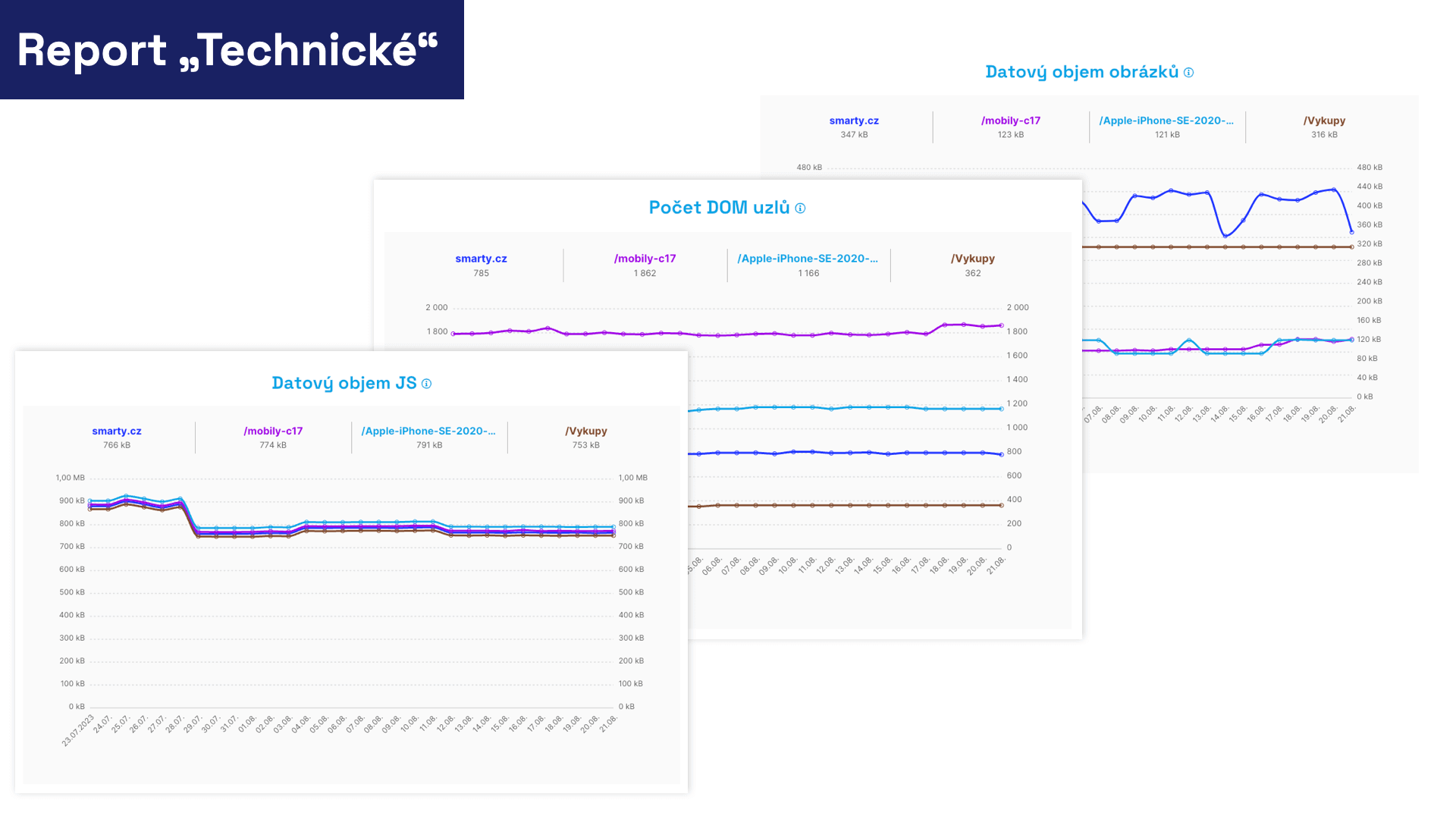 Some of the technical indicators we monitor. There are even more in the actual report.
Monitoring technical indicators can be crucial when you decide to focus on one of the above metrics or a specific type of page.
Graph Annotations
During web development, many changes occur that affect speed and metrics.
Graph annotations in our speed tester allow you to record significant moments in the web's development history, making it easier to trace potential improvements or deteriorations in metrics. These could include events such as:
- Deploying a redesigned version of the website.
- Making significant backend changes.
- Implementing a specific speed optimization.
- Adding a new third-party component to the site.
- Changing measurement by altering the tracked URLs.
In the PLUS version, you can add an annotation to any day in any graph:
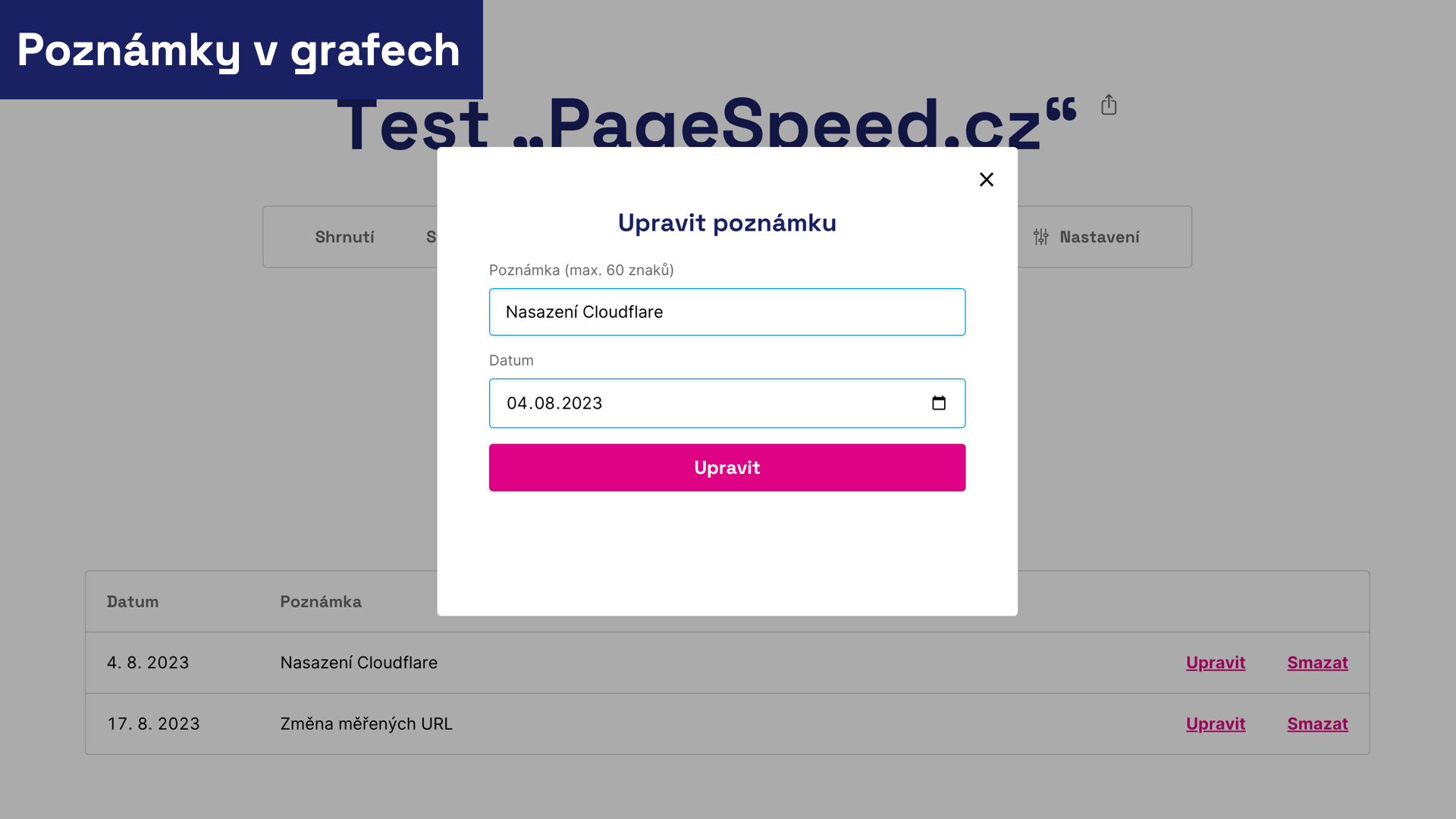 Did you deploy Cloudflare? A crucial change must be noted in the web's history.
In the graphs, you'll see these significant changes, providing you with a vital context for your further work and evaluation of adjustments.
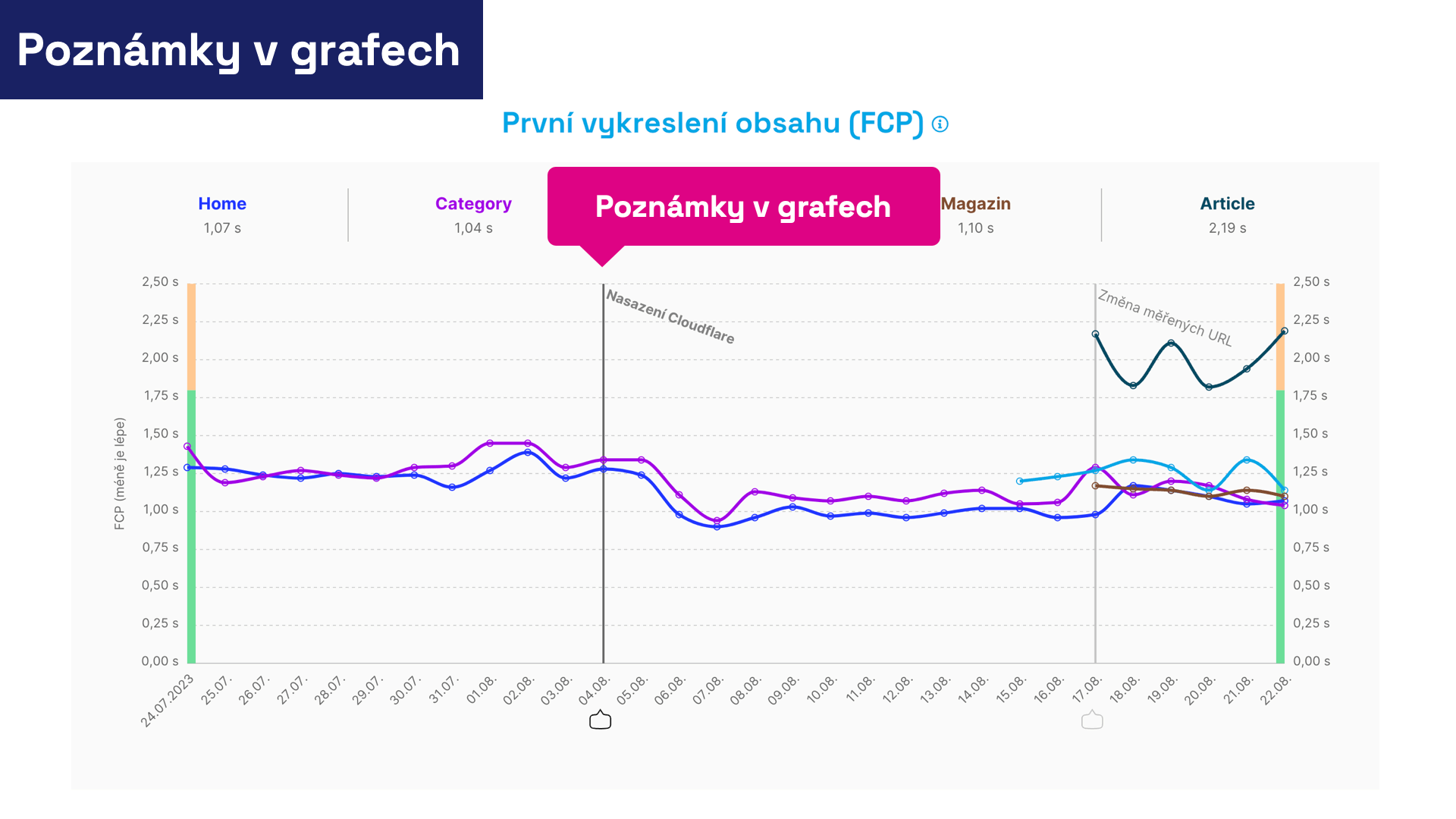 Something changed. Did it affect speed metrics?
In conclusion, here are some recommendations for working with annotations:
- Only insert significant changes that impact speed. If you publish a new version of the website several times a week, there's no need to add a note every time. You might soon lose track of the data in the graphs.
- Don't forget changes outside the technical development of the website: design tweaks, third-party component deployments, A/B testing, and so on.
- Don't hesitate to insert notes retrospectively if you notice significant changes in metric graphs. These notes best explain the impact of each change and teach you to evaluate the influence of future adjustments.
- Remember to add a note when you change test settings. Any addition or change of URL will affect, for example, the graphs and alerts from the Speed Watchdog.
Annotations are a relatively inconspicuous but highly useful tool for anyone concerned with the speed development of their websites.
Other Innovations in the PLUS Version
5 Thoroughly Tested URLs
We recommend adding detailed testing of one website into a single PLUS test. If your site has multiple language versions, we suggest including URLs of all major page types of the most important website.
Each URL is tested in detail every day. We collect data using Lighthouse tests running on our infrastructure, as well as from public Chrome UX Report data.
Tested addresses also serve as a source for regular speed checks using the Watchdog.
5 Tested Domains
In addition to detailed tests, we allow you to track user data from the Chrome UX Report for other domains.
This is handy if your site has multiple language versions in the form of second-level domains or subdomains, like third-level domains. You can also monitor your competitors' results here.
If you need to track more domains, we recommend adding free tests to your team's dashboard, which also allow this.
Ability to Change Testing Time
Our free tests don't allow you to change the test times, which is inconvenient if you don't want testing to coincide with ongoing nightly maintenance, for example.
In the PLUS test, you can therefore choose an approximate test start time and avoid maintenance.
Annual Data History
While free tests only track and display a three-month data history, PLUS tests allow you to view up to a year's data history, with data archived even longer.
Non-Public Addresses
We don't hide data in free tests from people or bots like Googlebot. In paid tests, we protect your privacy, and your report URLs are not accessible.
However, data in a report can be shared with unregistered colleagues via a special sharing URL.
Check out other features of the PLUS tests.